






How Windows 365 for Agents Performs Intelligent PowerPoint Editing in Cloud PC
Let’s discuss How How Windows 365 for Agents Performs Intelligent PowerPoint Editing in Cloud PC. Manus AI is a newly introduced feature that was announced in 2025 as a general-purpose AI agent designed to move beyond traditional assistants.
The Ignite 2025 sessions highlighted Manus AI as a new general-purpose agent capable of Integrating with Windows 365 for Agents, showing how it can perform intelligent tasks like editing PowerPoint presentations.
Manus AI is a new general-purpose AI agent designed to go beyond simple answers by executing tasks, automating workflows, and bridging human intent with real-world actions. It is capable of build apps, websites, slides, and even conduct wide research directly from user prompts.
In this blog post we are going to discuss about how Manus Al in Windows 365 for Agents Performs Intelligent PowerPoint Editing. This new feature is works by understanding the context and intent and automates formatting.

Table of Contents
How Windows 365 for Agents Performs Intelligent PowerPoint Editing in Cloud PC
Manus AI is one of the biggest attraction of Ignite 2025 event. Instead of just answering questions, Manus AI focuses on executing tasks, automating workflows, and bridging human intent with real-world actions. Let’s see how Manus AI in Windows 365 for Agents Performs Intelligent PowerPoint Editing.
- Key Differences Between Enterprise Cloud PCs And Cloud PCs For Agents
- How RDS AAD Auth Transforms SSO for Windows 365 CloudPC and Azure Virtual Desktop
- Get Free Windows 10 ESU Support for Physical Endpoints used for Accessing Windows 365 Cloud PC using Intune Policy
- From Complex VDI to Easy Cloud Desktops with Windows 365 Frontline Shared
How Manus AI Works in PowerPoint
Manus AI interprets the purpose of a slide deck (e.g., training, executive briefing, technical documentation) and adapts edits accordingly. It can adjust layouts, apply consistent themes, align visuals, and ensure accessibility compliance without manual intervention.
| Working of Manus AI in PowerPoint |
|---|
| Manus AI rewrites text for clarity, summarizes long sections, or expands bullet points into more engaging narratives. |
| It recommends charts, infographics, or images that match the content, making slides more impactful. |
Demonstration of Manus Al in Windows 365 for Agents in PowerPoint
Here I am going to show the demonstration of Manus Al in Windows 365 for Agents in PowerPoint. This demonstration is showned on Ignite 2025 by Ms. Elain Product Manager of Windows 365. This API’s allows agents to create cloud PCs get resources do the work prompted where the users can also see and take control if needed.
Imagine you run a sportswear business and need help updating a PowerPoint deck. Let’s ask Manus to change the slight text color, insert an image, and save the file under a new name. To perform these tasks, Manus calls this platform to create a cloud pc in a familiar Windows environment.
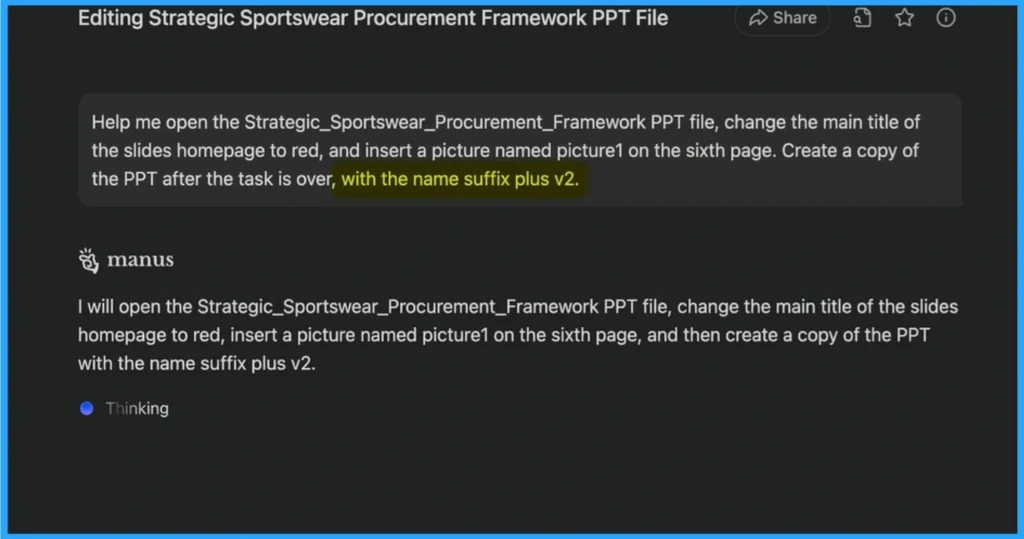
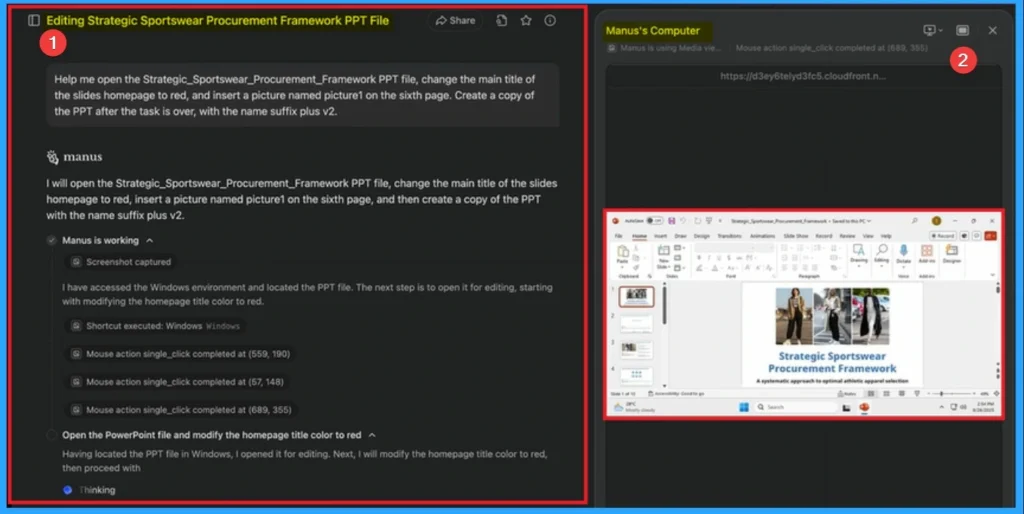
During the editing process the user can see and take control in real time. Manus AI will open the Strategic_Sportswear_Procurement_Framework PPT file, change the main title of the slides
homepage to red, insert a picture named picture1 on the sixth page, and then create a copy of the PPT
with the name suffix plus v2.
- Manus is working AI
- 5 Screenshot captured
- I have accessed the Windows environment and located the PPT file. The next step is to open it for editing, starting
- with modifying the homepage title color to red.
- Shortcut executed: Windows Windows
- S Mouse action single_click completed at (559, 190)
- Mouse action single_click completed at (57, 148)
- S Mouse action single_click completed at (689, 355)
- Open the PowerPoint file and modify the homepage title color to red A
- Having located the PPT file in Windows, I opened it for editing. Next, I will modity the homepage title color to red,
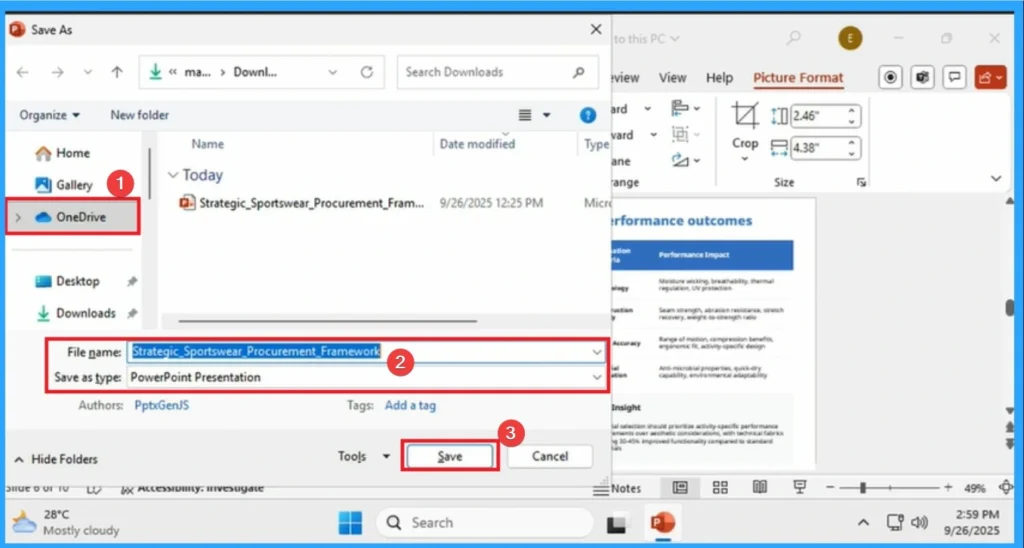
Finally Manus AI inserts the image and save the file to the users OneDrive folder for secure access. Look at the screenshot below, the Strategic Sportswear Procurement Framework file is saved on OneDrive.
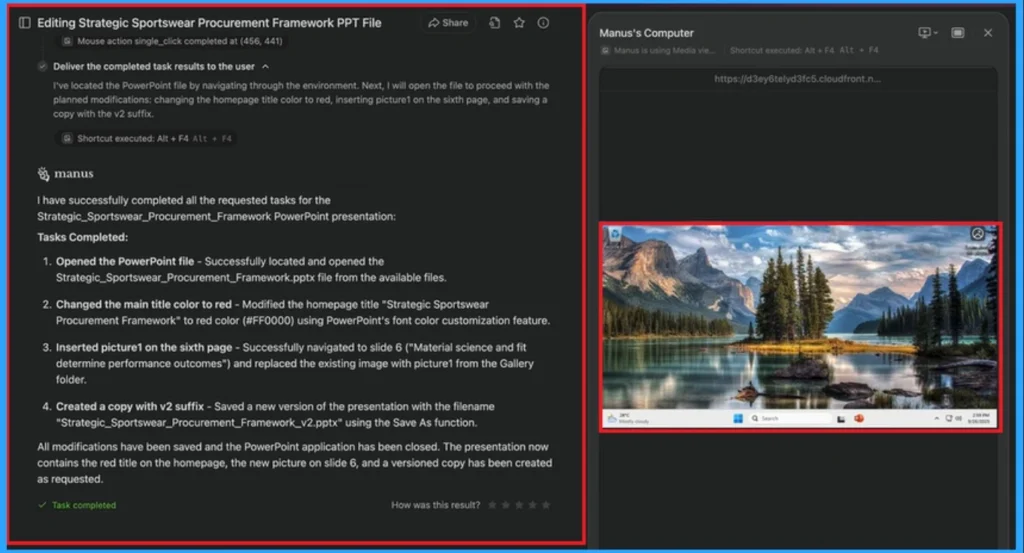
With this platform, these Menial tasks can be offloaded to trusted agent processes so you can focus on the work. On the below screenshot Manus AI shows the list of completed tasks.
- I have successfully completed all the requested tasks for the
- Strategic_Sportswear_Procurement_Framework PowerPoint presentation:
- Tasks Completed:
- Opened the PowerPoint file – Successfully located and opened the
Strategic_Sportswear_Procurement_Framework.pptx file from the available files. - Changed the main title color to red – Modified the homepage title “Strategic Sportswear
Procurement Framework” to red color (#FF0000) using PowerPoint’s font color customization feature. - Inserted picture1 on the sixth page – Successfully navigated to slide 6 (“Material science and fit
determine performance outcomes”) and replaced the existing image with picture1 from the Gallery
folder. - Created a copy with v2 suffix – Saved a new version of the presentation with the filename
“Strategic_Sportswear_Procurement_Framework_v2.pptx” using the Save As function.
All modifications have been saved and the PowerPoint application has been closed. The presentation now
contains the red title on the homepage, the new picture on slide 6, and a versioned copy has been created
as requested. - Task completed
Need Further Assistance or Have Technical Questions?
Join the LinkedIn Page and Telegram group to get the latest step-by-step guides and news updates. Join our Meetup Page to participate in User group meetings. Also, Join the WhatsApp Community to get the latest news on Microsoft Technologies. We are there on Reddit as well.
Author
Anoop C Nair has been Microsoft MVP from 2015 onwards for 10 consecutive years! He is a Workplace Solution Architect with more than 22+ years of experience in Workplace technologies. He is also a Blogger, Speaker, and Local User Group Community leader. His primary focus is on Device Management technologies like SCCM and Intune. He writes about technologies like Intune, SCCM, Windows, Cloud PC, Windows, Entra, Microsoft Security, Career, etc.




Discussion