






How iOS Supervision Controls VPN Configuration for Better Security
Hey, let’s discuss about How iOS Supervision Controls VPN Configuration for Better Security. This policy controls whether users can create VPN configurations on their iPhones or iPads. When the policy is set to false, the device will block users from adding new VPN settings. It gives the organization better control over network access.
VPNs are used to connect to private networks safely over the internet. If someone creates a VPN without permission, they might reach websites or systems that the organization does not allow. They could also hide their online activity from security checks. By blocking new VPN setups, this policy ensures the network remains secure and follows company rules.
This policy only works on supervised devices, which means the devices are fully managed by a school, company, or organization. Supervision gives administrators more control over settings and restrictions. This makes sure the device follows the correct security policies and is used only for trusted and approved purposes.
The policy is supported on iOS 11 and later versions, which covers most devices used today. Since Apple regularly updates its operating system, this policy continues to work on newer versions as well. This helps organizations maintain consistent and strong security on all their managed Apple devices.

How iOS Supervision Controls VPN Configuration for Better Security
This policy provides better protection for supervised devices by preventing users from making risky network changes. It reduces chances of data theft or security attacks through unknown VPN connections. It gives IT administrators confidence that the device stays secure and always follows the organization’s internet and security guidelines.
- Allow or Block VPN Roaming Over Cellular in Connectivity using Intune Policy
- Microsoft Going to End Support for Old VPN Protocols PPTP and L2TP | Use SSTP and IKEv2 for Security
- Easy Guide to Deploy Azure VPN Client Microsoft Store App using Intune
How this Helps Supervised Devices
This policy helps supervised devices by stopping users from adding their own VPN settings. Only the school or company can set the VPN. This keeps the device safe from hackers and unwanted apps. It makes sure the device always uses the correct and secure network chosen by the organization.
Create a Profile
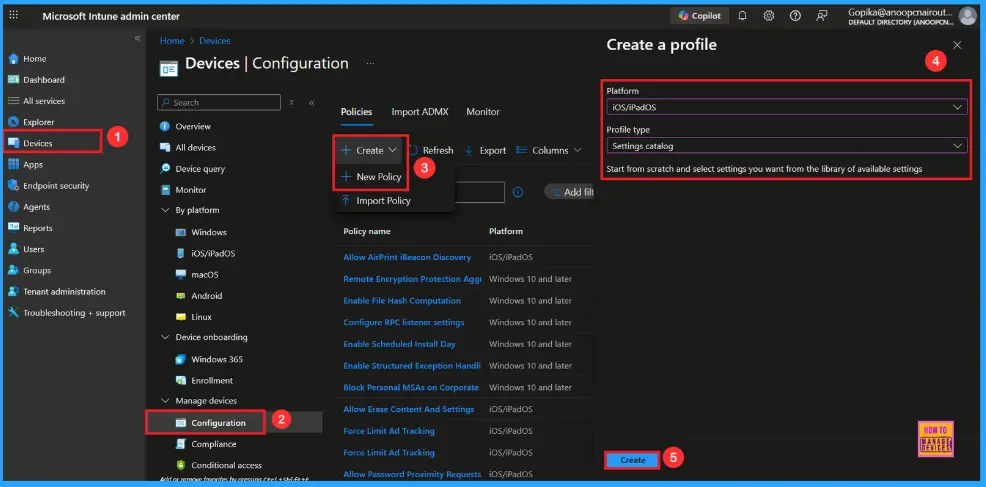
First sign in to the Microsoft Intune admin center. Go to Devices and select Configuration profiles. Then click Create profile to open the profile creation window. Select platform and profile type then, click Create to begin configuring your new policy.
| Steps | Details |
|---|---|
| Platform | iOS/iPadOS |
| Profile Type | Settings Catalog |
First Step
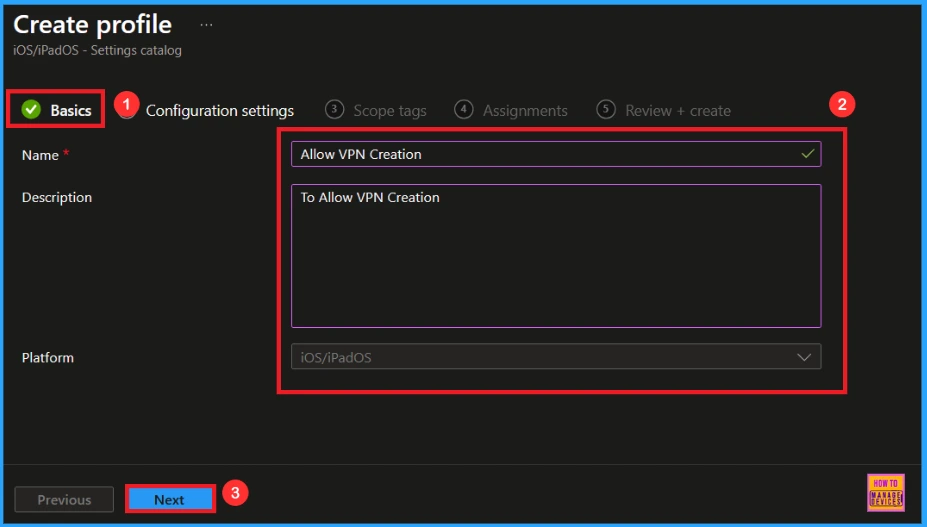
To begin configuring a policy in Intune, start with the Basics step. Here, we can add the name(Allow VPN Creation) of the policy and give a brief description(To allow VPN Creation). Then click Next to continue.
Configuration Settings
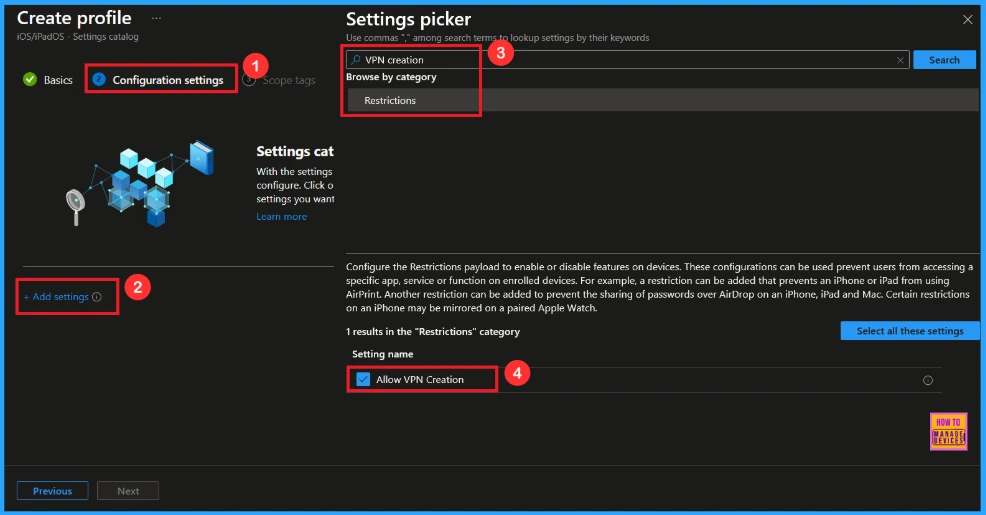
In the Configuration settings tab, click the Add settings button to open the Settings picker. Search the category Restrictions or type VPN creation. Then, select the the setting Allow VPN creation.
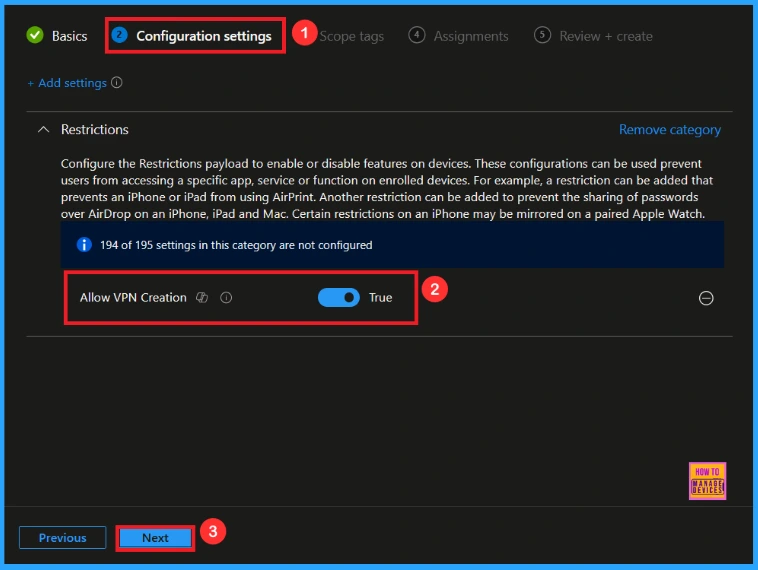
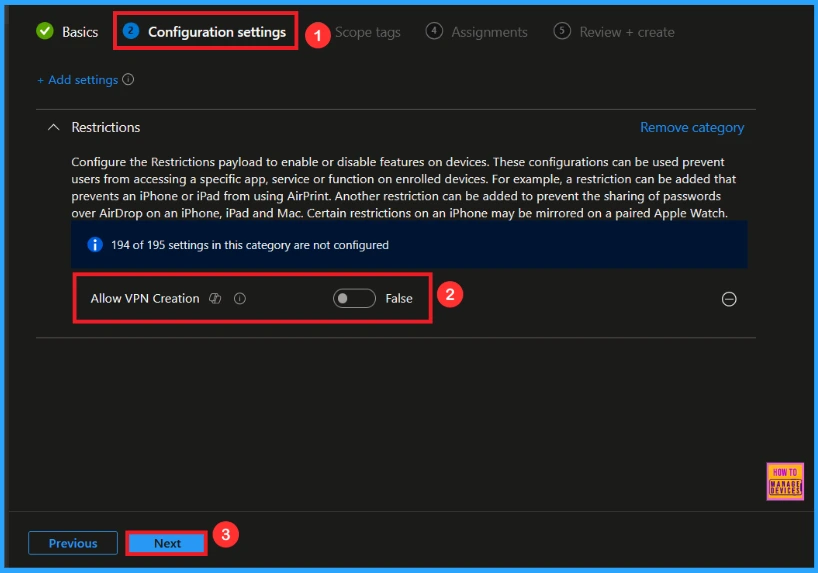
Once you have selected this and closed the Settings picker. You will see it on the Configuration page. Here we have only two settings: True or False. By default, this will be set to True. If you want to Allow these settings, click on the Next button.
Block VPN Creation
If we blocked or false this policy, you can block the VPN Creation policy by y toggling the switch. Then you can click the Next button to proceed.
Scope Tag
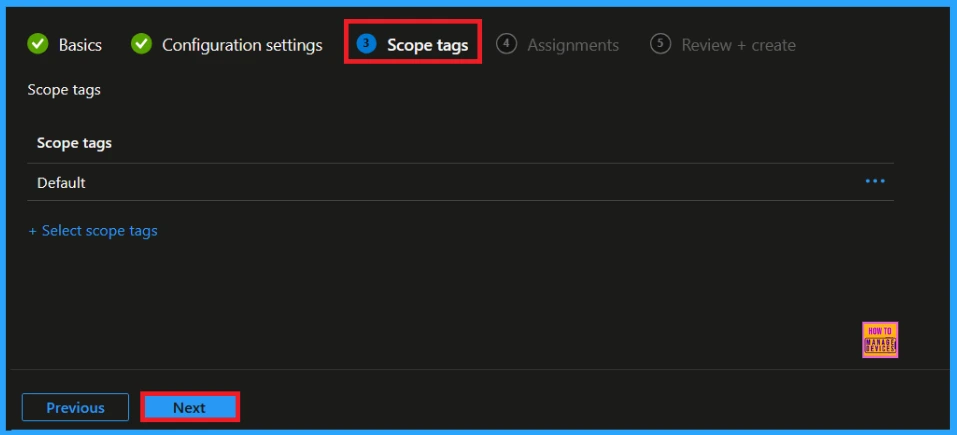
In Intune, Scope Tags are used to control who can view and modify a policy. The scope tag is not mandatory, so you can skip this section. It functions as a tool for organisation and access management, but assigning it is optional. Click Next to continue.
Assignments
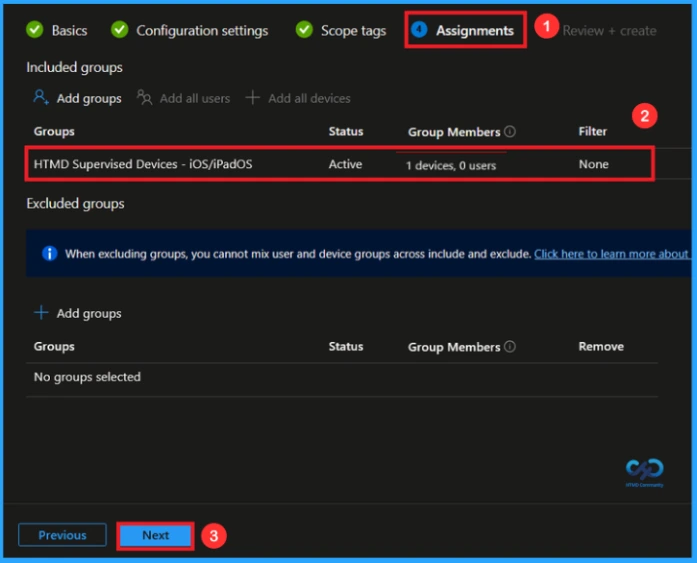
In the Assignments tab, you choose the users or devices that will receive the policy by clicking Add Group under Include Group, select the group that you want to target (e.g HTMD Supervised Devices – iOS/iPadOs) and then click Next to continue.
Last Step
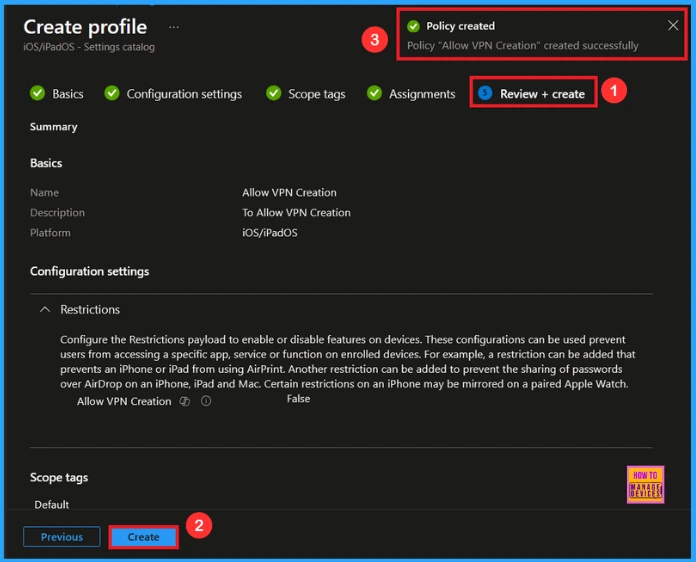
At the final Review + Create step, we see a summary of all configured settings for the new profile; after reviewing the details and making any necessary changes by clicking Previous. We click Create to finish, and a notification confirms that the “Allow VPN Creation created successfully”.
Device Check-in Status
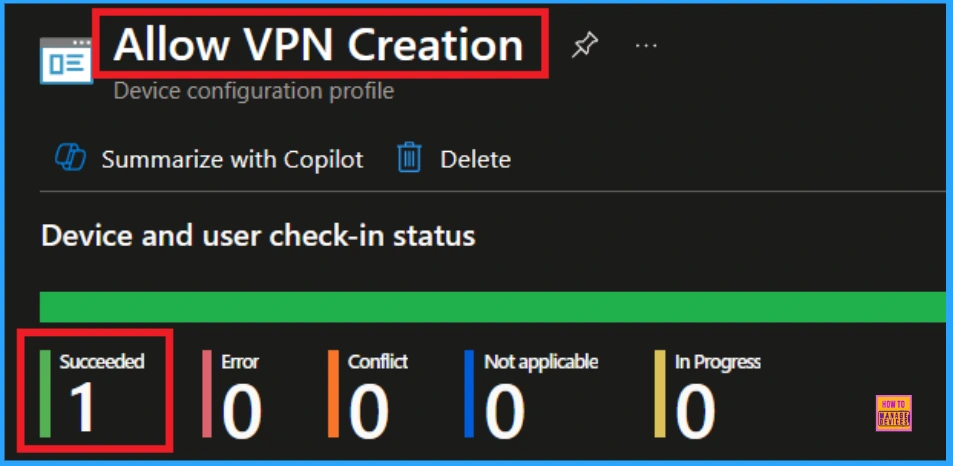
When the policy is created successfully, you can sync the device on the Company portal for faster deployment. After syncing is completed, you can check the status on the Intune Portal. Go to Devices > Configuration and search for the policy.
How to Check on End User Device
To check this policy on an end user device, go to Settings and open the VPN & Device Management section. Try to add a new VPN profile. If the option to create or add a VPN is blocked or not visible, it means the policy is active on the supervised device. This confirms that users cannot set up their own VPN connections.
How to Remove Assigned Group from VPN Creation Policy
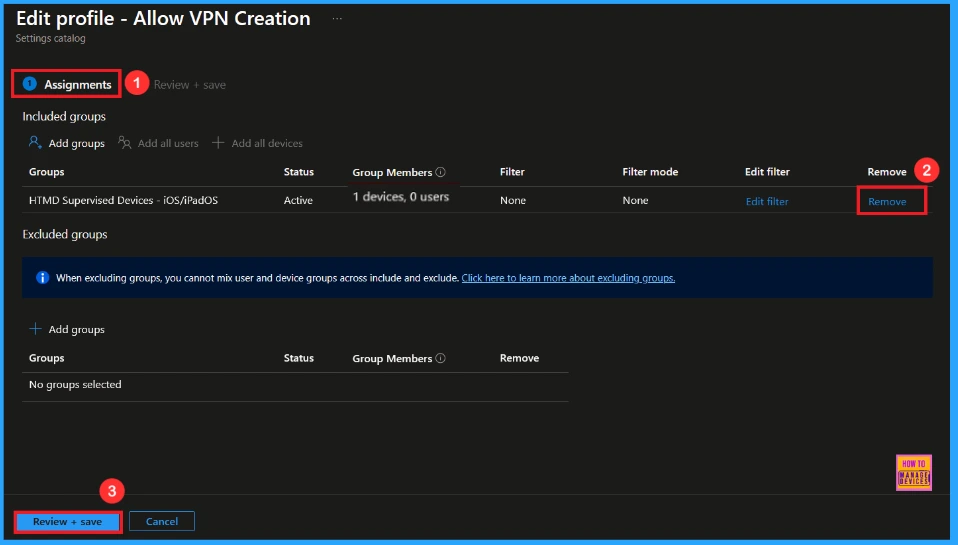
After creating the policy, if you want to remove the specific group that you previously selected, you can easily do that. First, go to Devices > Configuration policies. In the Configuration policy section, search and select the policy. In the Assignment section, you will find an Edit option and click on it. Then, click the Remove option.
For detailed information, you can refer to our previous post – Learn How to Delete or Remove App Assignment from Intune using by Step-by-Step Guide.
How to Delete VPN Creation Policy from Intune
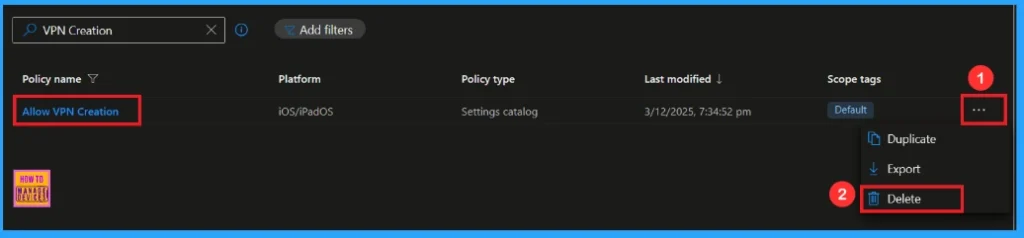
If you want to delete this policy for any reason, you can easily do so. First, search for the policy name in the configuration section. When you find the policy name, you will see a 3-dot menu next to it. Click on the 3 dots, then click the Delete button.
For detailed information, you can refer to our previous post – How to Delete Allow Clipboard History Policy in Intune Step by Step Guide.
Need Further Assistance or Have Technical Questions?
Join the LinkedIn Page and Telegram group to get the latest step-by-step guides and news updates. Join our Meetup Page to participate in User group meetings. Also, Join the WhatsApp Community to get the latest news on Microsoft Technologies. We are there on Reddit as well.
Author
Anoop C Nair has been Microsoft MVP from 2015 onwards for 10 consecutive years! He is a Workplace Solution Architect with more than 22+ years of experience in Workplace technologies. He is also a Blogger, Speaker, and Local User Group Community leader. His primary focus is on Device Management technologies like SCCM and Intune. He writes about technologies like Intune, SCCM, Windows, Cloud PC, Windows, Entra, Microsoft Security, Career, etc


Discussion