






Strengthening Windows Security by Disabling Anonymous SAM Enumeration using Intune Policy
Today we are discussing, Strengthening Windows Security by Disabling Anonymous SAM Enumeration using Intune policy. This policy focuses on protecting Windows systems from anonymous access to sensitive account information stored in the Security Accounts Manager (SAM).
SAM contains local user and group account details, which are critical components of system security. If anonymous users are allowed to enumerate these accounts, it can expose valuable information that attackers can misuse. Enabling this policy helps ensure that only authenticated users can view or interact with account-related data.
In many environments, anonymous connections are not required for normal business operations. However, if left unrestricted, they can become an easy entry point for attackers. Anonymous enumeration allows someone on the same network to collect account names without logging in, which significantly lowers the effort needed to plan further attacks. This policy is designed to close that gap and reduce unnecessary exposure.
From a security baseline perspective, this setting aligns with modern Windows security standards and CIS Level 1 recommendations. It reflects a “secure by default” approach, where systems deny unnecessary access unless there is a clear business requirement. Since the default value is already enabled on most modern systems, enforcing it through Intune ensures consistency across all managed devices.

Table of Contents
Strengthening Windows Security by Disabling Anonymous SAM Enumeration using Intune Policy
The importance of this policy becomes clearer when considering common attack techniques. Attackers often begin with reconnaissance, and knowing valid account names is a major advantage for password-guessing or brute-force attacks. By blocking anonymous enumeration of SAM accounts, the organization removes one of the earliest and easiest steps attackers rely on. This makes subsequent attacks harder and more time-consuming.
- How to Set Deadline for Automatic Installation of Quality Updates on Windows Devices using Intune
- How to Track Windows Security Patch Installation Details using Intune Inventory
- How to Stop Automatic Driver Installation in Windows11
Create Profile
First, you need to configure this policy. Start by signing in to the Microsoft Intune Admin Center. Then, click on Devices. Under the Devices section, go to the Configuration tab, where you will find a + Create option. Click on it, and you will see 2 options, such as the new policy and the Import policy.
- Select New policy, and this will open a new window titled Create a profile.
- Here, you need to enter the Platform and Profile type details.
- After that, click Create.

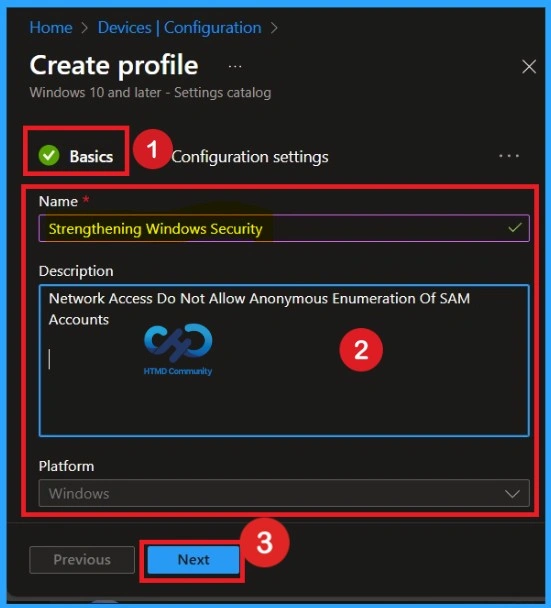
Basics Page – Profile Name and Description
Basics section of the profile creation process includes the profile name Strengthening Windows Security clearly indicates the purpose of the configuration. The description explains that the policy disables anonymous enumeration of SAM accounts. The Basics tab is the quickest step. Here, you need to enter the basic details such as the Name, Description, and Platform information. Since the platform is already set to Windows, you only need to provide a specific name and description for the policy, then click Next.
Configuration Settings
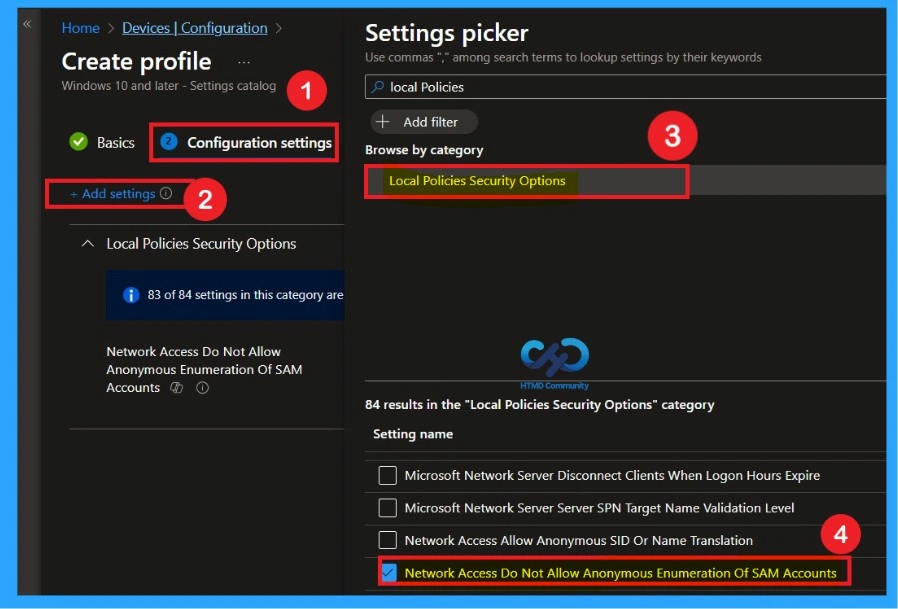
The next step is to configure the policy settings. On the Configuration settings page, you will see a + Add settings option. Click on this option to open the Settings picker window. In the Settings picker, use the search box and type Local Policies because the policy related to SAM accounts is located under this category.
When you select Local Policies Security Options, a list of available security policies will appear. From this list, choose Network access: Do not allow anonymous enumeration of SAM accounts. Selecting this option ensures that the correct policy is added to the configuration profile for further setup.
Disable the Policy
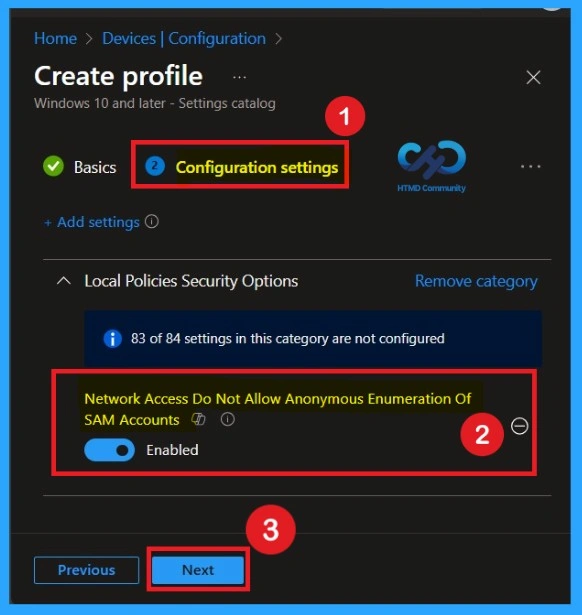
After closing the settings picker, you can see that policy on the Configuration page. You will see that the policy has appeared on your screen. By default, this policy is disabled. If you want to continue with this default setting, you can click Next.
- When this policy disabled No additional restrictions. Rely on default permissions. Default on workstations

Enable the Policy
Enabling this policy strengthens overall security without affecting daily operations. There is no negative impact on modern systems or applications, as legitimate users authenticate normally. This makes the policy low-risk but high-value, which is why it is recommended as a Level 1 CIS control suitable for almost all environments. For enabling toggle, the bar left to right and click on the Next.
| Enable the Policy | Disable the Policy |
|---|---|
| Left to Right the Toggle bar | Right to Left the Toggle bar (Default) |
What is Scope Tags
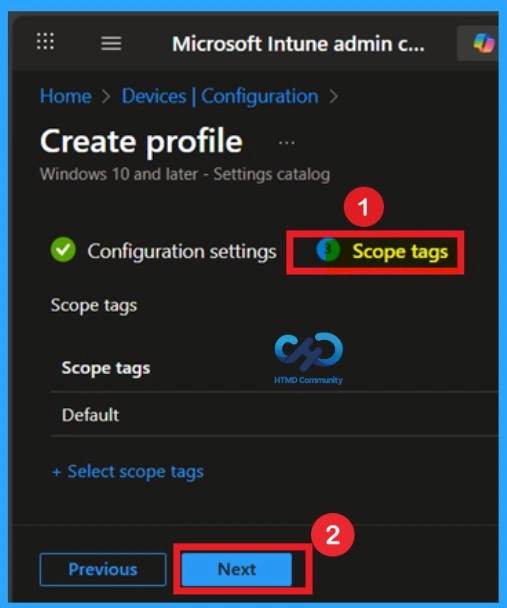
Now your are on the Scope tags section. Scope tags are used to assign policies to specific admin groups for better management and filtering. If needed, you can add a scope tag here. However, for this policy, I chose to skip this section
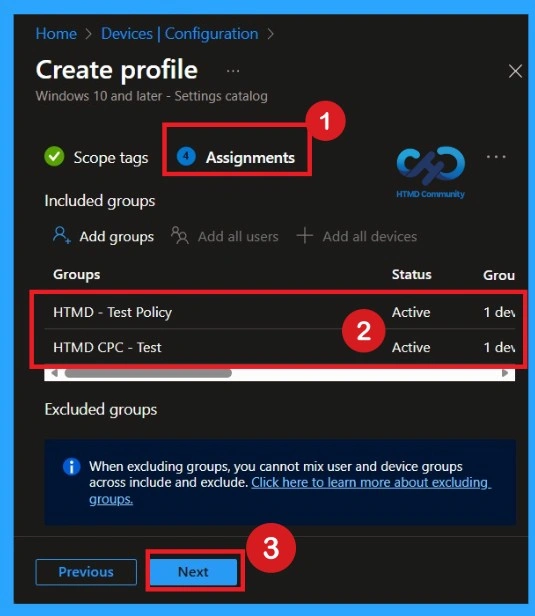
Assignment Tab for Selecting Group
To assign the policy to specific groups, you can use the Assignment Tab. Here I click, +Add groups option under Included groups. I choose a group from the list of groups and click on the Select button. Again, I click on the Select button to continue.
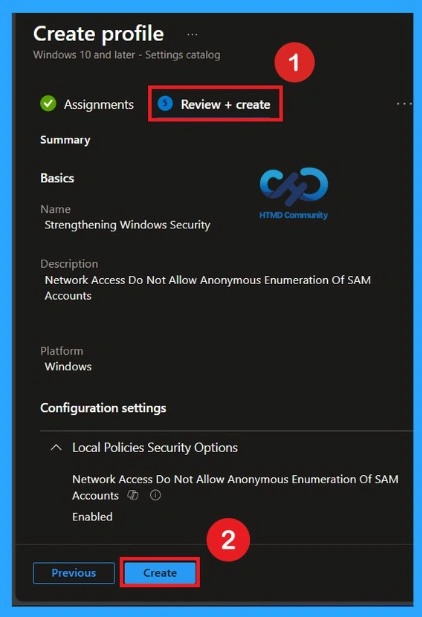
Review + Create Tab
Before completing the policy creation, you can review each tab to avoid misconfiguration or policy failure. After verifying all the details, click on the Create Button. After creating the policy, you will get a success message.
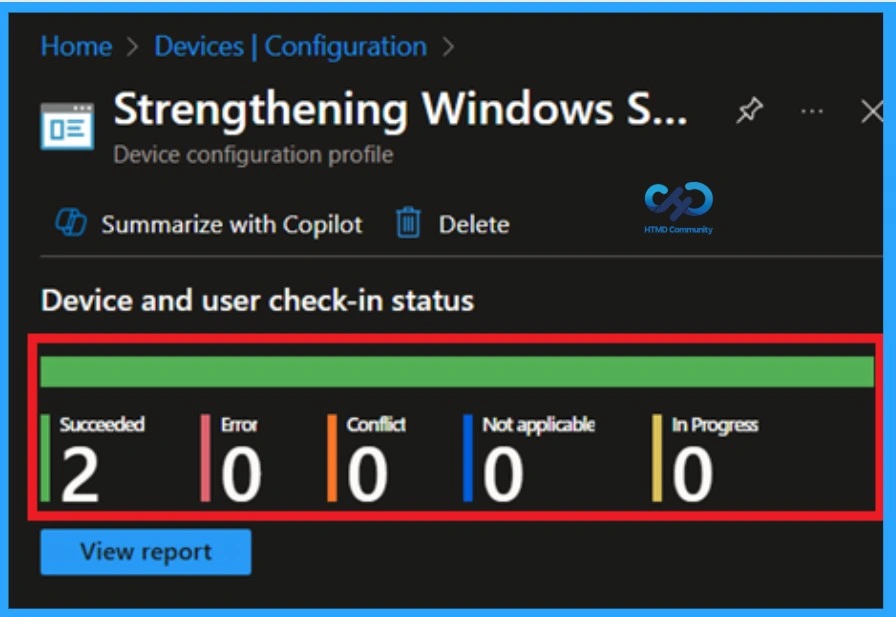
Monitor Status
Monitoring a policy’s status after its creation is crucial to ensuring successful implementation and detecting potential errors or conflicts. To check the status, go to the Devices section, navigate to Configurations, and search for the policy you created. Once located, click on the policy to view a status overview. You must wait around 8 hours to receive the monitoring results.
- However, you can speed up this process using the company portal sync option. Otherwise it take 8 hours to get the policy results.
Remove the Assigned Policy Group
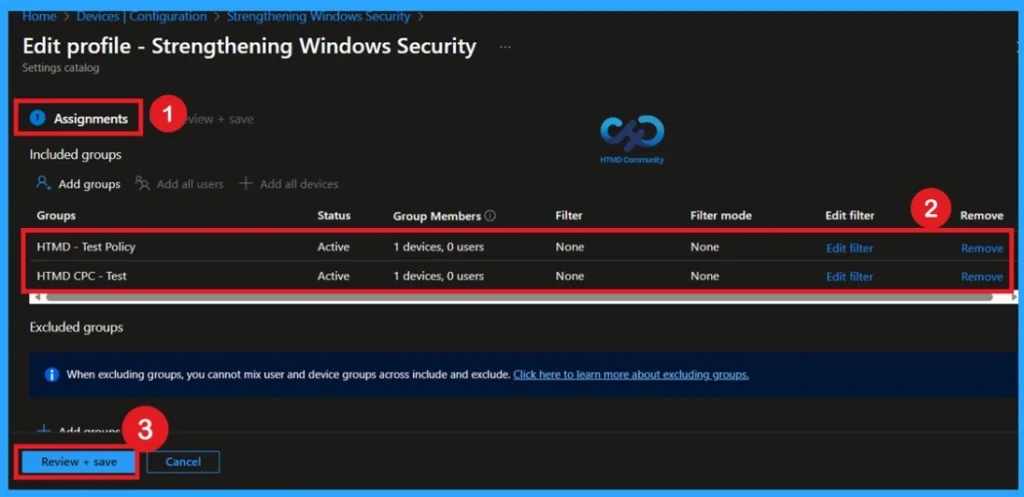
Removing a group from a policy is very simple. First, go to the Monitoring status page and scroll down until you see the Assignments Edit option. Click on it, and you will be taken directly to the Assignments section that you had previously configured. Here, you will find the Remove option.
For detailed information, you can refer to our previous post – Learn How to Delete or Remove App Assignment from Intune using by Step-by-Step Guide.
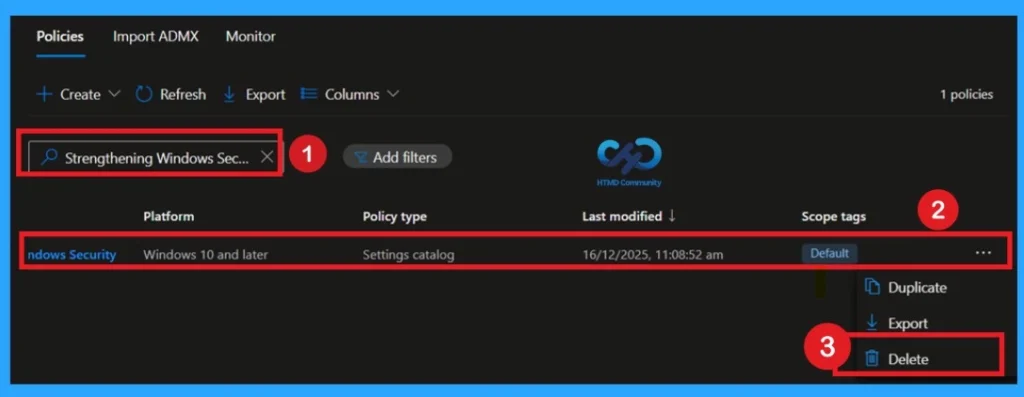
How to Delete the Policy that you Created
To delete a policy in MS Intune first sign in to the Microsoft Intune Admin Center. Navigate to Devices and then select Configuration. Locate and select the specific policy you want to remove. Once you’re on the policy details page, click the 3 -dot menu in the top right corner and choose Delete from the available options.
For more information, you can refer to our previous post – How to Delete Allow Clipboard History Policy in Intune Step by Step Guide.
End User Result
After this policy is enabled using Intune, anonymous users will no longer be able to view or list local or domain account names stored in the Security Accounts Manager (SAM). For end users, there will be no visible change in daily system usage, login process, or access to resources. The device continues to work normally, but security is improved in the background by preventing attackers.
Need Further Assistance or Have Technical Questions?
Join the LinkedIn Page and Telegram group to get the latest step-by-step guides and news updates. Join our Meetup Page to participate in User group meetings. Also, join the WhatsApp Community to get the latest news on Microsoft Technologies. We are there on Reddit as well.
Author
Anoop C Nair has been Microsoft MVP for 10 consecutive years from 2015 onwards. He is a Workplace Solution Architect with more than 22+ years of experience in Workplace technologies. He is a Blogger, Speaker, and Local User Group Community leader. His primary focus is on Device Management technologies like SCCM and Intune. He writes about technologies like Intune, SCCM, Windows, Cloud PC, Windows, Entra, Microsoft Security, Career, etc.


Discussion