






Enhancing Windows Security by Controlling Web Publishing Providers using Intune
Hey, let’s discuss about Enhancing Windows Security by Controlling Web Publishing Providers Using Intune. This policy controls whether users can use the Web Publishing Providers Wizard on Windows devices. This wizard allows users to publish or upload files to web locations directly from their device. By managing this policy, organizations can decide if this feature should be available or blocked.
When this policy is enabled, the Web Publishing Providers Wizard is restricted or turned off. This means users cannot publish content to web services using this built-in Windows feature. It helps organizations control how and where data is shared.
If the policy is disabled or not configured, users can access the wizard and publish files to supported web locations. This may increase flexibility for users but can also create security and data-leak risks if not monitored properly.
This policy is important for security because it helps prevent users from sharing company data to unknown or unapproved web services. By limiting this wizard, organizations reduce the chances of accidental or unauthorized data uploads.

What are the Advantages of Enabling this Policy
1. Helps prevent accidental or unauthorized data uploads
2. Provides better control over how users publish files
3. Improves overall data security on Windows devices
4. Reduces the risk of data leakage to external websites
5. Supports compliance with organizational security policies
Enhancing Windows Security by Controlling Web Publishing Providers Using Intune
Organizations can manage this policy easily using Microsoft Intune. Intune allows IT admins to apply this setting across multiple Windows devices, ensuring consistent security and better control over data sharing.
- Managing Visibility of the Ransomware Data Recovery Area in Windows Security
- Dual-Boot Systems Issue with Linux Booting after Installing Windows Security Updates
- Show Hide Device Performance Health Report in Windows Security in Windows 11
Create a Profile
To deploy this policy through Microsoft Intune, first sign into the Microsoft Intune admin center. Next, navigate to Devices > Configurations. On the right side, you will see the option for create; select that and then click on New Policy.
| Platform | Profile Type |
|---|---|
| Windows 10 and later | Settings Catalog |
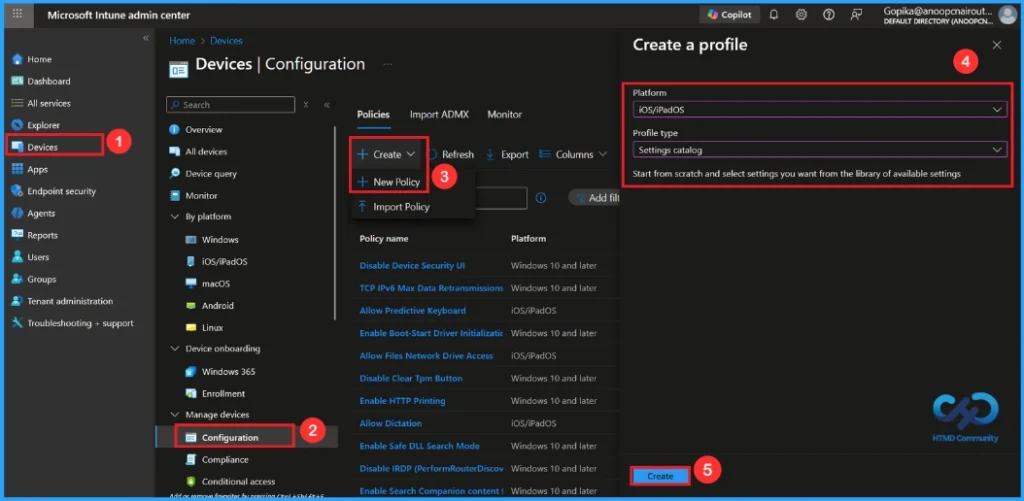
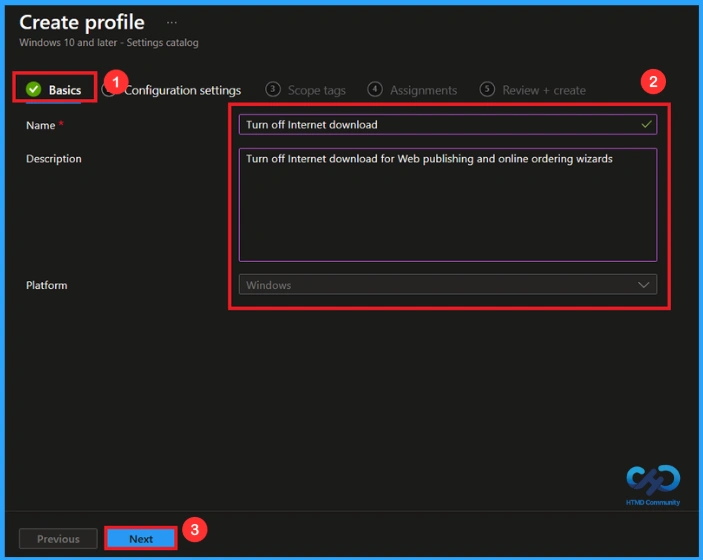
Basic Step
In the basic details section, you must enter essential information about a policy, including its name, description, and platform details. I will give the name Turn off Internet download. You can add the description if you want to, as it helps you identify the policy later.
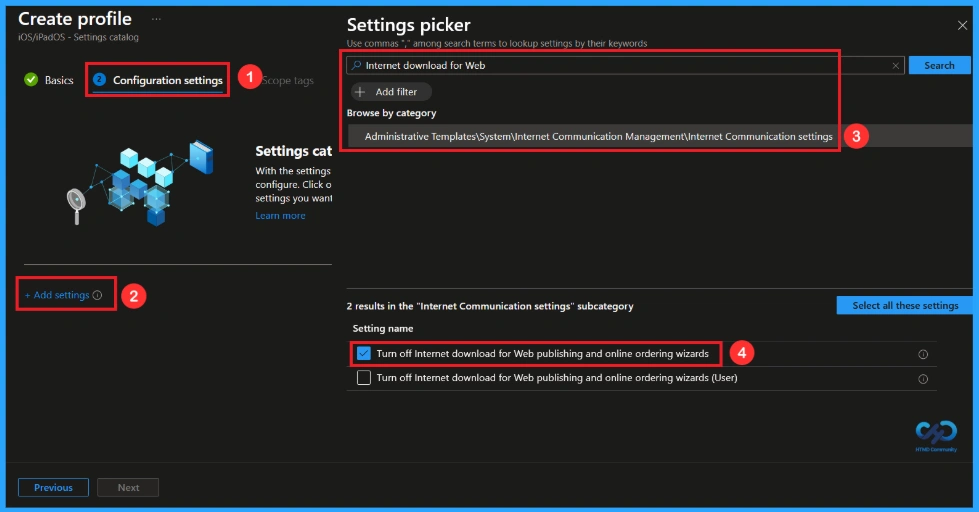
Configuration Settings
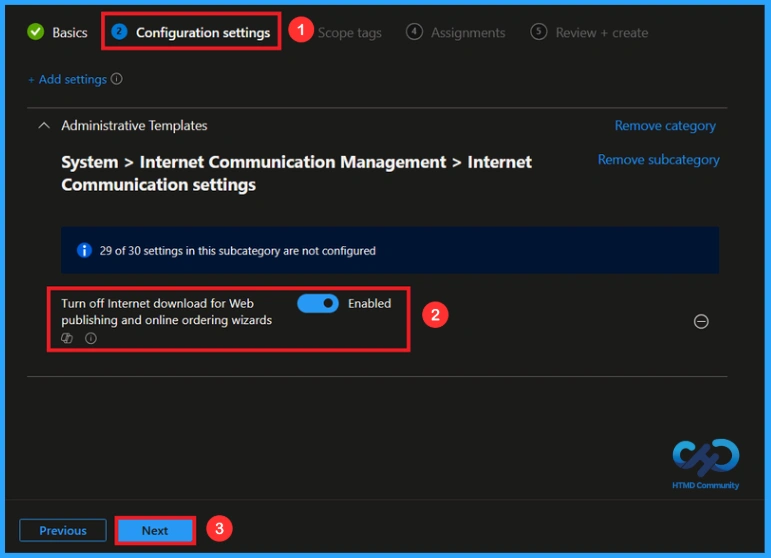
In the configuration settings, first locate the option to add settings through a hyperlink and click on it. This action will open a settings picker. Next, search Internet download for web and select Turn off Internet download for web publishing and online ordering wizards.
After that, you can close the settings picker window. Once you close the settings window, you will be directed to the configuration settings page. This setting is turned off by default. If you want to keep this setting disabled, click the next option.
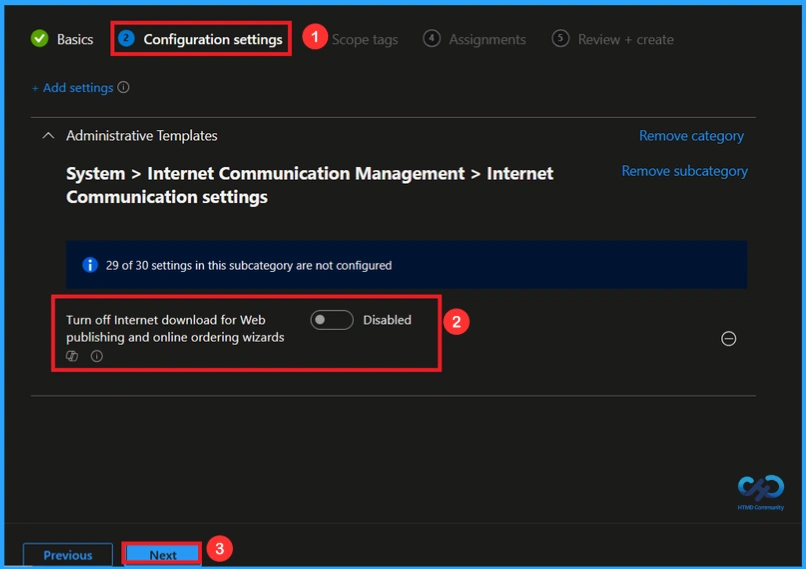
Enable this Policy
To enable this policy, you need to enable this Policy. You will find a toggle switch there. Moving the toggle from left to right changes to a blue color and is labeled Enabled. This indicates that the option is now activated. Then click Next to continue.
Scope Tag
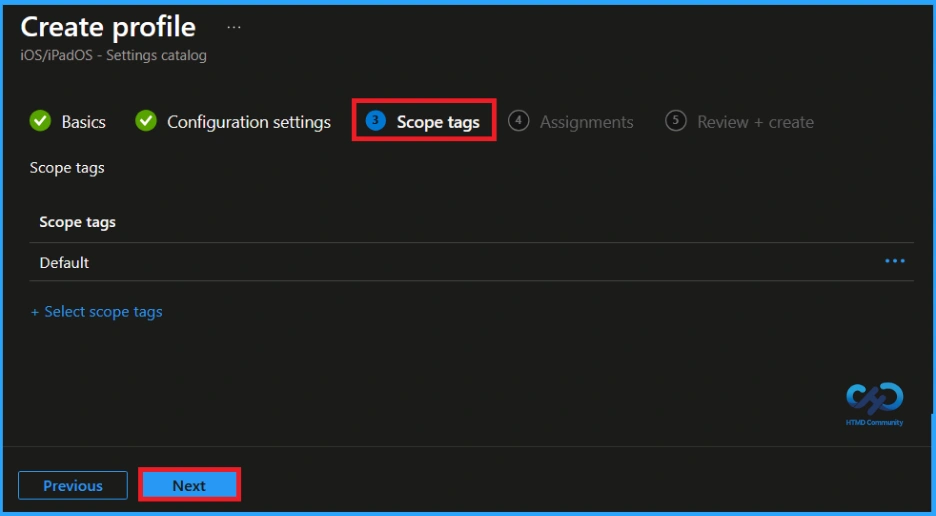
After the configuration tab, you will find the scope tags section. In this section, you can add a scope tag for the policy, but it is not mandatory; therefore, I will skip this part and click Next.
Assignments
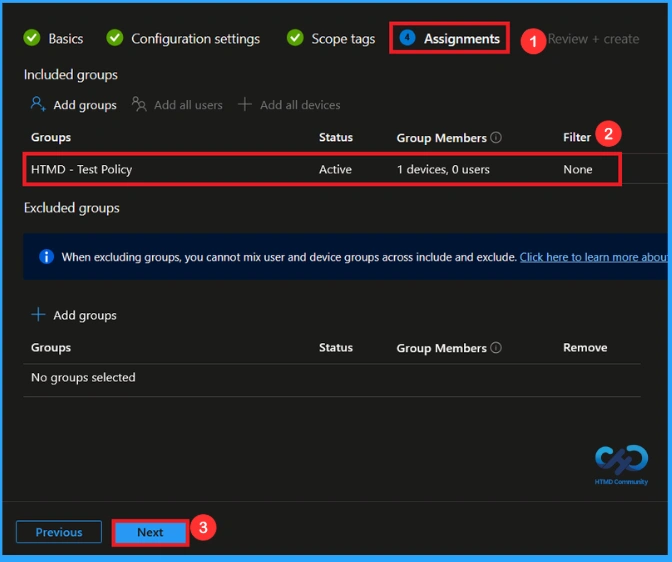
In this section, you can specify the group to which you want to apply the policy. I clicked on Add Groups under the Include Group option. When I clicked Add Groups a list of suggested groups appeared. I selected the group(HTMD – Test Policy) and now it is visible on the assignment page. After this, click Next to proceed.
Final Step
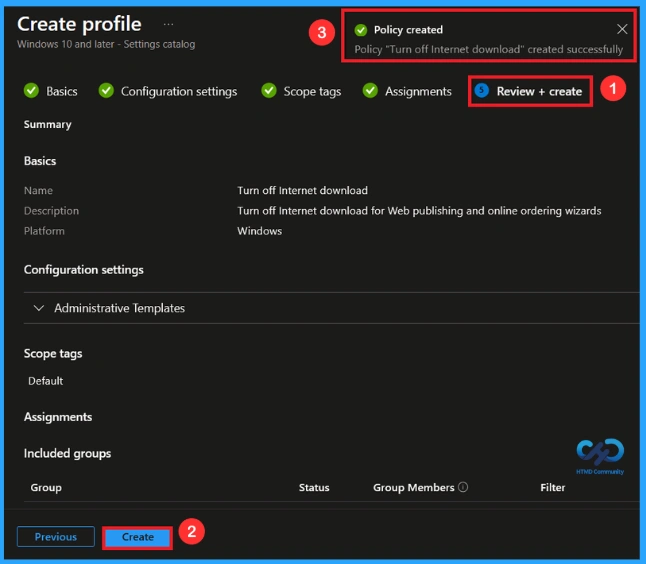
After completing the assignments, you will reach the review and create option, which is the final stage of policy creation. You can view all the details about the policy, including the basics, specifics, and configuration details. Now,click on the Create option then, you will see a notification “Turn off internet download created successfully”.
Device and User Check-in Status
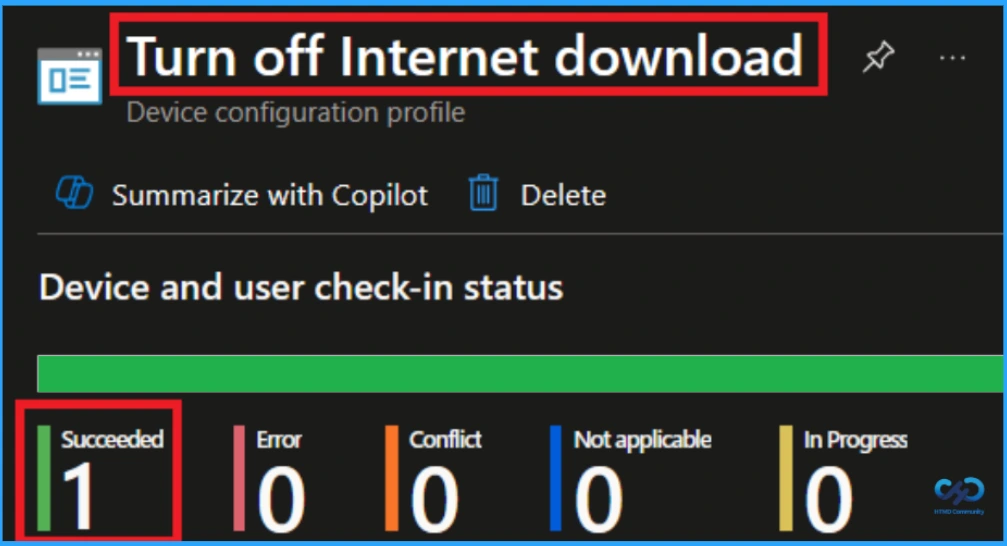
To view a policy’s status, go to Devices > Configuration in the intune portal, select the policy and check that the status shows Succeeded (1). Use manual sync in the Company Portal to speed up the process.
How to Remove Assigned Group from this Policy
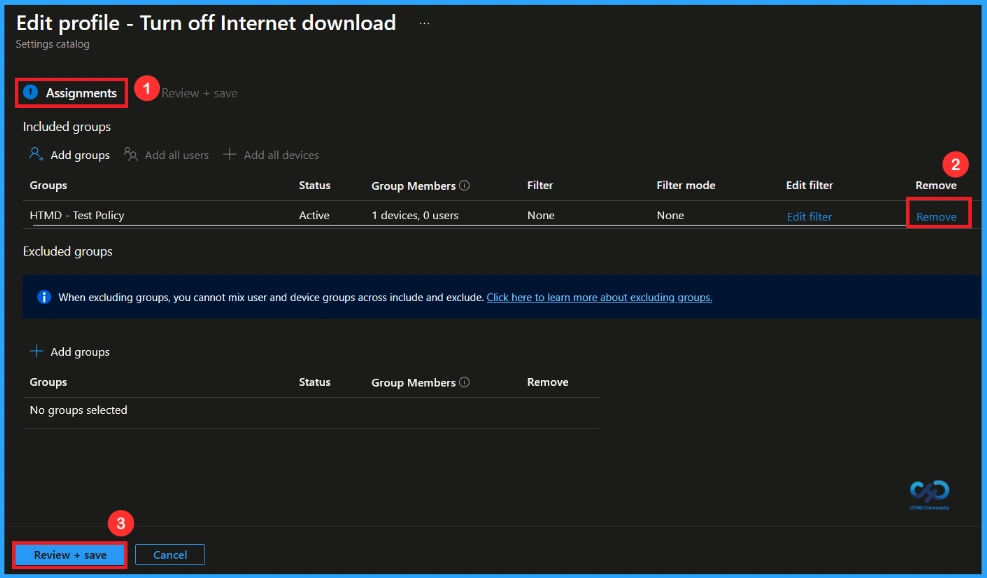
After creating the policy, if you want to remove the specific group that you previously selected, you can easily do that. First, go to Devices > Configuration policies. In the Configuration policy section, search and select the policy. In the Assignment section, you will find an Edit option and click on it. Then, click the Remove option.
For detailed information, you can refer to our previous post – Learn How to Delete or Remove App Assignment from Intune using by Step-by-Step Guide.
How to Delete this Policy from Intune
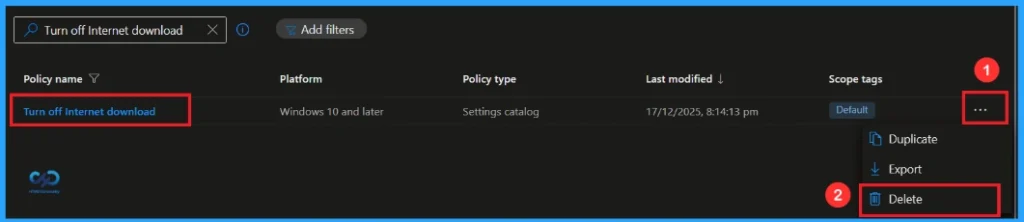
If you want to delete this policy for any reason, you can easily do so. First, search for the policy name in the configuration section. When you find the policy name, you will see a 3-dot menu next to it. Click on the 3 dots, then click the Delete button.
For detailed information, you can refer to our previous post – How to Delete Allow Clipboard History Policy in Intune Step by Step Guide.
Need Further Assistance or Have Technical Questions?
Join the LinkedIn Page and Telegram group to get the latest step-by-step guides and news updates. Join our Meetup Page to participate in User group meetings. Also, Join the WhatsApp Community to get the latest news on Microsoft Technologies. We are there on Reddit as well.
Author
Anoop C Nair has been Microsoft MVP from 2015 onwards for 10 consecutive years! He is a Workplace Solution Architect with more than 22+ years of experience in Workplace technologies. He is also a Blogger, Speaker, and Local User Group Community leader. His primary focus is on Device Management technologies like SCCM and Intune. He writes about technologies like Intune, SCCM, Windows, Cloud PC, Windows, Entra, Microsoft Security, Career, etc.


Discussion