






Enhance iOS Security by Disabling AutoFill Passwords using Intune
Key Takeaways
- This policy controls how passwords are saved and used on iOS devices.
- When the policy is enabled, iOS will not save or automatically fill passwords.
- When the policy is disabled, users can save and use AutoFill passwords normally.
- It improves security on supervised devices.
- The setting is managed and enforced through Intune.
Hey, let’s discuss about Enhance iOS Security by Disabling AutoFill Passwords Using Intune. This policy disables the AutoFill Password feature on iOS devices. AutoFill normally saves and automatically enters passwords for apps and websites. While this is convenient, it can also increase security risks if the device is shared or compromised. Disabling AutoFill helps keep passwords more secure.
When this policy is enabled, users must manually type their passwords instead of relying on saved credentials. This reduces the chance of unauthorized access to apps and accounts. It is especially useful in work environments where devices handle sensitive company data. Manual entry ensures users are more aware of their login activity.
This policy is mainly used on managed iOS devices through Microsoft Intune. IT administrators can apply it to devices to enforce stronger security controls. Once applied, users cannot turn AutoFill back on themselves. This ensures consistent security across all managed devices.
Disabling AutoFill passwords helps protect against data leaks and accidental logins. If a device is lost or stolen, saved passwords cannot be easily misused. It also reduces the risk of apps automatically logging in without user verification. Overall, it adds an extra layer of protection.

Enhance iOS Security by Disabling AutoFill Passwords using Intune
This policy is commonly used in organizations that prioritize security over convenience. It is ideal for shared devices, supervised devices, or devices used for official work only. By using Intune to manage this setting, organizations can maintain better control over user access. This helps keep company data safe and secure.
How this Helps Supervised Devices
This policy helps supervised devices by preventing passwords from being saved and automatically filled in. It gives IT administrators better control and reduces the risk of unauthorized access, especially on shared or reassigned devices. Overall, it improves security and protects company data on supervised devices managed using Intune.
Create a Profile
First sign in to the Microsoft Intune admin center. Go to Devices and select Configuration profiles. Then click Create profile to open the profile creation window. Select platform and profile type. After that, click Create to begin configuring your new policy.
| Steps | Details |
|---|---|
| Platform | iOS/iPadOS |
| Profile Type | Settings Catalog |

Basic Step
To begin configuring a policy in Intune, start with the Basics step. Here, we can add the name of the policy and give a brief description.
- Name of the Policy: Allow Password Auto Fill
- Description: To Allow Password Auto Fill
- Platform: iOS/iPadOS

Configuration Settings
In the Configuration settings tab, click the Add settings button to open the Settings picker.Type Password Auto Fill or search the category Restrictions in the Search bar. Then Select the Allow Password Auto Fill.

Once you have selected this policy and closed the Settings picker. You will see it on the Configuration page. Here we have only two settings True or False. By default, it will be set to false. If you want to block these settings, click on the Next button.

Allow Password Auto Fill Policy
If we allowed or configure this policy, you can allow the password auto fill policy by toggling the switch. Then you can click the Next button to proceed.

Scope Tag
In Intune, Scope Tags are used to control who can view and modify a policy. The scope tag is not mandatory, so you can skip this section. It functions as a tool for organisation and access management, but assigning it is optional. Click Next if they’re not required for your setup.

Assignments
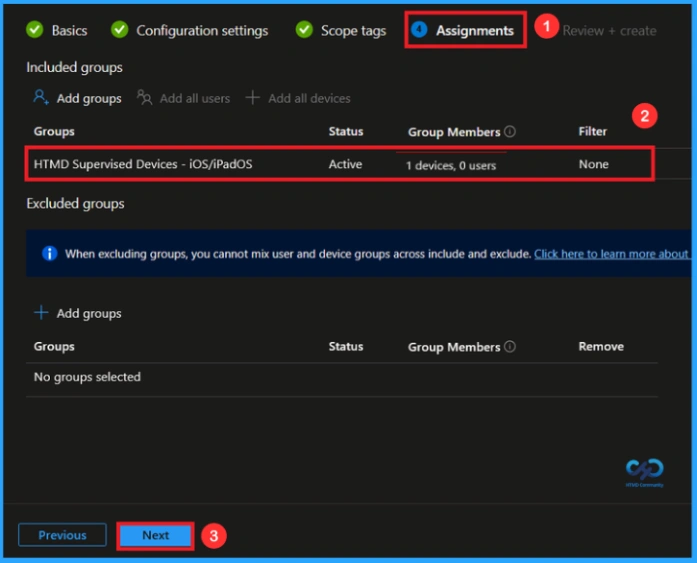
In the Assignments tab, you choose the users or devices that will receive the policy by clicking Add Group under Include Group, select the group that you want to target (e.g HTMD Supervised Devices – iOS/iPadOs) and then click Next to continue.
Final Step
At the final Review + Create step, we see a summary of all configured settings for the new profile; after reviewing the details and making any necessary changes by clicking Previous. We click Create to finish, and a notification confirms that the “Allow Password Auto Fill created successfully”.

Monitoring Status
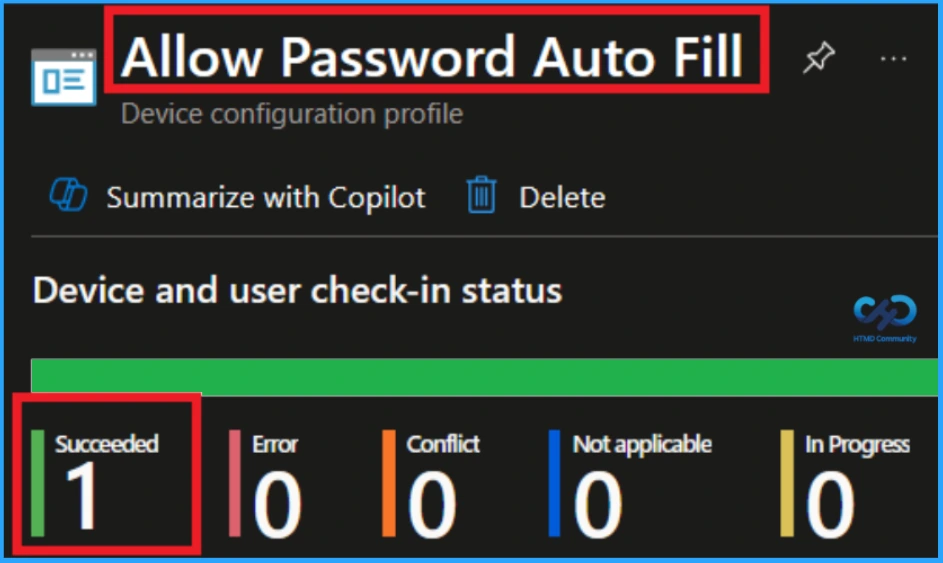
To view a policy’s status, go to Devices > Configuration in the Intune portal, select the policy(Allow Password Auto Fill) and check that the status shows Succeeded (1). Use manual sync in the Company Portal to speed up the process.
igHow to Check on End User Device
On the end user’s iOS device, you can check this setting by opening Settings and going to Passwords (or Passwords & Accounts, depending on iOS version). Then tap AutoFill Passwords and verify that the AutoFill option is turned off and cannot be changed. This confirms that the policy has been successfully applied to the device using Intune.
How to Remove Assigned Group from this Policy
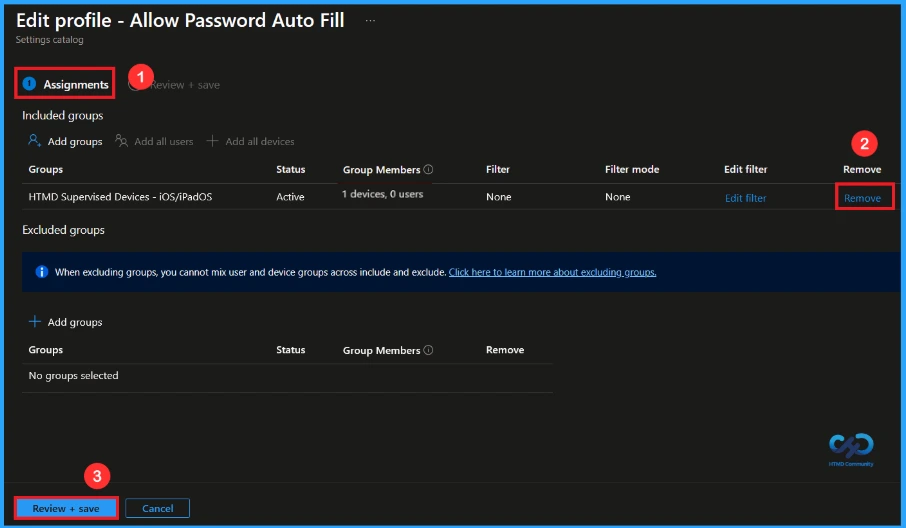
After creating the policy, if you want to remove the specific group that you previously selected, you can easily do that. First, go to Devices > Configuration policies. In the Configuration policy section, search and select the policy. In the Assignment section, you will find an Edit option and click on it. Then, click the Remove option.
For detailed information, you can refer to our previous post – Learn How to Delete or Remove App Assignment from Intune using by Step-by-Step Guide.
How to Delete this Policy from Intune
If you want to delete this policy for any reason, you can easily do so. First, search for the policy name in the configuration section. When you find the policy name, you will see a 3-dot menu next to it. Click on the 3 dots, then click the Delete button.
For detailed information, you can refer to our previous post – How to Delete Allow Clipboard History Policy in Intune Step by Step Guide.

Need Further Assistance or Have Technical Questions?
Join the LinkedIn Page and Telegram group to get the latest step-by-step guides and news updates. Join our Meetup Page to participate in User group meetings. Also, Join the WhatsApp Community to get the latest news on Microsoft Technologies. We are there on Reddit as well.
Author
Anoop C Nair has been Microsoft MVP from 2015 onwards for 10 consecutive years! He is a Workplace Solution Architect with more than 22+ years of experience in Workplace technologies. He is also a Blogger, Speaker, and Local User Group Community leader. His primary focus is on Device Management technologies like SCCM and Intune. He writes about technologies like Intune, SCCM, Windows, Cloud PC, Windows, Entra, Microsoft Security, Career, etc


Not sure this is “safer”. If “users must manually type their passwords”, they will use easy passwords to remember. A password manager helps avoid these easy passwords by using complex, dont-need-to-remember, passwords.