





How to Control Automatic Display Adjustment on HoloLens using Intune
Key Takeaways
- This policy makes HoloLens display management easier.
- When the policy is enabled, the device adjusts the display automatically and users can start work faster.
- When the policy is disabled, users must adjust the display manually for better personal accuracy.
- Organizations can choose the setting based on their needs.
- It makes HoloLens easy to use for everyone
Hey, let’s discuss about How to Control Automatic Display Adjustment on HoloLens using Intune. This policy controls how the HoloLens display is automatically adjusted for each user. It helps the device set the best visual position so holograms look clear and comfortable. Users do not need to manually change settings before using the device.
Table of Contents
Table of Contents
What are Advantages of Disabling this Policy using Intune?
1. Users can fine-tune the display exactly to their comfort and vision.
2. Manual calibration provides better accuracy for special applications.
3. IT teams can test and validate device behavior more easily.
4. Training sessions become more practical with hands-on calibration.
5. Single-user devices stay consistent without automatic changes.
How to Control Automatic Display Adjustment on HoloLens using Intune
This policy is important because it makes HoloLens easy to use for everyone. Different users have different eye positions, and automatic adjustment gives a better experience. It reduces mistakes and improves comfort during long usage.
- How to Change Two New Display Language Packs for Windows 365 Cloud PCs using Intune
- How to use Intune Inventory to View Graphics Model Video RAM and Display Settings on Windows Devices
- How to use New Multi-Monitor and Display Features in Windows 365 Link
Create a Profile
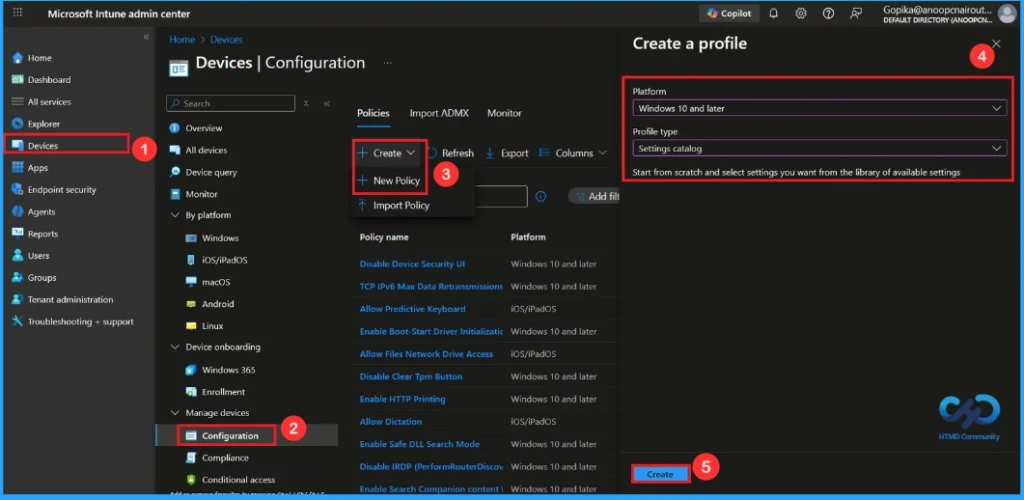
First, sign in to the Microsoft Intune admin center. Then, go to Devices > Configuration > Create > New policy. In the next window, select the platform as Windows 10 and later, and choose the profile type as Settings Catalog. Click Create to continue.
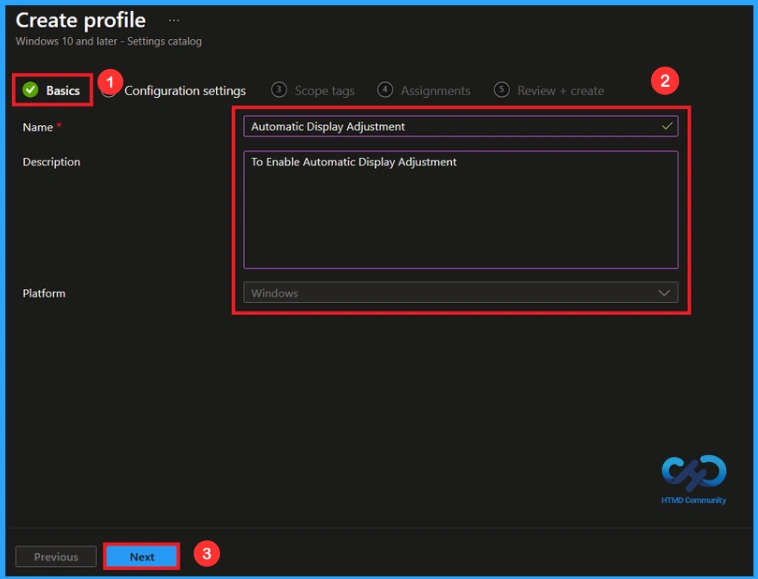
Basic Step
You need to enter some basic details, such as the name and a description. For example, I entered the name as Automatic Display adjustment. In the description, I enter To Enable Automatic Display adjustment. After filling in the details, click Next to continue.

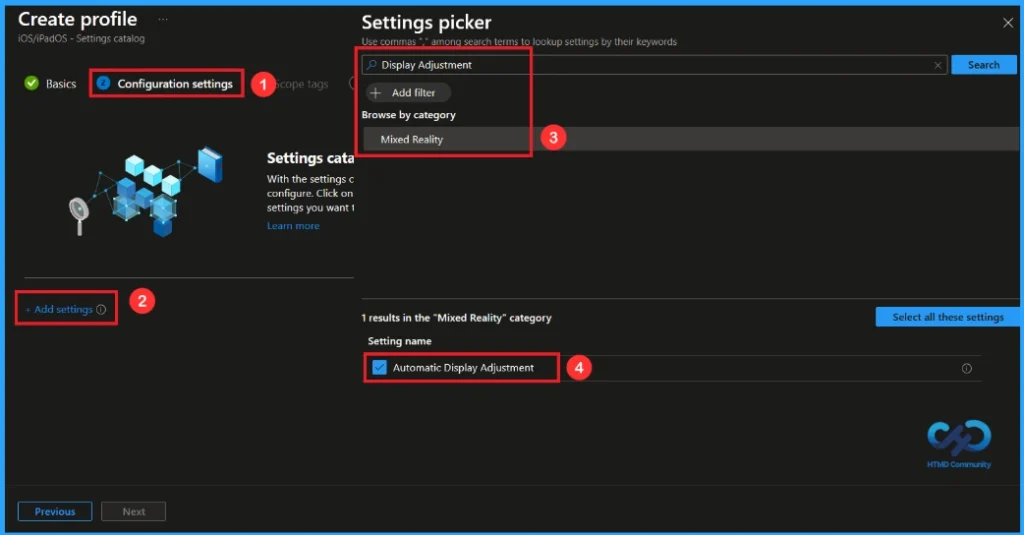
Configuration Settings
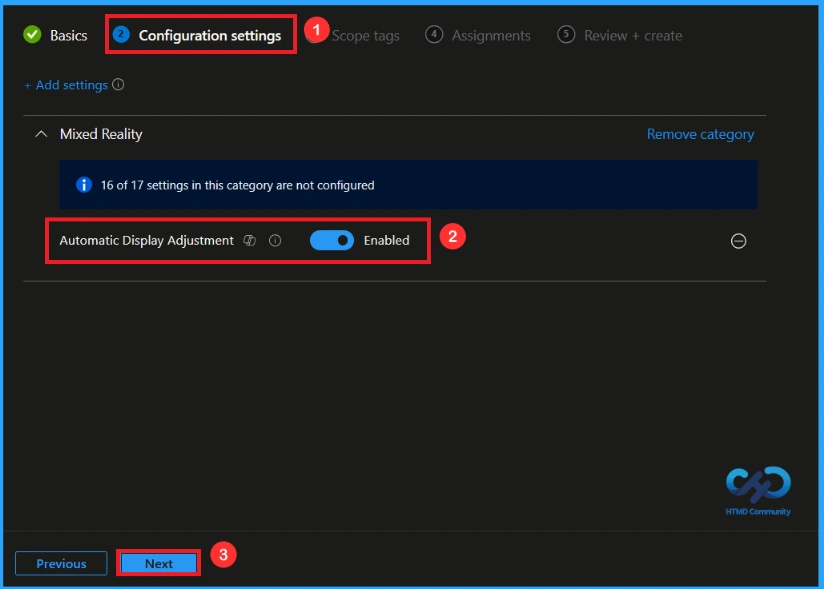
On this page, we click on the + Add Settings hyperlink. Then you will get a settings picker that will show different types of categories to select specific settings. Here, I choose to Mixed Reality the category and select the Automatic Display adjustment.
Once you have selected this settings and closed the Settings picker. You will see it on the Configuration page. Here we have only two settings: Enabled or Disabled. By default, Automatic Display adjustment will be set to Allow. If you want to allow these settings, click on the Next button.
Block this Policy
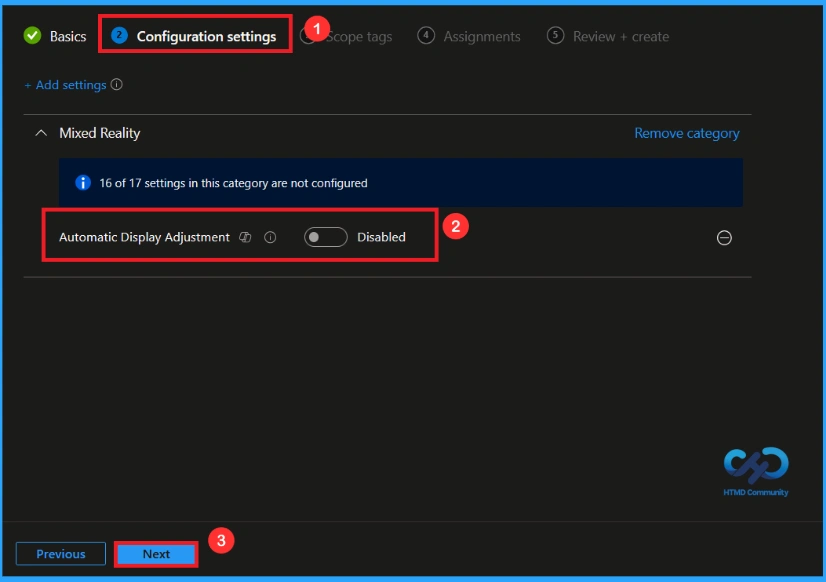
If we block or don’t configure this policy, you can block the Automatic Display adjustment by toggling the switch from right to left. Then, you can click the Next button to continue.
Scope Tags
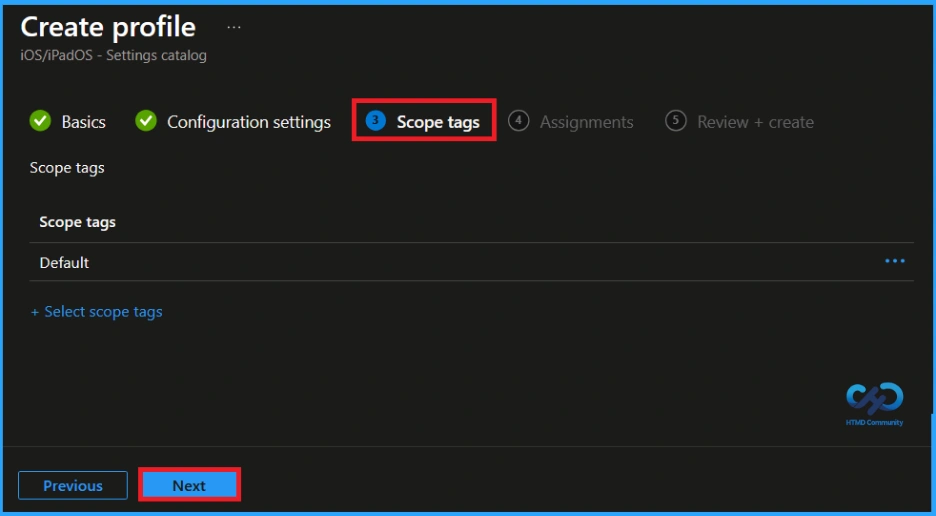
A Scope Tag in Intune is used to control visibility and access to Intune resources based on administrative roles. Scope tags are not mandatory. You can add the scope tag using the Select scope tags button. Click the Next button to proceed.
Assignments
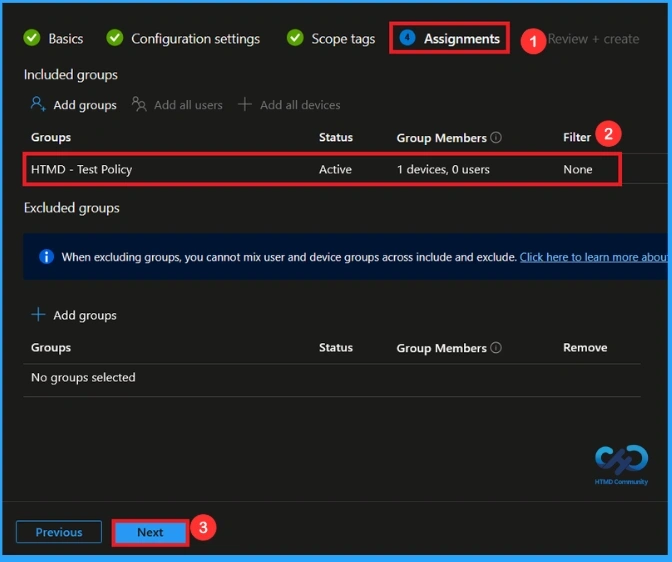
On the Assignments tab, we can select which users or devices get this policy. Under Include Groups, click Add Groups. From the list, select the group that we want to target (HTMD – Test Policy). Then click the Next button.
Final Step
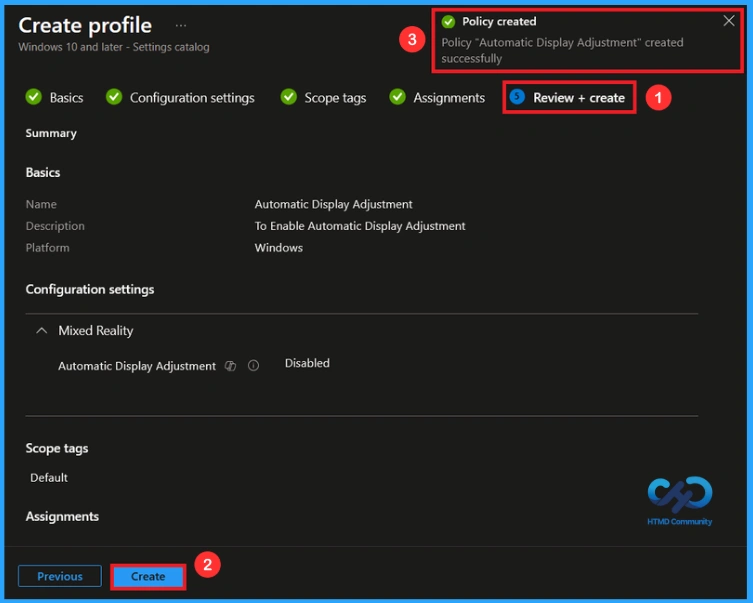
At the final Review + Create step, we see a summary of all configured settings for the new profile; after reviewing the details and making any necessary changes by clicking Previous. We click Create to finish, and a notification confirms that the “Automatic Display adjustment creates successfully”.
Monitoring Status
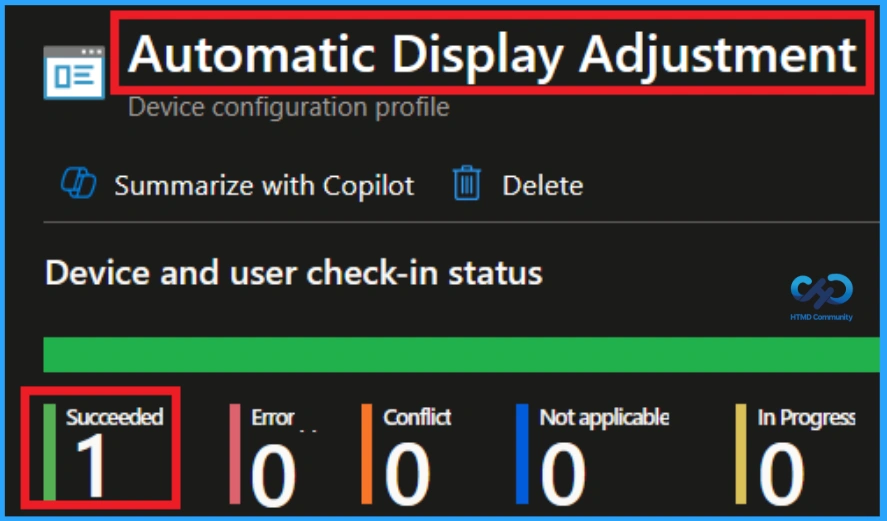
We can check a policy’s status in the Intune Portal. Generally, it takes about 8 hours for policies to be created. Use the manual sync option to reduce the configuration delay in the Company Portal app on the device, then check the status again. Navigate to Devices> Configuration. Click on the specific policy(Automatic Display adjustment).
How to Remove Assigned Group from this Policy
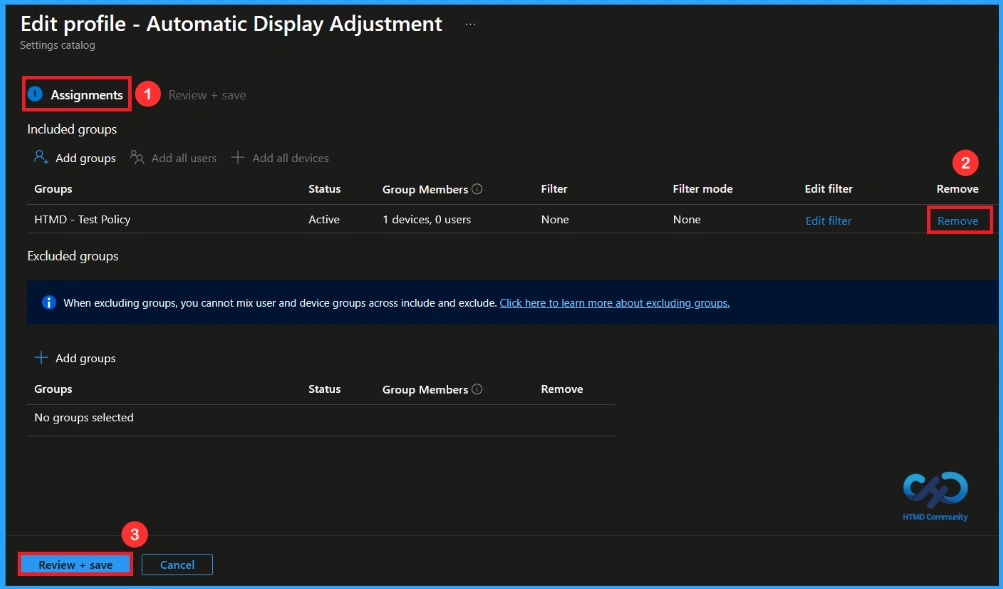
Sometimes, we need to remove a group from a policy assignment for security updates. Open the policy from the Configuration tab and click on the Edit button on the Assignment tab. Click on the Remove button on this section to remove the policy. Click Review + Save after making the change.
For detailed information, you can refer to our previous post – Learn How to Delete or Remove App Assignment from Intune using by Step-by-Step Guide.
How to Delete this Policy from Intune Portal
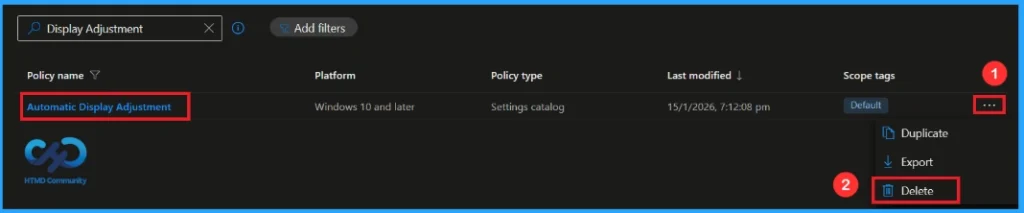
To delete an Intune policy for security or operational reasons. It is simple to do. I will demonstrate how to delete an Intune policy through the Automatic Display Adjustment. Click the three dots, then click the Delete option.
For detailed information, you can refer to our previous post – How to Delete Allow Clipboard History Policy in Intune Step by Step Guide.
Need Further Assistance or Have Technical Questions?
Join the LinkedIn Page and Telegram group to get the latest step-by-step guides and news updates. Join our Meetup Page to participate in User group meetings. Also, Join the WhatsApp Community and Whatsapp channel to get the latest news on Microsoft Technologies. We are there on Reddit as well.
Author
Anoop C Nair has been Microsoft MVP from 2015 onwards for 10 consecutive years! He is a Workplace Solution Architect with more than 22+ years of experience in Workplace technologies. He is also a Blogger, Speaker, and Local User Group Community leader. His primary focus is on Device Management technologies like SCCM and Intune. He writes about technologies like Intune, SCCM, Windows, Cloud PC, Windows, Entra, Microsoft Security, Career, etc.


Discussion