





Improving Organizational Security Posture with Secure Desktop UAC using Intune Policy
Key Takeaways
- Using the secure desktop prevents malware from faking or hijacking UAC prompts to steal credentials.
- It protects administrator usernames and passwords from key-logging, screen-capture, and click-jacking attacks.
- Secure desktop prompts help users visually trust that the request is legitimate, reducing social-engineering risks.
- Enabling this policy blocks silent or automated approval of elevation requests by malicious software.
Let’s discuss Improving Organizational Security Posture with Secure Desktop UAC Using Intune Policy. User Account Control (UAC) is a core Windows security feature designed to prevent unauthorized changes to the operating system. It works by asking for user confirmation or administrator credentials whenever an action requires elevated privileges.
Table of Contents
Improving Organizational Security Posture with Secure Desktop UAC Using Intune Policy
This helps ensure that only trusted actions are allowed to make system-level changes, reducing the risk of malware or accidental misconfiguration. When an application or process needs elevated permissions, Windows displays an elevation prompt. This prompt can appear either on the normal interactive desktop that the user is working on or on a separate, isolated environment known as the secure desktop.
The choice of where this prompt appears plays an important role in how securely Windows handles privilege escalation requests. The “Switch to the secure desktop when prompting for elevation” policy determines whether these elevation prompts are shown in a protected environment.
- Best Guide to Configure User Confirmed EPM Elevation Settings Policy with Intune
- Easy Guide to Configure EPM Reusable Settings with Intune
- Best Method to Create EPM Elevation Rules Policy from Elevation Request Using Intune Policy
Create Policy
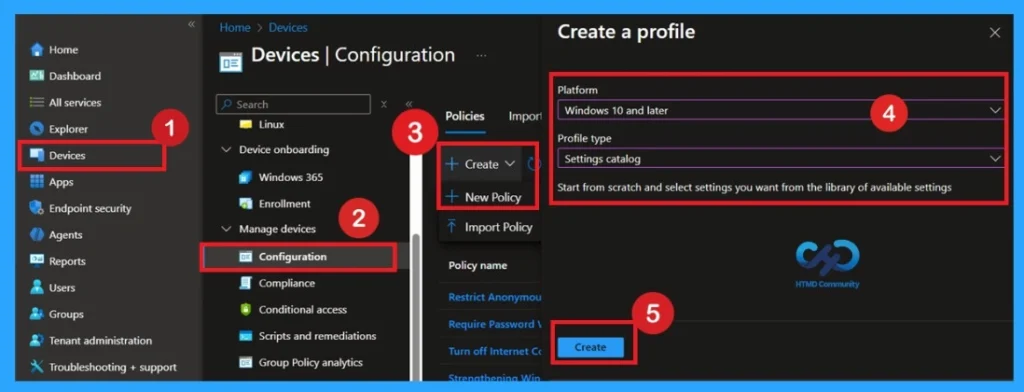
Now, let’s focus on how to deploy this policy through Microsoft Intune. First, the admin needs to log in to the Microsoft Intune portal. After logging in, go to the Devices section from the left menu. Under Devices, click on Configuration profiles. In the Configuration profiles page, click on the “Create + Create profile > New Policy.

- Platform as Windows 10 and later
- Profile Type Setting catalog
- Click on the Create
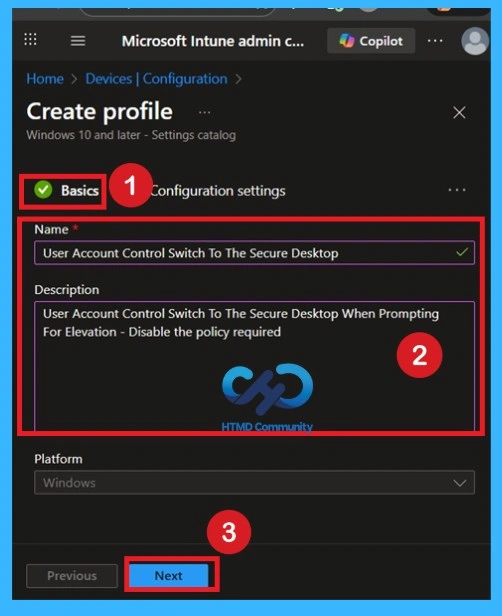
Basics Page
To create this policy in Intune, you start by opening the Intune portal and selecting the option to make a new configuration profile. On the basics page, you simply give the policy a clear name so that anyone in your IT admins knows what it is for. You can also write a small description then click to the Next.
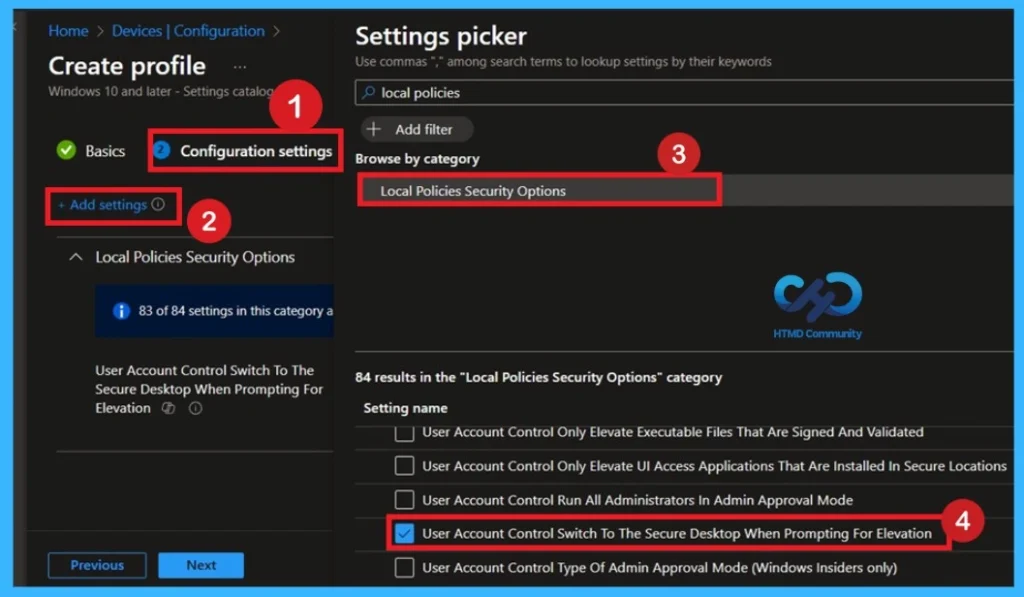
Configuration Settings
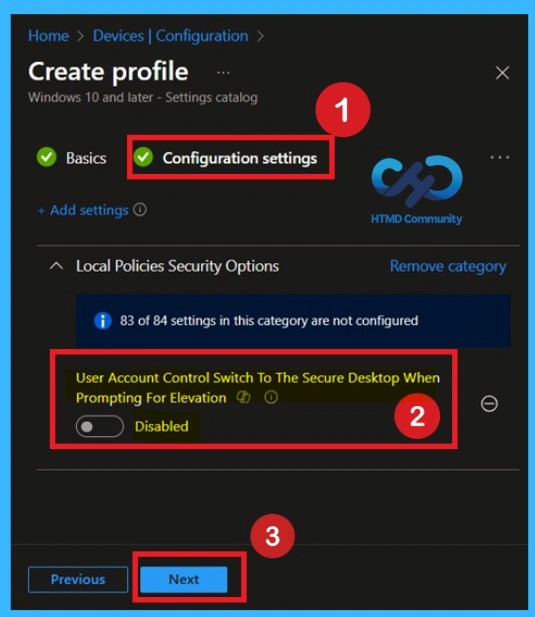
In the configuration settings you have to click on the Add settings, then you will get the Settings Picker. In the settings picker you will get different categories there you can search local policies security options. In the local policies security options, you will the settings User Account Control Switch to the Secure Desktop When Prompting for Elevation. Now you can close the Settings Picker Window.
Default State of a Policy
This policy is disabled by default. If you want to continue using this configuration, you can proceed by clicking Next. If it is enabled All elevation requests go to the interactive user’s desktop. Prompt behavior policy settings for administrators and standard users are used.
Enable the Policy
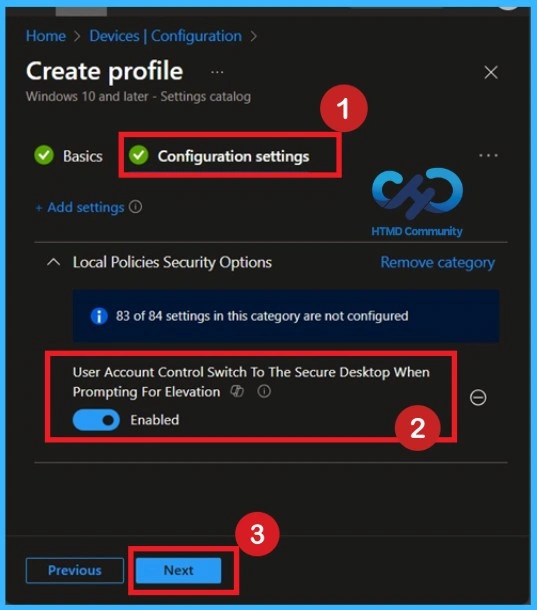
By default, the policy is enabled, meaning all elevation requests are displayed on the secure desktop. This ensures that the prompt is isolated from other running applications and processes, making it more difficult for malicious software to interfere with or spoof the prompt
It is recommended to keep this setting unchanged unless there is a specific requirement. To enable the policy, move the toggle bar from left to right. When this policy is enabled, all elevation requests are redirected to the secure desktop, regardless of the behavior policy settings configured for administrators or standard users.
Scope Tags for the Policy Creation
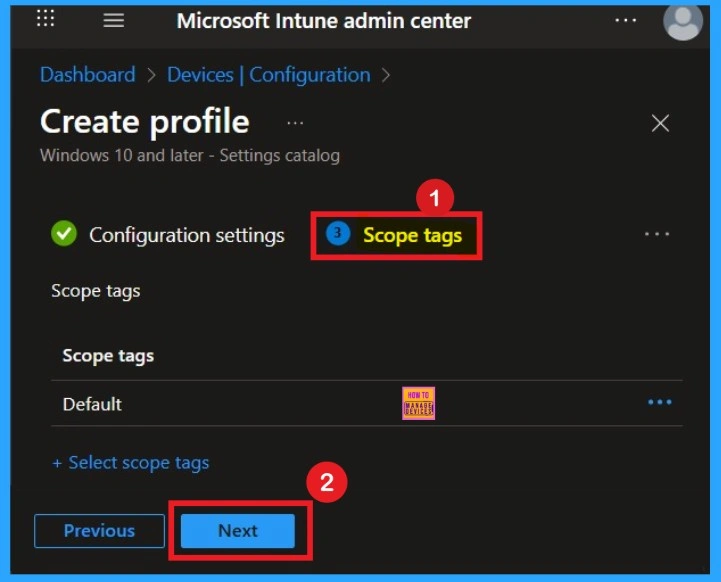
The next step that you can see that the Scope tags section. Scope tags are used to assign policies to specific admin groups for better management and filtering. If needed, you can add a scope tag here. However, for this policy, I chose to skip this section
Assignment for the Policy Creation
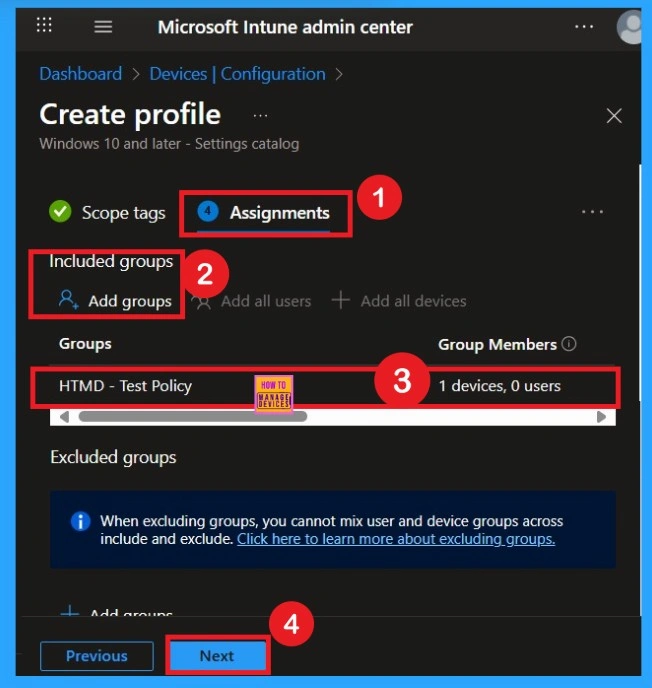
To assign the policy to specific groups, you can use the Assignment Tab. Here I click, +Add groups option under Included groups. I choose a group from the list of groups and click on the Select button. Again, I click on the Select button to continue.
The Final Step- Review+ Create
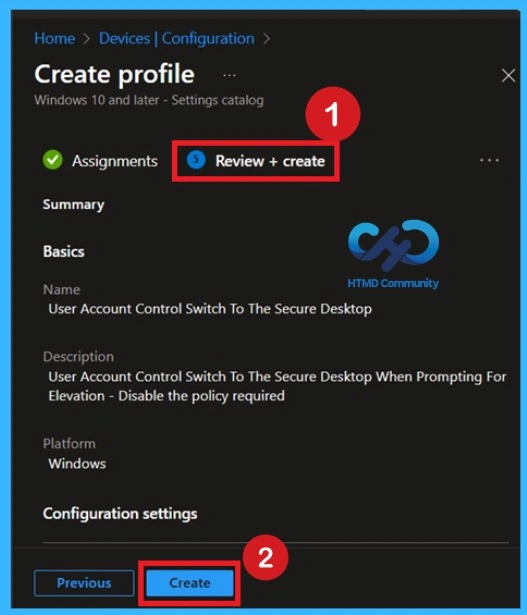
Before completing the policy creation, you can review each tab to avoid misconfiguration or policy failure. After verifying all the details, click on the Create Button. After creating the policy, you will get a success message.
Monitoring Status
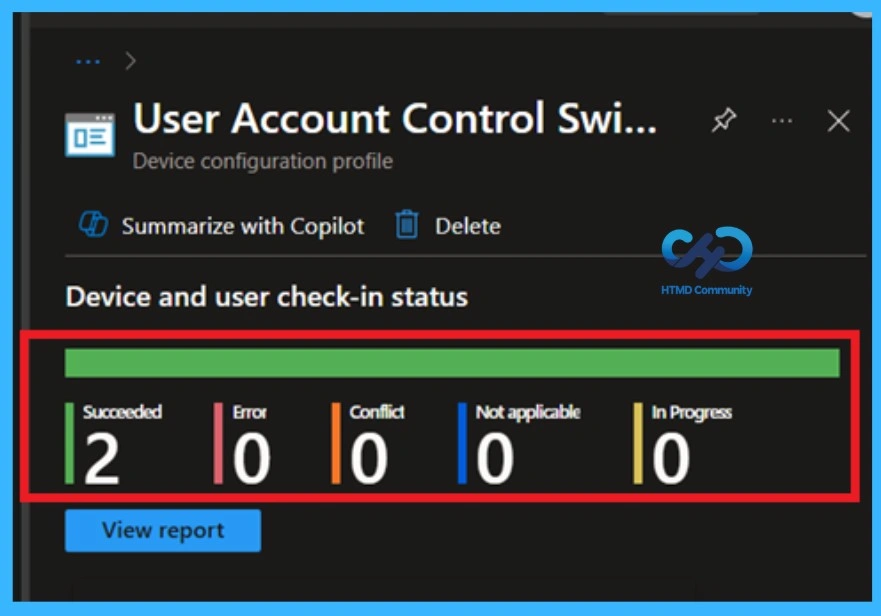
The Monitoring Status page shows whether the policy has succeeded or not. To quickly configure the policy and take advantage of the policy sync, the device on the Company Portal, Open the Intune Portal. Go to Devices > Configuration > Search for the Policy. Here, the policy shows as successful.
Event Viewer Details
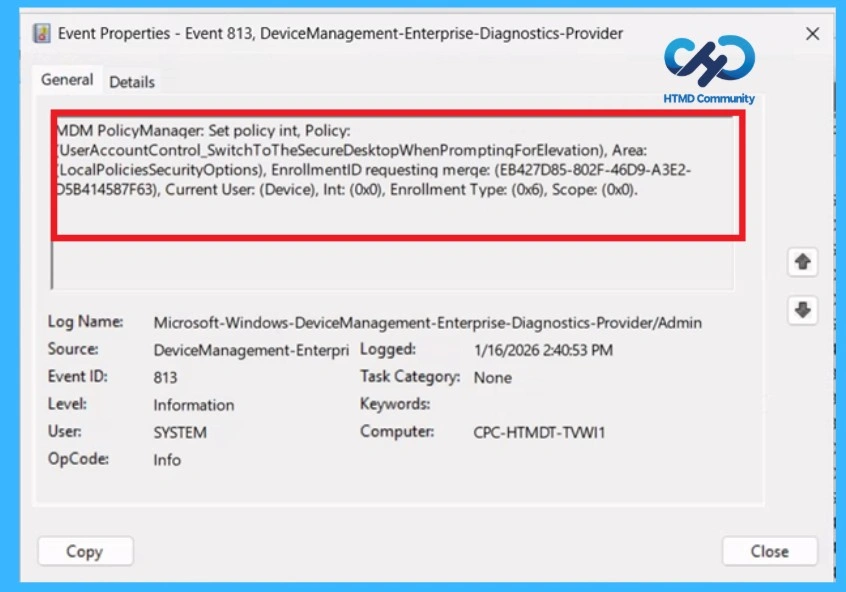
A success message alone does not confirm that a policy is fully applied to a client device. To properly verify, administrators should use Event Viewer. Open Event Viewer from the Start menu and navigate to Application and Services Logs > Microsoft > Windows > Device Management-Enterprise-Diagnostics-Provider > Admin.
- Within this log, filter for Event ID 813, 814 which provides confirmation that the policy has been successfully processed and applied.
| Policy Info |
|---|
| MDM PolicyManaqer: Set policy int, Policy: UserAccountControl_SwitchToTheSecureDesktopWhenPromptinqForElevation), Area: LocalPoliciesSecurityOptions), EnrollmentID requesting merqe: (EB427D85-802F-46D9-A3E2- D5B414587F63), Current User: (Device), Int: (0x0), Enrollment Type: (0x6), Scope: (0x0). |
How to Remove Policy Group
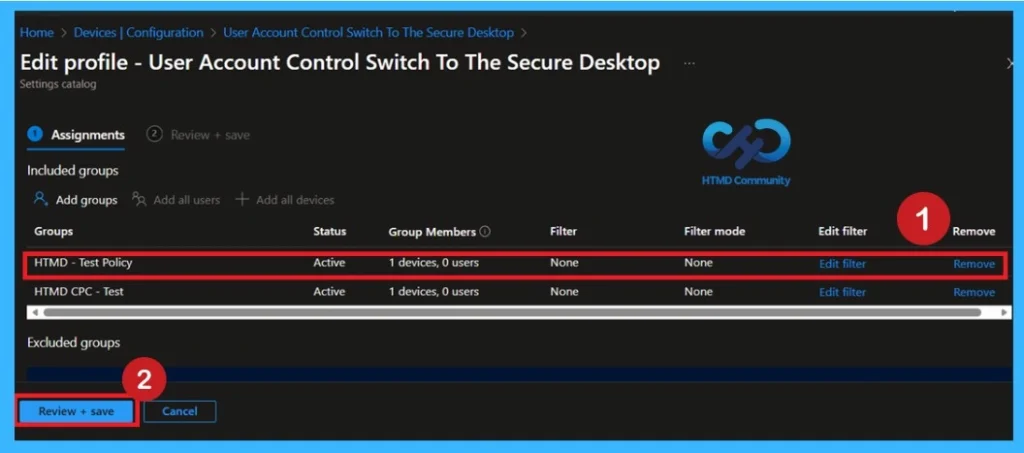
Sometimes, we need to remove a group from a policy assignment for security updates. Open the policy from the Configuration tab and click on the Edit button on the Assignment tab. Click on the Remove button on this section to remove the policy. Click Review + Save after making the change.
For detailed information, you can refer to our previous post – Learn How to Delete or Remove App Assignment from Intune using by Step-by-Step Guide.
Delete the Desktop UAC Policy
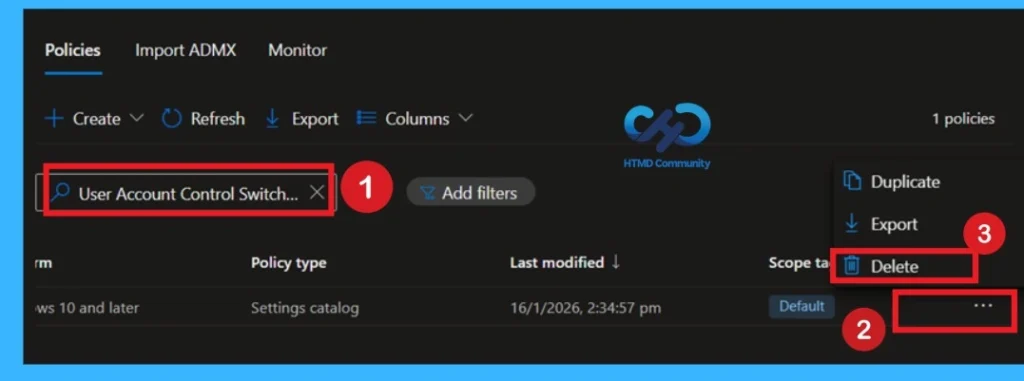
You can easily delete the Policy from the Intune Portal. From the Configuration section, you can delete the policy. It will completely remove it from the client devices. For that search the policy name in the configuration profiles. Locate and select the specific policy you want to remove.
For detailed information, you can refer to our previous post – How to Delete Allow Clipboard History Policy in Intune Step by Step Guide.
Need Further Assistance or Have Technical Questions?
Join the LinkedIn Page and Telegram group to get the step-by-step guides and news updates. Join our Meetup Page to participate in User group meetings. Also, Join the WhatsApp Community and WhatsApp Channel to get the latest news on Microsoft Technologies. We are there on Reddit as well.
Author
Anoop C Nair has been Microsoft MVP for 10 consecutive years from 2015 onwards. He is a Workplace Solution Architect with more than 22+ years of experience in Workplace technologies. He is a Blogger, Speaker, and Local User Group Community leader. His primary focus is on Device Management technologies like SCCM and Intune. He writes about technologies like Intune, SCCM, Windows, Cloud PC, Windows, Entra, Microsoft Security, Career, etc.


Discussion