





Controlling Bluetooth Access on Supervised iPhones and iPads using Intune
Key Takeaways
- This policy protects Bluetooth configuration on iOS devices.
- It works only on supervised devices.
- When enabled, users cannot change Bluetooth settings.
- When disabled, users can freely modify Bluetooth options.
Hey, let’s discuss about How to Controlling Bluetooth Access on Supervised iPhones and iPads. This policy also helps organizations follow security rules and standards. Many companies must control wireless connections for compliance. Bluetooth control supports these requirements. It helps avoid data leaks through unknown devices.
Table of Contents
Table of Contents
Controlling Bluetooth Access on Supervised iPhones and iPads using Intune
When this policy is enabled, users feel fewer distractions from Bluetooth settings. They can focus on their work instead of changing system options. IT teams can manage devices with fewer interruptions. This improves overall productivity. This policy is supported on iOS 11 and later, making it compatible with modern Apple devices.
- Take Control of Your Browser Security Manage Web Bluetooth in Edge Browser with Intune Policy
- How to Enable or Disable Bluetooth Allow Preparing using Intune Policy Settings Catalog
- Allow or Block Bluetooth Advertising Policy using Intune
Create a Profile
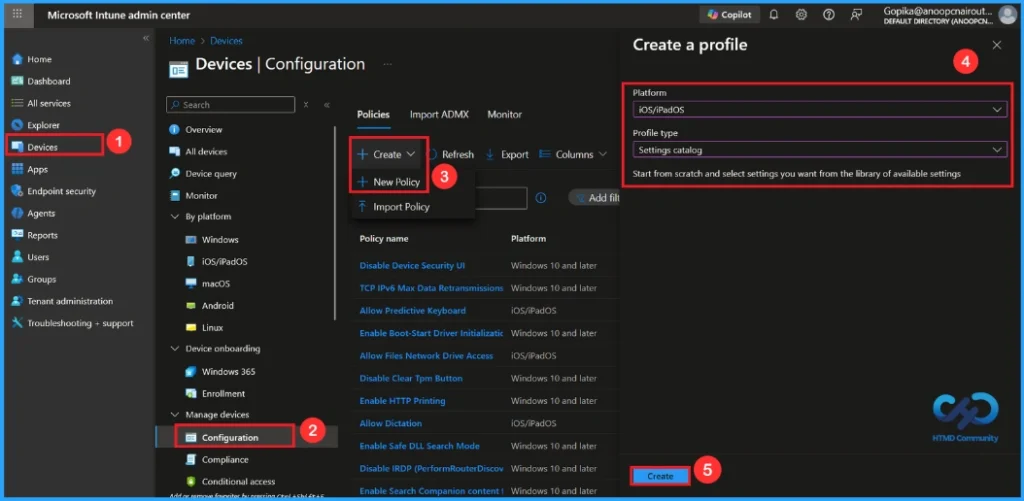
To start configuring this policy, open Microsoft Intune admin center. Go to Devices > Configuration From Policies, click on the + Create button and select +New Policy. To create a policy you have to specify profile type and Platform. From this window you can select that.
| Platform | Profile Type |
|---|---|
| iOS/iPadOS | Settings Catalog |
Basic Step for Bluetooth Modification Policy
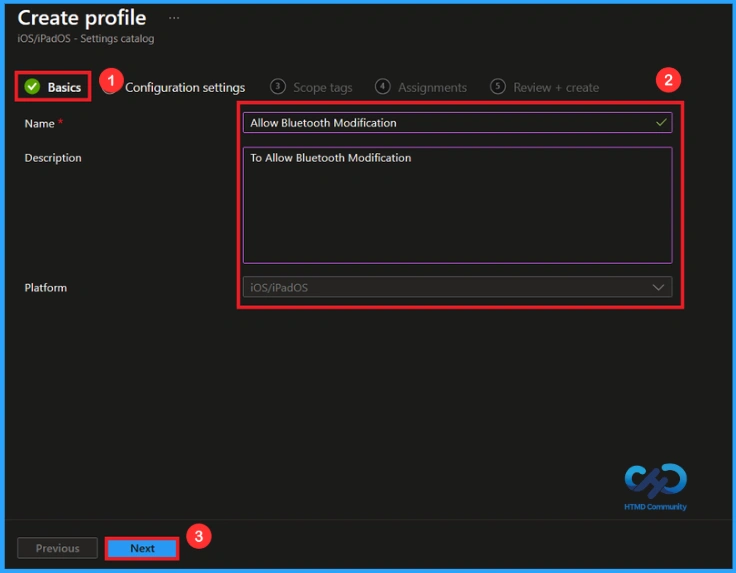
To configure a policy in Intune, start with the Basics step, where you enter the policy name (e.g Allow Bluetooth Modification), and provide a short description (such as “To Allow Bluetooth Modification“). Then click Next to continue.

Configure Bluetooth Modification Policy
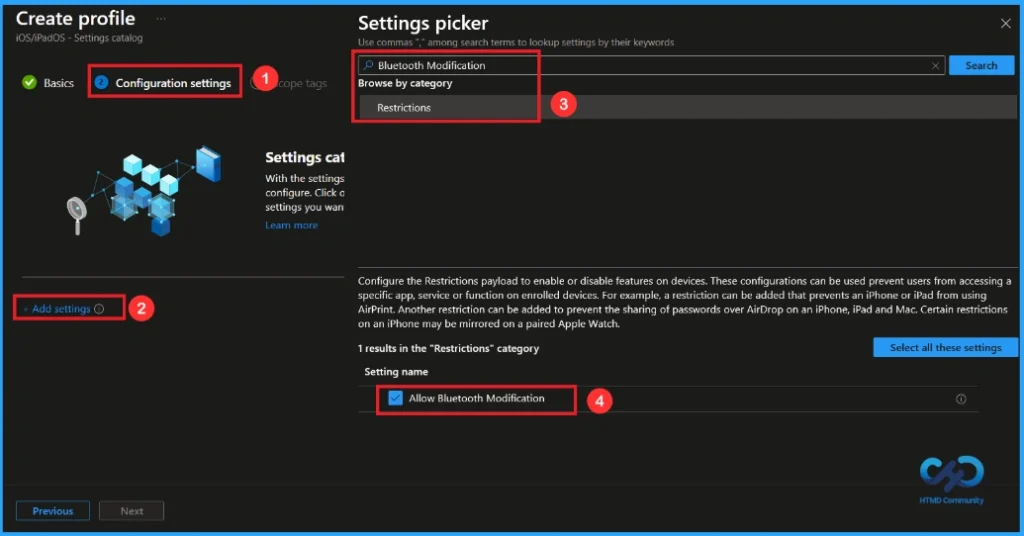
In the Configuration settings, you can see the Add settings button. Click the Add Settings to browse or search the catalog for the settings you want to configure. In the Settings picker, you can search for the Settings quickly. Here, I choose the Restrictions category, select Allow Bluetooth Modification to configure it, and then close the Settings Picker window.
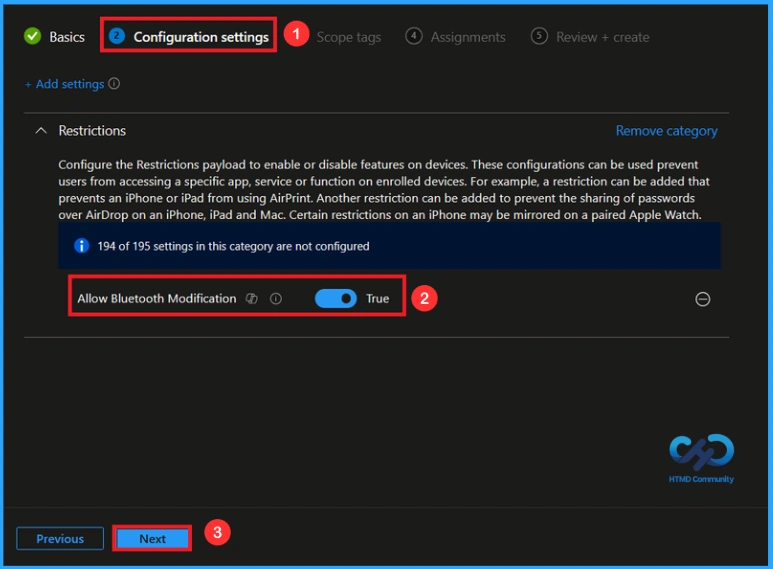
Once you have selected Bluetooth modification and closed the Settings picker. You will see it on the Configuration page. Here we have only two settings: True or False. By default, it will be set to Allow. If you want to allow these settings, click on the Next button.
Block Bluetooth Modification Policy
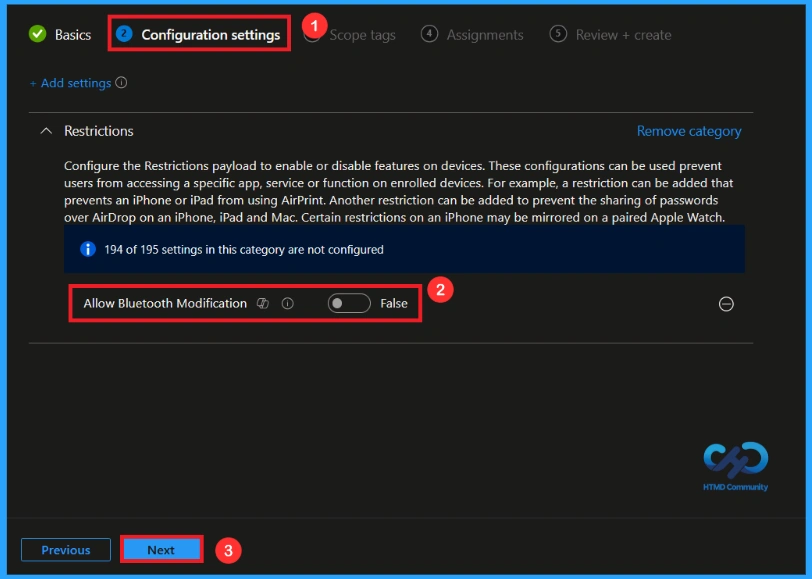
If we block or don’t configure this policy, you can block the Bluetooth Modification policy by toggling the switch from right to left.Then, you can click the Next button to proceed.
What is Scope Tag
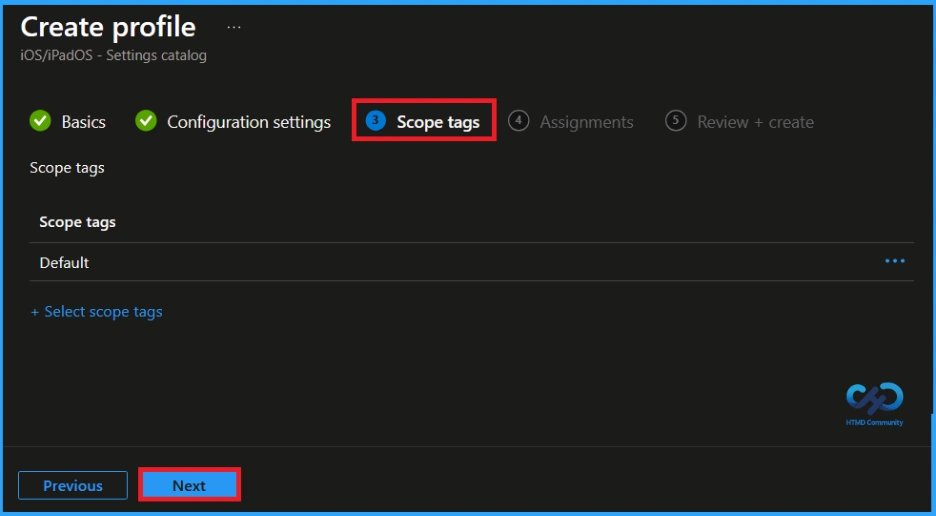
In Intune, Scope Tags are used to control who can view and modify a policy. The scope tag is not mandatory, so you can skip this section. It functions as a tool for organisation and access management, but assigning it is optional. Click Next if they’re not required for your setup.
Assigned Group for Bluetooth Modification Policy
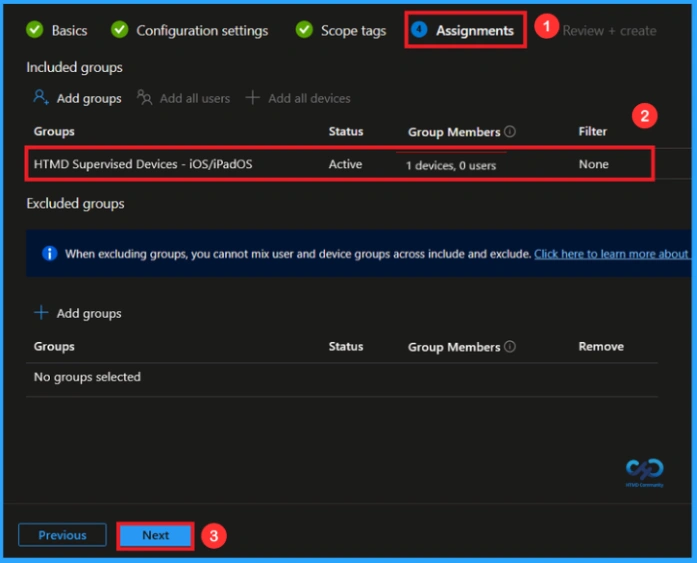
In the Assignments tab, you choose the users or devices that will receive the policy by clicking Add Group under Include Group, select the group that you want to target (HTMD Supervised Devices – iOS/iPadOS) and then click Next to continue.
Final Step
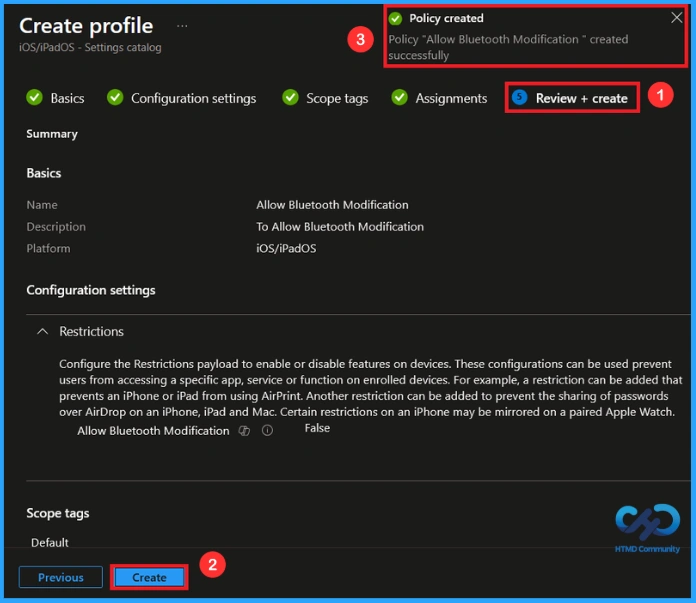
At the final Review + Create step, we see a summary of all configured settings for the new profile; after reviewing the details and making any necessary changes by clicking Previous. We click Create to finish, and a notification confirms that the “Allow Bluetooth Modification created successfully”.
Device and User Check-in Status
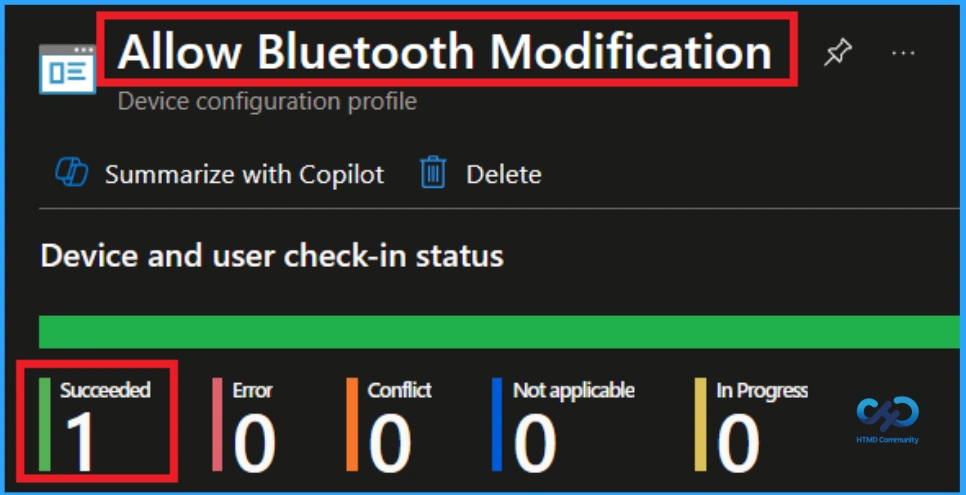
To view a policy’s status, go to Devices > Configuration in the Intune portal, select the policy (Allow BLuetooth Modification), and check that the status shows Succeeded (1). Use manual sync in the Company Portal to speed up the process.
How to Remove Assigned Group from this Policy
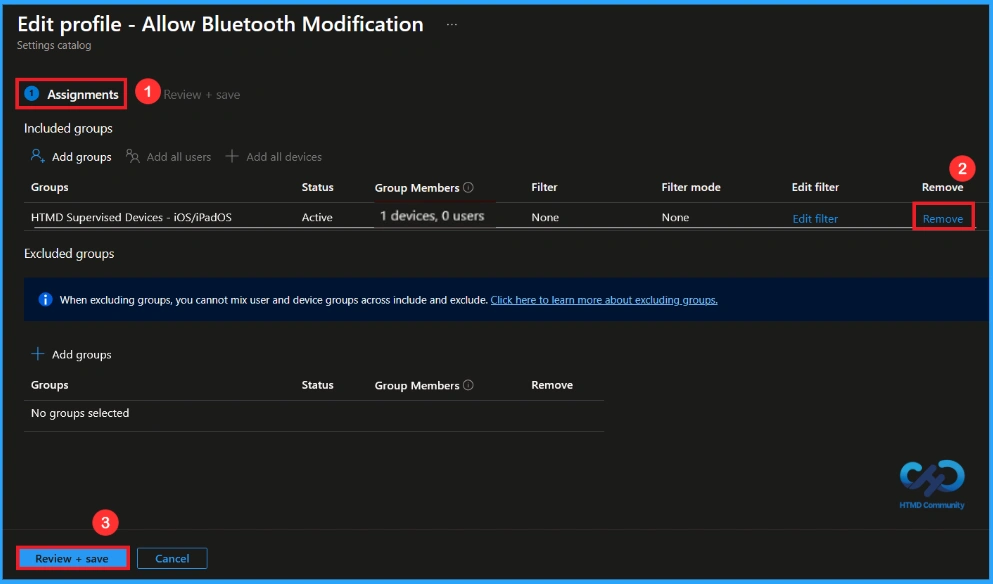
After creating the policy, if you want to remove the specific group that you previously selected, you can easily do that. First, go to Devices > Configuration policies. In the Configuration policy section, search and select the policy. In the Assignment section, you will find an Edit option and click on it. Then, click the Remove option.
For detailed information, you can refer to our previous post – Learn How to Delete or Remove App Assignment from Intune using by Step-by-Step Guide.
How to Delete this Policy from Intune
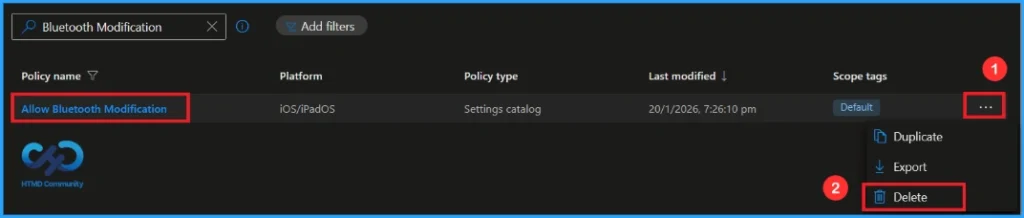
If you want to delete this policy for any reason, you can easily do so. First, search for the policy name in the configuration section. When you find the policy name, you will see a 3-dot menu next to it. Click on the 3 dots, then click the Delete button.
For detailed information, you can refer to our previous post – How to Delete Allow Clipboard History Policy in Intune Step by Step Guide.
Need Further Assistance or Have Technical Questions?
Join the LinkedIn Page and Telegram group to get the latest step-by-step guides and news updates. Join our Meetup Page to participate in User group meetings. Also, Join the WhatsApp Community and WhatsApp Channel to get the latest news on Microsoft Technologies. We are there on Reddit as well.
Author
Anoop C Nair has been Microsoft MVP from 2015 onwards for 10 consecutive years! He is a Workplace Solution Architect with more than 22+ years of experience in Workplace technologies. He is also a Blogger, Speaker, and Local User Group Community leader. His primary focus is on Device Management technologies like SCCM and Intune. He writes about technologies like Intune, SCCM, Windows, Cloud PC, Windows, Entra, Microsoft Security, Career, etc


Discussion