





Managing Microphone Access on HoloLens 2 using Intune
Key Takeaways
- This policy controls whether the microphone on HoloLens 2 is enabled or disabled
- Enabling the policy disables the microphone on the device
- When disabled, apps and system features cannot use audio input
- Disabling or not applying the policy keeps the microphone available
- The setting provides direct control over microphone access on HoloLens 2
Hey, let’s discuss about Managing Microphone Access on HoloLens 2 using Intune. When the Microphone Disabled policy is enabled on HoloLens 2, the microphone is completely disabled at the system level. This prevents all apps and features from using the microphone and cannot be overridden through normal device settings. It is mainly used for security and privacy, especially in offline or secure scenarios where microphone access must be fully blocked.
Table of Contents
Managing Microphone Access on HoloLens 2 using Intune
When the policy is disabled or not applied, the microphone remains available on HoloLens 2. In this state, apps and system features can access the microphone normally without restriction.
- Mandatory Audio for Windows Sandbox Enforce Microphone Access on Every PC using Intune
- Enable Disable Microphone Array in Windows 11
- Enable or Disable Instant Wake Policy in Human Presence using Intune
First Step of Policy Creation
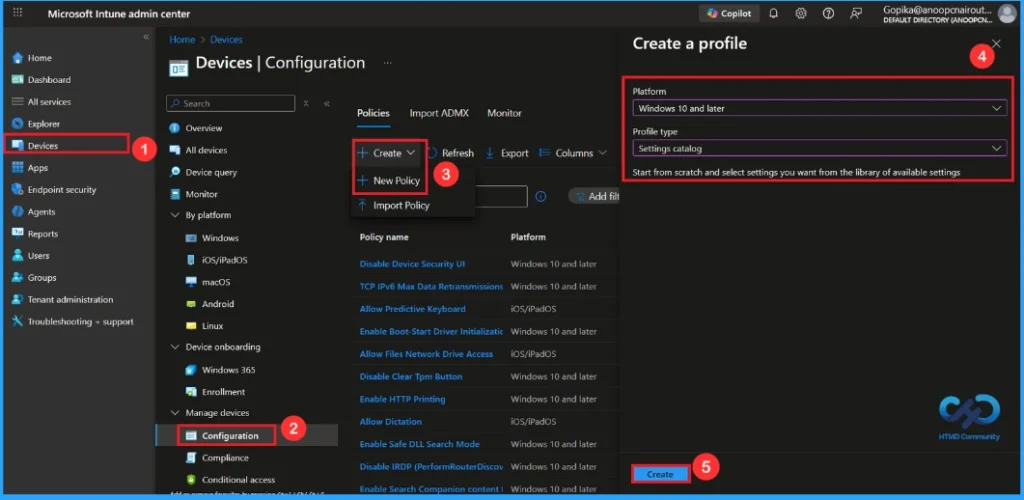
By sign in with your Credentials an admin can easily configure Microphone Disabled policy with Microsoft Intune. After Sign in Go to Devices > Configuration >+ Create > +New Policy. Profile creation is the necessary step that helps you to assign the policy to appropriate platform and Profile.
| Platform | Profile Type |
|---|---|
| Windows 10 and later | Settings Catalog |
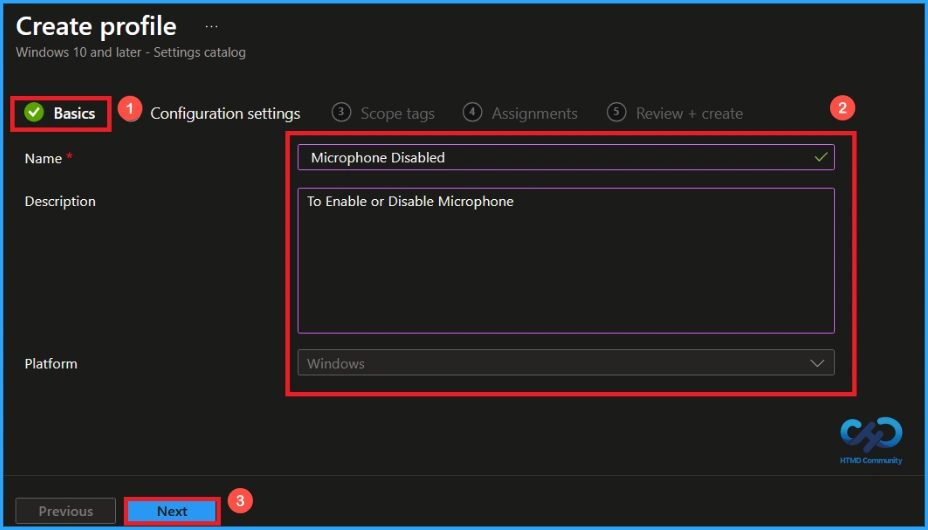
Basic Tab for Name and Description
Naming the policy is the primary step that help admins to identify the policy later. This is important and necessary step that allows you to know the purpose of the policy. Here is Name is mandatory and description is optional. After adding this click on the Next button.

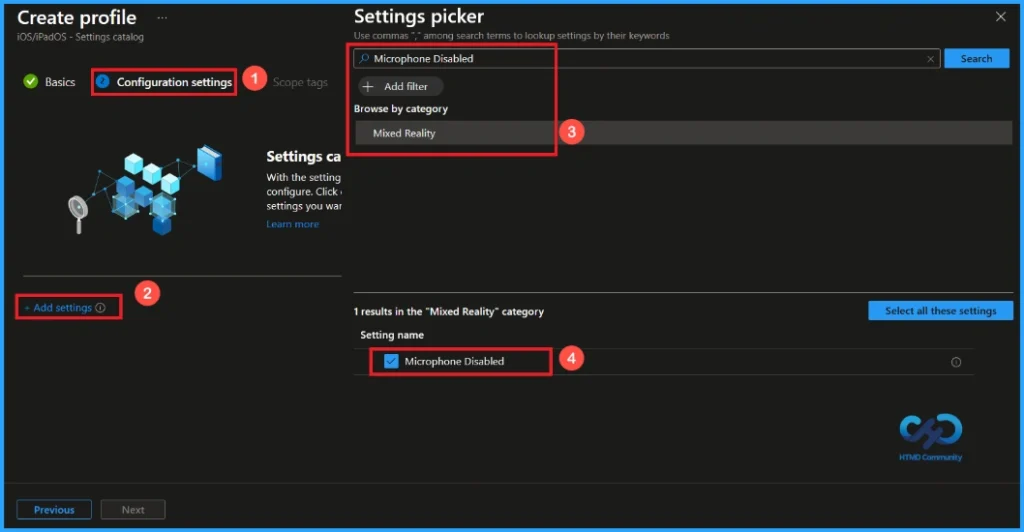
Configure Microphone Policy
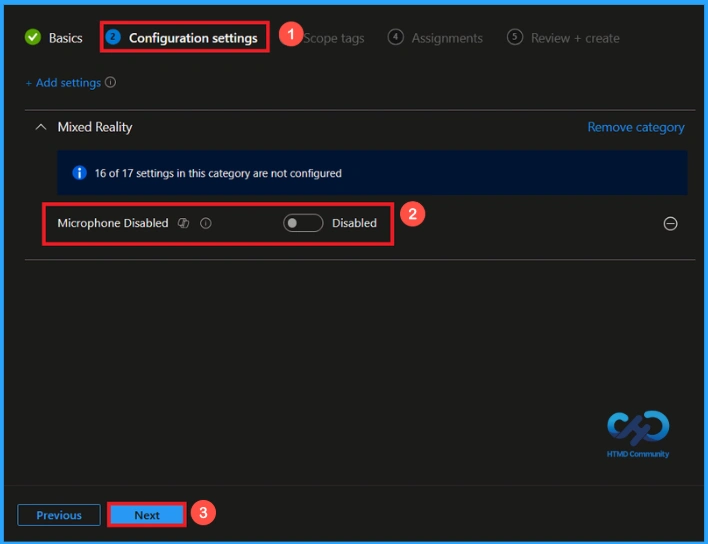
With Settings Picker, you can use the Configuration Settings Tab. On this tab, you can click on the +Add Settings hyperlink to get the Settings Picker. The settings picker shows huge number of settings. Here I choose Mixed Reality.as category. Then, I choose Microphone Disabled.
After selecting the policy, you will be on the Configuration Settings page. Here, you can see two options enable or disable. By default, the Microphone policy is enabled. If you continue with this click Next to proceed.
Enable Microphone Policy
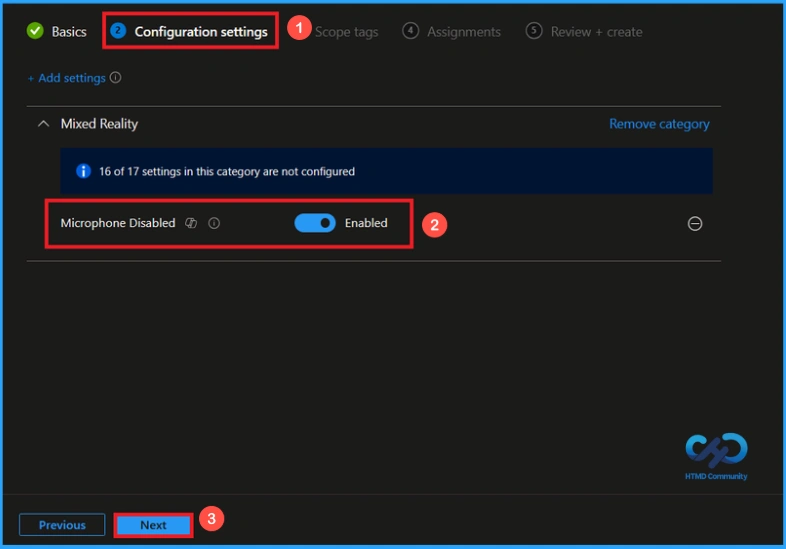
Here, you can disable or not configure the microphone policy. Disable the microphone policy by toggling the button from left to right. Then click Next to continue.
What is Scope Tag
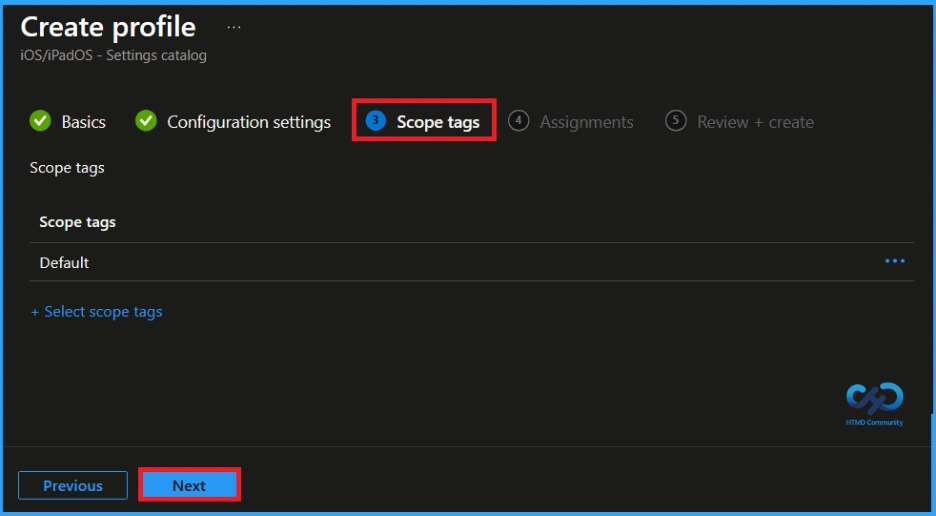
After configuring the settings, click Next. You will then reach the Scope Tag section. Scope tags help you organize and filter policies based on departments, locations, or roles. They make it easier to manage and assign policies to the right groups. If you want to add a scope tag for your policy, you can easily do that. Once done, click Next to continue further.
Assignment Tab
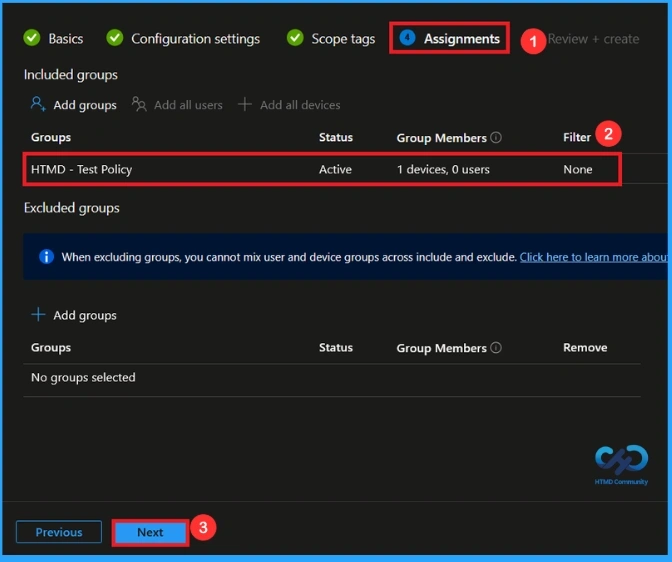
To assign the policy to specific groups, you can use the Assignment Tab. Here I click, Add groups option under Included groups. I choose a group from the list of groups and click on the Select button. Again, I click on the Next button to continue.
Review + Create Tab
Before completing the policy creation, you can review each tab to avoid misconfiguration or policy failure. After verifying all the details, click on the Create Button. After creating the policy, you will get a success message.

Monitoring Status
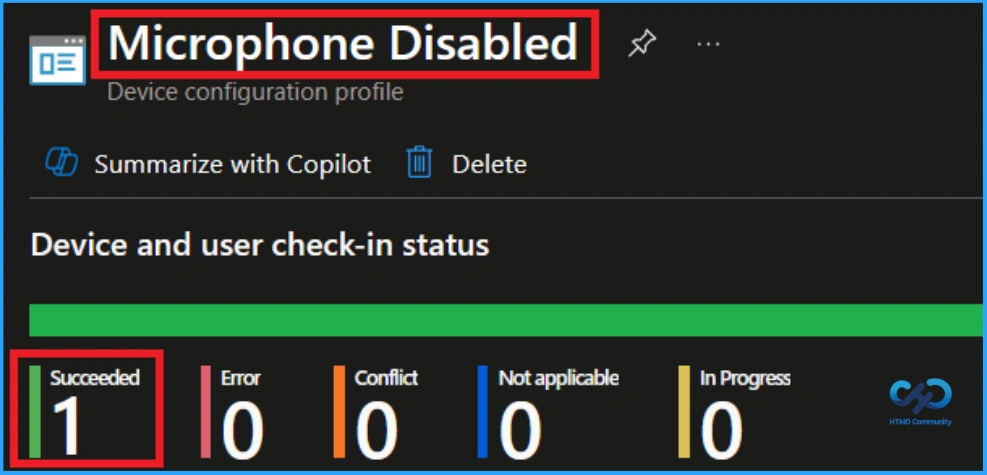
The Monitoring Status page shows whether the policy has succeeded or not. To quickly configure the policy and take advantage of the policy sync the assigned device on Company Portal. Open the Intune Portal. Go to Devices > Configuration > Search for the Policy. Here, the policy shows as successful.
How to Remove Assigned Group from this Policy
If you want to remove the Assigned group from the policy, it is possible from the Intune Portal. To do this, open the Policy on Intune Portal and edit the Assignments tab and the Remove Policy.
To get more detailed information, you can refer to our previous post – Learn How to Delete or Remove App Assignment from Intune using by Step-by-Step Guide.

How to Delete this Policy from Intune Portal
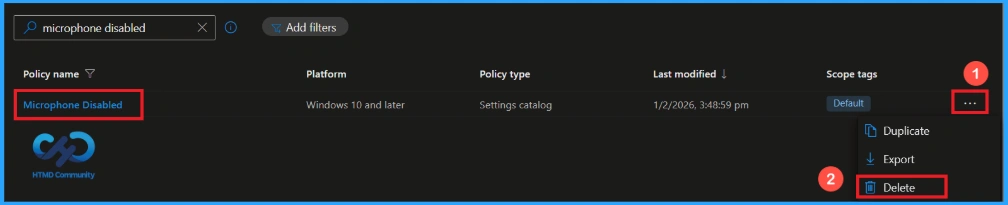
If you want to delete this policy for any reason, you can easily do so. First, search for the policy name in the configuration section. When you find the policy name, you will see a 3-dot menu next to it. Click on the 3 dots, then click the Delete button.
For detailed information, you can refer to our previous post – How to Delete Allow Clipboard History Policy in Intune Step by Step Guide.
Need Further Assistance or Have Technical Questions?
Join the LinkedIn Page and Telegram group to get the step-by-step guides and news updates. Join our Meetup Page to participate in User group meetings. Also, Join the WhatsApp Community and WhatsApp Channel to get the latest news on Microsoft Technologies. We are there on Reddit as well.
Author
Anoop C Nair has been Microsoft MVP for 10 consecutive years from 2015 onwards. He is a Workplace Solution Architect with more than 22+ years of experience in Workplace technologies. He is a Blogger, Speaker, and Local User Group Community leader. His primary focus is on Device Management technologies like SCCM and Intune. He writes about technologies like Intune, SCCM, Windows, Cloud PC, Windows, Entra, Microsoft Security, Career, etc.


Discussion