





How Time Zone Restoration and UAC Settings Cause a UAC Dialog After Windows Backup Restore
Key Takeaways
- The UAC prompt can appear after restore due to non-default UAC behavior
- Prompt for consent for non-Windows binaries does not trigger the UAC prompt
- Set time zone automatically is the only restored setting that can trigger the UAC prompt.
- If that setting is restored as Off, the UAC dialog may appear
Today in this post we can discuss How Time Zone Restoration and UAC Settings Cause a UAC Dialog After Windows Backup Restore After restoring a PC using Windows Backup for Organizations, users might encounter a User Account Control dialog that asks, do you want to allow this app to make changes to your device? This can occur immediately after restoring or during initial sign-in.
Table of Contents
Why Does the UAC Dialog Appear After Restore?
How Time Zone Restoration and UAC Settings Cause a UAC Dialog After Windows Backup Restore
We have to understand that the UAC dialog appears after restoring a PC using Windows Backup for Organizations is important for both IT administrators and users. This behavior is expected and depends on device configuration, not on a restore issue. Knowing that the prompt is related to User Account Control settings and the Set time zone automatically option helps administrators explain the experience to users and avoid unnecessary support requests.
- Disable UAC Secure Desktop Mode using Intune
- How to Configure Windows Backup and Restore in Microsoft Intune
- Best Method to Create Windows 11 System Image Backup
- How to Backup and Restore Windows 365 Cloud PC | Point-in-time Restore Option
- Best Method to Enable and Disable Windows 365 Cloud PCs Redirections using Intune
| Important to Know that |
|---|
| The UAC dialog may appear after restoring a PC from backup |
| This behavior is expected under specific conditions and it is not caused by a backup or restore failure |
| Only one restored setting can trigger the UAC dialog |
Cause Of UAC Prompt
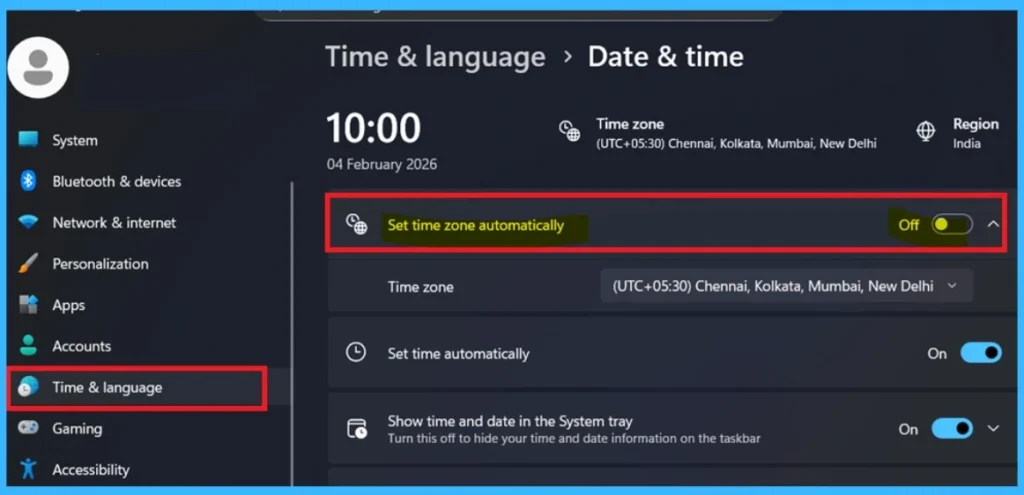
The only restored setting that can trigger the UAC prompt is the Set time zone automatically setting. If the setting is off, the UAC prompt can appear. According to Microsoft, the only restored setting that can trigger the UAC prompt is Set time zone automatically. If this setting is restored as Off, Windows requires elevated permission to apply the configuration.
- When combined with a UAC behavior that prompts for consent, Windows displays the UAC dialog.
- The Set time zone automatically setting is a standard Windows system setting that can be viewed directly on the device.
- For that go to the Windows 11 device > Open the Settings> Time and language >Select Date and time > Locate Set time zone automatically.
- This setting can be toggled On or Off
See More : Time and Language Settings in Windows 11

How to Check this UAC Setting in Intune
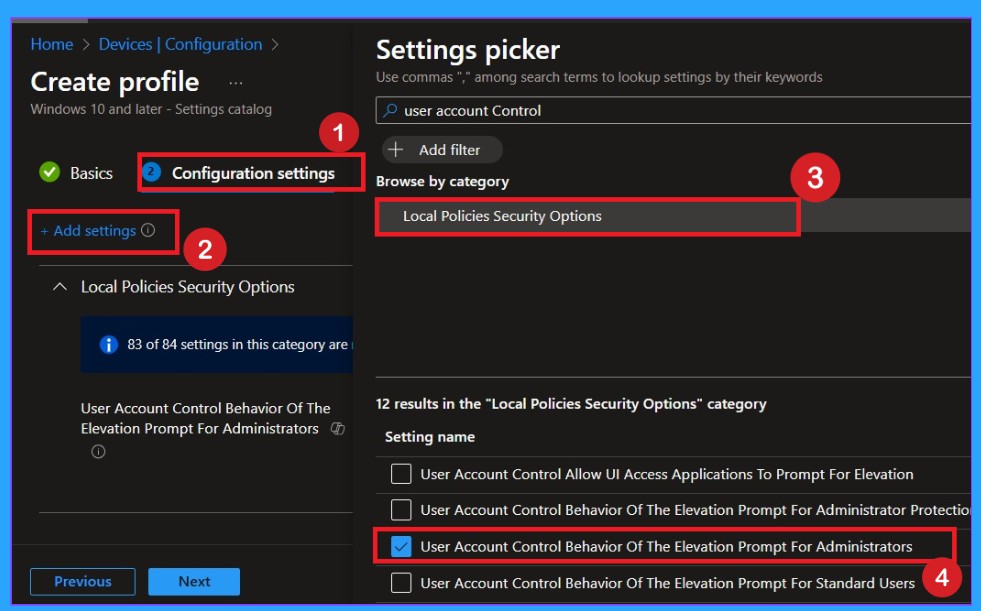
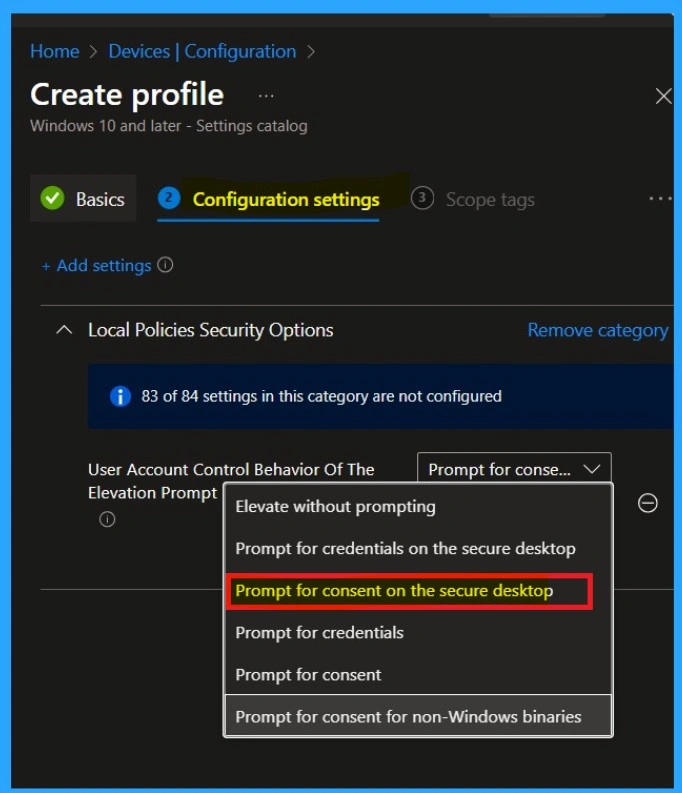
Microsoft Intune allows administrators to manage User Account Control (UAC) settings through device configuration policies. By reviewing the UAC behavior configured for a device, administrators can confirm whether the UAC dialog shown after restoring is expected. So, in Intune you have to go to the setting catalog for this then Go to the Configuration settings> +Add Settings> In settings Search User Account Control.
- Select the Setting User Account Control Behavior of the Elevation Prompt for Administrators
For More information’s: Enhancing System Security by Configuring UAC Elevation Prompts using Intune policy
After selecting the policy enable the toggle of Use Admin Approval Mode for the built-in Administrator account This policy setting controls the behavior of Admin Approval Mode for the built-in Administrator account. User Account Control Behavior of the elevation prompt for administrators setting configured as Prompt for consent for non-Windows binaries, which is the default UAC behavior.
- According to Microsoft, this default configuration does not lead the UAC dialog after restoring a PC using Windows Backup for Organizations
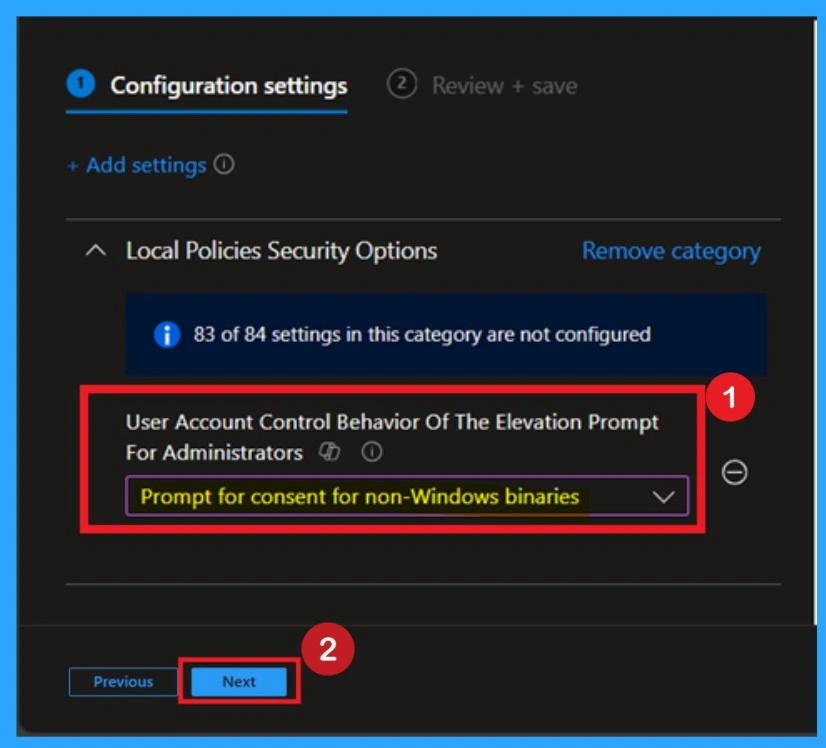
If the policy is set to Prompt for consent or Prompt for consent on the secure desktop, the UAC dialog may appear when the Set time zone automatically setting is restored as Off.
Need Further Assistance or Have Technical Questions?
Join the LinkedIn Page and Telegram group to get the step-by-step guides and news updates. Join our Meetup Page to participate in User group meetings. Also, Join the WhatsApp Community and WhatsApp Channel to get the latest news on Microsoft Technologies. We are there on Reddit as well.
Author
Anoop C Nair has been Microsoft MVP for 10 consecutive years from 2015 onwards. He is a Workplace Solution Architect with more than 22+ years of experience in Workplace technologies. He is a Blogger, Speaker, and Local User Group Community leader. His primary focus is on Device Management technologies like SCCM and Intune. He writes about technologies like Intune, SCCM, Windows, Cloud PC, Windows, Entra, Microsoft Security, Career, etc.


Discussion