





Faster Work Environment Recovery with Windows First Sign-In Restore for Entra and Hybrid Devices
Key Takeaways
- First sign-in restore experience is now generally available.
- Extends restore support beyond OOBE.
- Works with hybrid-joined devices and cloud PCs.
- Restores Windows settings and Microsoft Store app list.
Let’s discuss Faster Work Environment Recovery with Windows First Sign-In Restore for Entra and Hybrid Devices. We are excited to share that Microsoft has introduced the First Sign-in Restore Experience in Windows Backup for Organizations. That means now users get another chance to restore their old Windows settings and apps when they sign in to a new or reimaged device.
Table of Contents
Faster Work Environment Recovery with Windows First Sign-In Restore for Entra and Hybrid Devices
The feature is helping to reduce downtime, and it allows users to restore their apps and settings when signing in to a new or reimaged Windows 11 device. With this update, restore functionality is no longer limited to Microsoft Entra joined devices. It now supports hybrid-managed environments, multi-user configurations, and cloud-based deployments such as Windows 365 Cloud PC.
- Hybrid Entra ID Joined Device Not Enrolling To Intune And Stuck In SCCM Only Mode
- Unified Identity Risk Signals In Microsoft Entra ID Protection Enhance User Risk Detection
- What is Windows 365 Boot
- How to Set Up Windows 365 Cloud Apps Using Microsoft Intune
- Seamless Provisioning of Windows 365 Cloud PCs for External Identities with Intune
- How to Enhance Windows365 AI-Enabled Endpoint Management using Copilot in Intune
What’s New
Previously, users could restore their settings and Microsoft Store apps only during the Out-of-Box Experience (OOBE). If they skipped this step, there was no second opportunity. Now with this new update, users get another chance to restore their backup at first sign-in, ensuring they don’t have to start from scratch.
- Users don’t have to start from scratch if they missed the earlier restore option.
- Their apps, settings, and preferences can still be recovered easily.
- This update gives the user more flexibility; if the user accidentally skips the restore, they’ll still see the option at first sign-in.
- But if they intentionally skip it, Windows won’t show the restore option again.
- The feature is managed through policies in Windows Backup for Organizations and can be configured using Microsoft Intune or Group Policy.
| The first sign-in restore experience | Info |
|---|---|
| Broader coverage | You can restore on hybrid devices, shared devices, and cloud PCs like Windows 365 Cloud PC. |
| Same seamless experience | Users can bring back their Windows settings and Microsoft Store apps at first sign-in, just like during setup |
| Continued focus on user-centric recovery | someone skips restore during OOBE, they get another chance at first login. |
Getting Started with First Sign-in Restore Experience
To get started with the First Sign-in Restore Experience, organizations need to enable it through policies in Windows Backup for Organizations. IT admins can configure the required settings using Microsoft Intune or Group Policy and assign them to the appropriate users or devices.

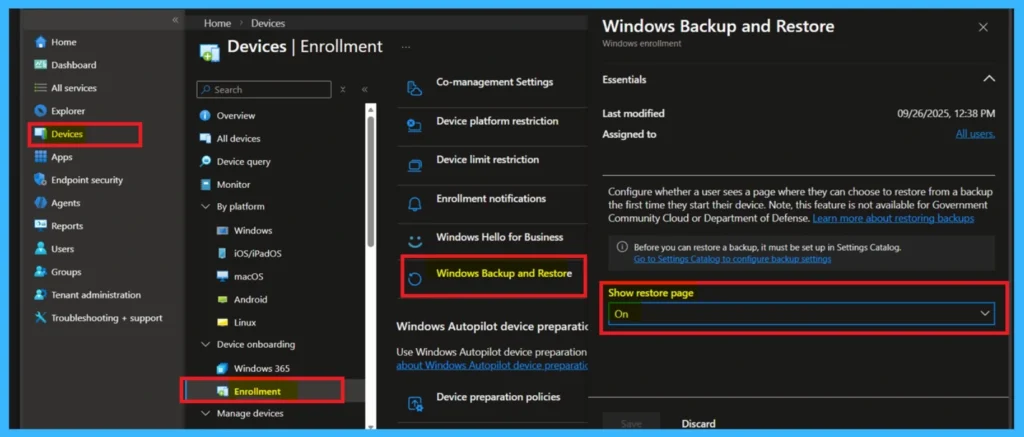
- For policy configuration through Intune.
- Sign in to the MS Intune then Navigate through Devices> Enrollment> Windows Backup and Restore.
- Under Show restore page, select on to enable the restore option during OOBE.
- Select Save to apply the changes.
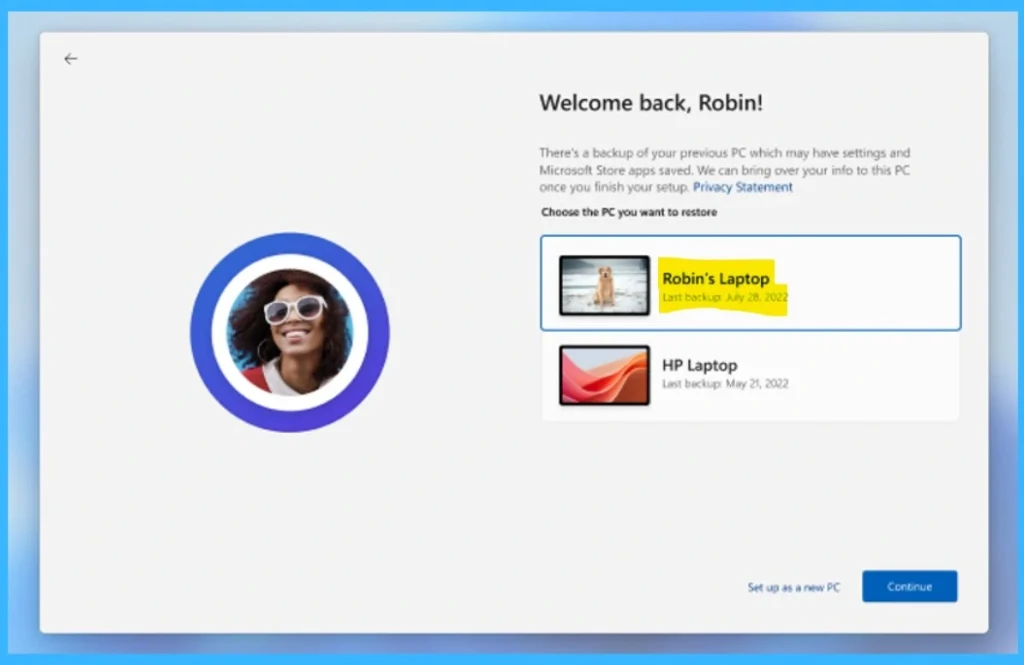
The below image you can see that the Windows First Sign-in Restore Experience screen that appears when a user signs in to a new or reimaged device. The system detects backups from previous PCs and offers to restore them. The user can choose one of these to restore settings and Microsoft Store apps or select Set up as a new PC to start fresh.
Need Further Assistance or Have Technical Questions?
Join the LinkedIn Page and Telegram group to get the step-by-step guides and news updates. Join our Meetup Page to participate in User group meetings. Also, Join the WhatsApp Community and WhatsApp Channel to get the latest news on Microsoft Technologies. We are there on Reddit as well.
Author
Anoop C Nair has been Microsoft MVP for 10 consecutive years from 2015 onwards. He is a Workplace Solution Architect with more than 22+ years of experience in Workplace technologies. He is a Blogger, Speaker, and Local User Group Community leader. His primary focus is on Device Management technologies like SCCM and Intune. He writes about technologies like Intune, SCCM, Windows, Cloud PC, Windows, Entra, Microsoft Security, Career, etc.




Discussion