






ConfigMgr Standalone Media Creation Guide| Fully Offline | SCCM
This post helps to manage the Operating System deployment with the configuration manager without any access to the network. Let’s see the fully Offline Standalone Media Using the ConfigMgr Creation Guide.
Standalone media includes the task sequence that automates installing the OS and all other required content, including the boot image, OS image, and device drivers.
Due to the comprehensive OS deployment requirements, stand-alone media requires more disk space than other media types.
When creating stand-alone media on a CAS, the client reliably retrieves its assigned site code from Active Directory. Stand-alone media created at child sites automatically assigns the client the site code for that site without fail.

| Index |
|---|
| Prerequisites |
| Supported Deployment Scenarios |
| Limitations |
| Creating a standalone Media in SCCM |
| Troubleshooting |
Prerequisites
- Task Sequence with all content dependencies should be created.
- Distributing all content associated with the task sequence requires at least one distribution point.
- Create an output folder to save the media files.
Supported Deployment Scenarios
We can use standalone media with the following OS deployment scenarios:
- Bare Metal – Deploy an operating system on a new computer or wipe an existing device.
- InPlace Upgrade – This process automatically migrates existing data, settings, drivers, and applications and automatically upgrades from an earlier version of Windows.
- Refresh – Refresh an existing device by saving the user state, wiping the disk, and then restoring the user state to the new version of the OS.
Limitations
The following actions aren’t compatible with standalone media.
- The Auto Apply Drivers step in the task sequence. Instead, use the Apply Driver Package step to make a specified set of drivers available to Windows Setup.
- The Download Package Content step in the task sequence, which includes management point information, is not available on standalone media, so the step fails to enumerate content locations.
- Installing software updates.
- Installing software before deploying the OS.
- Custom task sequences for non-OS deployments.
- Associating users with the destination computer to support user device affinity.
- The dynamic package installs via the Install Packages step.
- The dynamic application installs via the Install Application step.
For more detailed information Unsupported actions for standalone media.
Creating a standalone Media in SCCM
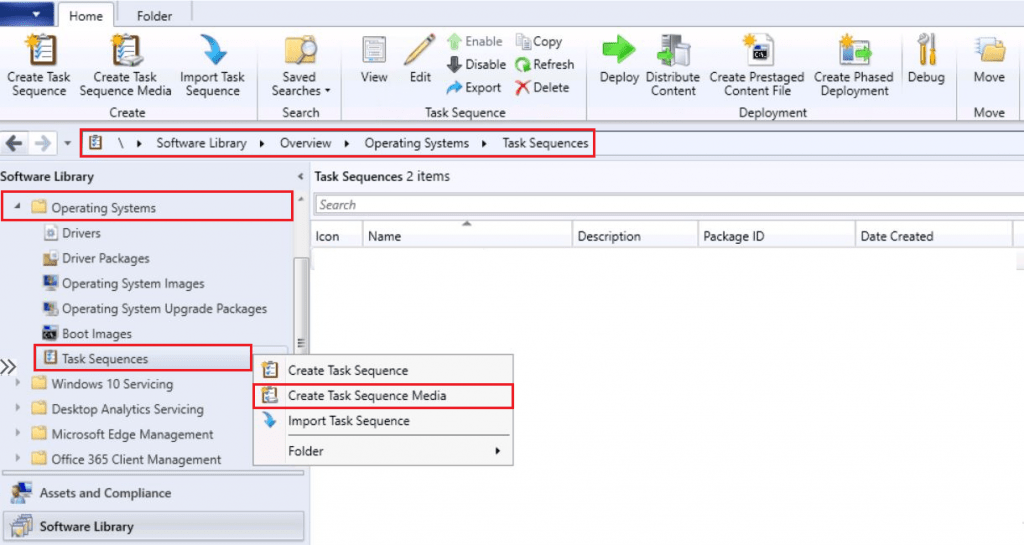
In the Configuration Manager console, go to the Software Library workspace, expand Operating Systems, select the Task Sequences node and select Create Task Sequence Media to start the Create Task Sequence Media Wizard.
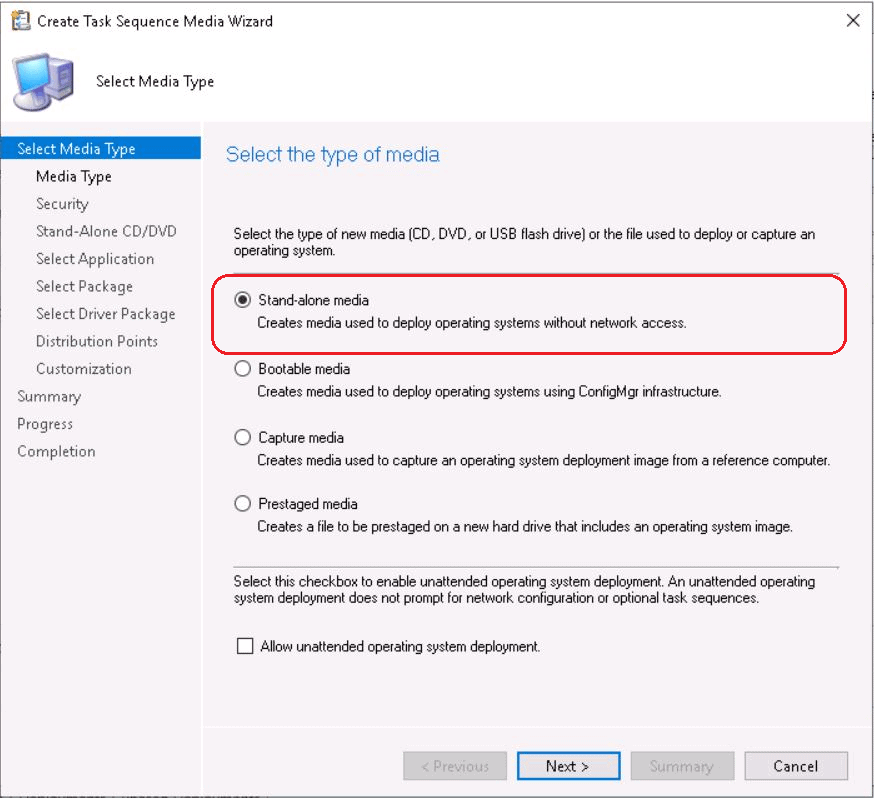
Select Standalone media to deploy OS without network access on the Select Media Type page. Click Next.
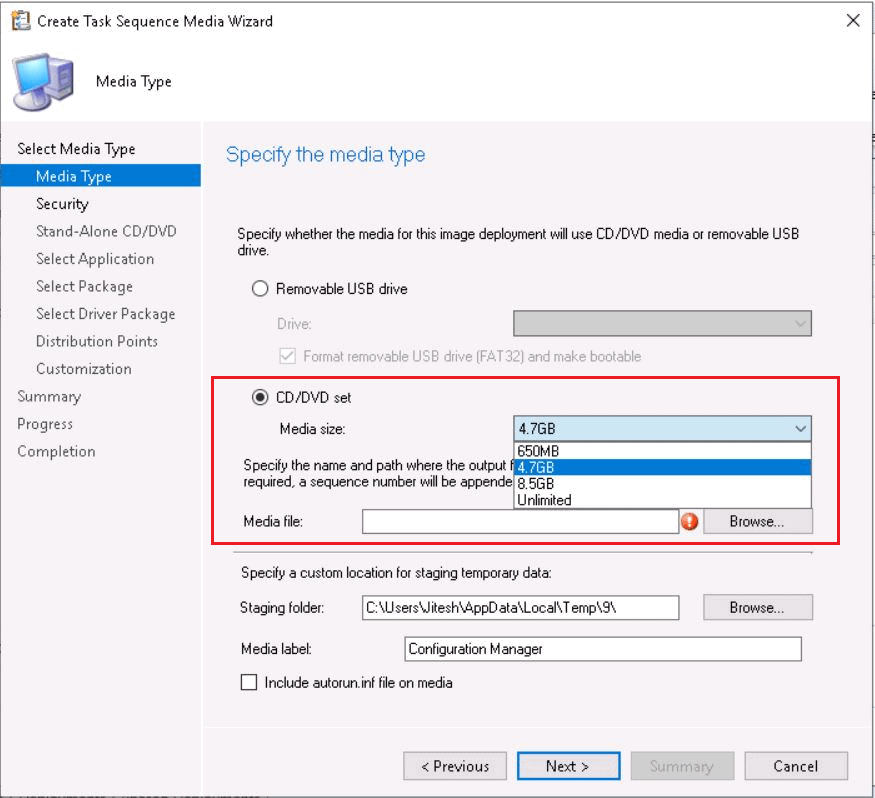
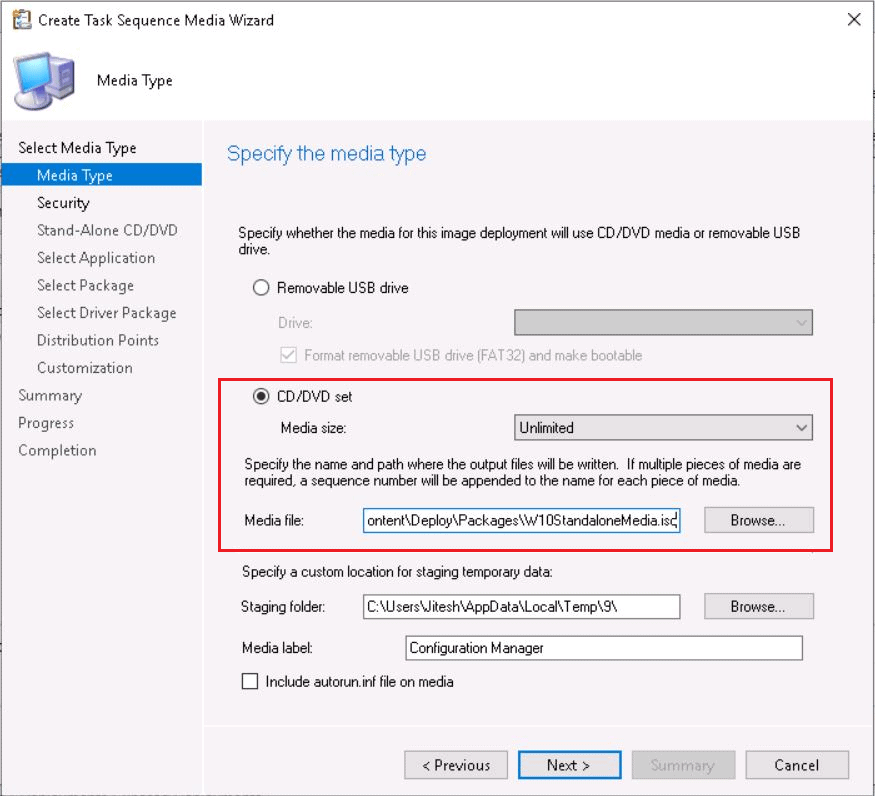
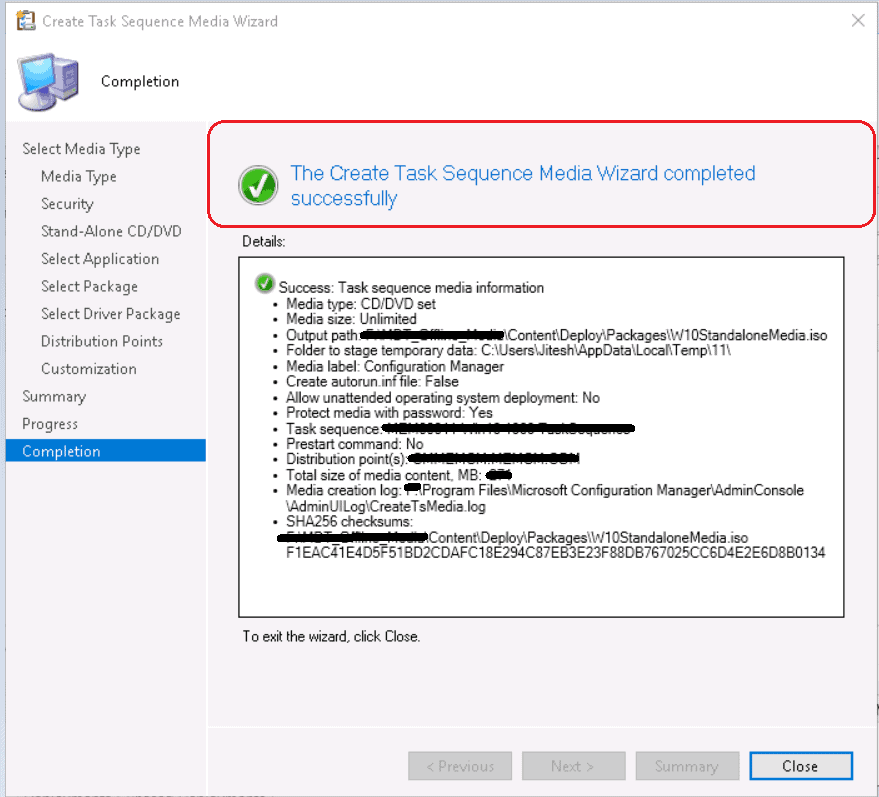
On the Media Type page, I will select the CD/DVD set. Then, configure the Media size to unlimited from the drop-down list, as I’m not sure about the size of the Task Sequence.
It is always best to store the output in a local or shared folder drive. If the capacity of the CD/DVD media is too small to store the entire content, it creates multiple files and prompts you to insert the next media.
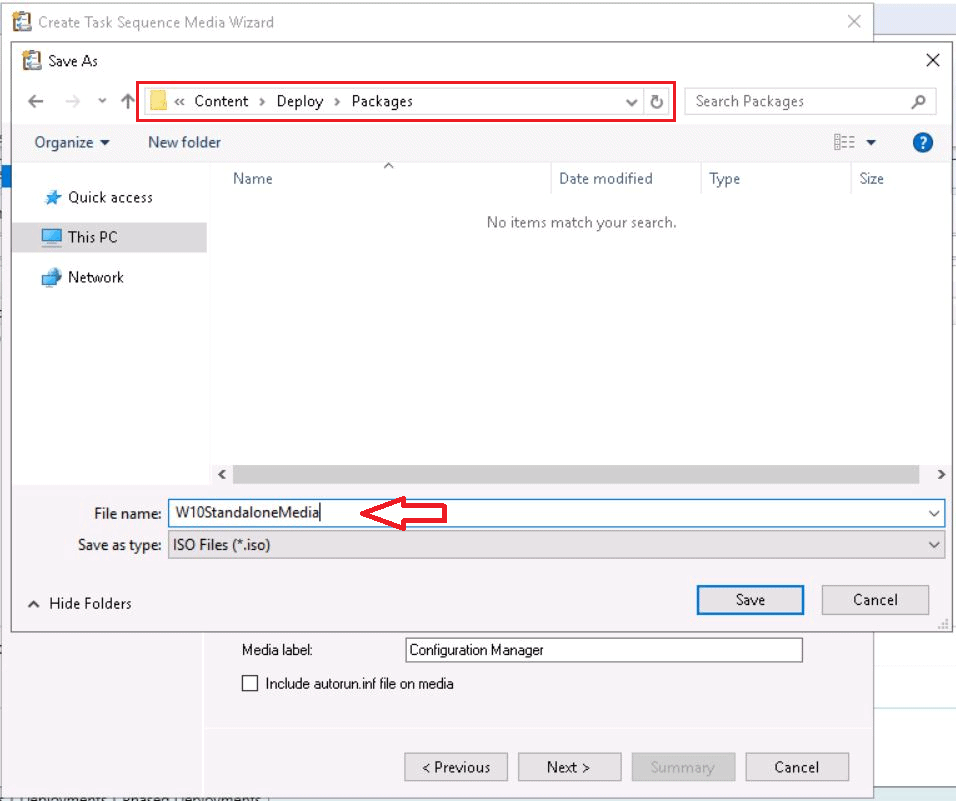
Under Media File, click Browse. Specify the name and path of the output file (Media file). The wizard writes the output files to this location. Click Save.
Staging folder: The media creation process can require a lot of temporary drive space.
Media label: Starting in version 1902, add a label to task sequence media. This label helps you better identify the media after you create it. The default value is Configuration Manager. This text field appears in the following locations:
- If you mount an ISO file, Windows displays this label as the name of the mounted drive.
- If you format a USB drive, it uses the first 11 characters of the label as its name
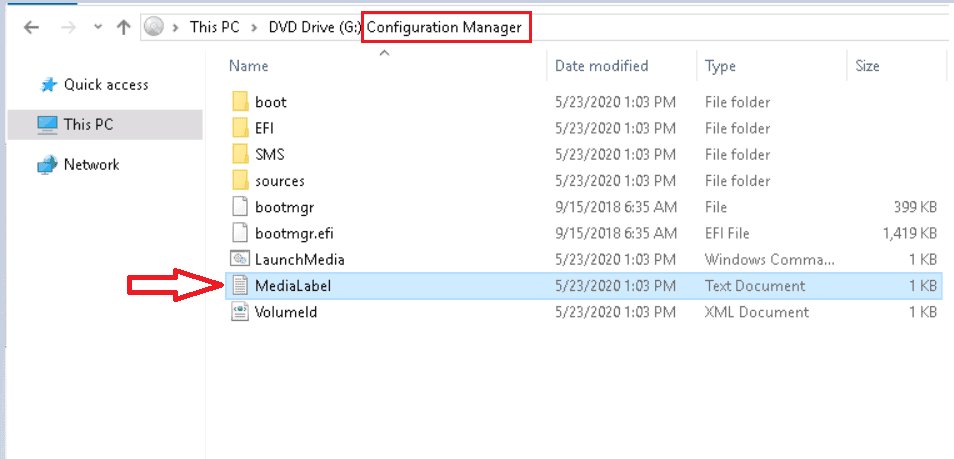
- Configuration Manager writes a text file called MediaLabel.txt to the root of the media. By default, the file includes a single line of text: label=Configuration Manager.
If you customize the label for media, the file MediaLabel includes uses your custom label instead of the default value.
Include autorun.inf file on media: Starting in version 1906, Configuration Manager doesn’t add an autorun.inf file by default. This file is commonly blocked by Symantec Endpoint Protection (SEP) or other antimalware products.
Review the provided information, and Click Next.
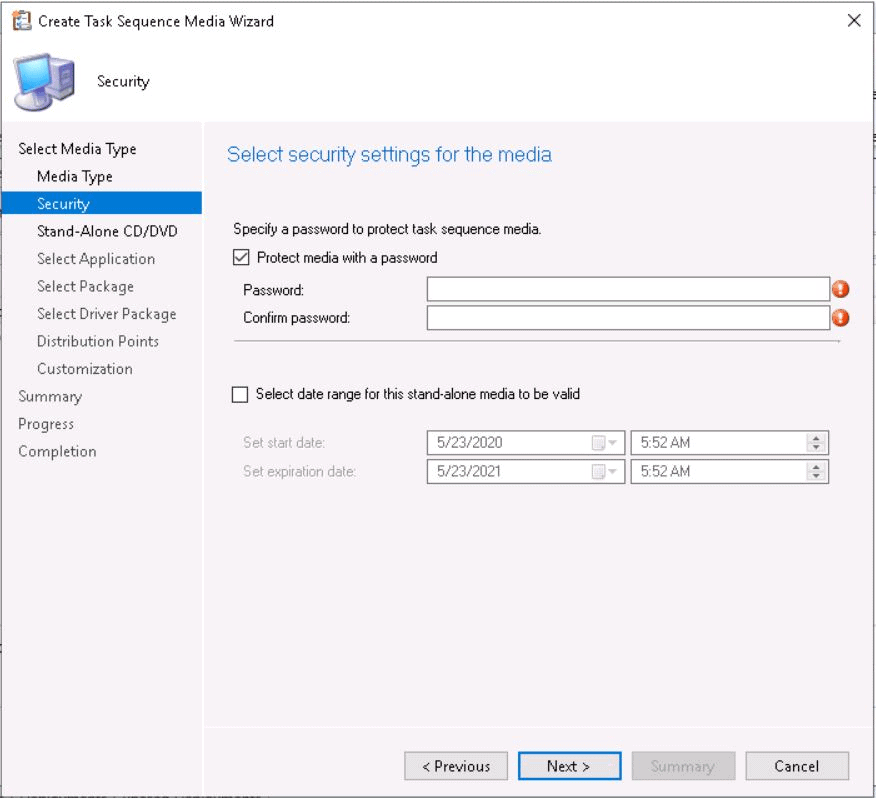
On the Security page, I have specified a password and clicked Next.
Protect media with a password – it only encrypts the task sequence steps and their variables. It doesn’t encrypt the remaining content of the media.
Then select the date range for this standalone media to be valid. This setting is disabled by default. You can specify the validity of media by setting a start date and expiration date.
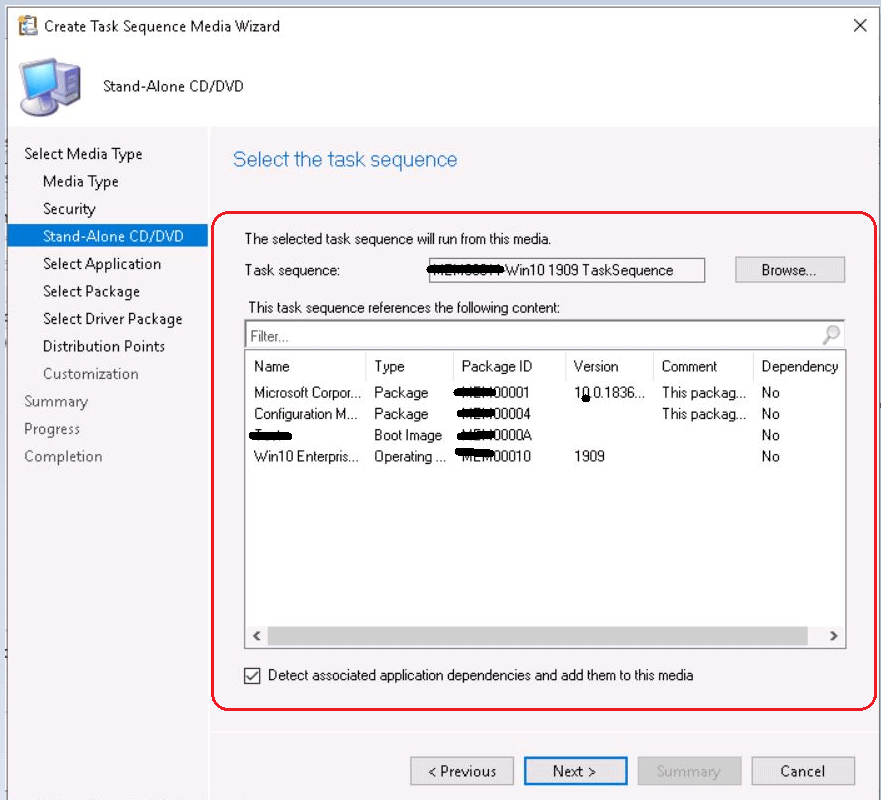
On the Standalone CD/DVD page, click Browse to select the task sequence that deploys.
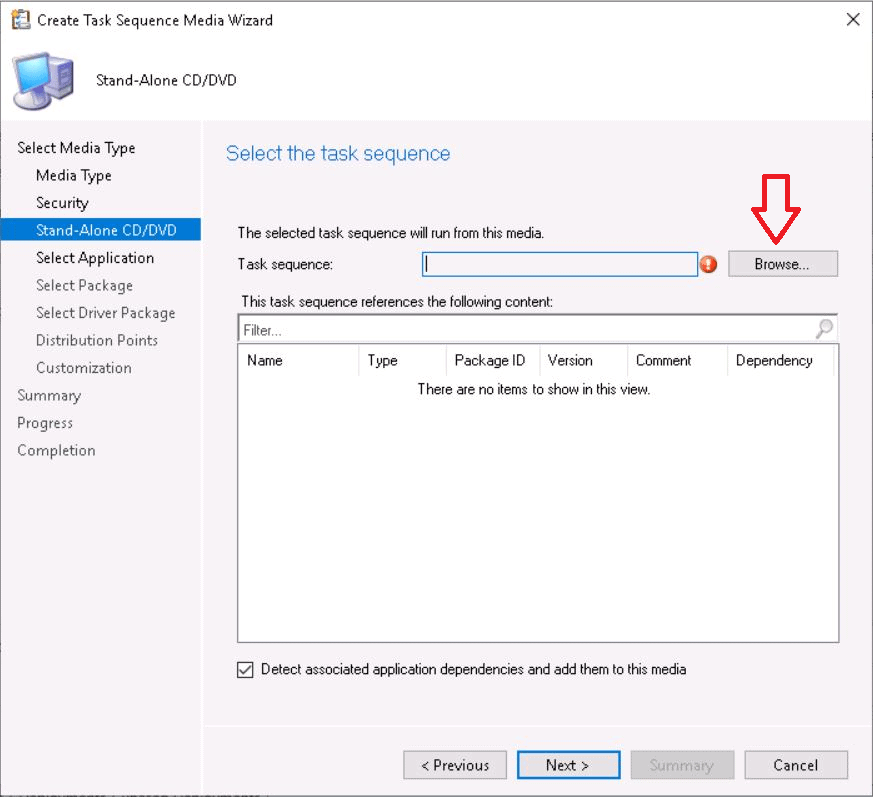
Verify the list of content referenced by the task sequence. Click Next.
Detect associated application dependencies and add them to this media: add content to the media for application dependencies.
Note: If you don’t see expected application dependencies, deselect and then reselect this option to refresh the list.
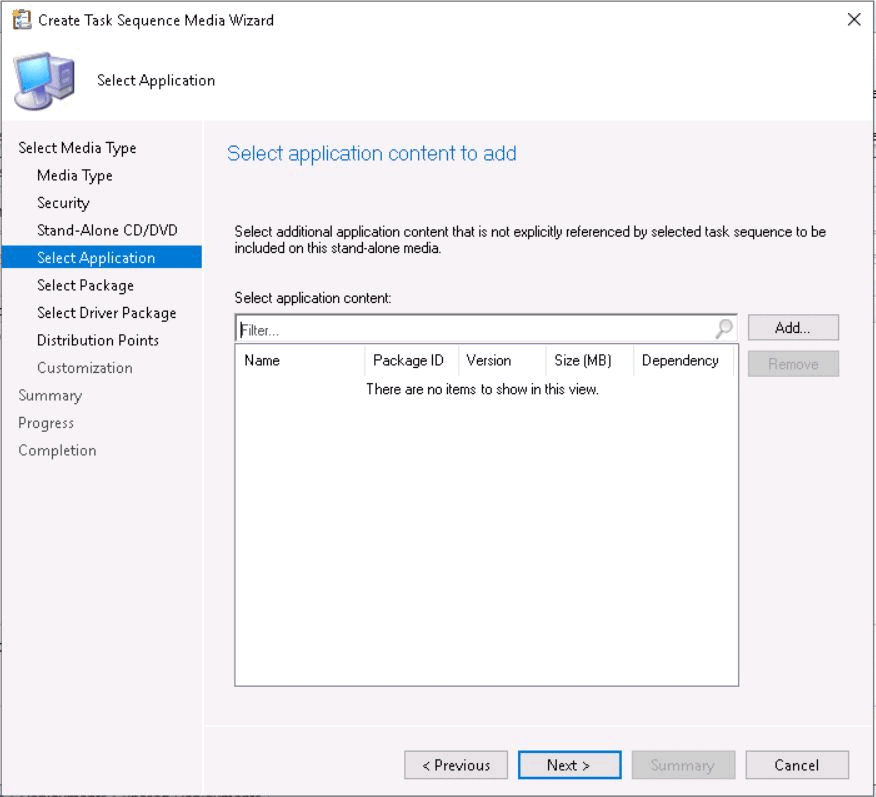
On the Select Application page, specify additional application content to include as part of the media file.
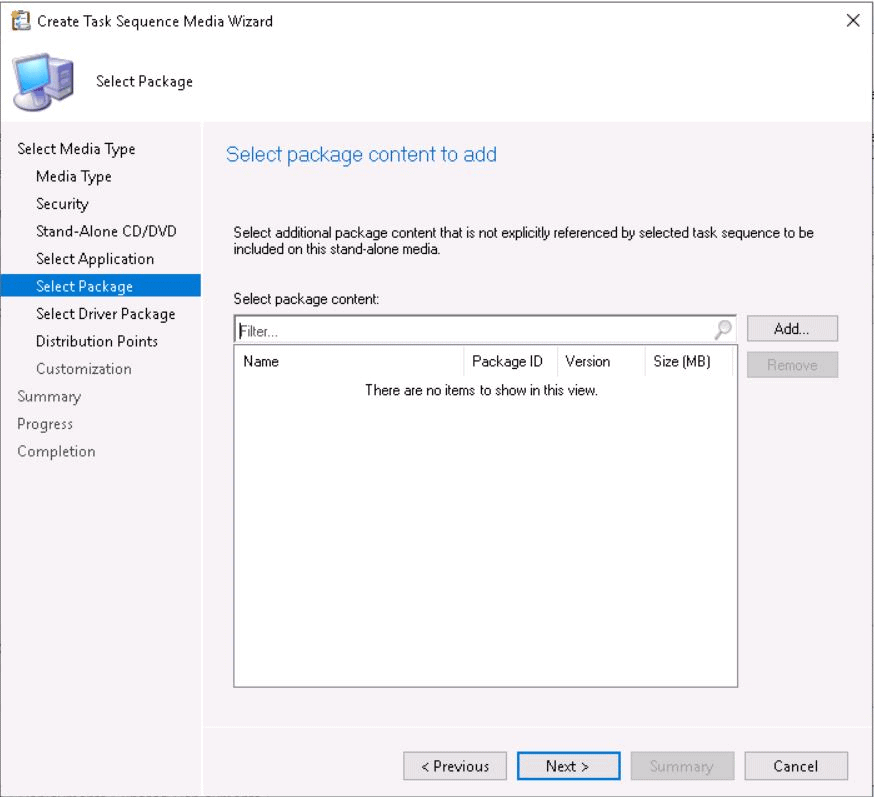
On the Select Package page, specify additional package content to include as part of the media file.
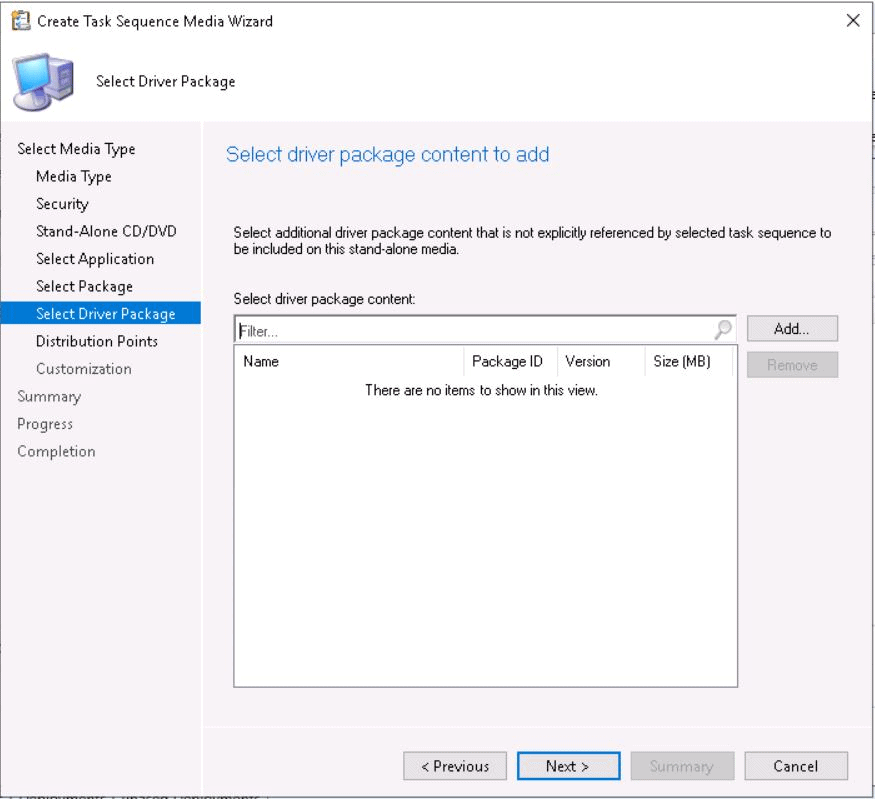
On the Select Driver Package page, specify additional driver package content to include as part of the media file.
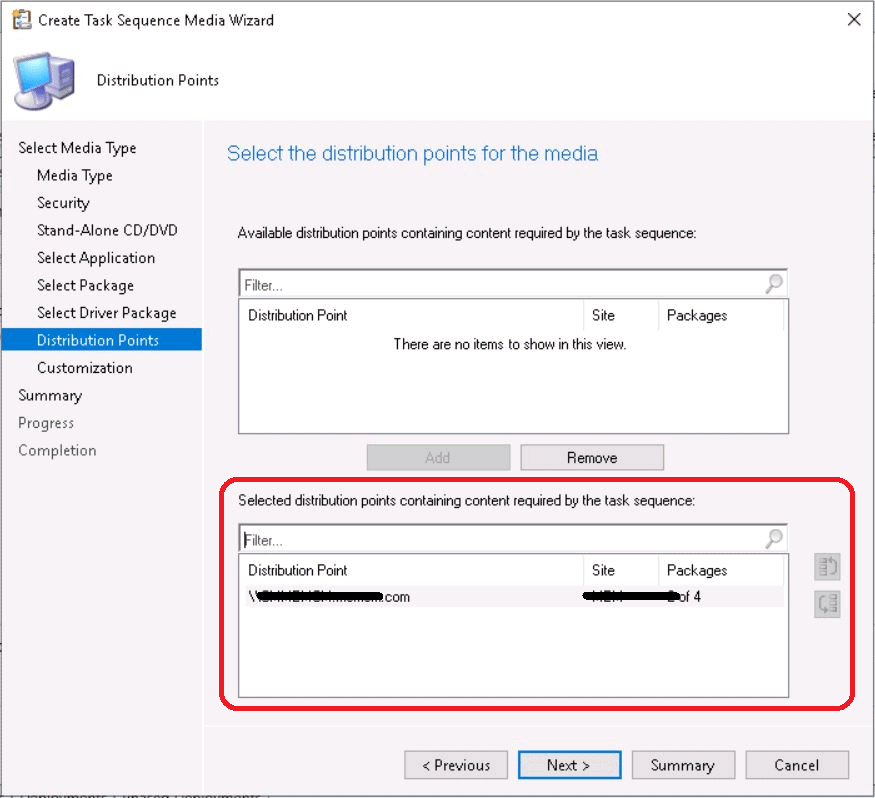
Specify the distribution points on the Distribution Points page containing the required content. Select the DP and click Add.
Wizard only displays distribution points that have the content.
Important: Before you continue, Distribute all of the content associated with the task sequence to at least one distribution point.
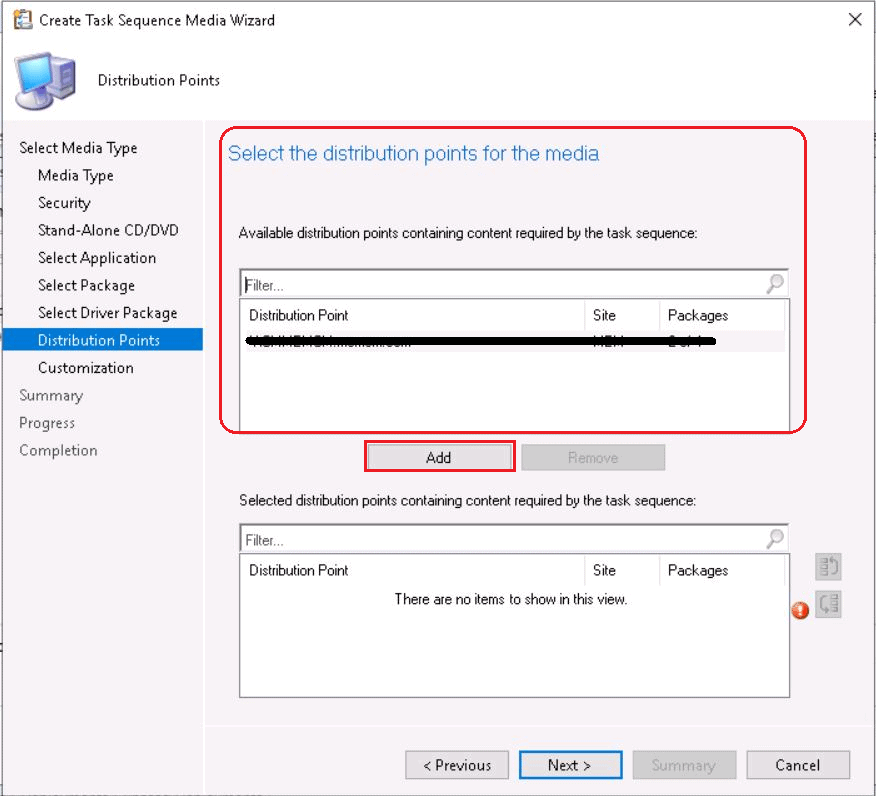
Here, I have only one DP with all the content distributed. Once the associated DP containing task sequence content is added, Click Next.
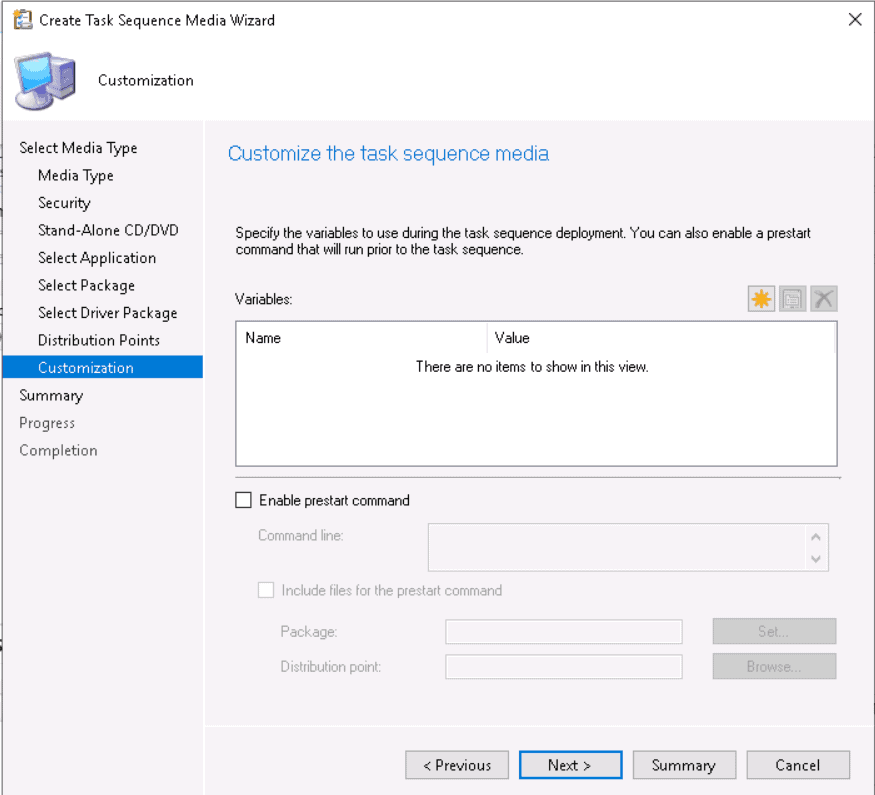
On the Customization page, you can specify the following options. I am leaving default. Click Next.
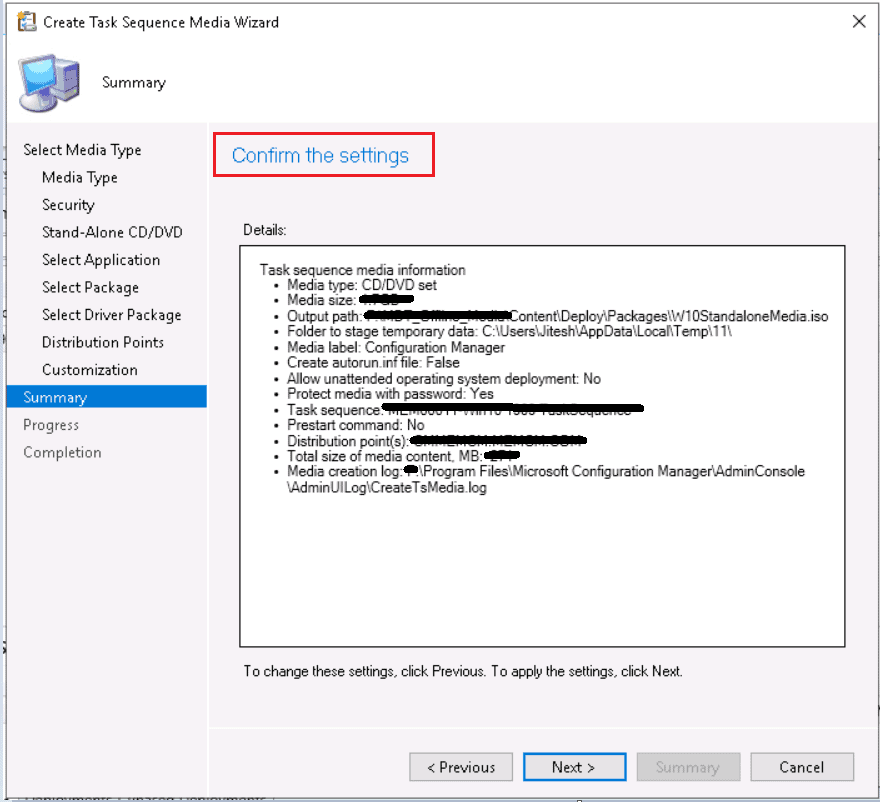
Review the task sequence media details, and click Next.
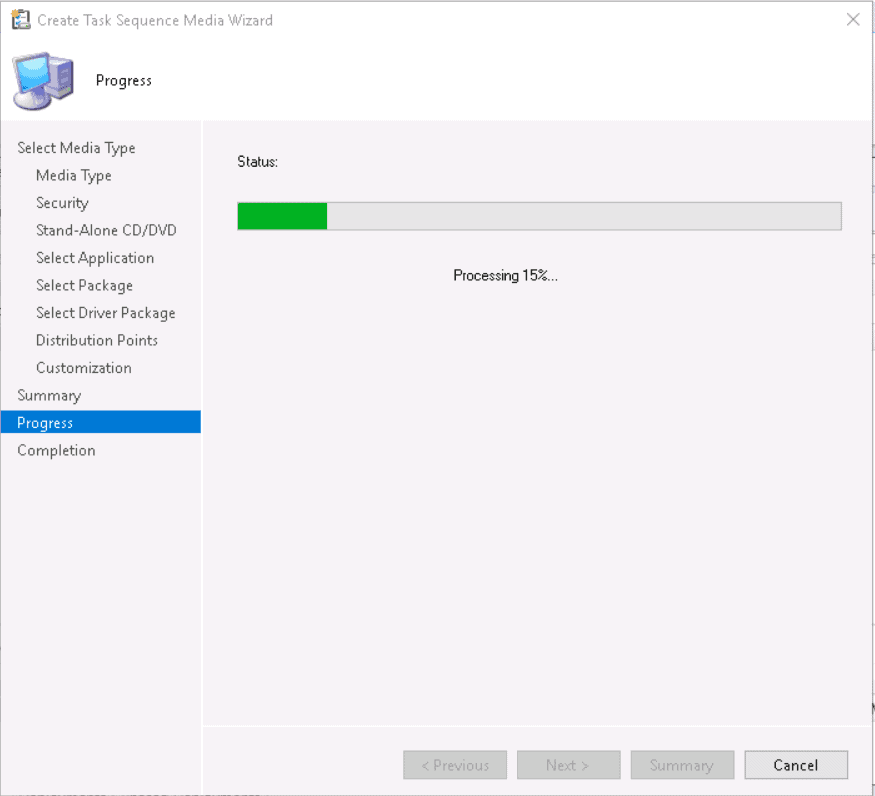
The build process has started. It will include the boot image, OS image, device drivers, and all other required content. The process takes a longer time to complete.
After completing successfully, click close to exit the wizard.
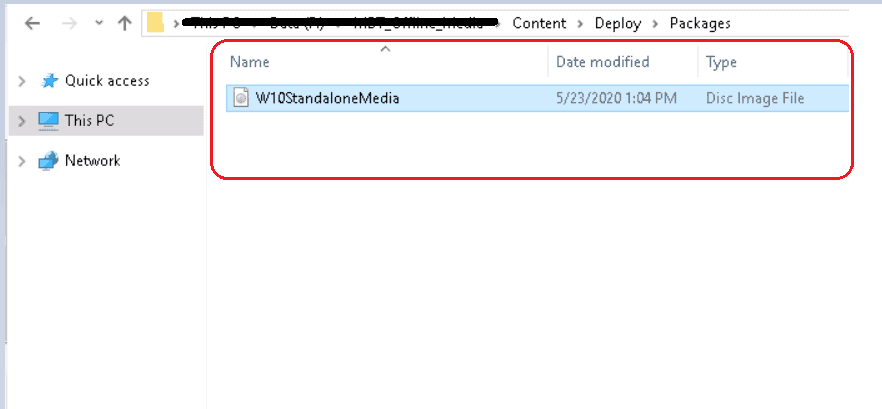
The standalone media files (.ISO) are created in the specified path. Copy the output files to a bootable USB drive for offline deployment, or you can use CDs based on your requirements.
Troubleshooting
Look at the log to check the activities or troubleshoot issues.

CreateTSMedia.log - Provide detailed information for task sequence media creation. This log is located in <ConfigMgr Installed Drive>\Program Files\Microsoft Configuration Manager\AdminConsole\AdminUILog
Resources – Standalone Media Using ConfigMgr Creation Guide – SCCM
Create standalone media in Configuration Manager
We are on WhatsApp. To get the latest step-by-step guides and news updates, Join our Channel. Click here –HTMD WhatsApp.
Author
Jitesh has over five years of experience in the IT Industry. He writes and shares his experiences related to Microsoft device management technologies and IT Infrastructure management. His primary focus area is the Windows 10 Deployment solution with Configuration Manager, Microsoft Deployment Toolkit (MDT), and Microsoft Intune.




Hi, I have created a task sequence to SCCM which install IoT machine and needed programs via PXE boot. I also exported Task Sequence to Offline install ISO so I can put it on the USB stick and install the IoT machine via USB stick. Now I need that Offline.ISO to be converted to WIM file, but dunno how it can be done. Should I capture it from IoT machine or can I just convert the Offline ISO to WIM somehow?
Hello Josh, We need to understand your requirement & deployment approach with WIM. If you looking for WIM with all references added in Task Sequence or ISO. In that case you can capture the prepared machine. However keeping all settings and customizations inside machine is not recommended. It may cause an issue.
You can raise your queries here – http://htmdforum.com/ for quick help.
Ok, I have a nicely working Task Sequence which installs Win10 and all needed software, one software is installed via active setup as user account promoted to admin, when computer reboots at the end of TS, then autologon is used and this application installs fine. How does this behaviour change if I sysprep and capture this freshly installed computer? I have told to customer that they can now do the offline installations with offiline ISOs and USB, but they want also WIM file for installation for some reasons, they say that they need multiple wim files to same USB sticks on the field. I instructed them that this USB stick can also have multible iso files added ie. with yumi. Just wondering if all installed software will work after sysprep and wim capture when captured WIM is applied to new computers?
StaffThat’s really good point. Its not a best practice to include all stuffs and perform capture! Mostly the licensed apps or antivirus product may cause an issue.
Had you checked this post, Hopefully you get to know more – anoopcnair.com/sysprep-capture-windows-10-image-using-dism/
Expecting to use HTMD Forum (http://htmdforum.com/)for quick response!