





Microsoft Fixes Windows 11 Update Issue during Shutdown or Restart
Key Takeaways
- You can now shut down or restart without installing pending updates
- Windows will no longer force updates when you click shutdown
- You get more control over when updates install
- Power menu now shows clear separate options
- This change is available in the latest Windows 11 build
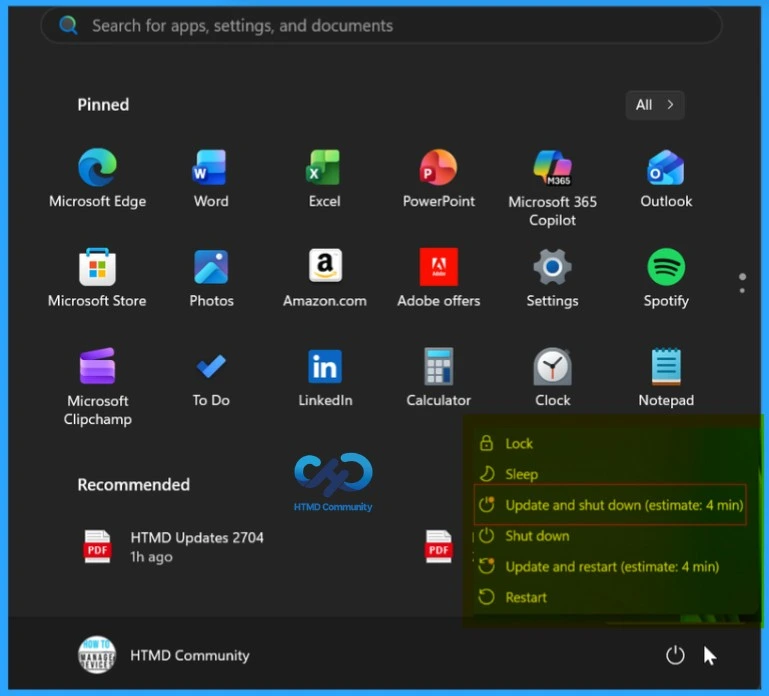
Microsoft Fixes Windows 11 Update Issue during Shutdown or Restart! The latest update in Windows 11 gives users more control over how updates are handled. Earlier, even if you clicked Shut down or Restart, Windows would often go ahead and install pending updates, especially important security ones. Now, Microsoft has changed this behavior so your selection is respected. You will see clear options like Shut down, Restart, Update & shut down, and Update & restart, and Windows will only install updates if you explicitly choose those update options.
Table of Content
Windows 11 Finally Stops Forcing Updates on Shutdown and Restart
You can now quickly shut down or restart your PC without being forced to install updates, which is very helpful when you are in a hurry or travelling. You no longer have to wait for updates to finish before turning off your system. The main goal of this update is to make the power menu more predictable and user-friendly, so your PC follows your choice instead of overriding it with automatic updates.
- How to Set Pause Start Date for Quality Updates using Intune Policy
- How to Configure Engaged Restart Snooze options for End Users during Monthly Patch Cycle using Intune
- Easy way to Block Pause Updates Ability in Windows Update for Business via Intune
Windows 11 Power Options Explained After Latest Update Fix
Microsoft has updated how the Power menu works in Windows 11 to make it more predictable for users. Now, each shutdown or restart option behaves clearly based on what you select. If you choose “Shut down,” the PC will simply turn off without installing updates.
If you select “Restart,” the system will restart immediately without forcing any updates. However, if you choose “Update & shut down,” Windows will first install all pending updates and then turn off the computer. Similarly, “Update & Restart” will install updates first and then restart the PC.

| Option | Details |
|---|---|
| Shut down | Turns off the PC without installing updates |
| Restart | Restarts the PC without installing updates |
| Update & shut down | Installs updates, then turns off the PC |
| Update & Restart | Installs updates, then restarts the PC |
Microsoft Introduces Improved Pause Controls to Give Users More Flexibility Over Windows Updates
Microsoft controls when Windows updates are installed automatically. This approach is helpful for regular users who might otherwise delay important updates and miss security fixes. However, it can be frustrating for more experienced users who prefer to manage updates on their own schedule. To solve this issue, Microsoft is introducing improved pause options for Windows updates, giving users more flexibility and control over when updates are installed.
- Best way Intune to Stop Sending New Policy Updates to Windows Devices Pause Config Refresh Feature
- Simplifying Windows Update Management Integration of Intune and Autopatch
- How to Configure Display Options for Windows Update Notifications in Intune
- How to Fix Issue on Windows Update Deployment using Intune for No Logged-in Users
- Windows Update for Business Renamed to Windows Update Client Policies
Need Further Assistance or Have Technical Questions?
Join the LinkedIn Page and Telegram group to get the latest step-by-step guides and news updates. Join our Meetup Page to participate in User group meetings. Also, join the WhatsApp Community and the Whatsapp channel to get the latest news on Microsoft Technologies. We are there on Reddit as well.
Author
Anoop C Nair is a Workplace Technology solution architect with 25+ years of experience. Microsoft Certified Trainer. Microsoft MVP from 2015 onwards for consecutive 11+ years! He is a blogger, Speaker, and Founder of HTMD Community and HTMD Conference. His main focus is on Device Management technologies like Intune, Windows, and Cloud PC. He writes about technologies like Intune, SCCM, Windows, Cloud PC, Entra, and Microsoft Security.




Discussion