






Enable Windows 10 servicing using SCCM | ConfigMgr | WSUS
Let’s learn how to enable Windows 10 servicing using SCCM (a.k.a Configuration Manager). I’ve seen many organizations using an In-place update task sequence instead of Windows 10 servicing to upgrade to the latest version of Windows 10 2004.
The term “Windows Servicing” refers to Microsoft’s process of releasing a new version of Windows 10 every six months from a specific branch of the Windows code. During each version’s life cycle, updates are provided to ensure ongoing support and improvement.
There are various tools for managing Windows as a service. Windows Update (standalone) provides limited control over feature updates, while Windows Server Update Services (WSUS) offers extensive control over updates and comes with the Windows Server operating system.
Microsoft Endpoint Configuration Manager provides the most comprehensive control, allowing IT professionals to postpone, approve updates, and manage bandwidth usage and deployment time.

| Index |
|---|
| Pre Requisites |
| Enable Windows 10 servicing using SCCM |
| Sync All Windows 10 Update |
| Log – WSyncMgr.log |
| Results – Enable Windows 10 servicing using SCCM |
Pre Requisites
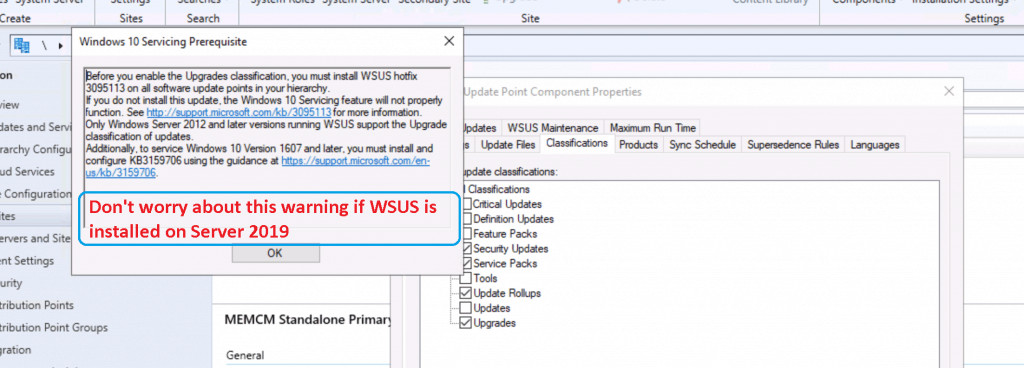
To enable Windows 10 servicing using SCCM + WSUS, the following are the supported WSUS version required.
- WSUS 10.0.14393 (role in Windows Server 2016)
- WSUS 10.0.17763 (role in Windows Server 2019) (Requires Configuration Manager 1810 or later)
- WSUS 6.2 and 6.3 (role in Windows Server 2012 and Windows Server 2012 R2)
- KB 3095113 and KB 3159706 (or an equivalent update) must be installed on WSUS 6.2 and 6.3.
NOTE! – Don’t worry about the warning message if your WSUS server is on Windows Server 2019.
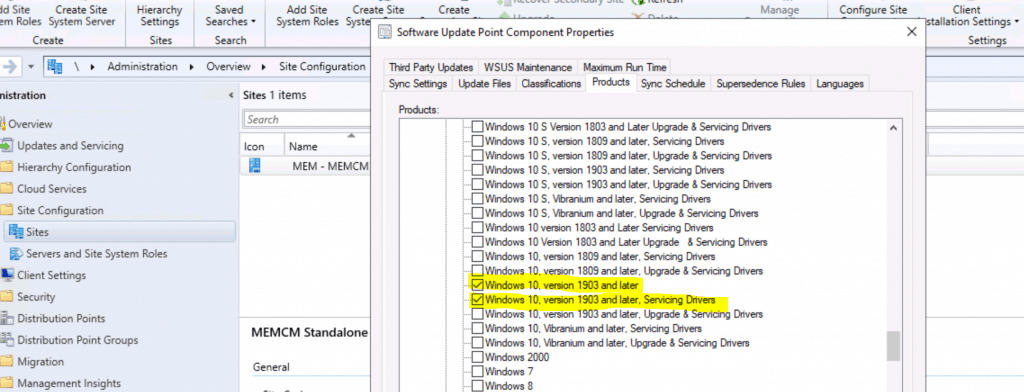
From the Products, you have enabled the following product.
- Windows 10, version 1903 and later
- The service connection point must be installed and configured for Online
- Enable Specify thread priority for feature updates from Client settings (1902 or later).
- Enable Dynamic Update for feature updates from Client settings (1906 or later).
Enable Windows 10 servicing using SCCM
Let’s follow the below steps to enable Windows 10 servicing using SCCM.
- Launch ConfigMgr console
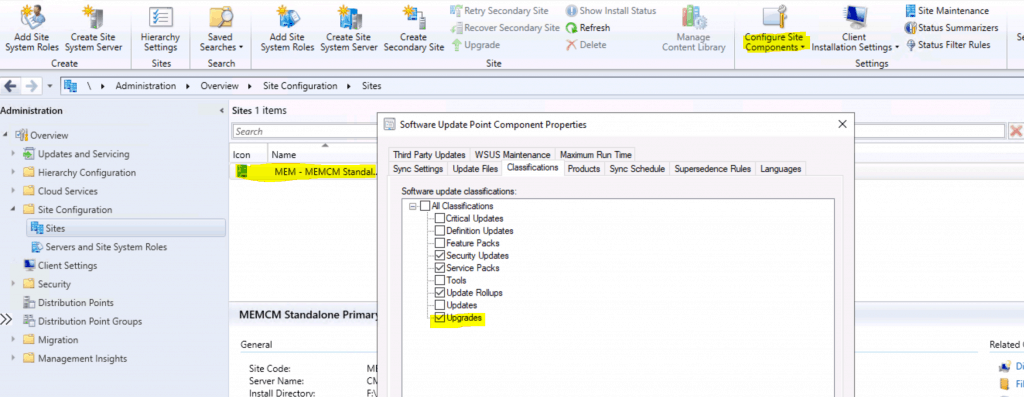
- Navigate to the Administration workspace. Expand Site Configuration, and select the Sites node.
- Select the top-level site in the hierarchy. From the ribbon menu, click Configure Site Components and select Software Update Point.
- Click the Classification tab from Software Update Point Component Properties.
- Click on UPGRADE and enable the checkmark for upgrade options.
Sync All Windows 10 Update
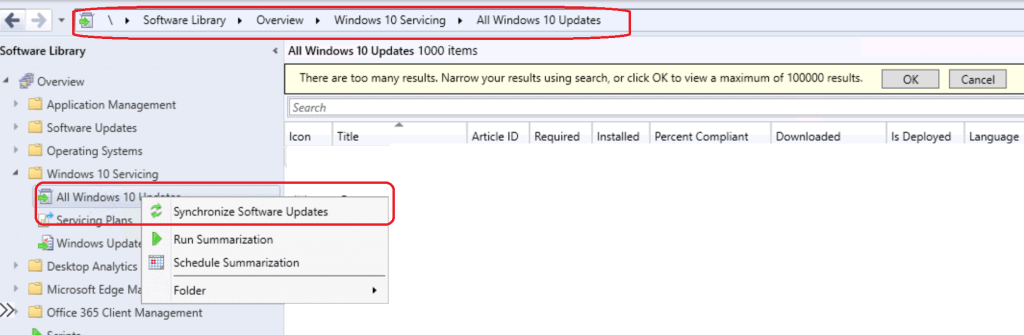
Now, let’s sync using the Synchronize Software Update option to enable the upgrade category.
Log – WSyncMgr.log
Let’s review the log file to understand the sync process.
Performing sync on local request
Full sync required due to changes in category subscriptions.
Read SUPs from SCF for CMMEMCM.memcm.com
Synchronizing WSUS, default server is CMMEMCM.memcm.com
Synchronizing WSUS server CMMEMCM …
sync: Starting WSUS synchronization
sync: WSUS synchronizing categories
sync: WSUS synchronizing categories, processed 1 out of 1 items (100%)
sync: WSUS synchronizing updates
sync: WSUS synchronizing updates, processed 166 out of 6771 items (2%), ETA in 00:39:47
sync: WSUS synchronizing updates, processed 6771 out of 6771 items (100%)
Done synchronizing WSUS Server CMMEMCM
Requested categories: Product=Windows 10, version 1903 and later, Servicing Drivers, Product=Office 365 Client, Product=Windows 10, Product=Windows 10, version 1903 and later, UpdateClassification=Security Updates, UpdateClassification=Update Rollups, UpdateClassification=Upgrades, UpdateClassification=Service Packs
Synchronizing update 96326779-6c2b-4018-befe-452a0518fd28 - Feature update to Windows 10 (consumer editions), version 2004, uk-ua x86
Synchronizing update 3a14b9a0-aaa7-41a6-863f-ab78d3f112c4 - Feature update to Windows 10 (consumer editions), version 2004, en-us x86

Results – Enable Windows 10 servicing using SCCM
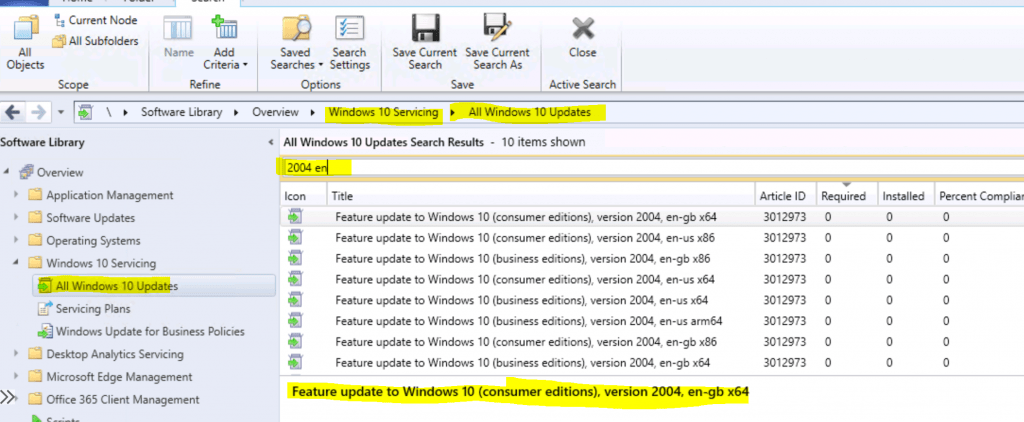
Navigate to \Software Library\Overview\Windows 10 Servicing\All Windows 10 Updates
Resources
- SCCM Third-Party Software Updates Setup Step-by-Step Guide Post 1
- Patch Software Update Deployment Process Guide | ConfigMgr
We are on WhatsApp. To get the latest step-by-step guides and news updates, Join our Channel. Click here –HTMD WhatsApp.
Author
Anoop C Nair is Microsoft MVP! He is a Device Management Admin with more than 20 years of experience (calculation done in 2021) in IT. He is a Blogger, Speaker, and Local User Group HTMD Community leader. His main focus is on Device Management technologies like SCCM 2012, Current Branch, and Intune. He writes about ConfigMgr, Windows 11, Windows 10, Azure AD, Microsoft Intune, Windows 365, AVD, etc.




Hi Anoop,
I followed your guide but I am not able to see Windows 10 2004 in Windows Servicing. I am on MECM CB and have updated the ADKs followed by server reboot. Updated my boot images with new ADK and WinPE as well. Triple checked software update configuration settings in default client settings. Synced updates as you shown above but I don’t see any 2004 update but I do see updates till 1909 x64 En business edition.
Any suggestion here?
StaffHello Raghu – You need initiate sync couple of times to get the updates available under windows 10 servicing mode … there is no dependencies between sccm version upgrade and windows serving version availability
Hi, my version of SCCM2002, the management center site SERVER2019 server, the sub-master site is Server2012R2 server, through the Windows10 maintenance update Windows10 2004 deployment to the client software center deployment type is available, the user Windows10 1909 client can not see Windows10 2004 in the software center Information options, is it caused by their different WSUS versions?
Monitoring and deploying Windows 10 2004 on the console shows that the status of the client is unknown. What happened? It is normal for me to issue patches in the software update.
You say this “From the Products make you have enabled the following product. Windows 10, version 1903 and later ” yet you also checked and highlighted Windows 10, version 1903 and later, Servicing Drivers in your screenshot and say nothing about that product and why you should check it. So many MVP’s just don’t understand any of the Upgrade and Servicing Driver products and when you need to select them…and by you not saying anything, I have to think you don’t know either.
StaffI’m not a big fan of updating drivers using a servicing channel. Can we use the separate package to update the drivers every 6 months ..that is what I have seen works better 🙂
hello all,
you state “Don’t worry about the warning message if your WSUS server is on Windows server 2019”
and what if the wsus is a 2016 server
can we also ignore the warning?