






FIX SCCM Update Prerequisite Check Failed Errors Issue| ConfigMgr
Let’s find the fix for the SCCM Update Prerequisite Check Failed Issue. As the heading indicates, it’s about the new KB released, “KB4560496,” for ConfigMgr 2002.
There is no magic solution to fix the SCCM update or upgrade prerequisite check failures or errors. In this post, I’ll give two examples of prerequisite check errors and solutions for those issues.
I have documented DotNet errors in the prerequisite check and explained how you can solve them in another step-by-step guide. Fix SCCM Dot NET Version Warning Error During Prerequisite Checks.
Read all about KB4560496 for MECM 2002. It’s a deep dive with known issues and bug fixes by Anoop Nair https://www.anoopcnair.com/sccm-2002-hotfix-rollup-kb4560496/ – Very briefly explained.

- List Of SCCM CB Prerequisite Checks Via ConfigMgrPrereq
- FIX SCCM Update Download Issue with Update Reset Tool
- Fix SCCM Updates and Servicing Redist Download Issue
- FIX SCCM Update Not Available Issue Error 2146233079
- Fix to SCCM CB Redist Download Issue
- CM Update Reset Tool Fixes SCCM CB Update Download Issue
Errors: FIX SCCM Update Prerequisite Check Failed Issue
I installed it in my test lab the day it was released, and everything went well. But when I tried installing it in the production standalone primary site, the prerequisite failed with the below error:
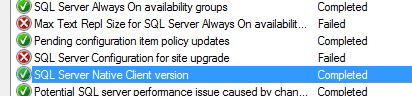
So, there are two failed prerequisite checks, and we will fix them.
- Max Test Repl (Replication) Size of SQL Server Always On Availability.
- SQL Server Configuration for Site Upgrade.
One step at a time. This is going to be interesting.
Max Test Repl Size of SQL Server Always On Availability
First, we will check the existing value in DB of “Max Test Repl Size”. Connect the SCCM DB using Management Studio and execute the query “SP_Configure” to get the value. It will populate the value as below:
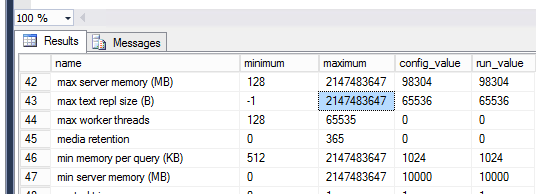
| Name | Minimum | Maximum | Config_value | run_value |
|---|---|---|---|---|
| Max Server Memory (MB) | 128 | 2147483647 | 98304 | 98304 |
| Max Text Replication Size (B) | -1 | 2147483647 | 65536 | 65536 |
| Max Worker Threads | 128 | 65535 | 0 | 0 |
| Media retention | 0 | 365 | 0 | 0 |
| Min Memory Per Query (KB) | 512 | 2147483647 | 1024 | 1024 |
| Min Memory Per Query (MB) | 0 | 2147483647 | 10000 | 10000 |
You will see the correct value now because I already changed it. There are now two options to change this value.
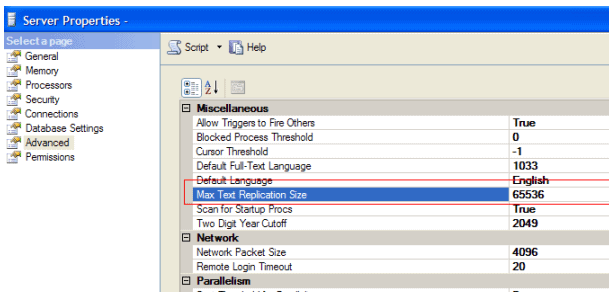
Using SQL Server Management Studio
Now, let’s understand how to fix the SCCM Update Prerequisite Check Failed Errors Issue using SQL Server Management Studio.
- In Object Explorer, right-click a server and select Properties.
- Click the Advanced node.
- Under Miscellaneous, change the Max Text Replication Size option to the desired value.
- (Recommended 2147483647).
Using Transact-SQL
FIX SCCM Update Prerequisite Check Failed Error Issue | ConfigMgr using the SQL management studio.
- Connect to the Database Engine.
- From the Standard bar, click New Query.
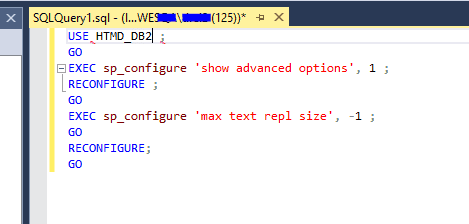
- Copy and Paste the following example into the query window and click Execute.
- This example shows how to use sp_configure to configure the max text repl size option to -1.
USE AdventureWorks2012 ;
GO
EXEC sp_configure 'show advanced options', 1 ;
RECONFIGURE ;
GO
EXEC sp_configure 'max text repl size', -1 ;
GO
RECONFIGURE;
GO
This error will disappear now. However, don’t run the Prerequisites check yet because you have to fix another mistake.
NOTE: MS Doesn’t support the alteration of DB. Perform actions under the supervision of SQL Experts.
SQL Server Configuration for Site Upgrade
Moving on to the second Issue, where the SCCM upgrade has failed.
- To fix this one, we need to read the logs and get more information about the reason for this failure.
- Check ConfigMgrPrereq.log in the C drive root of your Primary/CAS.
- This is what I got when checking the log.
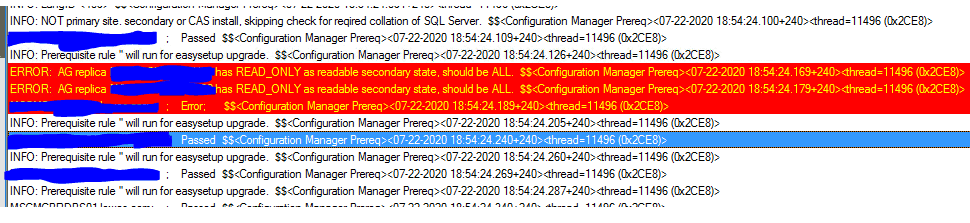
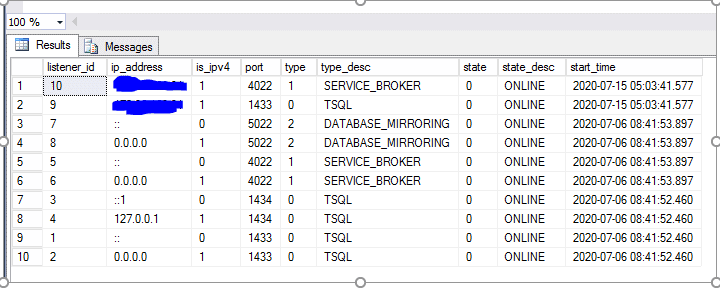
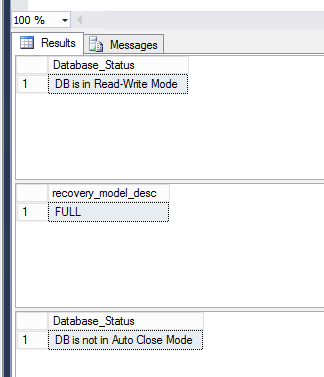
It’s saying the AG (Availability Group) replica has READ_Only as a readable secondary state should be ALL. Before we start how to fix we should check a few more things. Execute the below SQL Queries to get more information.
- select * from sys.availability_replicas
- select * from sys.availability_read_only_routing_lists
- select * from sys.dm_tcp_listener_states
It will populate the information shown in screenshots.
FIX SCCM Update Prerequisite Check Failed Errors Issue
Now let’s fix the SCCM Update Prerequisite Check Failed Errors Issue using SQL Server Management Studio.
To configure access to an available replica
- In Object Explorer, connect to the server instance that hosts the primary replica and expand the server tree.
- Expand the Always On High Availability node and the Availability Groups node.
- Click the availability group whose replica you want to change.
- Right-click the availability replica, and click Properties.
- In the Availability Replica Properties dialogue box, you can change the connection access for the primary role and for the secondary role as follows:
For the secondary role, select a new value from the Readable secondary drop-down menu, such as No.
No user connections are allowed to this replica’s secondary databases, which are unavailable for reading access. The default setting is read-intent only.
Only read-only connections are allowed to this replica’s secondary databases. The secondary database(s) are all available for read access—yes.
All connections are allowed to this replica’s secondary databases, but only read access is allowed. The secondary database(s) are all available for read access.
- For the primary role, select a new value from the Connections in the primary role drop list, which is as follows: Allow all connections.
- The primary replica’s default setting allows all database connections, including read and write connections.
- The connection is allowed when the Application Intent property is set to ReadWrite, or the Application Intent connection property is not set.
- Connections where the Application Intent connection property is set to ReadOnly are prohibited.
- This can help prevent customers from connecting a read-intent workload to the primary replica by mistake.
- For more information about the Application Intent connection property,
Using Transact-SQL – FIX SCCM Update Prerequisite check Failed Issue
To configure access to an available replica
- Connect to the server instance that hosts the primary replica.
- If you are specifying a replica for a new availability group, use the CREATE AVAILABILITY GROUP Transact-SQL statement. If you add or modify a replica of an existing availability group, use the ALTER AVAILABILITY GROUP Transact-SQL statement.
- To configure connection access for the secondary role, in the ADD REPLICA or MODIFY REPLICA WITH clause, specify the SECONDARY_ROLE option, as follows: SECONDARY_ROLE ( ALLOW_CONNECTIONS = { NO | READ_ONLY | ALL } )where, NO
- This replica’s secondary databases are not available for read access, and no direct connections are allowed. This is the default setting.
- READ_ONLY Only read-only connections are allowed to secondary databases of this replica.
- The secondary database(s) are all available for read access.
- ALL connections are allowed to this replica’s secondary databases, but only for read access. The secondary database(s) are all available for read access.
To configure connection access for the primary role, in the ADD REPLICA or MODIFY REPLICA WITH clause, specify the PRIMARY_ROLE option, as follows: PRIMARY_ROLE ( ALLOW_CONNECTIONS = { READ_WRITE | ALL } )where READ_WRITE
Connections where the Application Intent connection property is set to ReadOnly are disallowed.
The connection is allowed when the Application Intent property is set to ReadWrite, or the Application Intent connection property is not set.
All connections are allowed to the databases in the primary replica. This is the default setting.
NOTE: MS Doesn’t support the alteration of DB. Perform actions under the supervision of SQL Experts.
Disclaimer – The information provided on the site is for general informational purposes only. All information on the site is provided in good faith, however, we make no representation or warranty of any kind, express or implied regarding the accuracy, adequacy, validity, reliability, availability or completeness of any information on the website.
Resources
- SCCM 2002 Installation Step-by-Step Guide | MEMCM | ConfigMgr
- New Features of Configuration Manager (A.K.A SCCM) 2002 version is given in the following post – https://www.anoopcnair.com/configmgr-2002-list-of-new-features-enhancements-memcm-sccm/
We are on WhatsApp. To get the latest step-by-step guides and news updates, Join our Channel. Click here –HTMD WhatsApp.
Author
Deepak Rai is a Technical Lead with over 14 years of experience in IT. He specializes in SCCM, Intune, and Azure. Throughout his career, he has worked on various platforms such as Active Directory, Exchange, Veritas NETBACKUP, Symantec Backup Exec, NDMP devices like Netapp, EMC Data Domain, Quantum using Backup Exec 2010 and 2012, and HP StorageWorks 4048 MSL G3. He also has experience in data deduplication-related troubleshooting. Ultimately, he returned to his roots as an IT Engineer focusing on SCCM technology.




Discussion