






Lenovo Update Catalog V3 for SCCM | Third-Party Updates
Let’s understand Lenovo Update Catalog V3 for SCCM and learn more about the details of the third-party updates feature in your ConfigMgr environment. ConfigMgr 1806 or later versions can enable third-party updates (without SCUP integration).
Previously, deploying third-party software updates with SCCM involved using SCUP. However, advancements have eliminated the need for SCUP in this context. Microsoft applications are patched as part of the Microsoft Software Update patching process. It’s essential to be aware that non-Microsoft third-party applications will not receive updates through Microsoft updates.
Starting with SCCM version 1806 and later, Microsoft has enhanced support for third-party software updates. This enhancement is in the form of custom catalogs, which allow system administrators to integrate custom catalogs into the Configuration Manager’s console. As a result, updates can be deployed without requiring an external publishing tool alongside SCCM.
With the V3 format, you have more control over catalog content in your environment, reducing data and client processing during scan cycles.

- SCCM Third-Party Software Updates Setup Step-by-Step Guide Post 1
- List of Free SCCM Catalogs for Third-Party Software Update
- SCCM Third-Party Updates Background Process Guide Post 3
v3 Partner Catalogs
Before enabling Lenovo drivers and updates, let’s see which free partner v3 catalogs are available in ConfigMgr. I shared the details of free and paid catalogs in the previous post. There are paid versions of catalogs available for you to use.
You can see more details about the List of Free and Paid catalogs. While writing the blog, I discovered third-party vendors supporting v3 catalogs.
- HP
- Dell
- Lenovo (this post)
Lenovo Update Catalog v3 for SCCM
The assumption here is you have already enabled the third-party software update. You can confirm Lenovo Updates Catalog V3 for SCCM support by going through the following steps:
NOTE! – I think if you have already subscribed to the Lenovo catalog, then you need to unsubscribe and subscribe again to get the v3 catalog. Let me know in the comments if this is NOT your experience.
- Launch Console
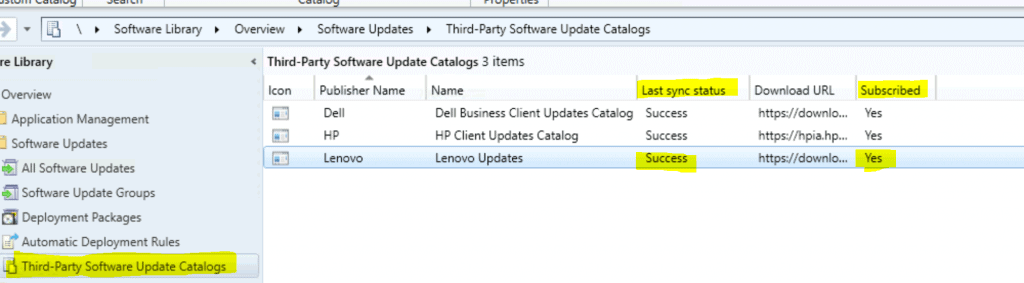
- Navigate \Software Library\Overview\Software Updates\Third-Party Software Update Catalogs
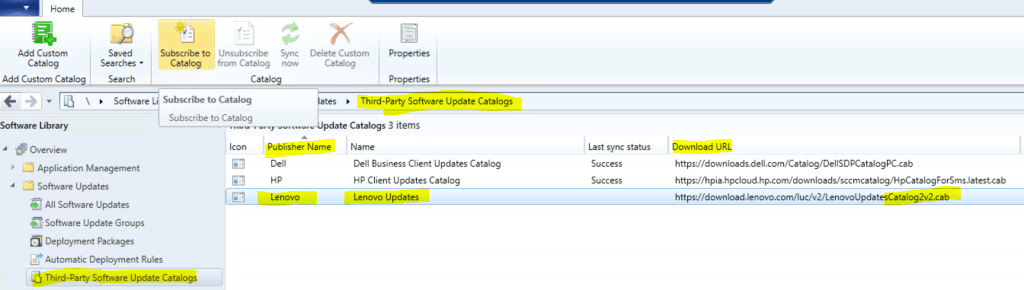
Subscribe to the Lenovo v3 Update Catalog
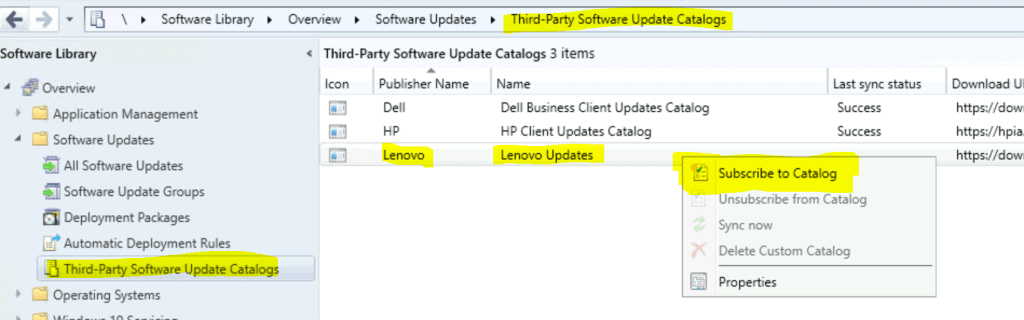
Now, subscribe to the Lenovo v3 Driver BIOS update catalog using the option below.
- Select Lenovo partner catalog –publisher name – Lenovo
- Click on Subscribe to Catalog.
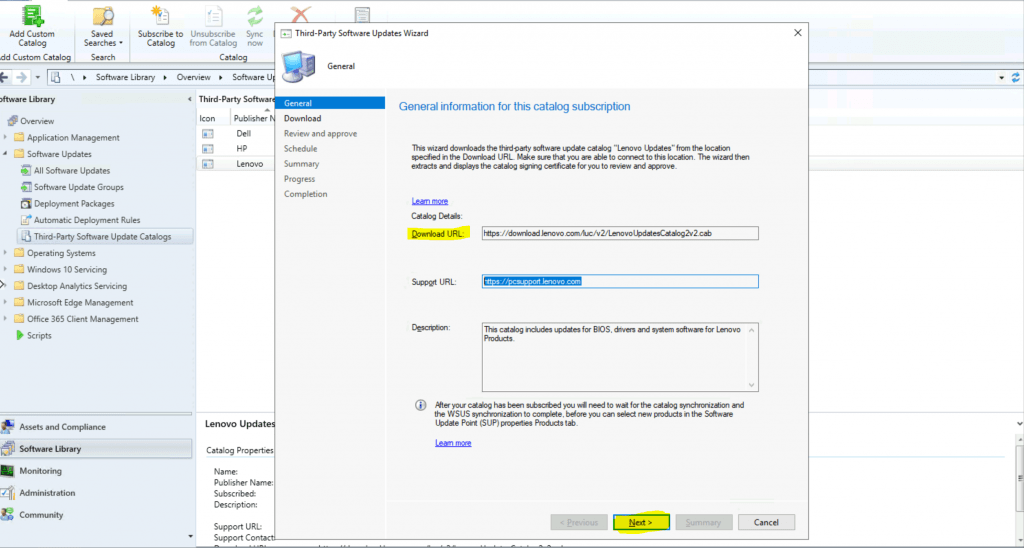
Download the URL for Lenovo
This wizard downloads the third-party software update catalog “Lenovo Third Update Catalog” from the location specified in the download URL. Make sure you can connect to this location.
The following wizard extracts and displays the catalog signing certificate for you to review and approve. This catalog includes updates for Lenovo products’ BIOS, drivers, and system software.
- Download URL for Lenovo third-party update catalog:
- Support URL
- Click on Next.
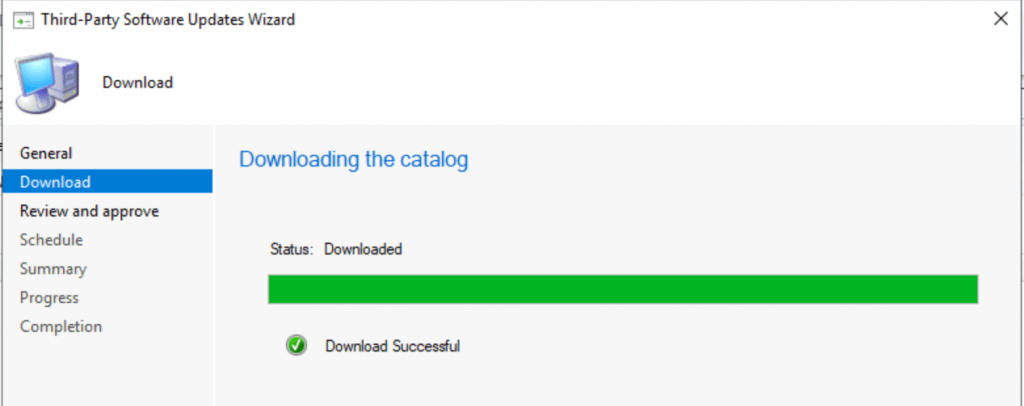
Lenovo client update catalog CAB file Download completed successfully
- Click on Next.
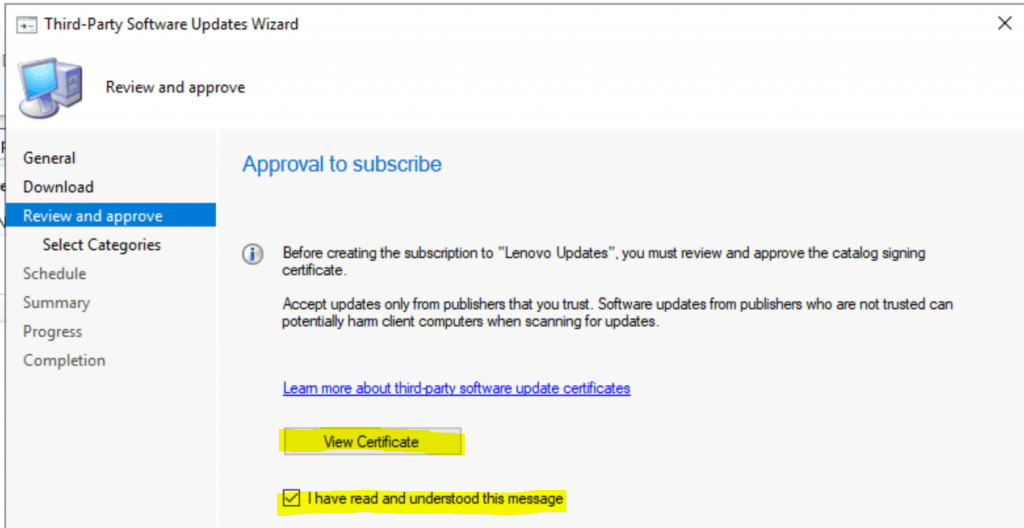
Lenovo Approval to Subscribe
Before creating the Lenovo Third Update Catalog subscription, you must review and approve the catalog signing certificate.
Accept updates only from publishers you trust. When scanned for updates, software updates from untrusted publishers can potentially harm client computers.
- Click on View Certificates.
- Enable the checkbox near – I have read and understood this message.
- Click on Next.
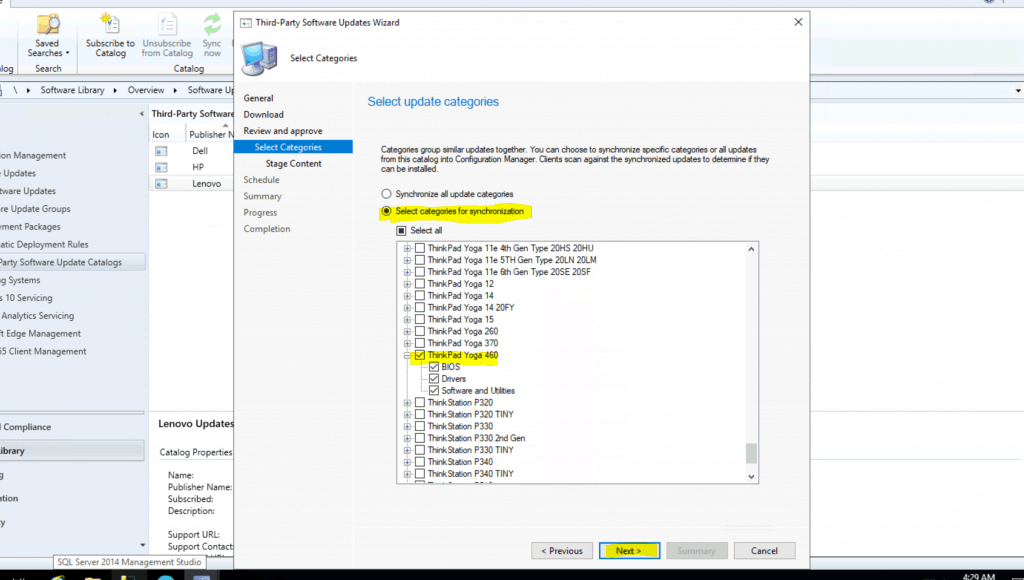
Select Category of Lenovo Devices – Metadata
This page contains the updated v3 catalog, which helps you select only the required Lenovo devices used in your organization.
Category groups group similar updates. You can choose to synchronize specific categories or all updates from this catalog into SCCM. Clients scan against the synchronized update to determine if it can be installed.
- Select categories for the synchronization.
- ThinkPad Yoga 460
- BIOS
- Drivers
- Software and Utilities
- ThinkPad Yoga 460
- Click the Next button.
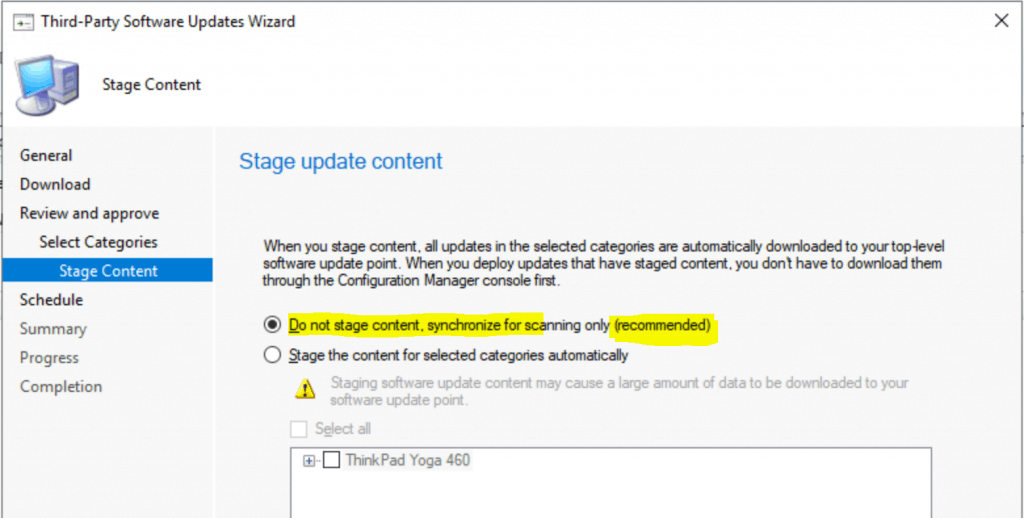
Stage Update Content
You can select the automatic download option. When you stage the content of the Lenovo catalog update, all updates in the selected categories are automatically downloaded to your top-level software update point.
When you deploy updates that have staged content, you don’t have to download them through the SCCM console first. I selected Do not stage content; synchronize for scanning only (as this is recommended).
- I selected the option – Do not stage content synchronize for scanning only.
- I don’t recommend this option – Select the option – Automatically stage the content for selected categories.
- Click the Next button to continue.
NOTE! – Staging software update content may cause a large amount of data to be downloaded to your software update point.
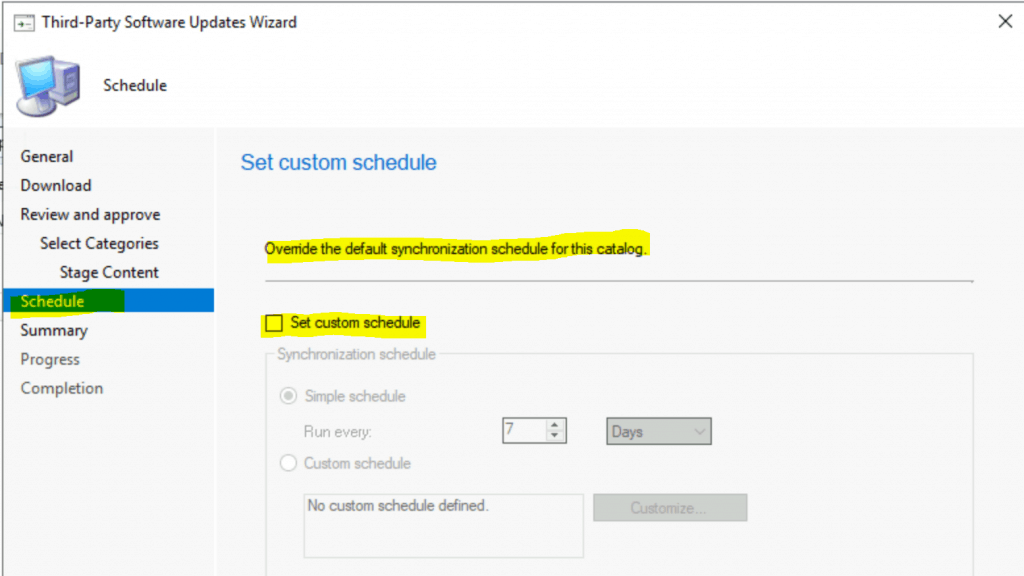
Schedule Catalog Update
This is the wizard page where you can set a custom schedule only for third-party software updates and Override the default synchronization schedule for the Lenovo catalog.
- I selected NOT to set a separate schedule.
- Click Next.
Summary and Completion
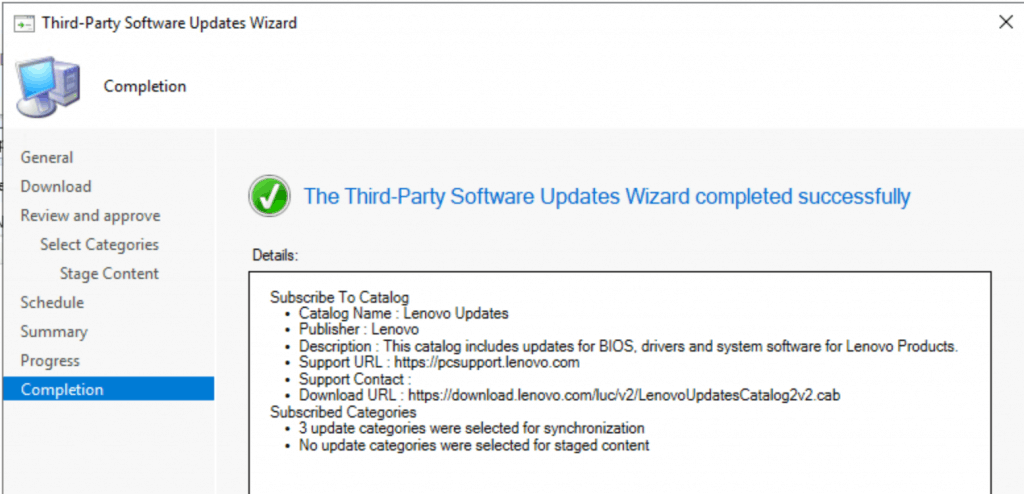
Let’s check the summary of the details that you have selected here for Lenovo Updates:
Subscribe To Catalog
• Catalog Name : Lenovo Updates
• Publisher : Lenovo
• Description : This catalog includes updates for BIOS, drivers and system software for Lenovo Products.
• Support URL : https://pcsupport.lenovo.com
• Support Contact :
• Download URL : https://download.lenovo.com/luc/v2/LenovoUpdatesCatalog2v2.cab
Subscribed Categories
• 3 update categories were selected for synchronization
• No update categories were selected for staged content
Rest of the Process – Lenovo Updates Catalog V3 for SCCM
The rest of the processes for getting the Lenovo updates into the SCCM console are already explained below:
- Third-Party Update Catalogs Sync Skipped?
- Third-Party Update Catalogs Sync Completed
- New Product listing in Software Update Point Component Properties
- Another WSUS Sync
- Publish Third-Party Software Update Content
- Download & Create Software Update Package
Troubleshooting Logs
The following post contains SCCM Log file details and details of Lenovo third-party update-related log files.
Log Files
- SMS_ISVUPDATES_SYNCAGENT.log
- Wsyncmgr.log
- WCM.log (C:\Program Files\Microsoft Configuration Manager\Logs)
- PatchDownloader.log (%temp%)
Results
We are on WhatsApp. To get the latest step-by-step guides and news updates, Join our Channel. Click here –HTMD WhatsApp.
Author
Anoop C Nair is Microsoft MVP! He is a Device Management Admin with more than 20 years of experience (calculation done in 2021) in IT. He is a Blogger, Speaker, and Local User Group HTMD Community leader. His primary focus is Device Management technologies like SCCM 2012, Current Branch, and Intune. He writes about ConfigMgr, Windows 11, Windows 10, Azure AD, Microsoft Intune, Windows 365, AVD, etc.




Thx for perfect manual. But what is little bit tricky is how to filter out updates for specific model. It’s nice to have them in subscription, but I didn’t find a way how to filter them out after that and basically aim specific updates for specific computers to specific collection.
There isn’t a way to target specific Models of Lenovo as the metadata doesn’t include that information.
‘Lenovo Patch’ ($Costs$) is an add-in for ConfigMgr that can do the Model categorisation.
So unless you pay, the only way is to target all Lenovo machines and let the LUCAgent and CfgMgr sort out what is applicable.
Is there a way to remove these updates entirely after publishing them, if needed?
StaffYou might need to run some cleanup scripts for the same ?
Thanks, I ended up using Windows Updates Publisher, since I could not find any way to do it in the CM console or WSUS.
What if my model is not listed?
E14 (Type 20RA, 20RB) Laptop (ThinkPad) – Type 20RA