






Install ConfigMgr Applications from Intune Portal | Admin Center
Now, you can check ConfigMgr applications from Intune Portal (a.k.a Microsoft Endpoint Manager admin center). Let’s check a new tenant-attached ConfigMgr Applications feature made available with the release of ConfigMgr 2006.
The Microsoft Intune family of products is an integrated solution for managing all types of devices. Configuration Manager and Intune have been combined into a single console called the Microsoft Intune admin center. You can initiate real-time application installs for tenant-attached devices from the Microsoft Endpoint Management admin centre.
The Applications view displays more Configuration Manager applications for a tenant-attached device in the Microsoft Intune admin center, providing improved visibility into scheduled application installations.
Let’s revise the details about applications from the ConfigMgr console. In the following sections of this post, we will see more information about how to check an application from the Intune portal and initiate an install action.

- Latest Intune Admin Portal Walkthrough Guide | Microsoft Intune Admin Center
- New Intune Admin Portal Home Page Redesign Review
- Intune Different End-User Application Portals For Modern Management
- SCCM Tenant Attach Background Process Walkthrough via Logs
- Fix ConfigMgr Tenant Attach Error 401 403 | Missing Config| SCCM
| Index |
|---|
| Prerequisite |
| What is ConfigMgr Application |
| Admin Approval Option |
| Enable ConfigMgr Applications from the Intune Portal |
| Results |
| Troubleshooting and Logs |
Prerequisite
Let’s quickly check the prerequisites for enabling application access from the Intune portal.
You must complete the following prerequisites to enable ConfigMgr Applications from the Intune Portal feature.
- At least one application was deployed to a device collection with the administrator, who must approve a request for it using the device option set on the deployment.
NOTE! – User-targeted applications or applications without the approval option set don’t appear in the application list in the Intune portal (admin center).
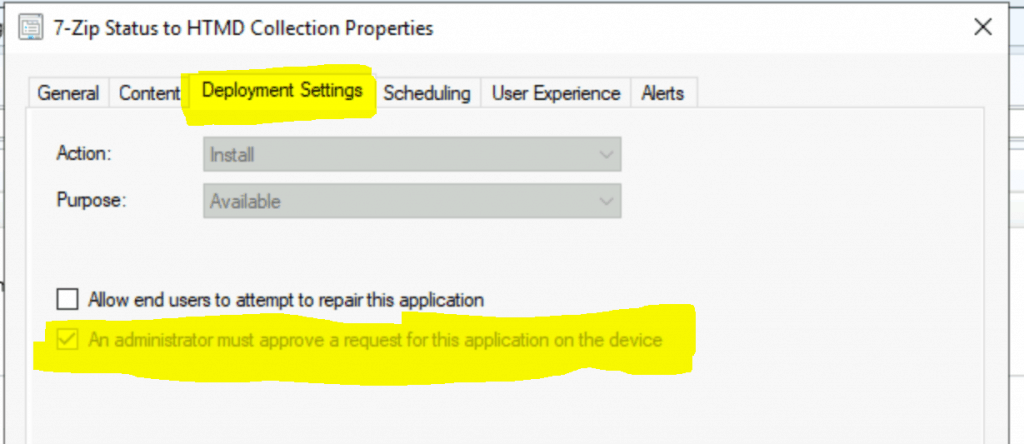
- User-targeted applications or applications without the approval option set don’t appear in the application list.
- All the prerequisites for Tenant attachment should be in place.
- A minimum supported version of ConfigMgr is 2006 to enable all the features explained in the post.
- All sites in the hierarchy must meet the minimum ConfigMgr version (2006 +) requirement.
- ConfigMgr clients must be running the latest version of the client.
- You should have appropriate permission from SCCM and Intune to deploy and install the Application
What is ConfigMgr Application
In Configuration Manager, you can deploy and install applications to a device or user collection. This is one of the most used features in ConfigMgr. You can check the Application’s details using the following path.
- Launch SCCM console
- \Software Library\Overview\Application Management\Applications
- Using the ConfigMgr Applications feature, you can deploy MSI, EXE, and MSIX applications.
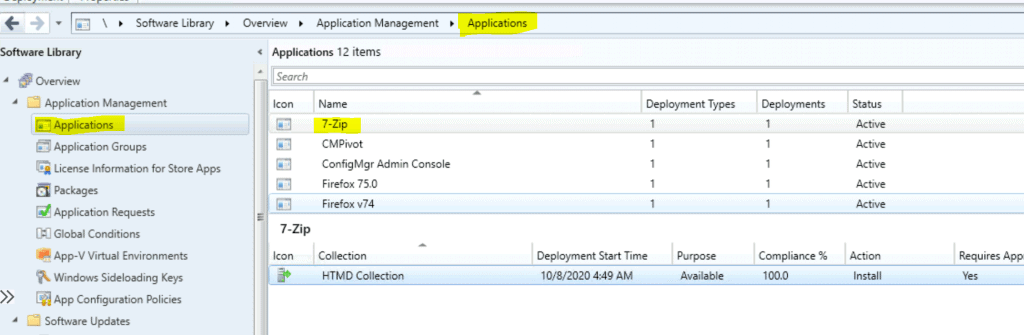
Admin Approval Option
You must ensure the following option is enabled for all the applications available in the Admin center or Intune portal via the tenant attach feature.
The application approval option is available from the Deploy software wizard or deployment properties.
- An administrator must approve a request for the Application on the device
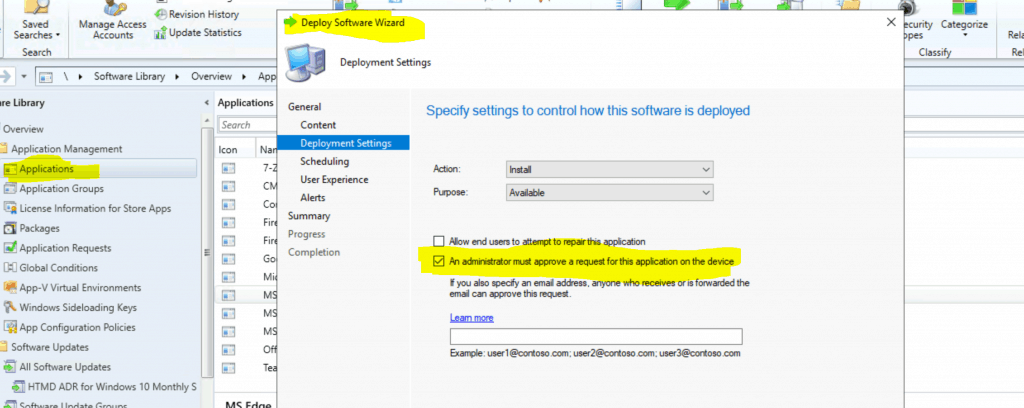
NOTE! – You don’t have to separately enable Approve application requests for users per device option from update anymore. Because it’s NOT an optional feature from 2006.
Enable ConfigMgr Applications from the Intune Portal
Let’s learn how to open an application control from Intune Portal. Once you have completed all the prerequisites of the Tenant attachment, you can see all the SCCM-managed devices in the Intune portal.
- Open Admin Center – Intune Portal – https://endpoint.microsoft.com/
- Select the Devices node, then click on All Devices.
- Click on Windows.
- Select the device that is synced from SCCM via tenant attachment.
- Use the Search option to find the device.
- Click on the devices with the following option – Managed By ConfigMgr.
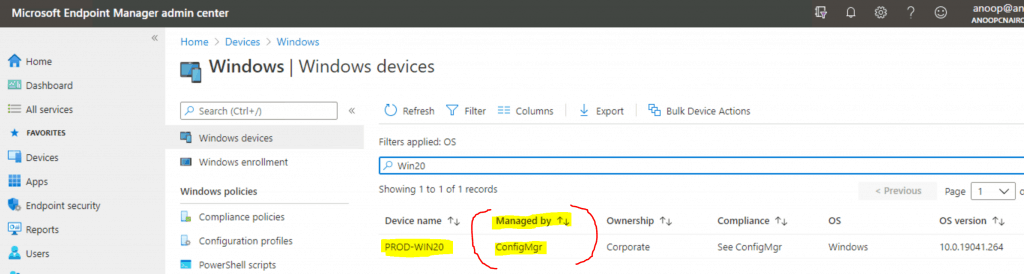
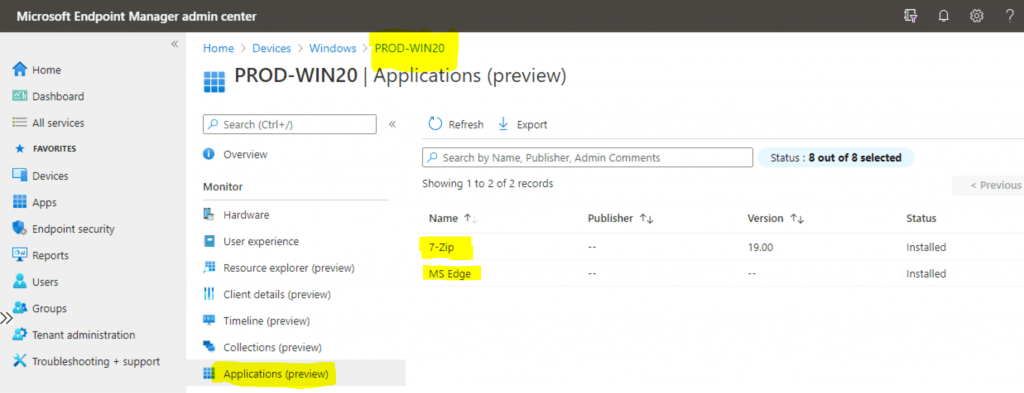
- Select AApplication(preview) from the Intune portal to view the ConfigMgr applications that are available to the user.
- 7-Zip
- MS Edge
Results
Let’s continue and check the results now by clicking on applications available in Intune.
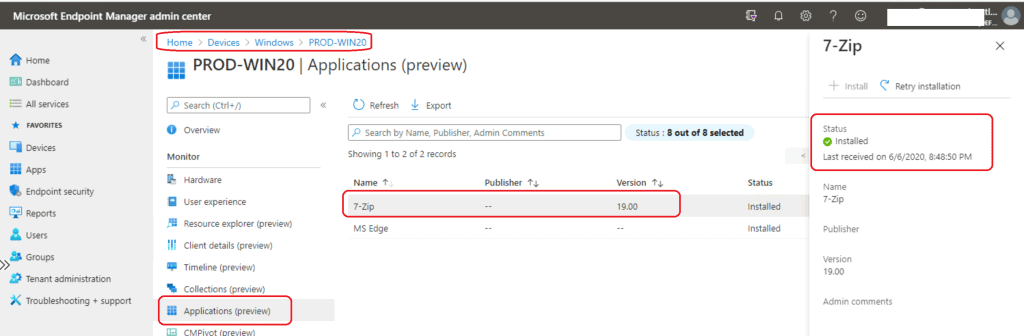
- Click on 7-Zip – This is deployed to the Device collection!
- You can try clicking the Retry Installation button to test and reinstall the app directly from the Intune portal or admin center.
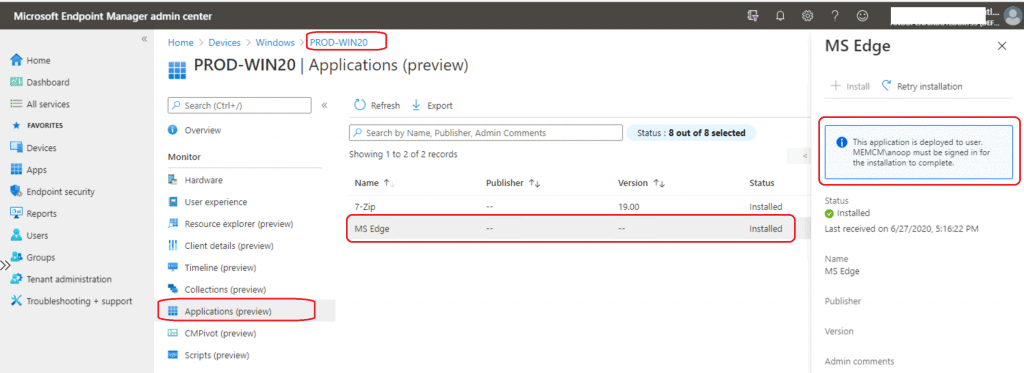
- Click MS Edge – This Application has been deployed to the User Collection!
- This application is deployed to the user. MEMCM\anoop must be signed in for the installation to be completed.
NOTE! – There is a difference in requirements based on user/device deployment.
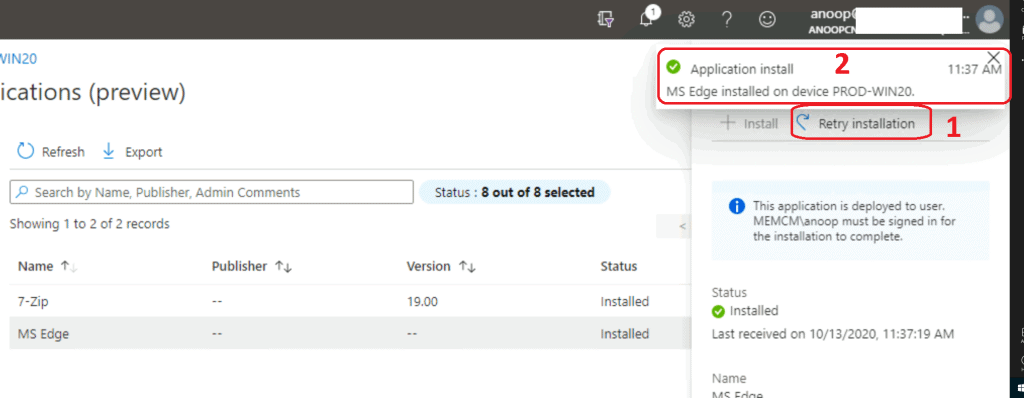
Let’s try to reinstall the MS Edge application by clicking on Retry Installation. You can see the notification that MS Edge was installed on the PROD-WIN20 device.
Troubleshooting and Logs
You can check the logs on the SCCM site server to get more details about the actions performed from the Intune portal.
The following logs might help
CMGatewayNotificationWorker.log and AdminService.log.
Resources
- Approve applications in Configuration Manager.
- Tenant attach: Install an application from the admin center
- Enable SCCM Resource Explorer from Intune Portal | ConfigMgr
We are on WhatsApp. To get the latest step-by-step guides and news updates, Join our Channel. Click here –HTMD WhatsApp.
Author
Anoop C Nair is Microsoft MVP! He is a Device Management Admin with more than 20 years of experience (calculation done in 2021) in IT. He is a Blogger, Speaker, and Local User Group HTMD Community leader. His primary focus is Device Management technologies like SCCM 2012, Current Branch, and Intune. He writes about ConfigMgr, Windows 11, Windows 10, Azure AD, Microsoft Intune, Windows 365, AVD, etc.




Hello Anoop
I have a question, it makes me crazy !. how to lock screen remotely in case of lost or stolen (under Mobility + security E5).
We are an association and we provide Physical and VMs to our members, i have made some test and cannot lock the screen the device of the user which i have created and joined it to the AD Azure.
Is there any type to force the WIndows Hello to ask the user to change the NIP Code ? it will be an alternate solution if we cannot lock the screen.
I would too much appreciate if you can help me.
M. Mansouri
Nice explaination
Nice Explication. Sorry for Typo in my previous comment