






How to Automatically Upgrade SCCM Clients to Newer Version Configuration Manager Endpoint
Today, I will explore How to Automatically Upgrade SCCM Clients to a Newer Version of Configuration Manager Endpoint.
SCCM is Microsoft Microsoft Endpoint Manager Configuration Manager. This solution is used by most of the organizations in the world to manage their enterprise devices.
This solution is a server-client application. All the managed clients’ inventory is stored in the CM SQL database. This is the best resource to learn and troubleshoot on issues.
In this post, we will examine possible ways to upgrade SCCM clients to the latest version of SCCM and how to automate the upgrade of SCCM clients to the newest version. In this post, I will walk through 3 options that may help upgrade clients automatically.

Table of Contents
Automatically Upgrade SCCM Clients
Automatic Client Upgrade: The following methods can be used for SCCM to upgrade the SCCM Client automatically.
- SCCM 2111 Upgrade Step by Step Guide | New Features
- SCCM 2303 Upgrade Step by Step Guide | New Features
I recommend using the “Automatic Client Upgrade” option in the hierarchy settings. This could be a bit tricky when you have a complex hierarchy with CAS + Primary servers + Different Language packs.
How to Upgrade SCCM Clients
These are three main options for client upgrades. However, other options are available, such as Group Policy, Software Updates, etc. I recommend following the first option from the list below to upgrade the clients to the latest version of SCCM.
- Automatic Client Upgrade
- Client Push (Manual)
- Software Distribution: Create and Deploy a Package and Program
“Automatic Client Upgrade” option from Hierarchy Settings!
The Upgrade Client Automatically when new client updates are available is the best option I can suggest.
The latest version of SCCM greatly improves this process. It is a good method when you want to upgrade all the clients on a particular site.
This would be very useful once you finish the mass upgrade of clients and a smaller number of clients remain in the previous version. Using this option, you can target those clients.
More Details: SCCM Client Upgrade Promote Pre-Production Client to Production
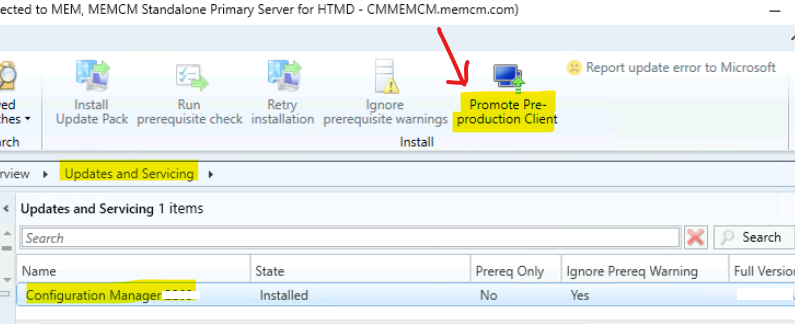
This is more of a global setting to automatically upgrade the SCCM client version. To complete the process, follow the steps explained below.
- Navigate to \Administration\Overview\Site Configuration\Sites.
- Select Standalone Primary Site and Click on Hierarchy Settings from the ribbon menu.
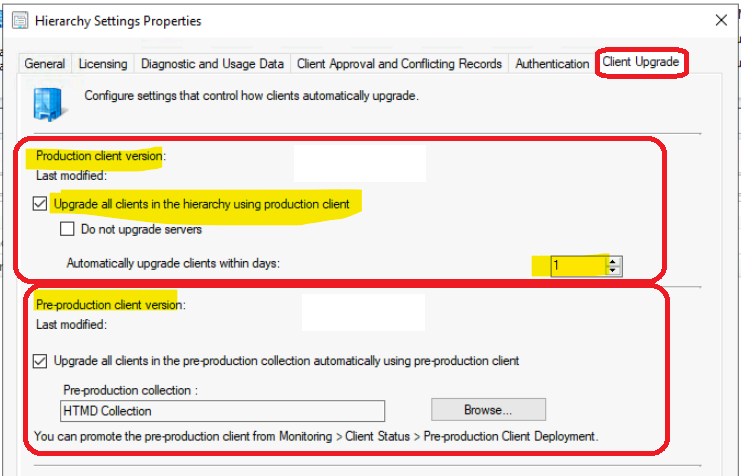
- Click on the Client Upgrade tab and select the production client upgrade behavior with a specified delay as you can see in the below screenshot.
- Enable the option Upgrade All Clients in the Hierarchy using Production Client.
- Select the appropriate delay (in days) using the drop-down options from the Automatically Upgrade Client within days option.
Manual Client Push/Upgrade
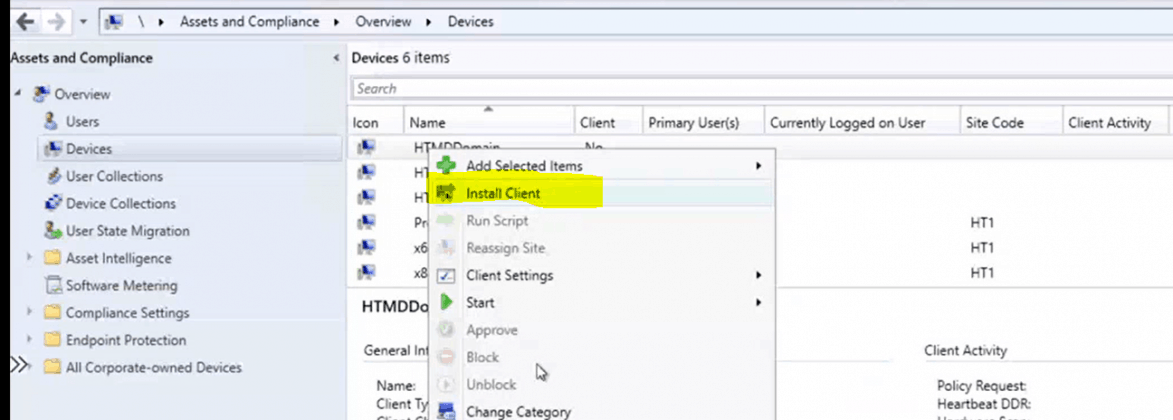
Let’s understand the process of the ConfigMgr Client Push Installation Method. The client’s installation is one of the important parts of the ConfigMgr manager environment, so client push is the easiest method to install the client.
Read More: Install ConfigMgr Client Using Client Push Installation
- Select the two options below to install the client on Windows 10 device.
- Enable the option called Always install SCCM client.
- Repair or upgrade it if the client is already installed.
- Uninstall the SCCM client before installing its option is to have a clean installation of the client.
Software Distribution: Create and Deploy a Package and Program!
(A) You must have already noticed that there is a default package called “Configuration Manager Client Package” with no Programs init. Note that we can’t use that package for Software Distribution Client Upgrade. That package is a read-only package that can only be used for OSD. When you right-click on “Configuration Manager Client Package”, you won’t be able to see “Deploy” and even “create a program” options.
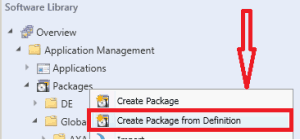
(B) You must create a new package from a definition file (the definition file is already on your server).
(C) Select the publisher name as “Microsoft”. You can see two definition files: Device Management Client Transfer and Configuration Manager Client Upgrade. Select the second one (Configuration Manager Client Upgrade).
(D) Select the “Always Obtain Source files from a source folder” option.
(E) Type in the UNC patch “\\SERVER-FQDN\SMS_XXX\Client”. Replace Server-FQDN with your site server name and XXX with your Site Code.
(F) Click on NEXT and Finish.
(G) Once the package is created, distribute the content to all the required DPs.
(H) Create a Deployment (advertisement) for that package and target the required clients. Another tip is to change the site code in the command line if you want. The default command line in the program is “CCMSETUP.EXE /noservice SMSSITECODE=AUTO”. You can replace auto with your side code.
How to Automatically Upgrade SCCM Clients to Newer Version Configuration Manager Endpoint
Resources
We are on WhatsApp now. To get the latest step-by-step guides, news, and updates, Join our Channel. Click here – HTMD WhatsApp.
Author
Anoop C Nair is Microsoft MVP! He is a Device Management Admin with more than 20 years of experience (calculation done in 2021) in IT. He is a Blogger, Speaker, and Local User Group HTMD Community leader. His primary focus is Device Management technologies like SCCM 2012, Current Branch, and Intune. He writes about ConfigMgr, Windows 11, Windows 10, Azure AD, Microsoft Intune, Windows 365, AVD, etc.




Hello,
I cannot find any information on how many days should be calculated for the number of days to select for Automatic Upgrade. Because randomization is used I’m assuming if we have 30000 machines and I were to choose 30 days then 1000 machines would be scheduled each day to upgrade. If only 250 of those are connected to the network (VPN) then only those machines would upgrade and the remaining 750 for that day would continue to attempt the installation until the machine was connected to the network. Is this accumulative and would there be potentially thousands of machines attempting to install the client on the same day.
Any additional documentation that you may have on the topic would be very much appreciated.
Thank you,
Stephen
Hi,
I’m not finding the information on the string that is launched by the SCCM client’s auto upgrade. If the SCCM clients of the devices registered on the secondary sites are updated, is the registration maintained?