Skip to content
How to Manually Import Patches to WSUS and Deploy using SCCM

How to Manually Import Patches to WSUS and Deploy using SCCM

Written By Kannan CS
Last Updated July 11, 2024
Posted In SCCM
SHARE

Let’s learn how to manually import patches to WSUS and deploy them using SCCM and the Adobe Flash Player removal tool as an example. This method can be followed for any out-of-band patches not available in WSUS but on the Microsoft Update Catalog website.

Let’s understand the Steps to manually import and deploy Adobe Flash Player removal Updates using WSUS and ConfigMgr.

Microsoft announced that Adobe Flash Player would be discontinued on December 31, 2020, and Adobe has also decided to end its support.

Microsoft confirmed that Adobe Flash player support will end for Microsoft Edge, Microsoft Edge Legacy, and Internet Explorer 11 in December 2020.

Patch My PC
Index
How to Manually Import Patches to WSUS and Deploy using SCCM
How to Manually Import patches to WSUS and SCCM
How to check the Updates are Available in the WSUS Console
How to Sync from WSUS with SCCM Database after Manual Import to WSUS
List of Adobe Flash Player Removal Updates

How to Manually Import Patches to WSUS and Deploy using SCCM

Microsoft released a standalone package for Adobe Flash Player removal updates for the Windows operating system. Let’s see how to import patches to WSUS and deploy them manually using SCCM.

  • After installing the update, this update cannot be uninstalled
  • Microsoft is currently not aware of any issue in this update, which means no problem has been reported as of now by other companies/vendors
  • The Adobe Flash Player removal update is not published in the Windows Server Update Service (WSUS). They are planning to release the update in early 2021

Microsoft releases individual updates that are not part of the WSUS catalogue, especially the software out of support, similar to Adobe Flash player removal updates. In this scenario, we must import the updates into the WSUS console using the Windows Catalog website.

Microsoft released an Adobe Flash player removal update before the end of support to help customers Test and validate their environment for any upcoming impact in application support.

NOTE! To support such customers, the application requires an Adobe Flash player. It will be considered a third-party plug-in, and Microsoft will not provide support for the issues.

How to Manually Import patches to WSUS and SCCM

Here, we will learn more about Manually Importing patches to WSUS and SCCM. Let’s find a way to manually import Adobe Flash player update metadata to WSUS and then to SCCM/ConfigMgr.

This is the first step toward deploying Adobe Flash Player Updates using ConfigMgr.

  • Login into the Upstream (First) SUP WSUS server
  • Open the Windows Server Update Services with ‘Run as administrative ‘from the Administrative tools.
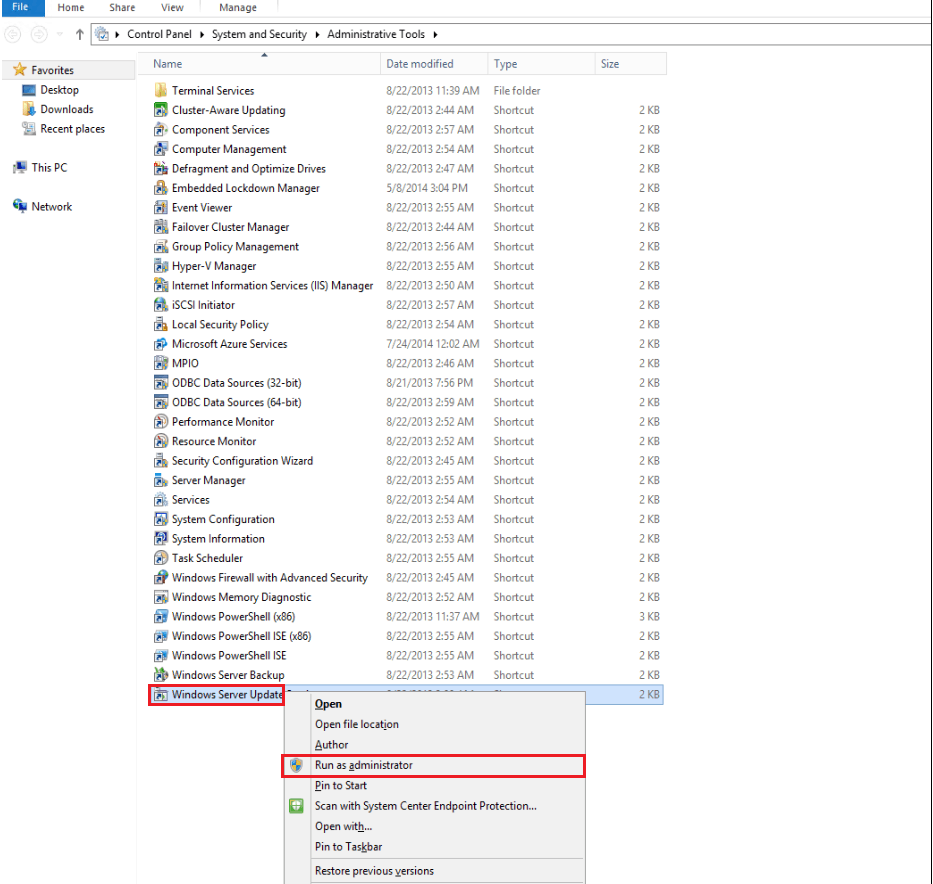
How to Manually Import Patches to WSUS and Deploy using SCCM - Fig.1
How to Manually Import Patches to WSUS and Deploy using SCCM – Fig.1

Click ‘Yes’ in the User Access Control window.
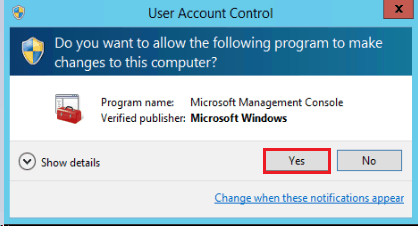
How to Manually Import Patches to WSUS and Deploy using SCCM - Fig.2
How to Manually Import Patches to WSUS and Deploy using SCCM – Fig.2

In the left-hand panel, select Updates and click Import Updates in the right-hand panel.
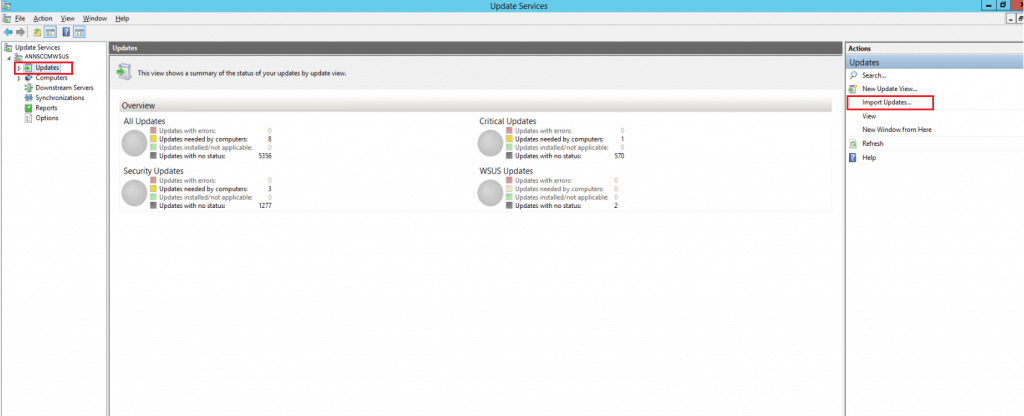
How to Manually Import Patches to WSUS and Deploy using SCCM - Fig.3
How to Manually Import Patches to WSUS and Deploy using SCCM – Fig.3

Access the URL https://www.catalog.update.microsoft.com/search.aspx?q=4577586
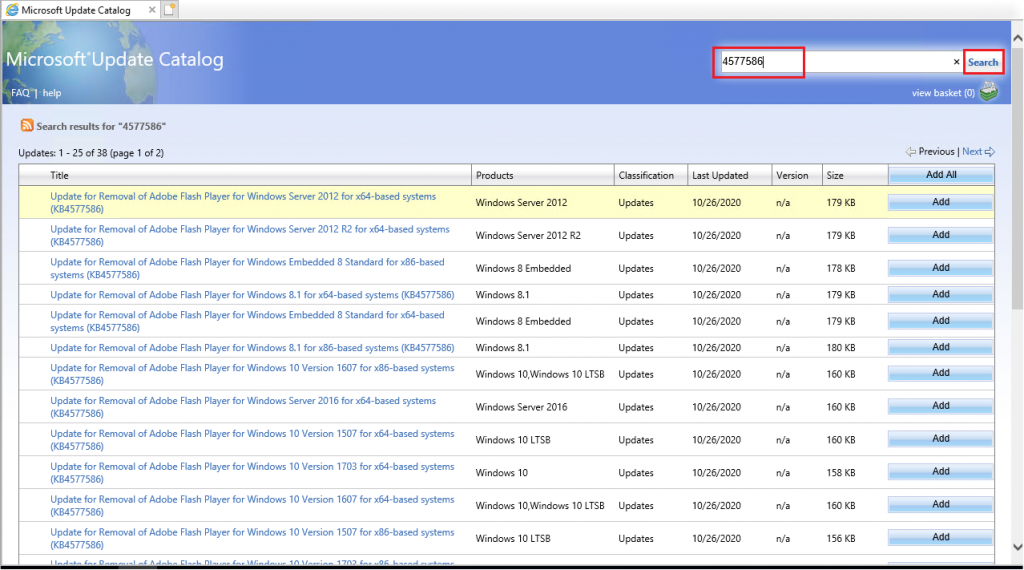
How to Manually Import Patches to WSUS and Deploy using SCCM - Fig.4
How to Manually Import Patches to WSUS and Deploy using SCCM – Fig.4

Identify the required patches as per the environment and click Add
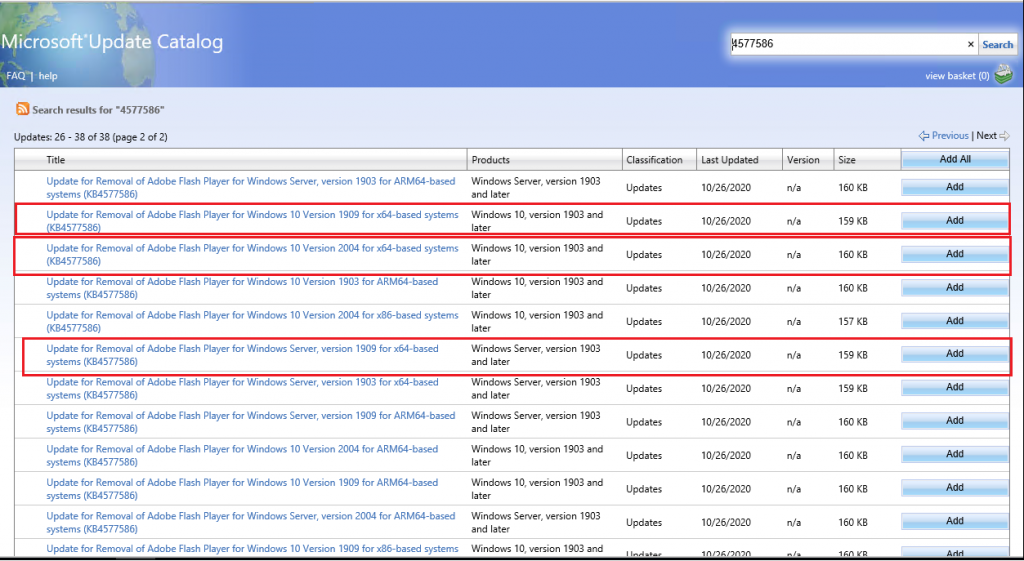
How to Manually Import Patches to WSUS and Deploy using SCCM - Fig.5
How to Manually Import Patches to WSUS and Deploy using SCCM – Fig.5

The metadata is added in the View Basket with the updated count
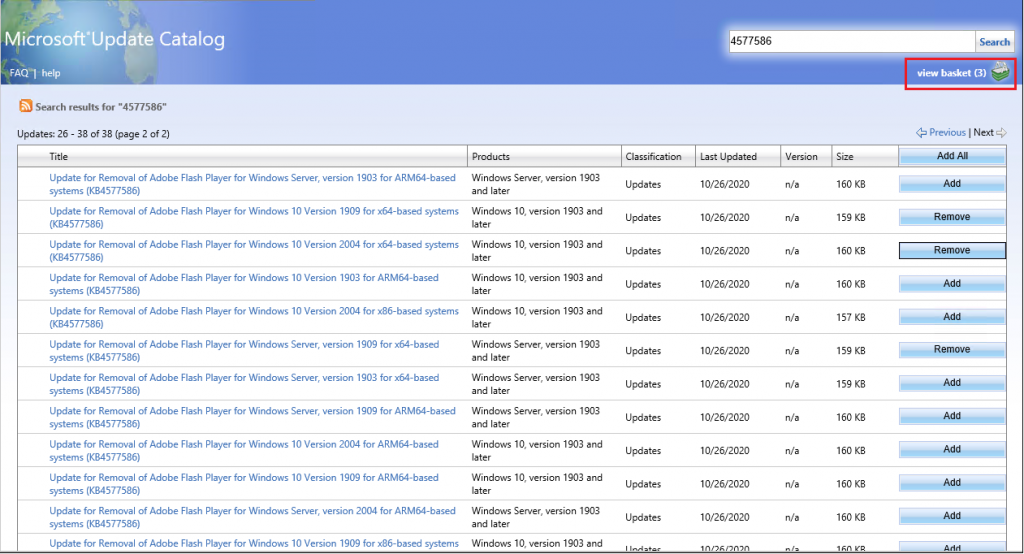
How to Manually Import Patches to WSUS and Deploy using SCCM - Fig.6
How to Manually Import Patches to WSUS and Deploy using SCCM – Fig.6

Ensure all the required updates are selected and click the Import icon
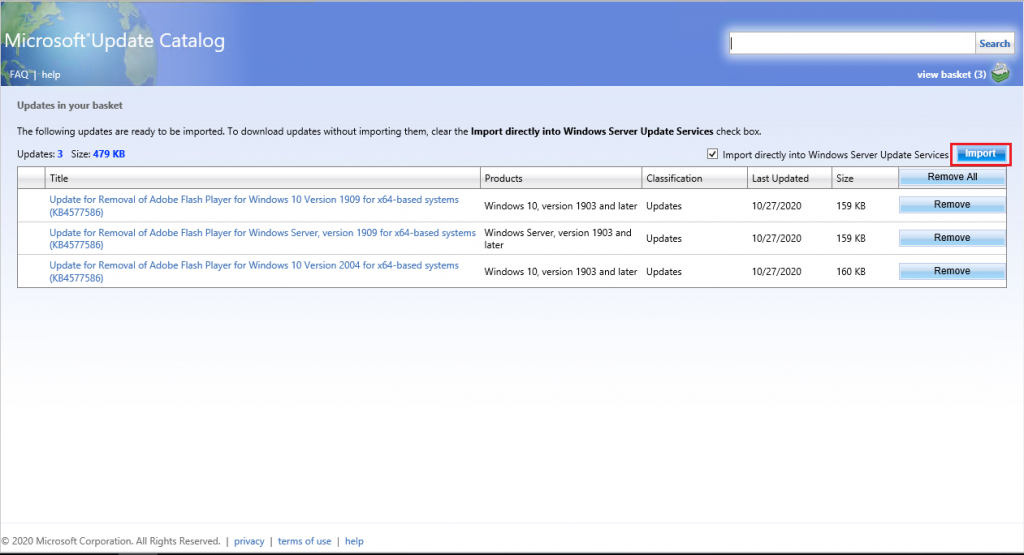
How to Manually Import Patches to WSUS and Deploy using SCCM - Fig.7
How to Manually Import Patches to WSUS and Deploy using SCCM – Fig.7

Updates imported into WSUS are in progress
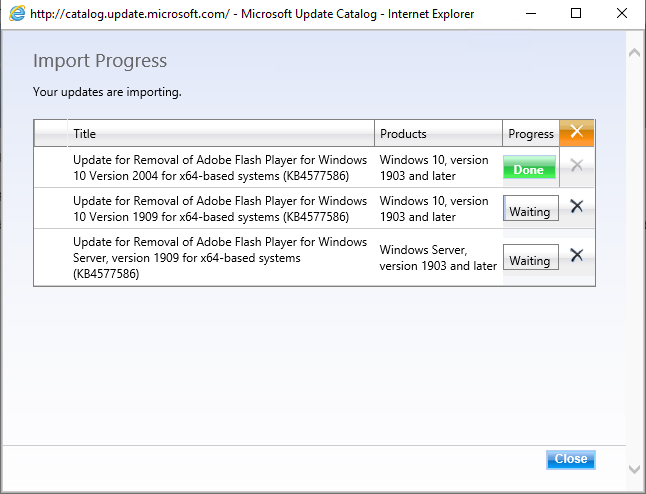
How to Manually Import Patches to WSUS and Deploy using SCCM - Fig.8
How to Manually Import Patches to WSUS and Deploy using SCCM – Fig.8

The update metadata updates are imported into the WSUS Console
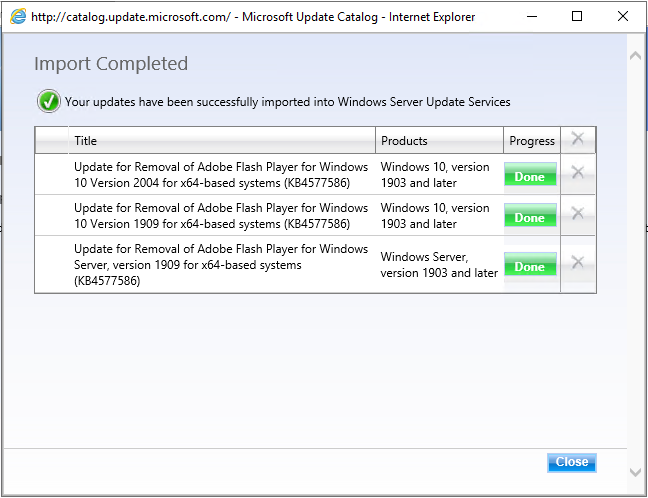
How to Manually Import Patches to WSUS and Deploy using SCCM - Fig.9
How to Manually Import Patches to WSUS and Deploy using SCCM – Fig.9

How to check the Updates are Available in the WSUS Console

Open the WSUS Console, Expand the Updates tab. Select All Updates and click the Search icon in the right-hand panel.
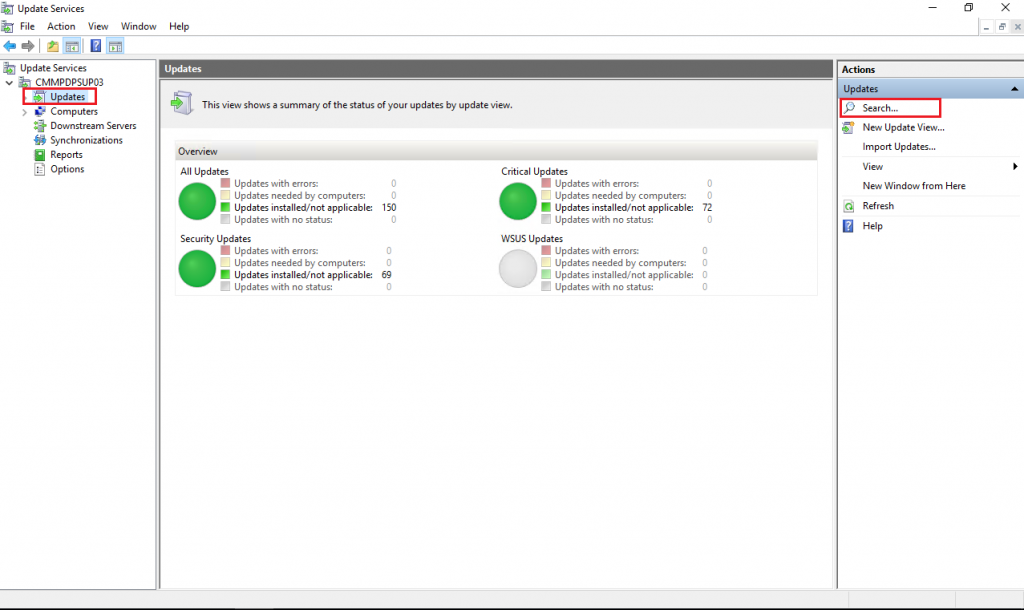
How to Manually Import Patches to WSUS and Deploy using SCCM - Fig.10
How to Manually Import Patches to WSUS and Deploy using SCCM – Fig.10

Enter the KB article ID, which is recently imported, and click Find Now
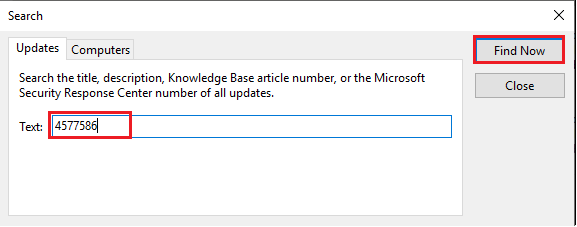
How to Manually Import Patches to WSUS and Deploy using SCCM - Fig.11
How to Manually Import Patches to WSUS and Deploy using SCCM – Fig.11

Updates are available in the WSUS console
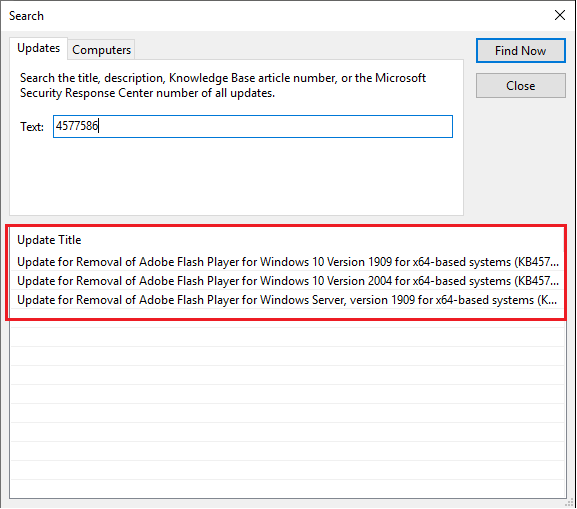
How to Manually Import Patches to WSUS and Deploy using SCCM - Fig.12
How to Manually Import Patches to WSUS and Deploy using SCCM – Fig.12

How to Sync from WSUS with SCCM Database after Manual Import to WSUS

Now, let’s check how to sync WSUS with the SCCM database. You can follow the steps mentioned below to complete this work.

  • Open the SCCM Console,
  • Select the Software Library,
  • Expand Software Updates,
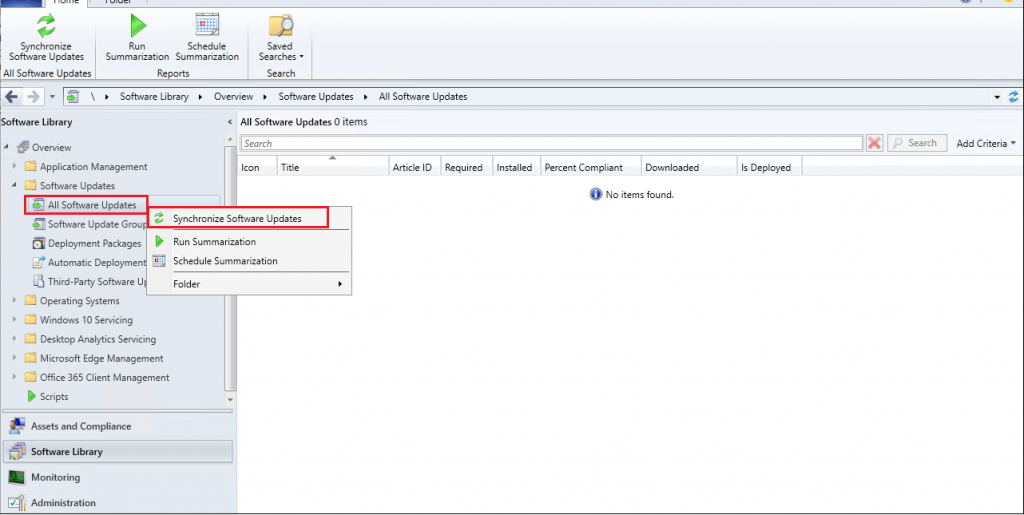
  • Select ‘All Software Updates ‘and right-click and select ‘Synchronization Software Updates
How to Manually Import Patches to WSUS and Deploy using SCCM - Fig.13
How to Manually Import Patches to WSUS and Deploy using SCCM – Fig.13

Open the WSUSSYnc.log from the Site server; you can find the imported update information.

NOTE! – More details about manually updating any other patches are explained in the Patch Missing from SCCM How to Import into WSUS Manually.

List of Adobe Flash Player Removal Updates

The Adobe Flash Player Updates are: (Manually Import Deploy Adobe Flash Player Updates using WSUS ConfigMgr | End of Support)

TitleProductsClassificationLast Update
Update for Removal of Adobe Flash Player for Windows Server 2012 for x64-based systems (KB4577586)Windows Server 2012Updates10/26/2020
Update for Removal of Adobe Flash Player for Windows Server 2012 R2 for x64-based systems (KB4577586)Windows Server 2012 R2Updates10/26/2020
Update for Removal of Adobe Flash Player for Windows Embedded 8 Standard for x86-based systems (KB4577586)Windows 8 EmbeddedUpdates10/26/2020
Update for Removal of Adobe Flash Player for Windows 8.1 for x64-based systems (KB4577586)Windows 8.1Updates10/26/2020
Update for Removal of Adobe Flash Player for Windows Embedded 8 Standard for x64-based systems (KB4577586)Windows 8 EmbeddedUpdates10/26/2020
Update for Removal of Adobe Flash Player for Windows 8.1 for x86-based systems (KB4577586)Windows 8.1Updates10/26/2020
Update for Removal of Adobe Flash Player for Windows 10 Version 1607 for x86-based systems (KB4577586)Windows 10, Windows 10 LTSBUpdates10/26/2020
Update for Removal of Adobe Flash Player for Windows Server 2016 for x64-based systems (KB4577586)Windows Server 2016Updates10/26/2020
Update for Removal of Adobe Flash Player for Windows 10 Version 1507 for x64-based systems (KB4577586)Windows 10 LTSBUpdates10/26/2020
Update for Removal of Adobe Flash Player for Windows 10 Version 1703 for x64-based systems (KB4577586)Windows 10Updates10/26/2020
Update for Removal of Adobe Flash Player for Windows 10 Version 1607 for x64-based systems (KB4577586)Windows 10, Windows 10 LTSBUpdates10/26/2020
Update for Removal of Adobe Flash Player for Windows 10 Version 1507 for x86-based systems (KB4577586)Windows 10 LTSBUpdates10/26/2020
Update for Removal of Adobe Flash Player for Windows 10 Version 1703 for x86-based systems (KB4577586)Windows 10Updates10/26/2020
Update for Removal of Adobe Flash Player for Windows 10 Version 1709 for ARM64-based systems (KB4577586)Windows 10Updates10/26/2020
Update for Removal of Adobe Flash Player for Windows 10 Version 1709 for x64-based systems (KB4577586)Windows 10Updates10/26/2020
Update for Removal of Adobe Flash Player for Windows 10 Version 1709 for x86-based systems (KB4577586)Windows 10Updates10/26/2020
Update for Removal of Adobe Flash Player for Windows Server 2019 for x64-based systems (KB4577586)Windows Server 2019Updates10/26/2020
Update for Removal of Adobe Flash Player for Windows 10 Version 1803 for x86-based systems (KB4577586)Windows 10Updates10/26/2020
Update for Removal of Adobe Flash Player for Windows 10 Version 1809 for x64-based systems (KB4577586)Windows 10, Windows 10 LTSBUpdates10/26/2020
Update for Removal of Adobe Flash Player for Windows 10 Version 1803 for ARM64-based systems (KB4577586)Windows 10Updates10/26/2020
Update for Removal of Adobe Flash Player for Windows 10 Version 1809 for x86-based systems (KB4577586)Windows 10, Windows 10 LTSBUpdates10/26/2020
Update for Removal of Adobe Flash Player for Windows 10 Version 1803 for x64-based systems (KB4577586)Windows 10Updates10/26/2020
Update for Removal of Adobe Flash Player for Windows 10 Version 1809 for ARM64-based systems (KB4577586)Windows 10, Windows 10 LTSBUpdates10/26/2020
Update for Removal of Adobe Flash Player for Windows 10 Version 1903 for x64-based systems (KB4577586)Windows 10, version 1903 and laterUpdates10/26/2020
Update for Removal of Adobe Flash Player for Windows 10 Version 1903 for x86-based systems (KB4577586)Windows 10, version 1903 and laterUpdates10/26/2020
How to Manually Import Patches to WSUS and Deploy using SCCM – Table 2

Resources

We are on WhatsApp. To get the latest step-by-step guides and news updates, Join our Channel. Click here –HTMD WhatsApp.

Author

Kannan is a Technical Architect with more than 15 years of experience in the IT domain. He has worked on various technologies, such as Windows server administration, SCCM, SCOM, and Desktop Engineering. He has worked in Microsoft SCCM for the last ten years, focusing on Configuration Manager and Intune technologies.


Written by

Kannan is a Technical Architect with more than 15 years of experience in the IT domain. He has worked on various technologies like Windows server administration, SCCM, SCOM, Desktop Engineering domains. For the last 10 years, he has been working in Microsoft SCCM with the focus on Configuration Manager and Intune technologies.

Discussion

Join the discussion

Your email address will not be published. Required fields are marked *

Related guides

Intune

Windows 11 KB5101650 KB5099414 July 2026 Patch and 3 Zero Day Vulnerabilities and 570 Flaws

Key Takeaways Windows 11 KB5101650 KB5099414 July 2026 Patch and 3 Zero Day Vulnerabilities and 570 Flaws! In the July 2026 Patch, Microsoft introduced new features designed to improve the overall Windows experience. The update adds enhancements to Windows Update for more flexible update management and introduces Point-in-Time Restore, providing an additional recovery option for […]

AC Anoop C Nair 9 min read
Intune

2026 June KB5094126 KB5093998 Windows 11 Patch | 3 Zero Day Vulnerabilities and 200 Flaws

Key Takeaways 2026 June KB5094126 KB5093998 Windows 11 Patch | 3 Zero Day Vulnerabilities and 200 Flaws! The June 2026 Windows 11 Patch Tuesday update brings several improvements to File Explorer. It adds support for additional archive formats, including UU, CPIO, XAR, and NuGet Packages (NUPKG). The update also preserves View and Sort preferences in […]

AC Anoop C Nair 10 min read
Intune

2026 May KB5089549 KB5087420 Windows 11 Patch | 0 Zero Day Vulnerabilities and 120 Flaws

Key Takeaways The Windows 11 May 2026 Patch KB5089549 KB5087420 Update brings important security fixes, performance improvements, and reliability enhancements across the operating system. The update introduces new features such as Xbox Mode for gaming, File Explorer improvements, enhanced input and sharing experiences, better taskbar and Windows Hello reliability, and additional enterprise management capabilities for […]

AC Anoop C Nair 8 min read
SCCM

ConfigMgr 2603 Introduces New Early Update Enrollment Process

Key Takeaways In this post we are discussing the ConfigMgr 2603 Introduces New Early Update Enrollment Process. Microsoft has officially released Configuration Manager version 2603 to the Early Update Ring, giving organizations an opportunity to test upcoming improvements before the global production rollout. The release is targeted at enterprises running ConfigMgr version 2409 or later […]

AC Anoop C Nair 3 min read