






Add Microsoft Store Application to ConfigMgr | SCCM | MSfB
Add Microsoft Store Application to ConfigMgr | SCCM | MSfB. Today, I will explore adding a Microsoft Store application to ConfigMgr.
This activity requires a Microsoft Store for Business (MSfB) license and administrator access. With MSfB, organizations can efficiently and automatically make store applications available to System Center Configuration Manager (SCCM) administrators.
Configuration Manager can manage Microsoft Store for Business and Education applications on devices running Windows 10 or later, as long as they have the Configuration Manager client installed.
This guide teaches you how to find, acquire, manage, and distribute free and paid store apps to SCCM and deploy them to Windows 10 devices. Make sure you have already completed the connection configuration between SCCM and MSfB.

NOTE! Microsoft has deprecated this feature, so it won’t be available after the November 2022 release of SCCM.
- SCCM Sync with MSfB Microsoft Store for Business | ConfigMgr
- Add Microsoft Store Application to ConfigMgr | SCCM | MSfB
- Create Microsoft Store Apps available in the ConfigMgr Application
- Deploy Microsoft Store Apps using ConfigMgr | SCCM
| Index |
|---|
| Decide Offline or Online Applications |
| Search Store Applications from MSfB |
| Add Apps to Private Store |
| Synchronization Completed? |
| Result |
Decide Offline or Online Applications
The MSfB supports two types of application licenses, and you should be very careful with the kind of application you want to add. You don’t need devices Hybrid Azure AD registered or joined for Offline apps.
| Types of Application | Description |
|---|---|
| Online | Windows 10 devices must be joined to Azure Active Directory (Azure AD) or hybrid Azure AD-joined. |
| Offline | Devices don’t need to connect to the store or have a connection to the internet. |
NOTE! If your device is domain-joined and not registered with Azure AD, the only option is to use the license type Offline for apps with Configuration Manager.
Search Store Applications from MSfB
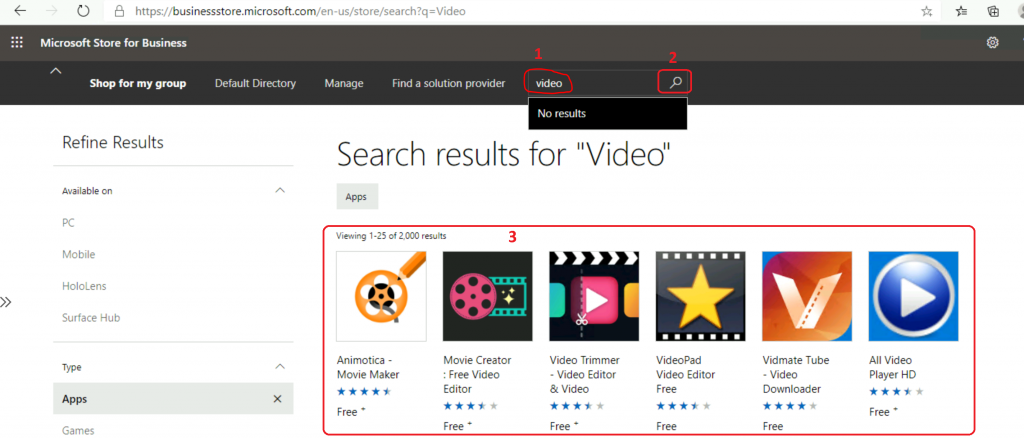
Let’s log in to the Microsoft Store for Business and search for the apps you want to add to Configuration Manager.
- Login to MSfB with Azure AD admin account: https://businessstore.microsoft.com/
- Navigate to Shop for my group
- Go to the Management Tools section
Add Apps to Private Store
I have already found the required apps (in the above section). Now, let’s add those to the organization’s private store.
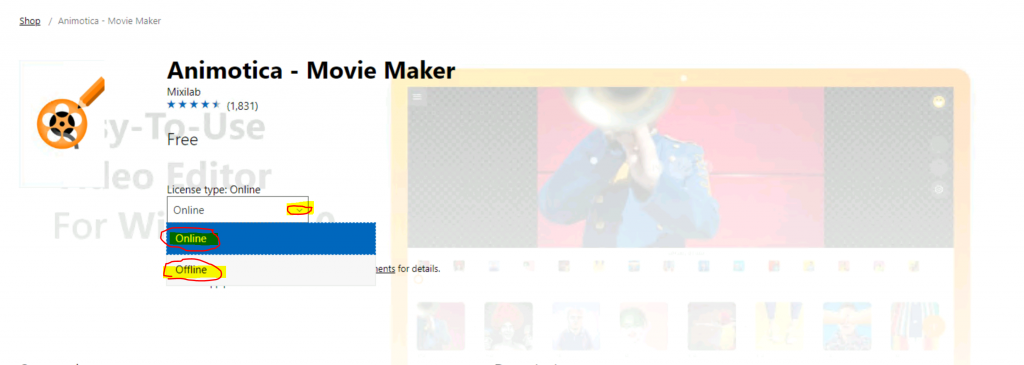
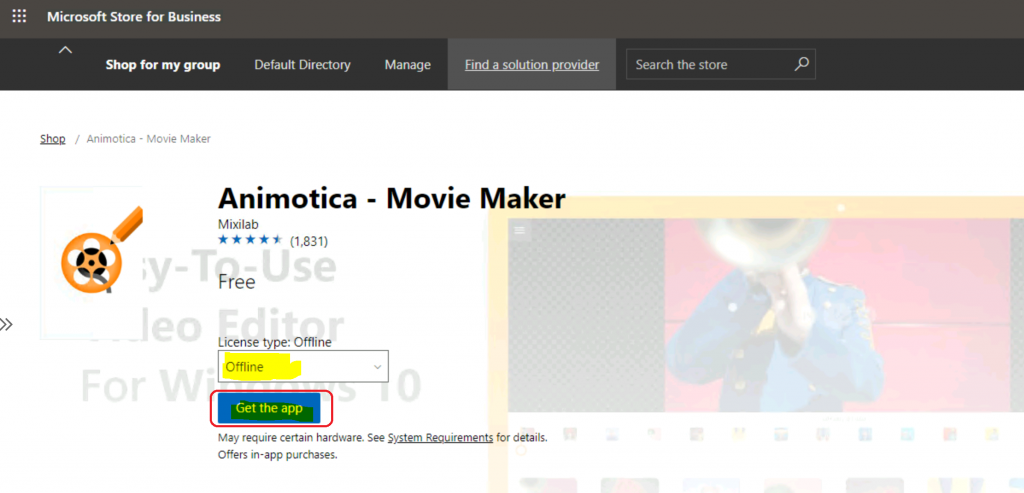
- Click on any application – Animotica – Movie Maker
- Select License type: Offline
- Click on Get the app
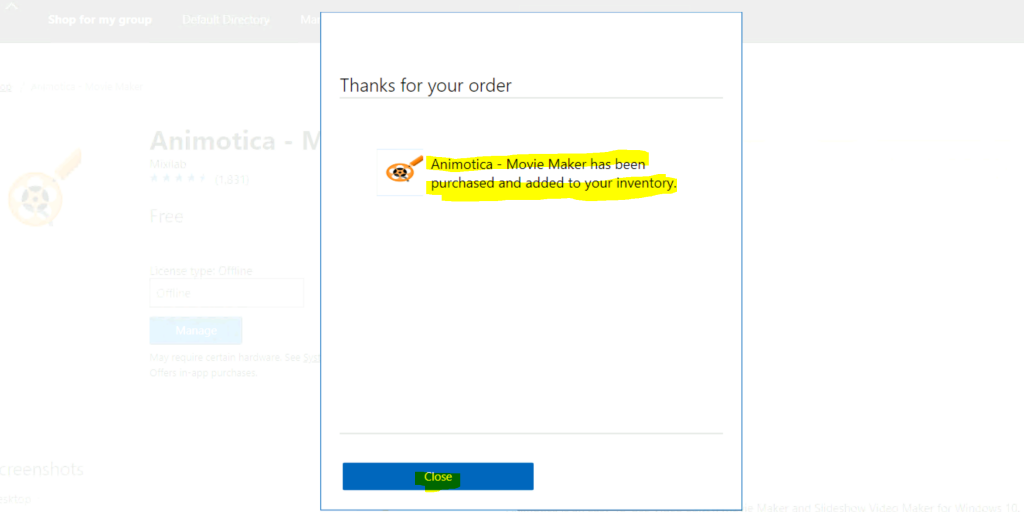
- Successfully added the app Animotica – Movie Maker to the private store
- This app will be available in the admin console after the next MSfB sync with ConfigMgr
- Click Close to continue
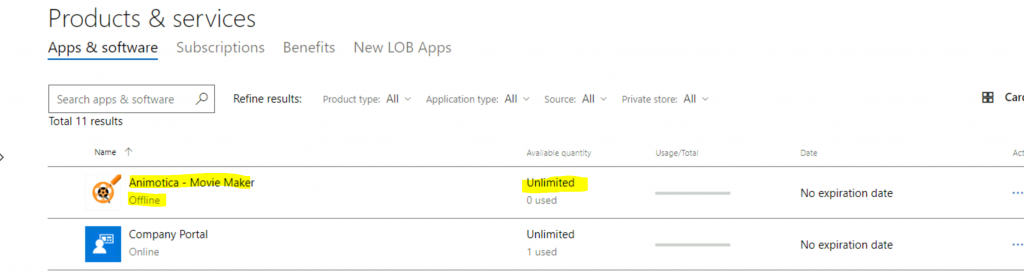
- Once successfully added, you can see the newly added app listed
- https://businessstore.microsoft.com/en-us/manage/inventory/apps-software(signup:signup/collect email)
Synchronization Completed?
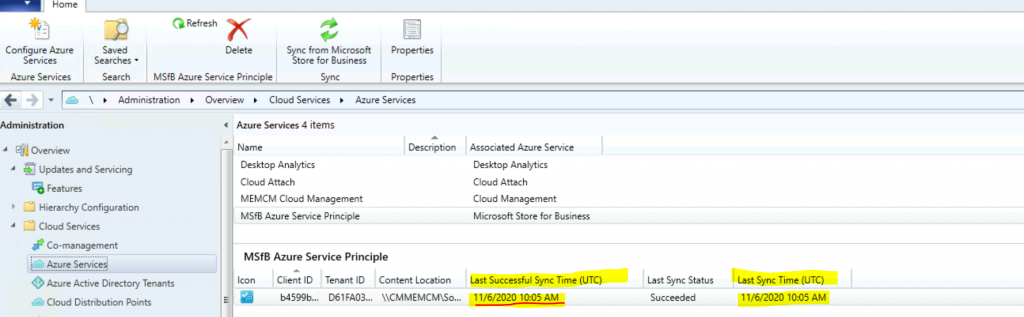
Now let’s check whether the ConfigMgr synced with Microsoft Store for Business services. To confirm this:
- Navigate to \Administration\Overview\Cloud Services\Azure Services
- Click on MSfB associated Azure Service
- Check the Last Successful Sync Time
- Make sure the latest updates are synced
NOTE! – Synchronize app data to Configuration Manager (synchronization occurs every 24 hours). There is no custom sync option for MSfB and SCCM.
Result
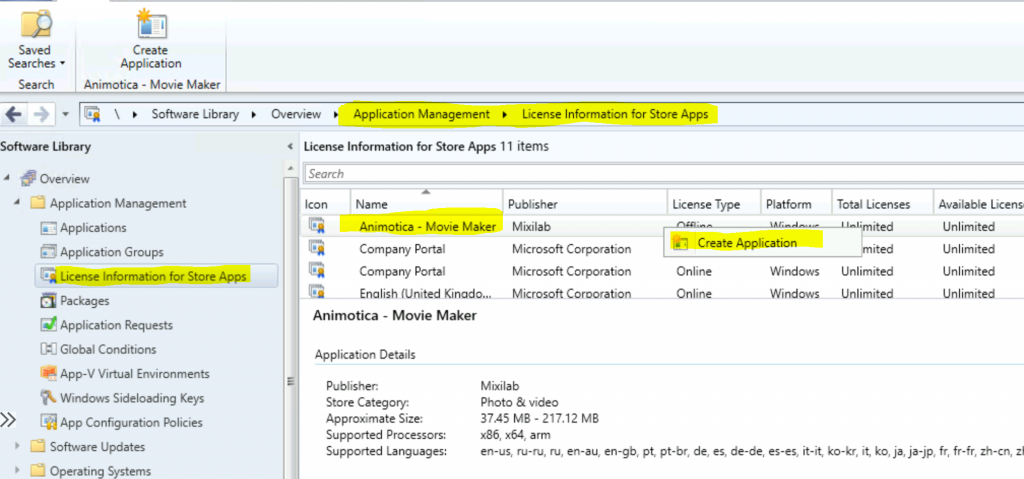
It’s time to check the Applications node to confirm whether the newly added Windows Store for Business application is available underneath the License Information for Store Apps node.
- Navigate to \Software Library\Overview\Application Management\License Information for Store Apps.
- As you can see below, all the synced applications are available in the License Information for Store Apps.
- Now you are ready to deploy the new store app to Windows 10 devices
Resources
- Troubleshoot the Microsoft Store for Business and Education integration with Configuration Manager.
- Manage apps from the Microsoft Store for Business and Education with Configuration Manager.
We are on WhatsApp. To get the latest step-by-step guides and news updates, Join our Channel. Click here –HTMD WhatsApp.
Author
Anoop C Nair is Microsoft MVP! He is a Device Management Admin with more than 20 years of experience (calculation done in 2021) in IT. He is a Blogger, Speaker, and Local User Group HTMD Community leader. His primary focus is Device Management technologies like SCCM 2012, Current Branch, and Intune. He writes about ConfigMgr, Windows 11, Windows 10, Azure AD, Microsoft Intune, Windows 365, AVD, etc.




Hi Anoop,
You provide great information about SCCM which helps a lot.
I have a quick question, my Azure Global Admin (with SCCM Admin rights) has setup the Microsoft Store for Business on SCCM. It syncs successfully. But I want to logon to Microsoft store for business and download those online & offline apps? Can I do it do I need any permission first to setup?
Regards
Kumar
StaffHi, I guess Azure Global Admin is the ultimate permission to perform that action as well.
Hi Anoop.
Thanks for an excellent article and has really helped me.
One question I have is around the automatic update of these offline apps. Are they updated automatically when a new version is released ? Or do we need to create another version of the application ?
Thanks, regards Tony
StaffHi Tony – Once installed apps will get automatic updates. Ensure the MS Store app update is not blocked using Group Policy Settings.
Microsoft Store for Business retirement is happening soon! If you are not in co-managed scenario check this out https://www.anoopcnair.com/install-app-windows-package-manager-winget-sccm/
https://businessstore.microsoft.com/ no longer resolves. Is this functionality fully dead at this point?