






Deploy Microsoft Store Apps using ConfigMgr | SCCM
Let’s try to understand How to deploy Microsoft Store Apps Using ConfigMgr. Microsoft Store for Business allows organizations to automatically sync Microsoft Store apps and make them available for ConfigMgr admins.
Configuration Manager can manage Microsoft Store for Business and Education applications on devices running Windows 10 or later, as long as they have the Configuration Manager client installed.
Microsoft Store for Business (MSfB) is integrated with SCCM; store applications need not be created manually. Instead, the apps will automatically sync from MSfB to ConfigMgr. You can view these apps in the SCCM admin console and deploy them like any other.
Once the Microsoft Store for Business application is synced with Configuration Manager, you can create a Microsoft Store application in the admin console similar to any other ConfigMgr application.

- SCCM Sync with MSfB Microsoft Store for Business | ConfigMgr
- Add Microsoft Store Application to ConfigMgr | SCCM | MSfB
- Create Microsoft Store Apps available in the ConfigMgr Application
| Index |
|---|
| Prerequisites |
| Deploy Microsoft Store Apps using SCCM |
| Select Collection |
| Select Content Details |
| Deployment Settings |
| Scheduling Options |
| User Experience |
| Alerts |
| Summary |
| Results |
Prerequisites
Let’s understand the detailed prerequisites for deploying MSfB apps with ConfigMgr (SCCM).
- SCCM Infrastructure Admin access is required.
- The Browser where your console is installed should be compatible with Microsoft Store for Business.
- The administrator account needed to integrate MSfB with ConfigMgr.
- Employees need Azure AD accounts when they access the content from MSfB (only for Online deployments).
- Proxy configuration requirements for MSfB
- Devices must be registered with Azure AD or joined to the same Azure AD tenant where you registered the MSfB for online app deployment.
- Azure AD Global admin (or appropriate) access is required to create Applications that connect the ConfigMgr site to Azure AD and MSfB.
- Ensure all the configurations mentioned in the previous related posts are in the section.
Deploy Microsoft Store Apps using SCCM
How do you deploy an SCCM Application Object for the Microsoft Store for Business (MSfB) app?
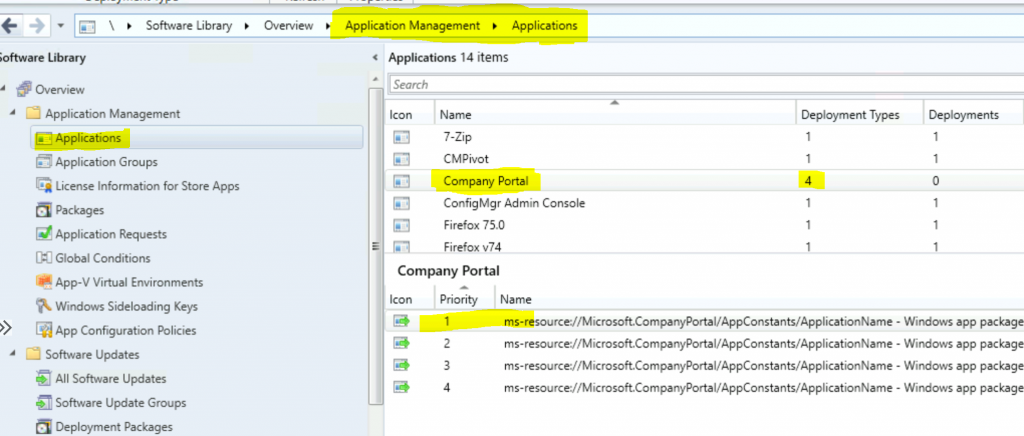
- Launch Admin Console
- Navigate to \Software Library\Overview\Application Management\Applications
- Select an application called Company Portal
- Click on the Deployment Types tab
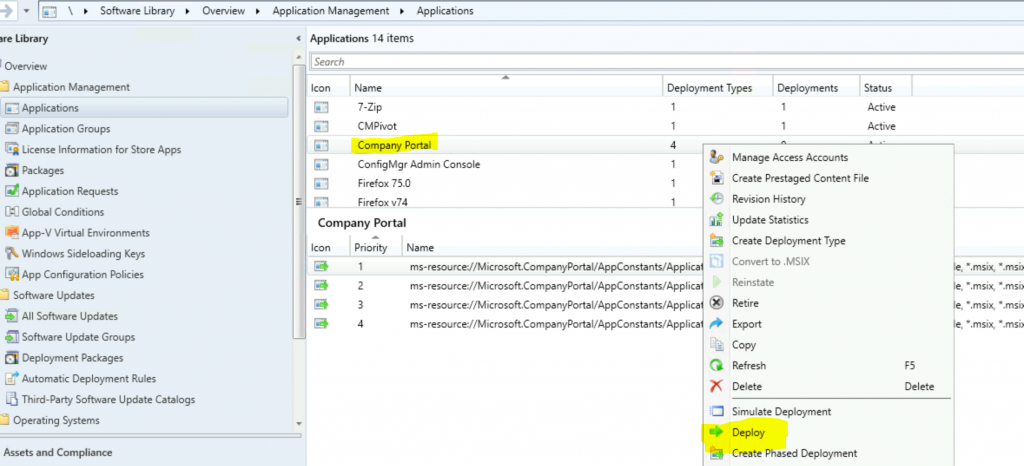
Right-click on the application Company Portal.
- Select the Deploy option to deploy the company portal Microsoft Store application to Devices or User collection.
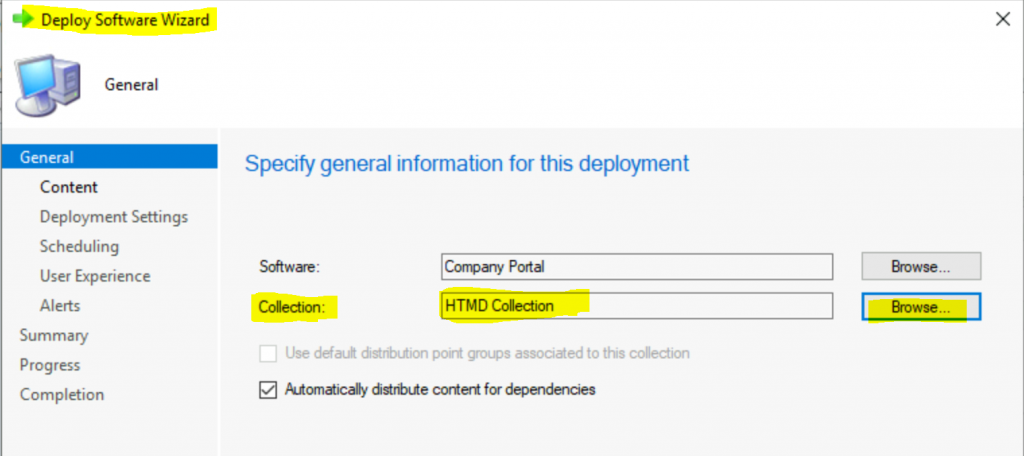
Select Collection
From Deploy Software Wizard, click the Browse button and select the device collection you want to deploy to this company portal app through SCCM.
- Make sure you select “Automatically distribute content for dependencies.”
- Click on the Next button.
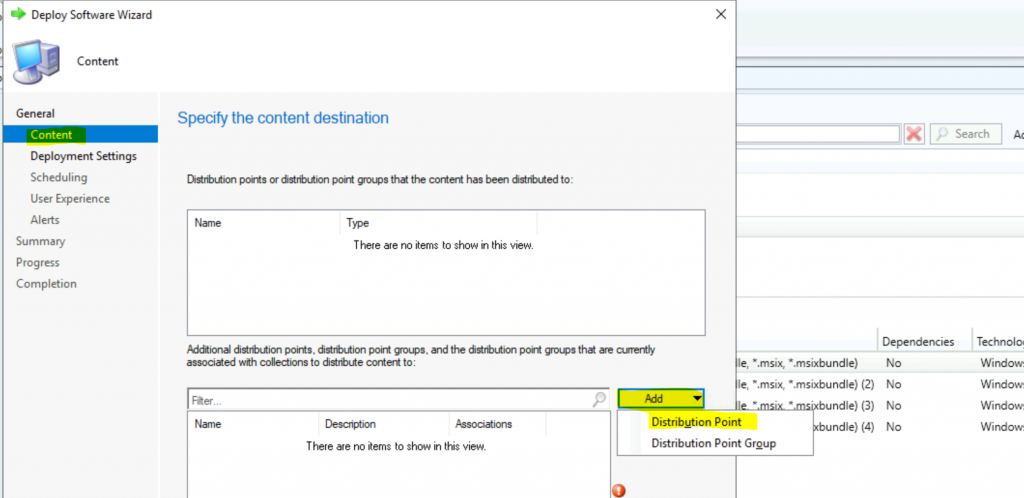
Select Content Details
Click the Add button to distribute the application’s content to the distribution point(s).
- Select the DP you want to distribute the application.
- Click on the Next button to continue.
Deployment Settings
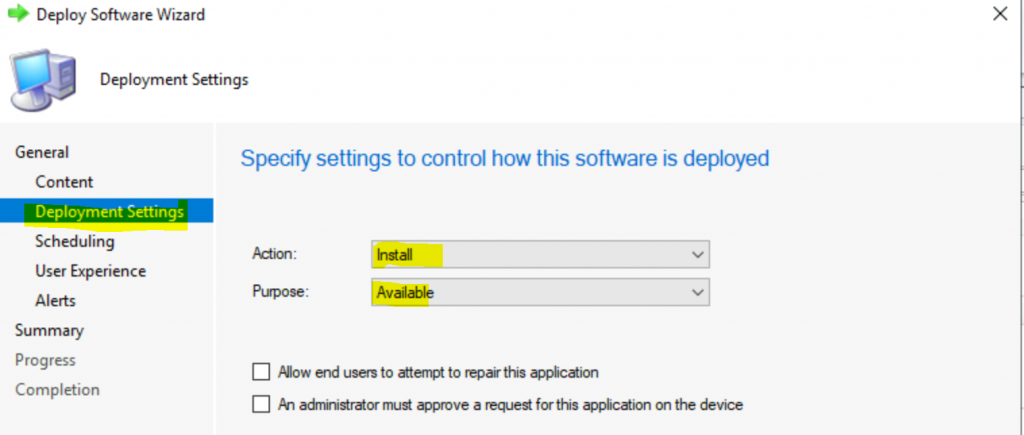
Let’s select the deployment settings for the company portal app
- Action -> Install
- Purpose -> Available
NOTE! – Select this as a required application from the Purpose menu.
By selecting “Allow End users to attempt to repair this application,” you can allow users to repair or reinstall the company portal app from the software center.
- Selecting the option ” All administrators must approve a request for this application on the device” allows all admins to approve this application request.
- Click on the Next button.
Scheduling Options
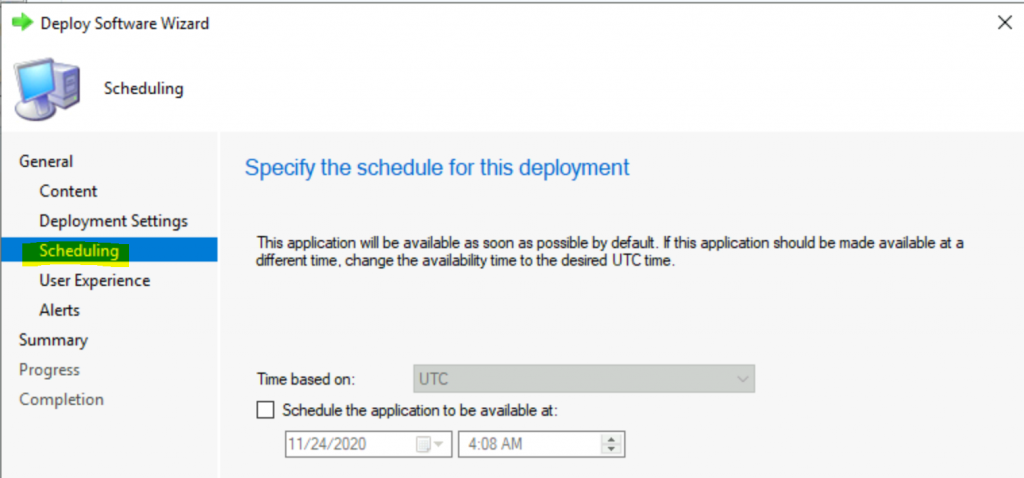
Let’s check the options of scheduling the Microsoft Store for business applications via SCCM/ConfigMgr. This option lets you control the application’s available timing for the end-users.
- Click on the Next button.
User Experience
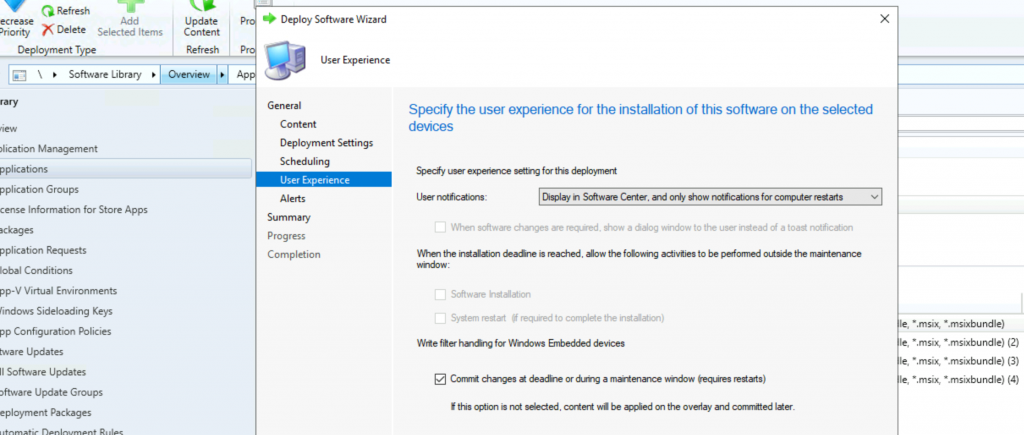
Make sure you select the User experience according to your requirements. User Notification settings—Display in Software Center and only show notifications when the computer restarts.
- Click on the Next button.
Alerts
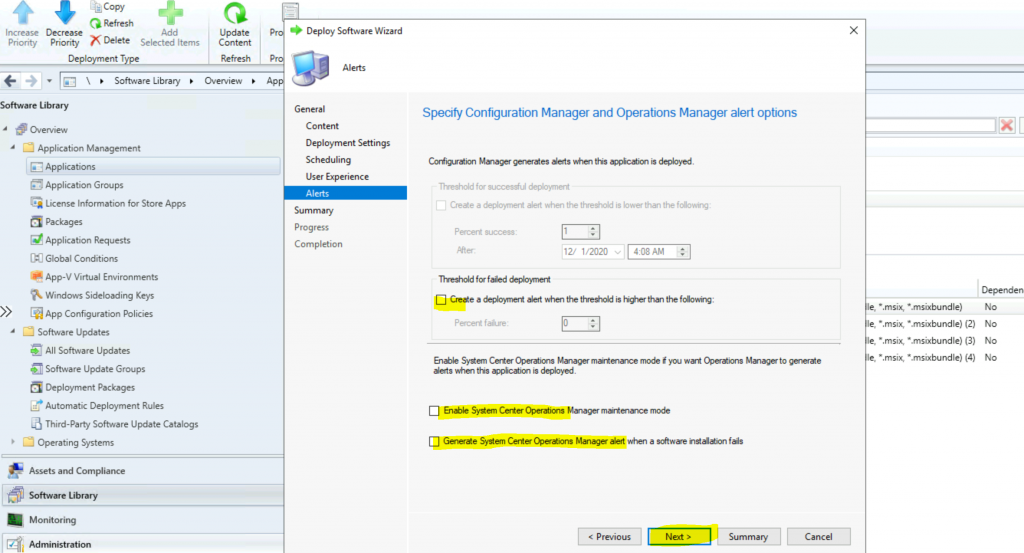
Let’s check the alert options you have in the Deploy Software Wizard.
- You can use SCOM integration with SCCM to get alerts about software deployments.
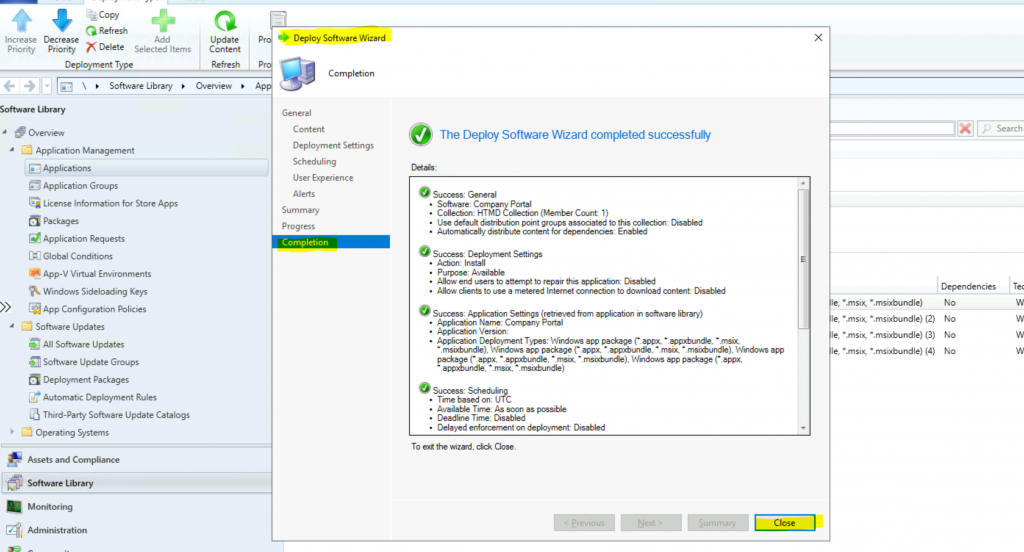
Summary
Let’s see the summary and confirm every configuration is good to go.
- Click Next, Next, and Close to finish the deployment details.
General
• Software: Company Portal
• Collection: HTMD Collection (Member Count: 1)
• Use default distribution point groups associated to this collection: Disabled
• Automatically distribute content for dependencies: Enabled
Deployment Settings
• Action: Install
• Purpose: Available
• Allow end users to attempt to repair this application: Disabled
• Allow clients to use a metered Internet connection to download content: Disabled
Application Settings (retrieved from application in software library)
• Application Name: Company Portal
• Application Version:
• Application Deployment Types: Windows app package (*.appx, *.appxbundle, *.msix, *.msixbundle), Windows app package (*.appx, *.appxbundle, *.msix, *.msixbundle), Windows app package (*.appx, *.appxbundle, *.msix, *.msixbundle), Windows app package (*.appx, *.appxbundle, *.msix, *.msixbundle)
Scheduling
• Time based on: UTC
• Available Time: As soon as possible
• Deadline Time: Disabled
• Delayed enforcement on deployment: Disabled
User Experience
• User notifications: Display in Software Center, and only show notifications for computer restarts
• Ignore Maintenance Windows: Disabled
• System restart (if required to complete the installation): Disabled
• Commit changes at deadline or during a maintenance window (requires restarts): Enabled
Alerts
• Enable System Center Operations Manager maintenance mode: Disabled
• Generate System Center Operations Manager alert when a software installation fails: Disabled
• Create a deployment alert when the threshold is lower than the following: Disabled
• Create a deployment alert when the threshold is higher than the following: Disabled
Content (1):
• CMMEMCM.MEMCM.COM
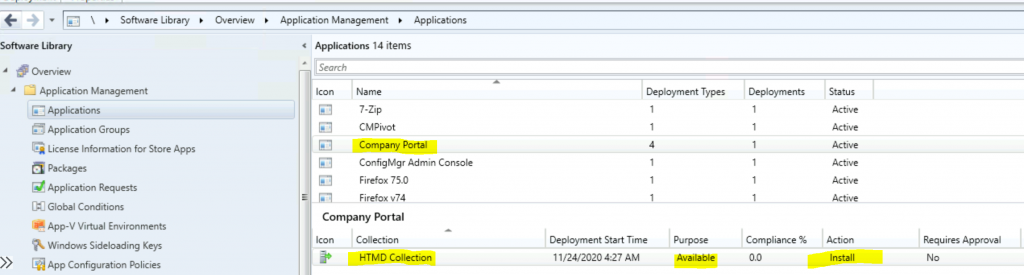
Results
You can go to the Deployments tab in the company portal application.
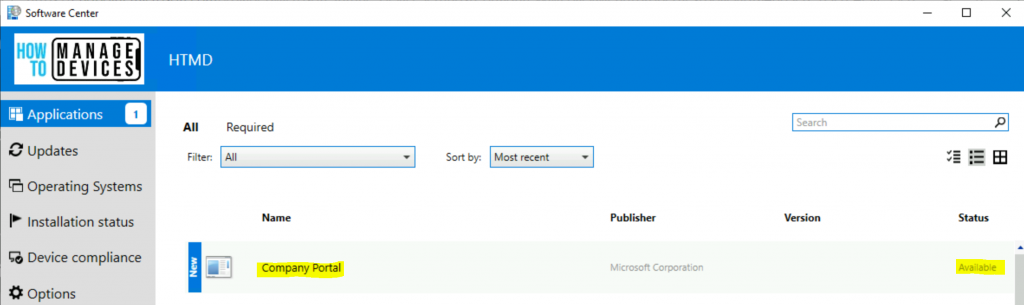
- Software Center Results
- You can view the software center and see the Company Portal application
We are on WhatsApp. To get the latest step-by-step guides and news updates, Join our Channel. Click here –HTMD WhatsApp.
Author
Anoop C Nair is Microsoft MVP! He is a Device Management Admin with more than 20 years of experience (calculation done in 2021) in IT. He is a Blogger, Speaker, and Local User Group HTMD Community leader. His primary focus is Device Management technologies like SCCM 2012, Current Branch, and Intune. He writes about ConfigMgr, Windows 11, Windows 10, Azure AD, Microsoft Intune, Windows 365, AVD, etc.




Discussion