






How to Deploy Remote Desktop Client using ConfigMgr | SCCM | WVD
Let’s quickly look at how to Deploy Remote Desktop Client using ConfigMgr | SCCM. I usually use this version of the RD client to connect to Windows Virtual Desktop(WVD) session hosts. SCCM can help deploy RD clients automatically to all users with WVD access.
Azure Virtual Desktop (AVD), formerly known as Windows Virtual Desktop (WVD), is a powerful system within Microsoft Azure that is assembled to virtualize Windows operating systems. It allows the secure readiness of virtualised desktops and applications over the Internet using the Remote Desktop Protocol.
With Microsoft Remote Desktop clients, clients can initiate connections to Azure Virtual Desktop to open and manage desktops and applications assigned by their administrators. These clients are compatible with several devices beyond various policies and form issues, including desktops, laptops, tablets, and smartphones.
I have a more detailed post on how to manually install and configure Windows Virtual Desktop(WVD) related activities for the remote desktop client. The drawback of manual installation is that you need to provide administrative access to end users.

Table of Contents
Download Remote Desktop Client
The following links will allow you to download the RD Client for WVD. You can use the downloaded source file to create the ConfigMgr application for the RD client.
- Best Way to Deploy Web Link App through Intune
- Deploy Remote Help App with Auto Upgrade Feature in Intune
- Best way to Manage SCCM Client on Windows Server Core Machines
- Types of DaaS New Desktop as a Service SWOT Analysis
- New Azure Virtual Desktop App in the Microsoft Store Winget and Intune
Create RD Client App using ConfigMgr
Let’s learn how to create a Remote Desktop application to access Windows Virtual Desktop (WVD) session hosts.
- Navigate to \Software Library\Overview\Application Management\Applications
- Right-click on the applications and select the Create Application option.
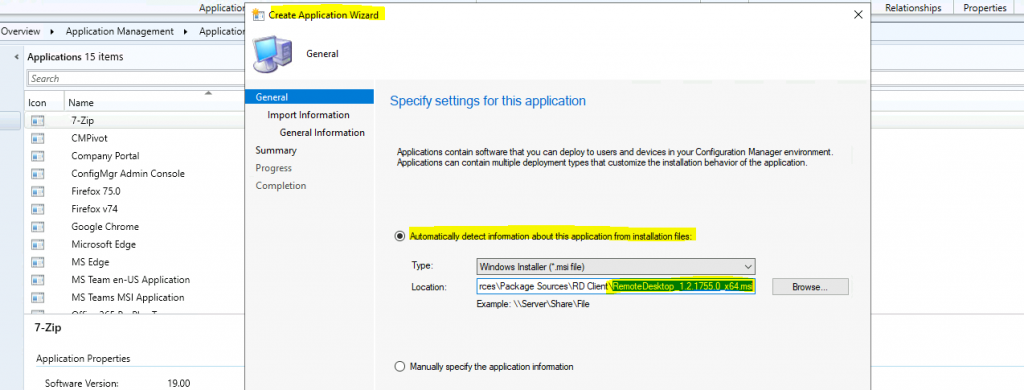
- Summary details of Remote Desktop applications taken from MSI metadata.
Application name: Remote Desktop
 Publisher:
 Software version:
 Deployment type name: Remote Desktop - Windows Installer (*.msi file)
 Product Code: {0D305810-09D2-49D9-8AF7-D5459F40BB95}
 Installation behavior: Install for user
 Content location: \CMMEMCM\Sources\Package Sources\RD Client\
 Number of files: 1
 Content files:
      RemoteDesktop_1.2.1755.0_x64.msi
- Click on the Next to continue.
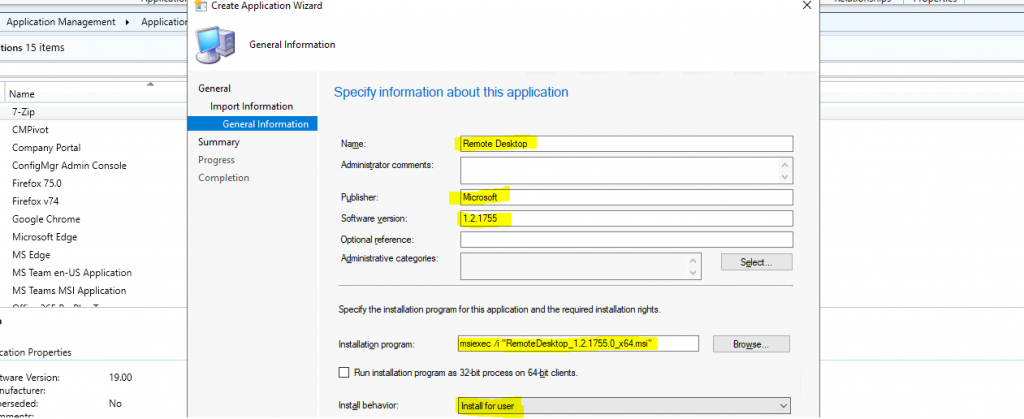
Enter the following details and click on the next button to continue.
| Information about the Application |
|---|
| Name : Remote Desktop |
| Publisher : Microsoft |
| Command Line: msiexec /i “RemoteDesktop_1.2.1755.0_x64.msi” |
| Install Behavior : Install for User |
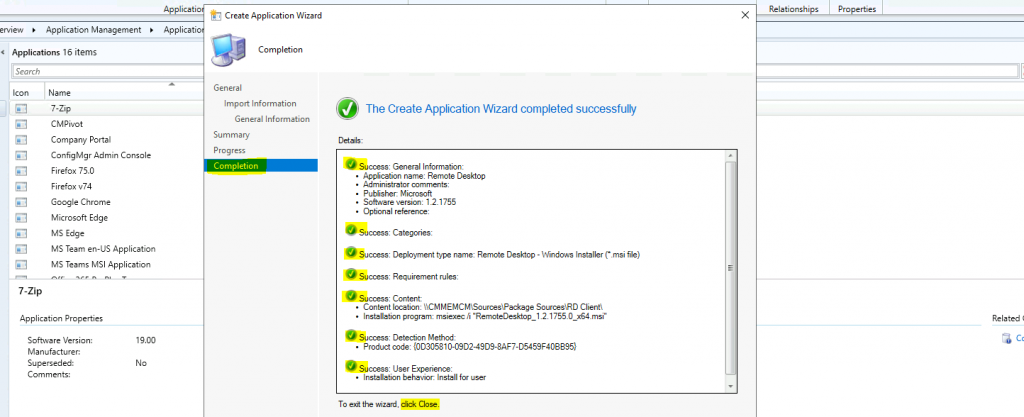
To exit the Create Application Wizard, click on CLOSE.
General Information:
 •    Application name: Remote Desktop
 •    Administrator comments:
 •    Publisher: Microsoft
 •    Software version: 1.2.1755
 •    Optional reference:
 Categories:
 Deployment type name: Remote Desktop - Windows Installer (*.msi file)
 Requirement rules:
 Content:
 •    Content location: \CMMEMCM\Sources\Package Sources\RD Client\
 •    Installation program: msiexec /i "RemoteDesktop_1.2.1755.0_x64.msi"
 Detection Method:
 •    Product code: {0D305810-09D2-49D9-8AF7-D5459F40BB95}
 User Experience:
 •    Installation behavior: Install for user
RD Client Application Created
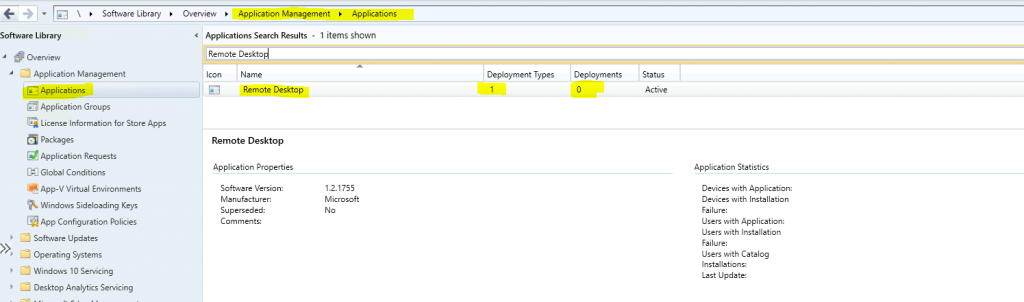
Let’s confirm whether the RD client application is created or not.
- Navigate to \Software Library\Overview\Application Management\Applications
- Search with “Remote Desktop“.
- Remote Desktop application is created with one (1) deployment type.
Transfer Source Files to Distribution Point
You need to distribute the content (source files of the RD client application) to distribution points. To complete the SCCM application distribution process, follow the below steps.
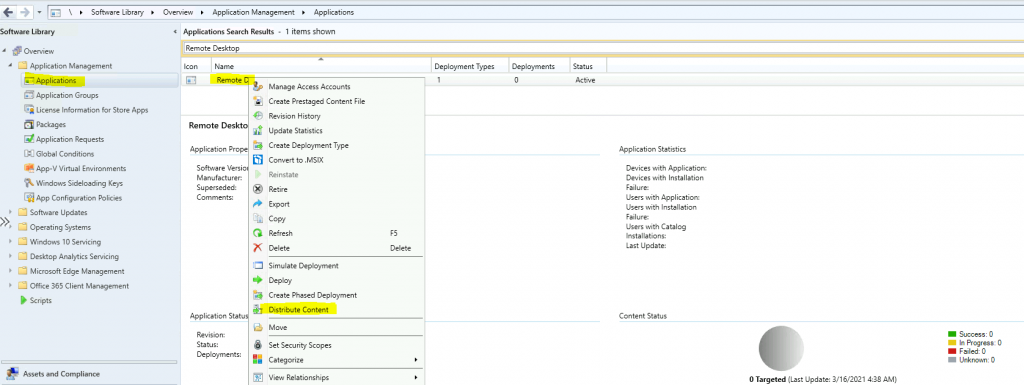
- Right-click on the Remote Desktop Client package and select the Distribute Content option.
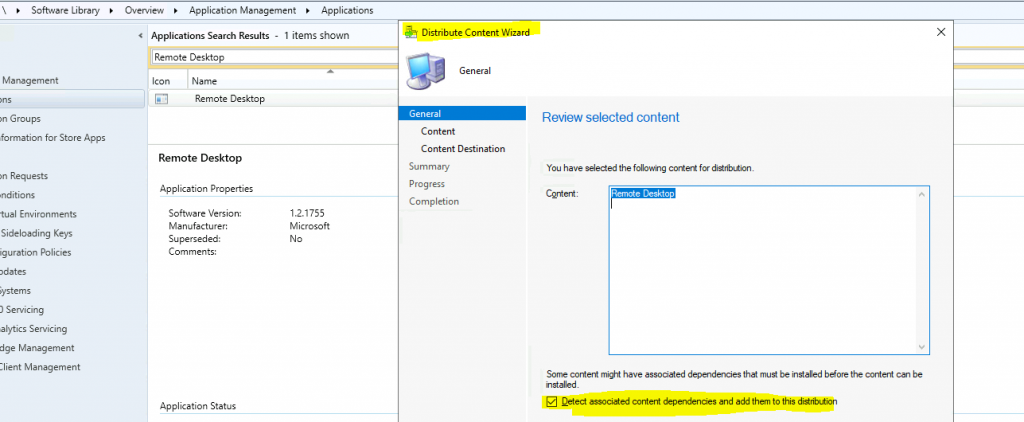
- Click on the Next button from the Distribute Content Wizard.
- Ensure the following option is selected – Detect associated content dependencies and add them to this distribution.
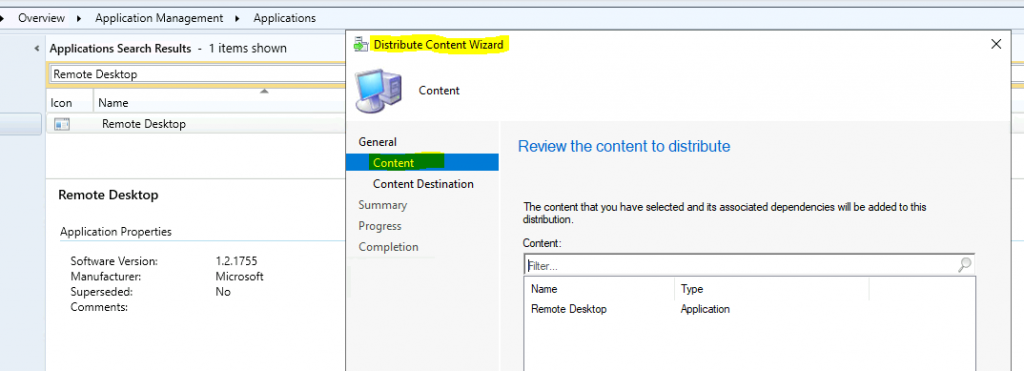
Click on the Next button after reviewing the content – The content related to RD Client has been selected, and its associated dependencies will be added to this distribution point.
The content will be distributed to the following distribution points, Distribution point groups and the distribution point groups that are currently associated with collections.
- From the content destination option, Click the Add button and select Distribution Point to add content to the DP.
- Select the Distribution Point (DP).
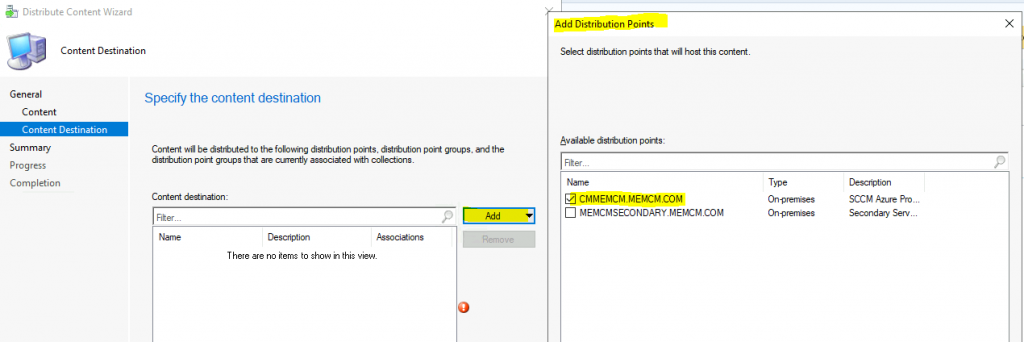
Click on the OK button and then on the NEXT button to continue.
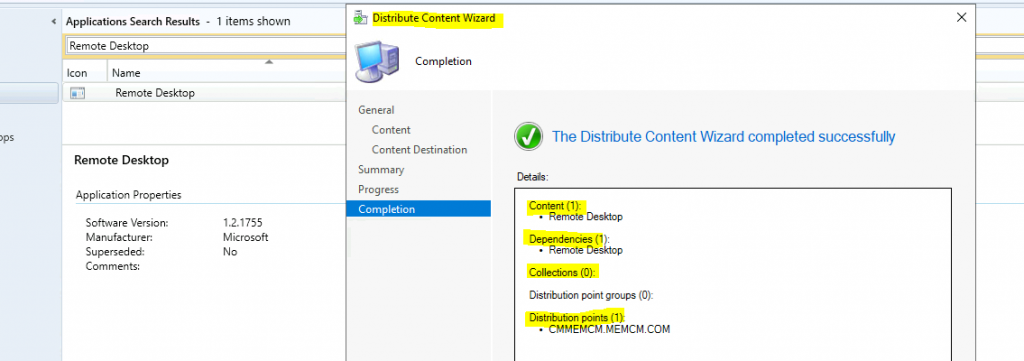
- Click on the Next, Next, and Close button to finish the content distribution of the RD client package.
Content (1):
 •    Remote Desktop
 Dependencies (1):
 •    Remote Desktop
 Collections (0):
 Distribution point groups (0):
 Distribution points (1):
 •    CMMEMCM.MEMCM.COM
Check the Content Distribution Status
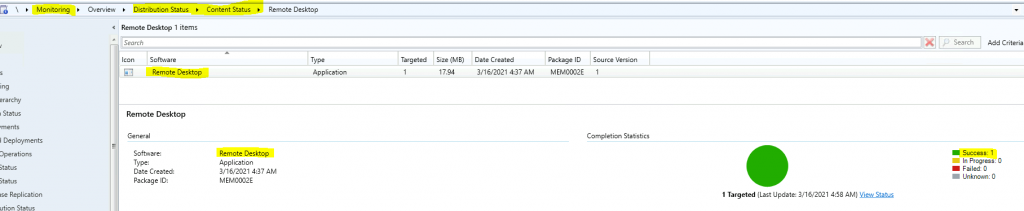
You can check the content distribution status using the following path.
- Navigate to \Monitoring\Overview\Distribution Status\Content Status\Remote Desktop
- Where remote desktop is the application name
- You can check whether the content is successfully distributed to the DP.
Deploy RD Client Application to a Collection
Now, let’s figure out how to deploy the RD client application to a collection.
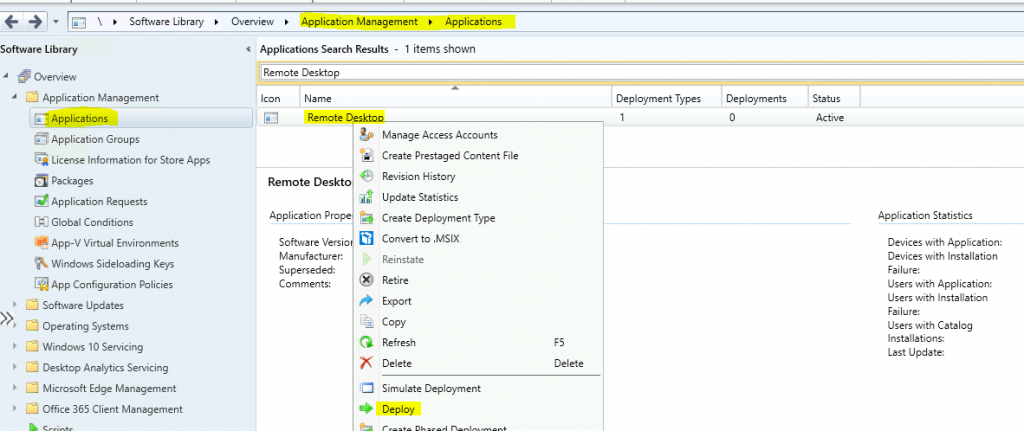
- Right-click on the Remote Desktop application and select the Deploy option.
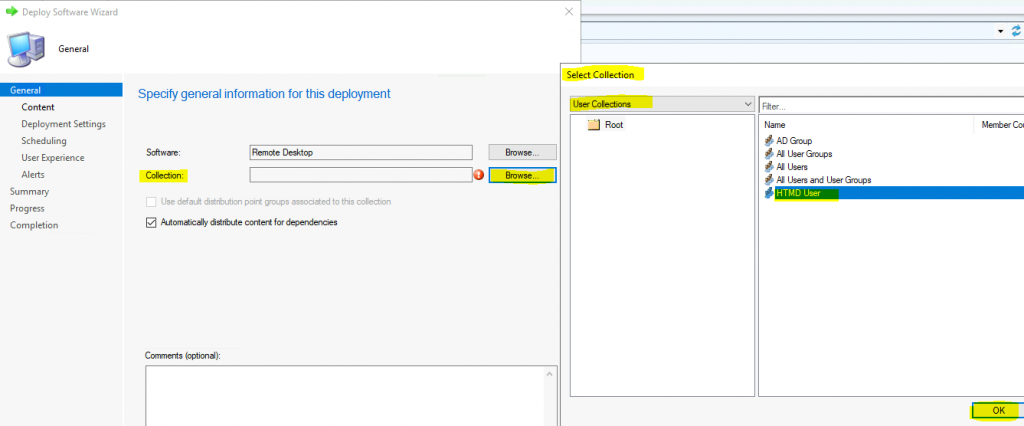
Click the Browse button to select the collection to deploy the WVD RD client application. Select the user collections from the drop-down menu.
- Click on the HTMD User Collection, as shown in the following figure.
- Click on the OK and Next buttons to continue.
Click on the Next button from the content page because we have already distributed the last section’s content.
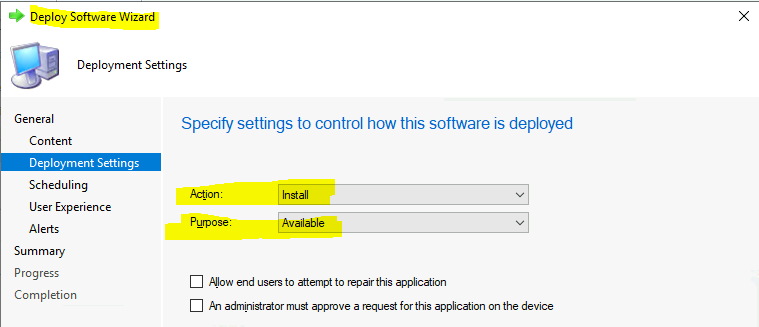
- Specify settings to control how this software is deployed.
- I’m making this Install and available.
- Click on the Next to continue.
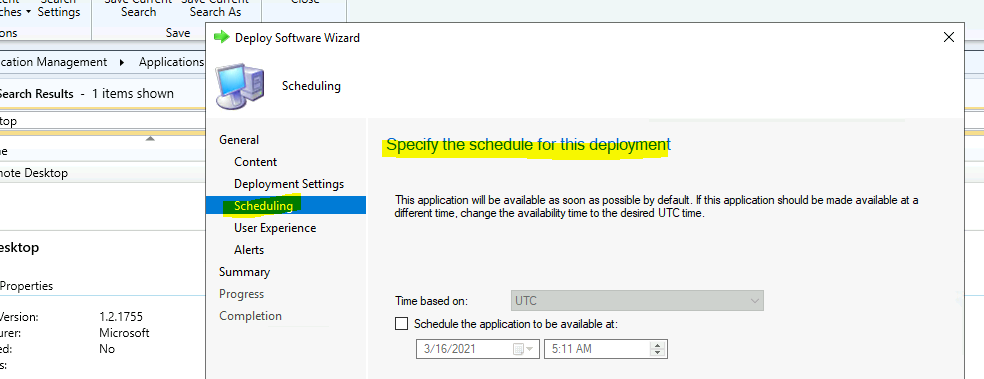
Specify the schedule for this deployment. By default, the application will be available as soon as possible. If you want it to be available at a different time, change the availability time to the desired UTC.
- Click on Next to continue.
I keep the user experience and alerts as default settings.
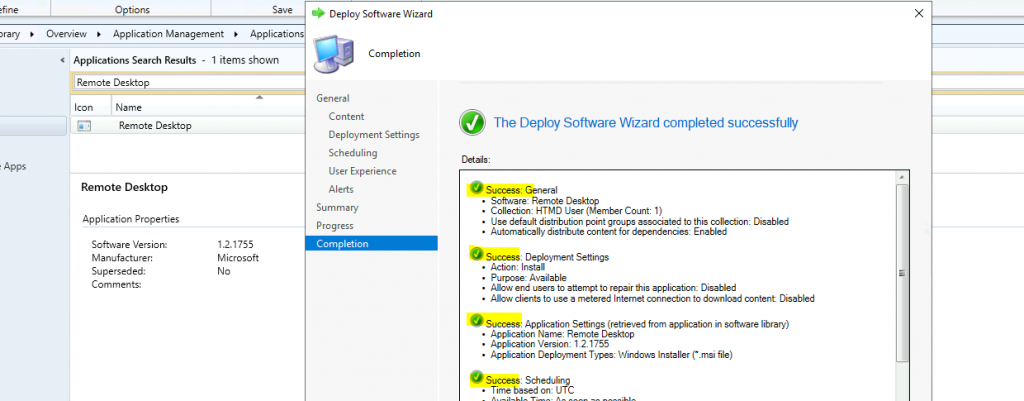
- Click on the Next and then Next buttons to verify the summary.
General
 •    Software: Remote Desktop
 •    Collection: HTMD User (Member Count: 1)
 •    Use default distribution point groups associated to this collection: Disabled
 •    Automatically distribute content for dependencies: Enabled
 Deployment Settings
 •    Action: Install
 •    Purpose: Available
 •    Allow end users to attempt to repair this application: Disabled
 •    Allow clients to use a metered Internet connection to download content: Disabled
 Application Settings (retrieved from application in software library)
 •    Application Name: Remote Desktop
 •    Application Version: 1.2.1755
 •    Application Deployment Types: Windows Installer (*.msi file)
 Scheduling
 •    Time based on: UTC
 •    Available Time: As soon as possible
 •    Deadline Time: Disabled
 •    Delayed enforcement on deployment: Disabled
 User Experience
 •    User notifications: Display in Software Center and show all notifications
 •    Ignore Maintenance Windows: Disabled
 •    System restart  (if required to complete the installation): Disabled
 •    Commit changes at deadline or during a maintenance window (requires restarts): Enabled
 Alerts
 •    Enable System Center Operations Manager maintenance mode: Enabled
 •    Generate System Center Operations Manager alert when a software installation fails: Disabled
 •    Create a deployment alert when the threshold is lower than the following: Disabled
 •    Create a deployment alert when the threshold is higher than the following: Disabled
Click on Next, Next, and Close to exit the wizard.
PolicyAgent.log
I did initiate a user policy sync from ConfigMgr Applet – User Policy Retrieval & Evaluation Cycle in the control panel to trigger the user policy refresh.
The policyagent.log from SCCM client logs.
- Requesting User policy assignments for ‘S-1-5-21-2901188661-3025291148-348095268-500’ from authority ‘SMS: MEM’. IsDomainUser = 1, IsCloudUser = 1
- Raising event: the instance of CCM_PolicyAgent_AssignmentsRequested
- Successfully submitted an event to the Status Agent.
- Processing User assignments from ‘SMS: MEM’. The new cookie is ‘2021-03-10 07:50:55.177’.
- Raising event: the instance of CCM_PolicyAgent_AssignmentsReceived
Results
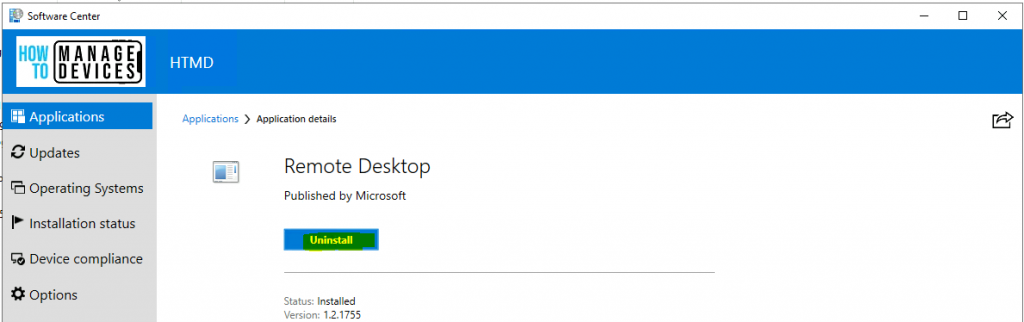
Let’s check whether the application is available in the Software Center or not.
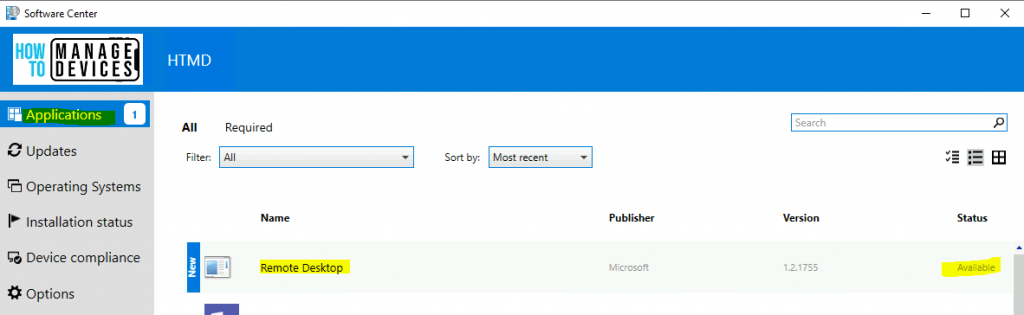
I have installed the WVD RD Client application from the Software Center.
Resources
- Download RD Client for WVD.
- ConfigMgr Redistribute Content to Distribution Point | SCCM | Package | Best Way
- Deploy Microsoft Store Apps using ConfigMgr | SCCM
We are on WhatsApp now. To get the latest step-by-step guides, news, and updates, Join our Channel. Click here – HTMD WhatsApp.
Author
Anoop C Nair has been Microsoft MVP from 2015 onwards for 10 consecutive years! He is a Workplace Solution Architect with more than 22+ years of experience in Workplace technologies. He is also a Blogger, Speaker, and leader of the Local User Group Community. His primary focus is on Device Management technologies like SCCM and Intune. He writes about technologies like Intune, SCCM, Windows, Cloud PC, Windows, Entra, Microsoft Security, Career, etc.




Discussion