






SCCM Persist Content in the Client Cache Options | ConfigMgr | Endpoint Manager
I will explain SCCM Persist Content in the Client Cache Option in this post. In Configuration Manager, If you configure the package properties to persist content in the client cache, the client does not automatically delete package content from the cache.
SCCM client cache is where packages are stored on the client before any application runs from it. Cached content is not automatically deleted but remains in the cache for at least one day after the client uses that content.
If the cache space is used by packages downloaded within the last 24 hours and the client must download new packages, you can either increase the cache size or delete persisted cache content.
In Configuration Manager, you can use the option to Persist content in the client cache when creating the following –

- Applications
- Packages
- OS images
- OS upgrade packages
- Boot images
Table of Contents
What is the use of Persist content in the client cache?
The Configuration Manager client indefinitely keeps its cache in the deployment-type content. The client persists in the content even if the app is already installed. This option is useful for some deployments, like Windows Installer–based software. Windows installer needs a local copy of the source content to apply updates.
- Microsoft Connected Cache Issue for Enterprise Customers Fixed
- Clear Microsoft Teams Cache on Windows 11 | Android
- Install ConfigMgr Hotfix KB12819689 Microsoft Connected Cache Update
Important: This option reduces the available cache space. If you select this option, a large deployment might fail later if the cache doesn’t have sufficient available space. The default location for the Configuration Manager client cache is % windir%ccmcache, and the default disk space is 5120 MB.
This option persists in the specific version of the content that the client installs. If you update the content for this app, the client doesn’t automatically cache it again. Once an action requires the new content, the client downloads the new content version.
Let’s see how you can enable the SCCM Applications option.
Configure Persist Content in the client cache option for Applications
Follow the steps below to configure the Persist Content in the client cache for Applications –
#Option 1 –
When creating an application, You can use the following process –
Go to the Software Library workspace in the Configuration Manager console, expand Application Management, and select the Applications node.
Select Create Application, and you Manually specify application information in the Create Application Wizard, select Add on the Deployment Types page, and select the option Manually specify the deployment type information.
After completing all needed steps, On the Content page, specify the following information:
- Content location: Specify the location of the content for this deployment type, or select Browse to choose the deployment type content folder.
- Select Persist Content in the client cache option and complete all the application wizard processes.
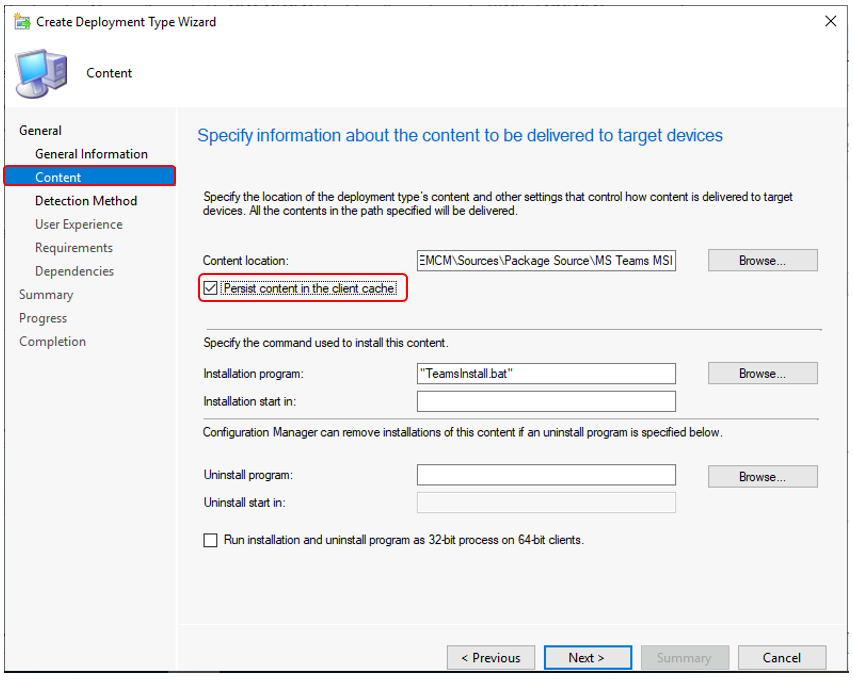
#Option 2 –
Deployment type Content options for existing Applications
Select an existing application in the Applications node and select the Deployment Types tab. Right-click on the existing deployment type and select Properties; options will appear on the Content tab.
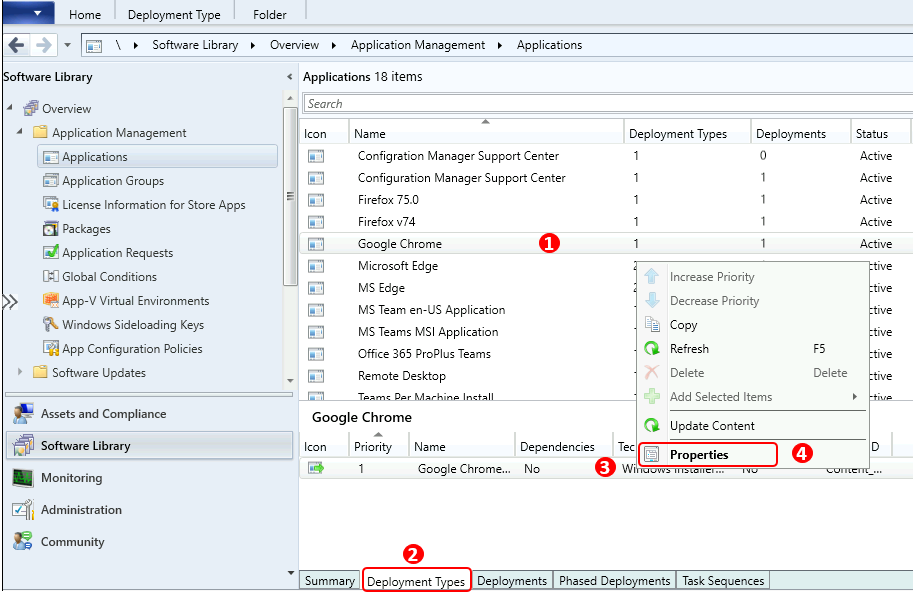
Switch to the Content tab and select Add. Select the option Persist content in the client cache, Click Apply, and OK.
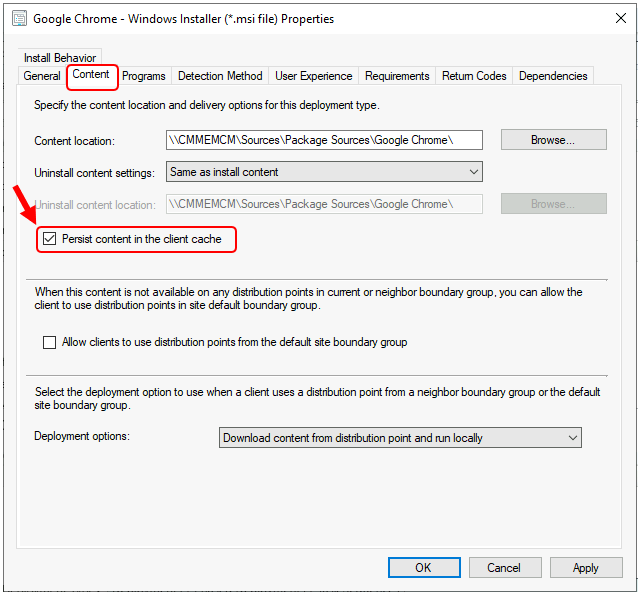
Similarly, you can do this for packages and images by moving to properties windows and selecting Persist content in the client cache. I think it’s best to use it only for applications and packages in some scenarios. This option reduces the available cache space.
In the comment section, please let us know your thoughts about this option and how useful it is for you.
Resources
We are on WhatsApp. To get the latest step-by-step guides and news updates, Join our Channel. Click here –HTMD WhatsApp.
Author
Anoop C Nair has been Microsoft MVP for 10 consecutive years from 2015 onwards. He is a Workplace Solution Architect with more than 22+ years of experience in Workplace technologies. He is a Blogger, Speaker, and Local User Group Community leader. His primary focus is on Device Management technologies like SCCM and Intune. He writes about technologies like Intune, SCCM, Windows, Cloud PC, Windows, Entra, Microsoft Security, Career, etc.




Discussion