






Easy Steps Software Center Icon for SCCM Application Deployment | ConfigMgr | Endpoint Manager
Let’s learn to make the SCCM Application Deployment user-friendly with the Software Center icon. Microsoft provides many options for SCCM Applications to improve the user experience. Most organizations use a software center to deploy applications as they become available.
This helps avoid many overheads with required applications. Users can see all the available applications in the software center. Application deployments are deployed to devices managed through the configuration manager and available for users in the Software center based on installation behavior or requirement rules.
Applications are represented with an icon that provides information with icons users can quickly adapt to, making it more comfortable to use from the Software Center.
There are several ways to do this. If you want to provide a better end-user experience from the Software Center, you can check out the branding options below.

Table of Contents
How to Add an Application Icon
You can use the following procedure to add or change an icon associated with the selected application directly from the Properties pane of the Application node in the Configuration Manager Console.
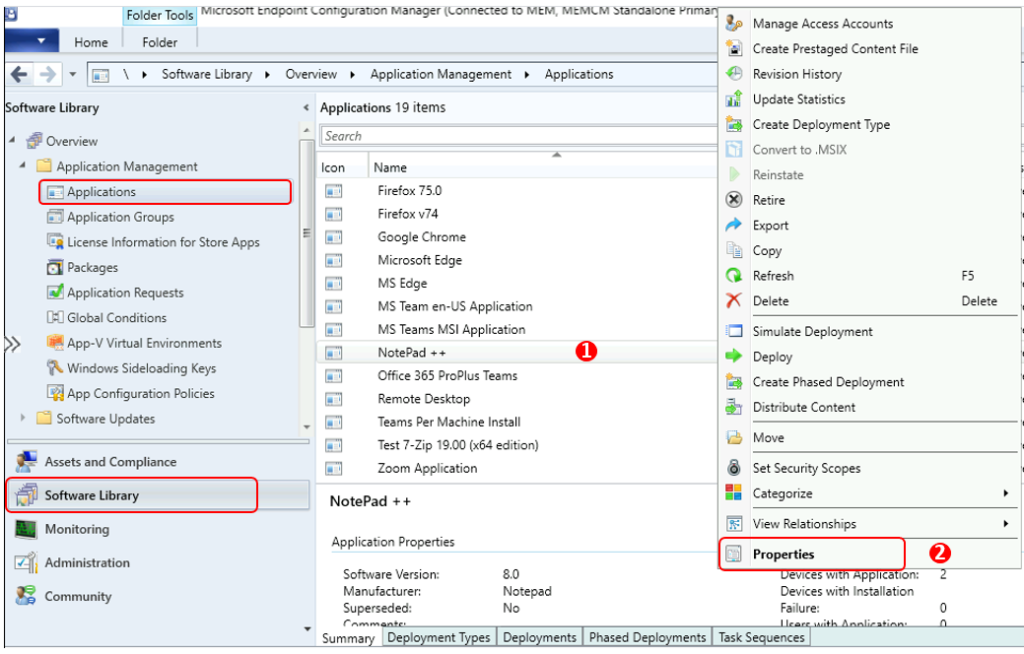
- Launch the SCCM Console, Navigate to the Software Library workspace, expand Application Management, and select the Applications node.
Important: Ensure you have collected or downloaded the Application manufacturer icon file (.ico) and copied it to the SCCM shared folder. Once you have your icons ready, you can add them to your applications in SCCM.
- If you want to specify an icon, select the existing application from the list. Right-click on the application and select Properties.
- Customize ConfigMgr Software Center Appearance | Best Branding Options | SCCM
- SCCM Software Center Custom Tab Setup | ConfigMgr | Best Options
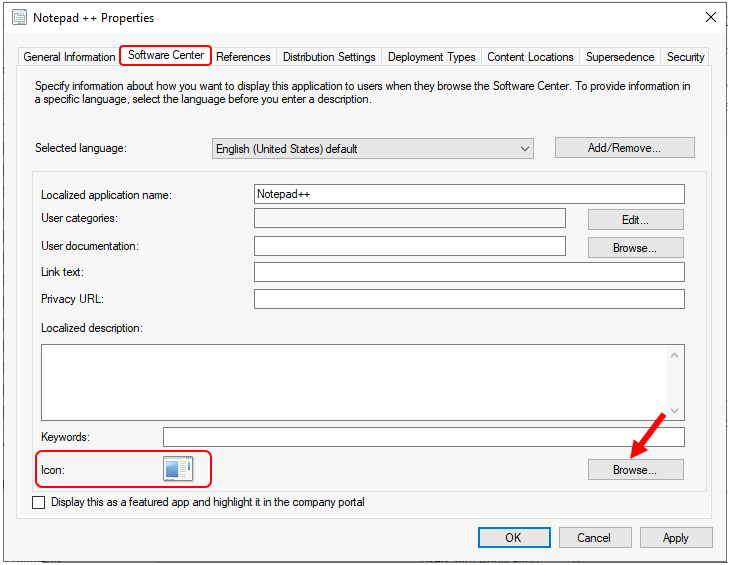
- Move to the Software Center tab. Under Icon, select Browse to select an icon for this application. Icons can have pixel dimensions of up to 512×512.
Note: Configuration Manager uses a default icon, as shown below if you don’t specify an icon.
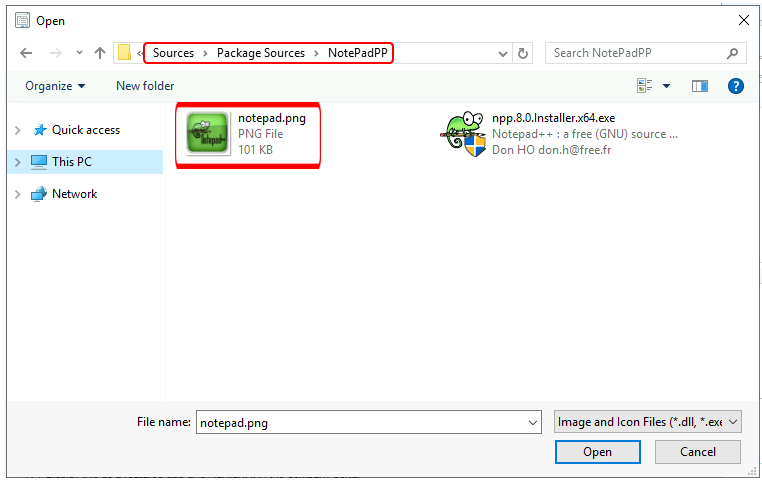
Keeping your ico file inside the same package folder is always best. Once you browse the location, select and click Open.
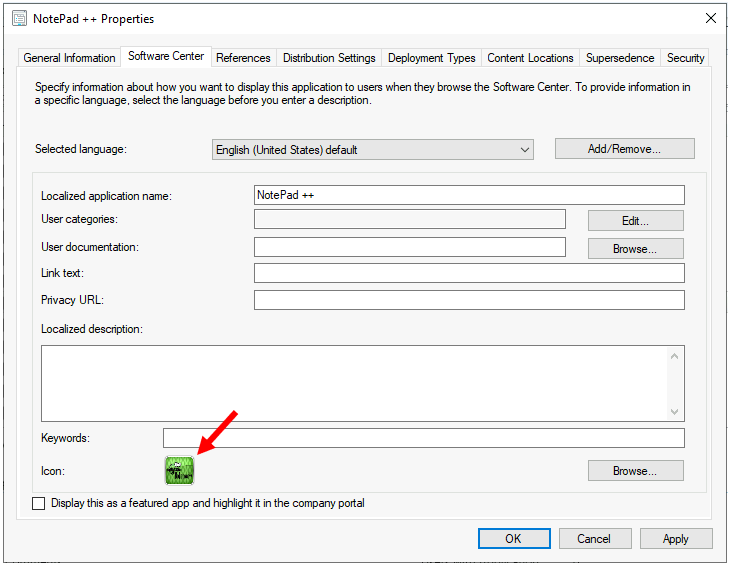
Once you have selected the icon file for your application, it should appear as shown below. Click Apply and OK to confirm.
Add Icon from Create Application Wizard
To Create an Application, you use the following process. Then, you have the option to add an icon for the application.
- Go to the Software Library workspace in the Configuration Manager console, expand Application Management, and select the Applications node.
- After Specify General Information about the application, select Create Application, and then select Manually specify the application information in the Create Application Wizard.
- On the Software Center page of the Create Application wizard, you can specify the application’s icon, as shown below, and then finish all the steps of the wizard.
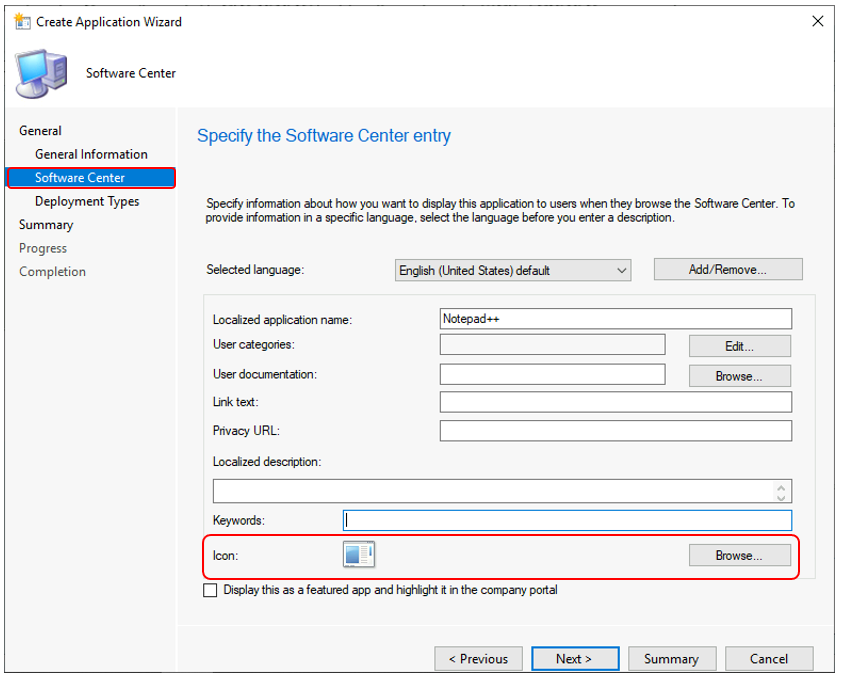
End-User Experience – SCCM Application with Software Center Icon
Let’s check the end-user experience of the SCCM Software Center Applications tabs.
- Launch the Software Center on the Windows device that you are managing.
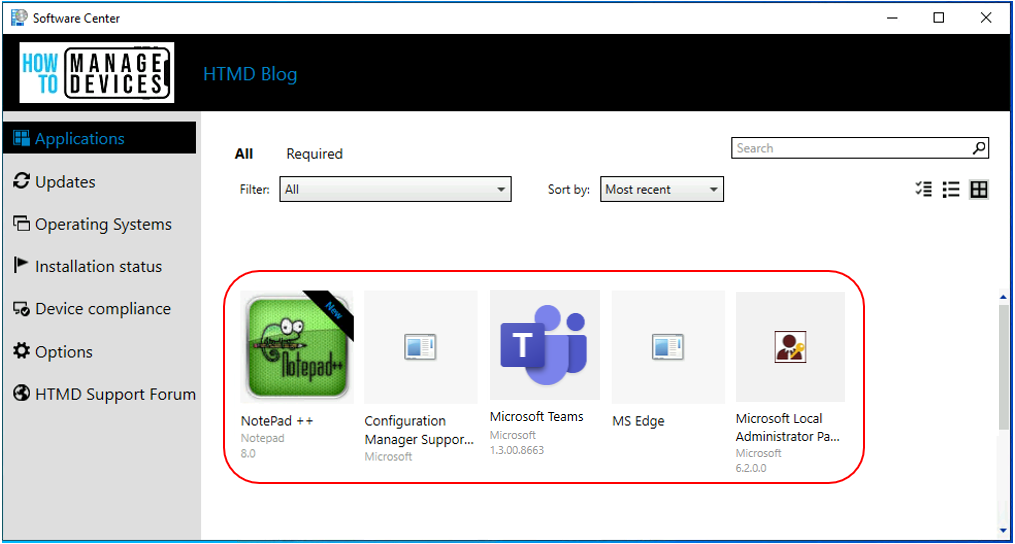
- Select the Applications tab to find and install applications you deploy to you or this computer.
Here, you see the application with the proper icon configured above, which provides the best visibility about the application and makes it more user-friendly to use from the Software Center, as shown in the screenshot below.
Resources
We are on WhatsApp. To get the latest step-by-step guides and news updates, Join our Channel. Click here –HTMD WhatsApp.
Author
Anoop C Nair has been Microsoft MVP for 10 consecutive years from 2015 onwards. He is a Workplace Solution Architect with more than 22+ years of experience in Workplace technologies. He is a Blogger, Speaker, and Local User Group Community leader. His primary focus is on Device Management technologies like SCCM and Intune. He writes about technologies like Intune, SCCM, Windows, Cloud PC, Windows, Entra, Microsoft Security, Career, etc.




Hi Anoop
How long does SCCM see the application as new before it removes the new tag next to it?
Great post! The step-by-step guide for customizing the Software Center icon really simplifies the process for SCCM application deployment. It’s always helpful to see practical tips like these. Looking forward to more insights like this!