






Increase SCCM Maximum Run Time for Application | ConfigMgr
Let’s explore Increasing the SCCM Maximum Run Time for an Application and learn about this option available for Applications. You can change the maximum Run TIme for Applications, Packages, Software Updates, and Task Sequences.
In the application maximum run time, you can specify the maximum number of minutes allotted for an application installation to complete before the Configuration Manager stops monitoring it.
In the Maximum Run Time tab, set the maximum time an application is allotted to complete the client computers. This setting is also used to determine whether there is enough time to install the application before the end of a maintenance window.
Suppose the installation takes longer than the maximum runtime value. In that case, Configuration Manager creates a status message and stops monitoring the deployment for the application installation after it reaches the maximum allowed run time.

In Configuration Manager, You can set Maximum Run-Time when creating or editing the following workflows –
- Applications
- Packages
- Software Update
- Task Sequences
Table of Contents
How to Specify Maximum Run Time for the Application
Follow the steps below to specify the Maximum Runtime for Applications in SCCM
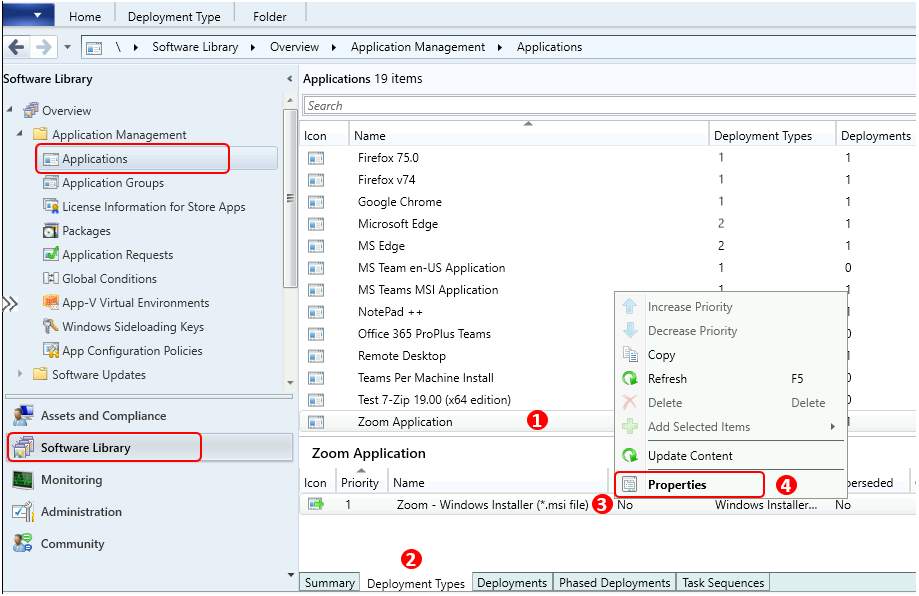
- Go to the Software Library workspace in the Configuration Manager console, expand Application Management, and select the Applications node.
- In the Applications node, select an existing application and select the Deployment Types tab. Right-click on the existing deployment type and select Properties.
- SCCM Application Estimated Installation Time | ConfigMgr | Endpoint Manager
- ConfigMgr 2105.2 Technical Preview New Features | SCCM
Switch to the User Experience tab. Under the Maximum allowed run time (minutes), Specify the maximum runtime of the deployment program for this Application. By default, this option is set to 120 minutes (two hours)—Click Apply, and OK.
Maximum allowed run time (minutes): Specify the maximum time in minutes the deployment type will run on the client computer.
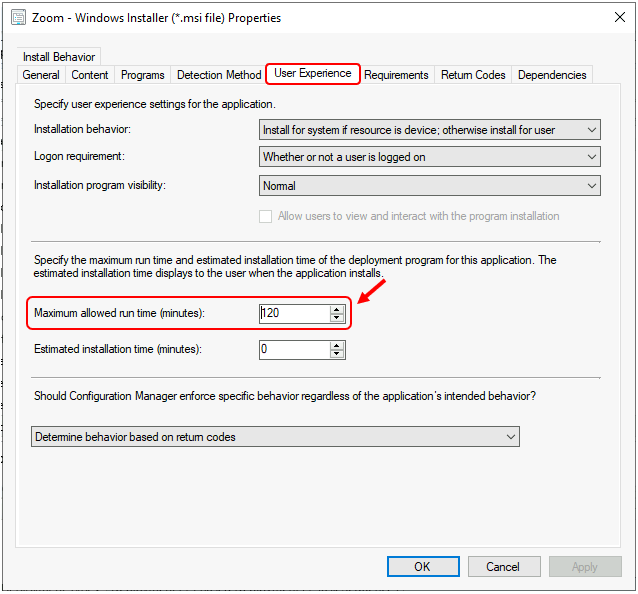
Important: A conflict might occur if the Maximum allowed run time is longer than the scheduled maintenance window. If the user sets the maximum run time to a period greater than any available maintenance window length, that deployment type doesn’t run.
We are on WhatsApp. To get the latest step-by-step guides and news updates, Join our Channel. Click here –HTMD WhatsApp.
Author
Jitesh Kumar, Microsoft MVP, has over six years of working experience in the IT Industry. He writes and shares his experiences related to Microsoft device management technologies and IT Infrastructure management. His primary focus is Windows 10/11 Deployment solution with Configuration Manager, Microsoft Deployment Toolkit (MDT), and Microsoft Intune.




In what scenario\Issue, we might increase the Maximum allowed run time
StaffHello Ram, if an application is exceeded the defined timeout and terminates or if you were encountering with timeout message while application deployment! It’s good to check the Allowed Runtime and modify based on requirements.