






Intune Management Extension Health Evaluation | IME Health Issue | ClientHealthEval.exe | Task Scheduler
Let’s learn more about Intune Management Extension Health Evaluation tasks. Intune Management Extension (IME) handles Win32 app deployment on a managed Windows 10 endpoint. The task scheduler has some tips about IME health-related tasks.
Windows 10 MDM channel is capable of deploying simple MSI applications. You can’t use the Windows 10 MDM channel and Intune LOB app deployment method when you deploy multiple files as part of the MSI application. You can read more details from the Intune Application Model Deployment Guide | MEM post.
Win32 app deployment uses Intune management extension agent to deliver and install applications on managed Windows 10 devices.
Vimal explained the architecture of Win32 application deployment in the following post: Intune Win32 App Deployment using Modern Management.

Table of Contents
Intune Management Extension Error
You can check the Intune Management Extension error details in the following post from Joy. Intune Management Extension Deep Dive – Win32 App Deployment Troubleshooting Help Guide. He explained the following IME Win32 errors in the above post.
The following list of errors is not fixed via IME health tasks. They are more related to the Win 32 application deployment operations.
| List of Errors |
|---|
| (0x80070004) |
| (0x8007026B) |
| Access is denied.(0x80070005) |
| Error downloading content.(0x87D30067) |
| Error unzipping downloaded content.(0x87D30065) |
| Failed to retrieve content information.(0x87D30065) |
| The Application was not detected after the installation was completed successfully(0x87D1041C) |
| The unmonitored process is in progress; however, it may timeout(0x87D300C9) |
| The system cannot find the file specified(0x80070002) |
| The unmonitored process is in progress, however, it may timeout(0x87D300C9) |
| The user logged off while the app policy was being processed(0x87D300CD) |
| Unknown(0x87D30000) |
- Easily track Windows 10 Intune App deployments from the Endpoint – Support Help #2
- Intune Win32 App Issues Troubleshooting Client-Side Process Flow
- What is Microsoft Intune?
Intune Management Extension Health Evaluation | ClientHealthEval.exe
Intune Management Extension Health Evaluation tasks were fundamental to writing this post. I’m sure this will improve over time, and more health checks might be added to the list.
You can check the IME health evaluation task details from the Windows 10 Task Scheduler.
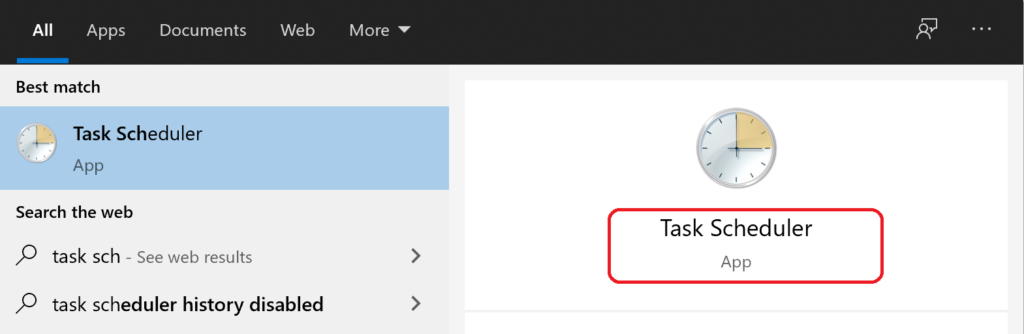
- Click on the Start Menu
- Start typing Task Scheduler.
- Click on the Task Scheduler application from the list.
- Expand Task Scheduler Library.
- Expand Microsoft -> Intune folder.
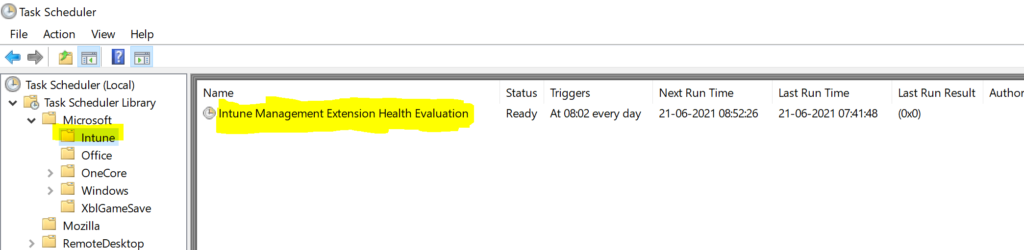
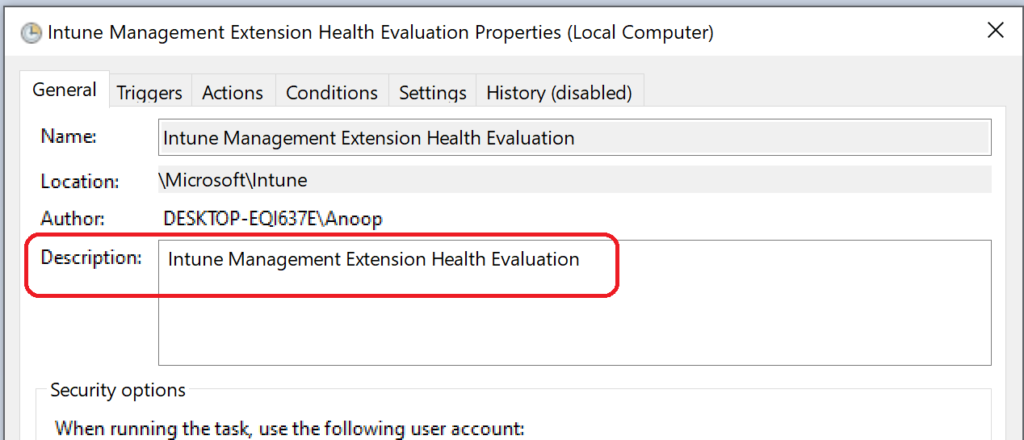
- Right-click on Intune management extension health evaluation task sequence.
- Click on properties.
Schedule options for Intune Management Extension Health Evaluation?
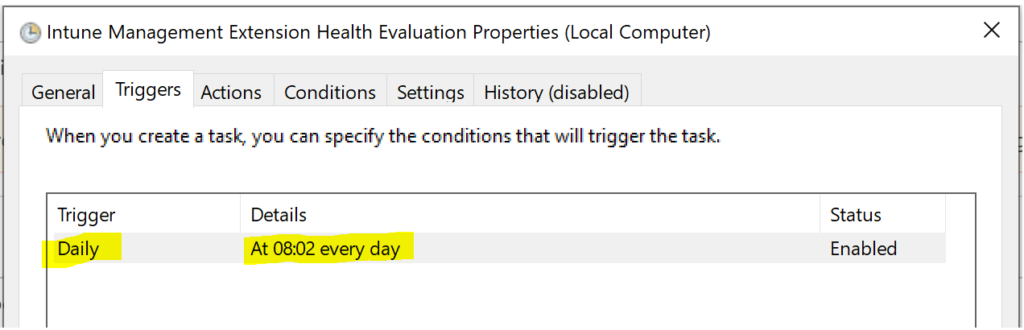
At the moment, there is no UI option to schedule the health evaluation for Intune Management Extension. The default IME health evaluation schedule is given below:
- Daily 8:02 AM
What are the Intune Management Extension Health Checks?
Well, at the moment, the IME health check activities are very minimal. It checks whether the IME service is running, etc. Let’s have a look at the action that is initiated as part of a health check.
The following ClientHealthEval.exe tool gets triggered daily at 8:02 AM as per the scheduled task on my Windows laptop. The location where you can find the IME client health evaluator tool is the following.
- C:\Program Files (x86)\Microsoft Intune Management Extension\ClientHealthEval.exe
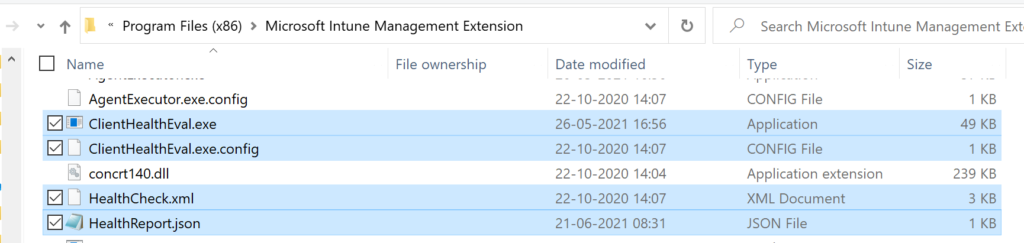
You can check HealthCheck.XML to find more details about the health check tasks of Intune Management Extension.
- Verify that the Intune Management Extension service exists
- Verify/Remediate Intune Management Extension Service startup type
- Verify/Remediate Intune Management Extension service status
- Verify/Remediate Intune Management Extension memory usage
Sample HealthCheck XML for IME
The XML code below provides the details of HealthCheck.XML. The following entry is just a reference to track how this IME health check will improve over time.
<?xml version="1.0" ?>
<ClientHealth Version="1.0">
  <HealthCheck Description="Verify Intune Management Extension service exists." ID="---------" Type="Services">
    <Applicability OS="ALL" ClientVersion="ALL"/>
    <PARAM Order="1" Description="Services Check">
      ServiceExists
    </PARAM>
    <PARAM Order="2" Description="Service Name">
      IntuneManagementExtension
    </PARAM>
  </HealthCheck>
  <HealthCheck Description="Verify/Remediate Intune Management Extension Service startup type." ID="-----" Type="Services" DependsOn="---------">
    <Applicability OS="ALL" ClientVersion="ALL"/>
    <PARAM Order="1" Description="Service Check">
      ServiceStartupType
    </PARAM>
    <PARAM Order="2" Description="Service Name">
      IntuneManagementExtension
    </PARAM>
    <PARAM Order="3" Description="Expected Service Startup State">
      Automatic
    </PARAM>
    <Remediate>
      <PARAM Order="1" Description="Services Remediation">
        ServiceStartupType
      </PARAM>
      <PARAM Order="2" Description="Service Name">
        IntuneManagementExtension
      </PARAM>
      <PARAM Order="3" Description="Desired Service Startup State">
        Automatic
      </PARAM>
    </Remediate>
  </HealthCheck>
  <HealthCheck Description="Verify/Remediate Intune Management Extension service status." ID=-------" Type="Services" DependsOn="--------">
    <Applicability OS="ALL" ClientVersion="ALL"/>
    <PARAM Order="1" Description="Service Check">
      ServiceStatus
    </PARAM>
    <PARAM Order="2" Description="Service Name">
      IntuneManagementExtension
    </PARAM>
    <PARAM Order="3" Description="Expected Service Status">
      Active
    </PARAM>
    <Remediate>
      <PARAM Order="1" Description="Services Remediation">
        ServiceStatus
      </PARAM>
      <PARAM Order="2" Description="Service Name">
        IntuneManagementExtension
      </PARAM>
      <PARAM Order="3" Description="Desired Service Status">
        Running
      </PARAM>
    </Remediate>
  </HealthCheck>
  <HealthCheck Description="Verify/Remediate Intune Management Extension memory usage." ID="------" Type="Memory" DependsOn="-------">
    <Applicability OS="ALL" ClientVersion="ALL"/>
    <PARAM Order="1" Description="Memory Check">
      Memorycheck
    </PARAM>
    <PARAM Order="2" Description="Process">
      Microsoft.Management.Services.IntuneWindowsAgent
    </PARAM>
    <PARAM Order="3" Description="Memory threshold">
      200
    </PARAM>
    <Remediate>
      <Applicability OS="ALL" ClientVersion="ALL"/>
      <PARAM Order="1" Description="Restart service">
        RestartIntuneManagementExtensionService
      </PARAM>
    </Remediate>
  </HealthCheck>
</ClientHealth>
Resources
We are on WhatsApp. To get the latest step-by-step guides and news updates, Join our Channel. Click here –HTMD WhatsApp.
Author
Anoop C Nair has been Microsoft MVP for 10 consecutive years from 2015 onwards. He is a Workplace Solution Architect with more than 22+ years of experience in Workplace technologies. He is a Blogger, Speaker, and Local User Group Community leader. His primary focus is on Device Management technologies like SCCM and Intune. He writes about technologies like Intune, SCCM, Windows, Cloud PC, Windows, Entra, Microsoft Security, Career, etc.


Discussion