






Download Windows 11 ADK Installation Guide Step-by-Step
Microsoft recently released Windows ADK for the new version of Windows 11. Let’s see how to download Windows 11 ADK and install it. Windows 10 ADK versions and supported scenarios with SCCM are also available for your reference. Windows 10 ADK Versions SCCM Support Scenarios.
The Windows Assessment and Deployment Kit (ADK) and WinPE add-on provide the necessary tools to customize Windows images. The Windows ADK includes the Windows Assessment Toolkit and the Windows Performance Toolkit, which are used to assess the quality and performance of systems or components and deployment tools such as WinPE, Sysprep, and other customizable tools.
The Windows Preinstallation Environment (WinPE) is a separate download from the Assessment and Deployment Kit (ADK). To add Windows PE to your ADK installation, download and install the Windows PE add-on after installing the ADK.
Does this Windows ADK version support Windows 10 or earlier versions? As of this post, there is no official confirmation. The previous blog posts explain the end-to-end installation guide for Windows 10 ADK and WinPE. The Windows 10 ADK upgrade won’t impact your custom boot images and OSD process.

Table of Contents
Download Windows 11 ADK
Starting with Windows ADK 1809, Microsoft has changed the Windows Preinstallation Environment(WinPE) tool to be released separately from the Assessment and Deployment Kit (ADK).
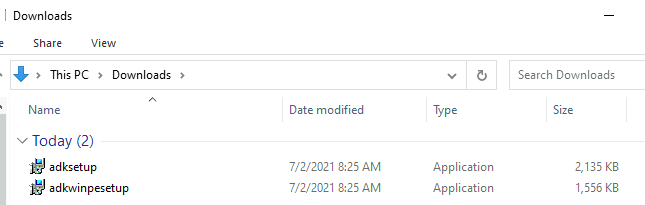
Once you click on the above links to download the ADK version and WinPE add-on, the setup files adksetup.exe and adkwinpesetup.exe are automatically downloaded to your computer’s download directory.
- SCCM Step-by-Step Guide to Update Windows ADK and WinPE Versions.
- Windows 11 ADK Versions List Download Options
How to Install Windows ADK for Windows 11
Important – To continue with the up-to-date version of Windows ADK and WinPE, you need to uninstall the existing or older version of Windows ADK.
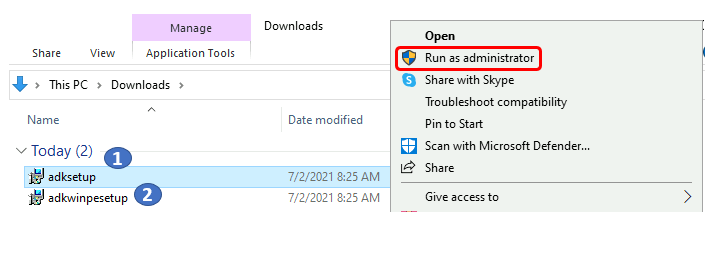
Run ADKSetup.exe as administrator. After a few seconds, the Specify Location screen appears.
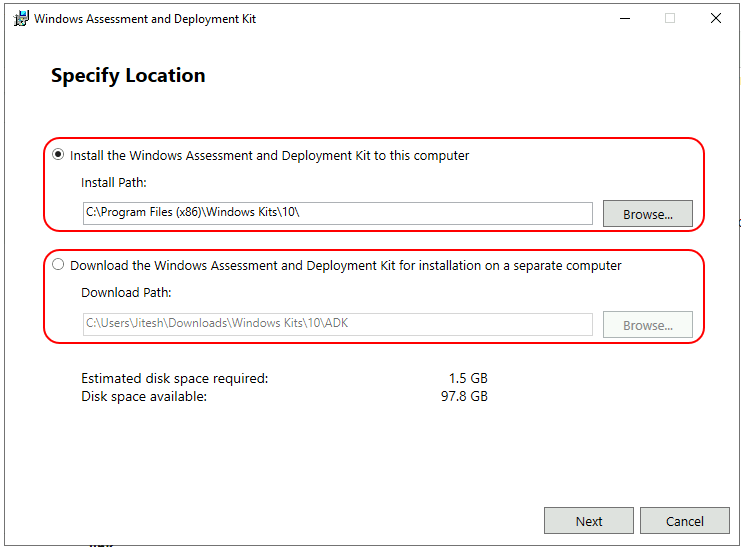
- In the Specify Location screen, Select “Install the Windows Assessment and Deployment Kit to this computer. “
Note: If you want to download and Install Windows ADK Offline on a PC without Internet access, choose the second option, “Download the Windows Assessment and Deployment Kit for installation on a separate computer.” Download the installer files on a PC with Internet access. Copy the downloaded files to a location and run the installation on that PC.
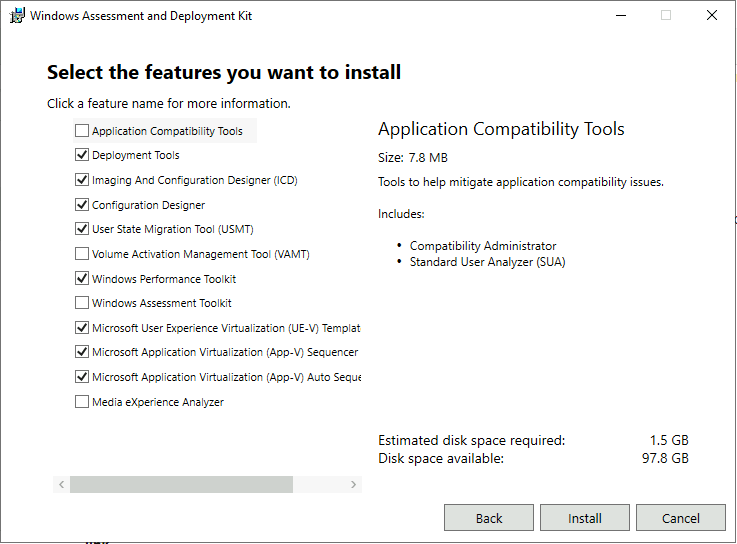
Select the required features. I recommend selecting the least minimum required components.
If you are preparing an Operating System Deployment (OSD) environment, select Deployment Tools, User State Migration Tool (USMT), and Click Install.
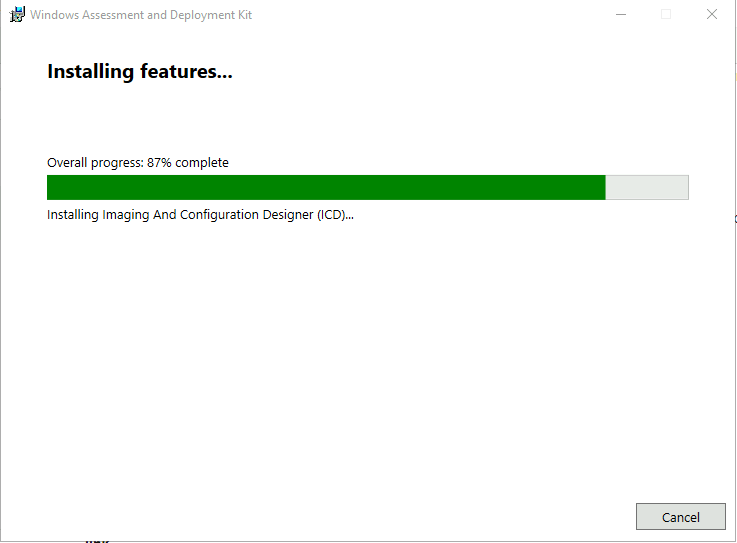
Started Installing selected features. Once the Windows Assessment and Deployment Kit (ADK) for Windows 11 installation is completed, it may take time to complete. Click Close.
How to Install WinPE Add-ons for Windows 11
Run adkwinpesetup.exe as administrator. After a few seconds, the Specify Location screen appears.
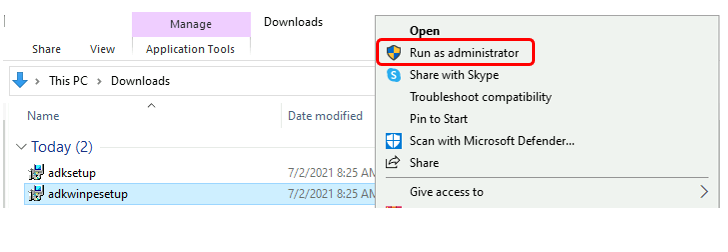
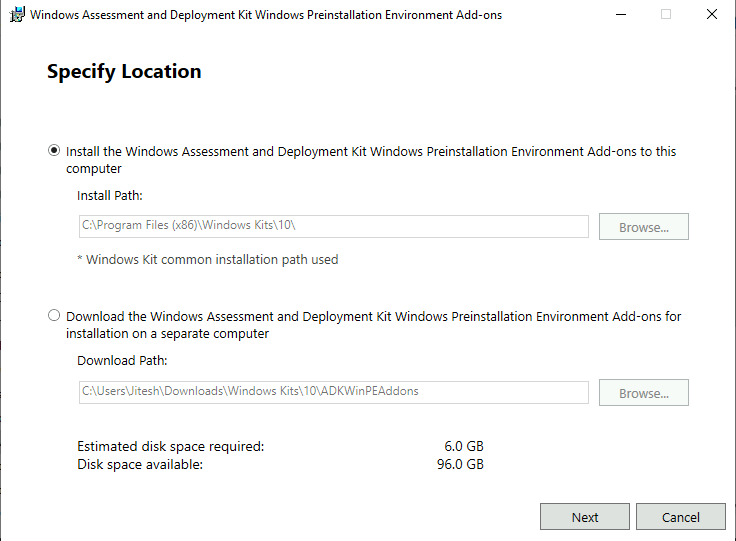
In the Specify Location screen, Select “Install the Windows Assortment and Deployment Kit Windows Preinstallation Environment Add-ons to this computer.”
Note: If you want to download and Install Windows ADK Offline, choose the second option, “Download the Windows Assessment and Deployment kit Windows Preinstallation Environment Add-ons for installation on a separate computer.” Download the installer files on a PC that has internet access. Copy the downloaded files to a location and run the installation there.
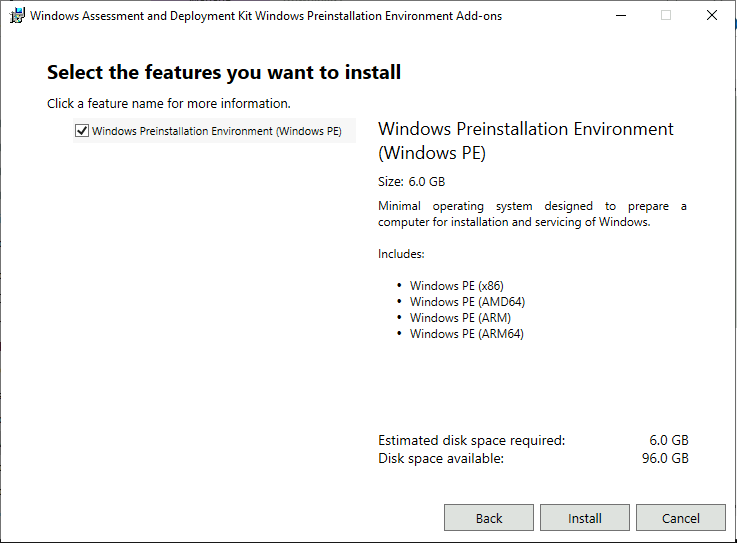
- Select Windows Preinstallation Environment (Windows PE) and Click Next.
The minimum estimated disk space required is 6.0 GB for the WinPE add-on. It includes Windows PE(x86), Windows PE (AMD64), Windows PE (ARM), and Windows PE (ARM64).
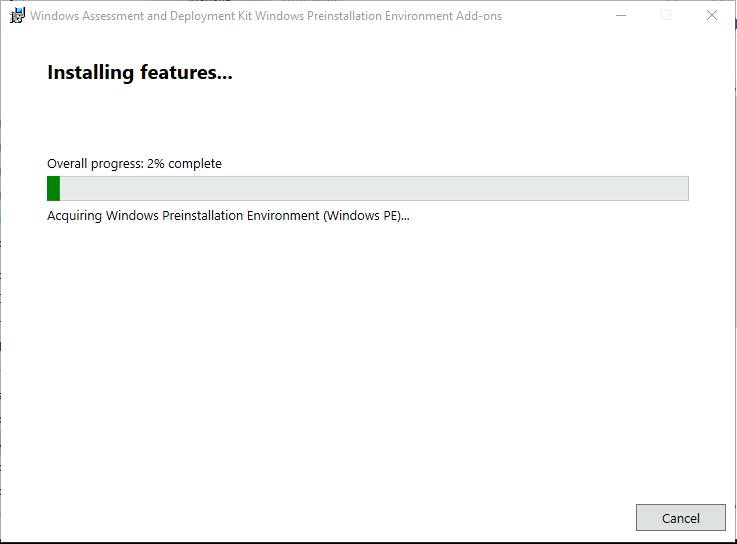
I started installing Windows Preinstallation Environment Add-ons (WinPE Add-ons); it may take time to complete the installation. Click Close.
Results – Download Windows 11 ADK Installation Guide Step-by-Step
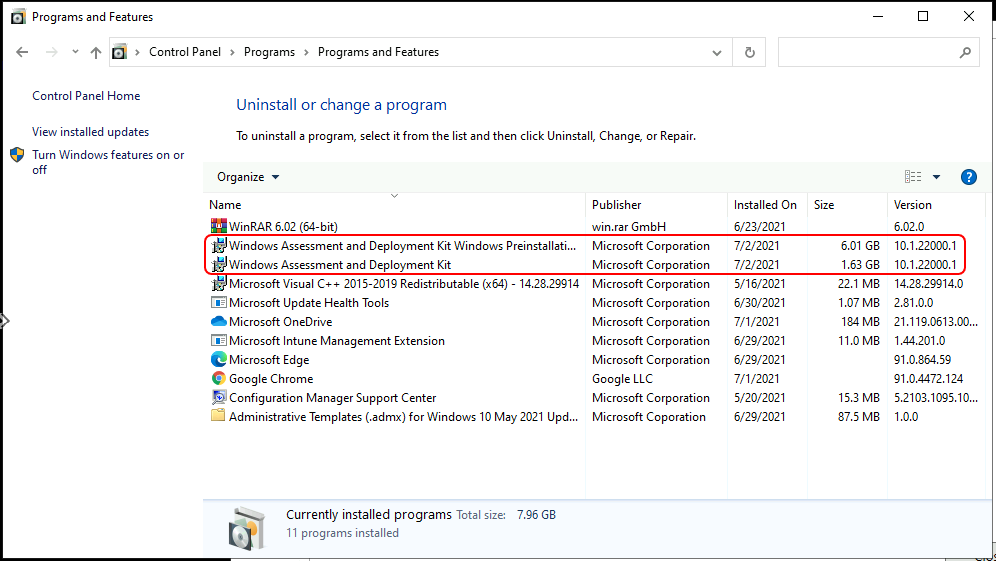
To validate the Windows 11 ADK Installation, navigate to Control Panel > Program and Features in the target device. You can see the Windows ADK Windows Preinstallation Environment Add-ons successfully installed here.
The version details of Windows 11 ADK and WinPE are given below:
- WinPE Windows 11 Version for 21H2 – 10.1.22000.1
- Windows 11 ADK version for 21H2 – 10.1.22000.1
We are on WhatsApp. To get the latest step-by-step guides and news updates, Join our Channel. Click here –HTMD WhatsApp.
Author
Jitesh Kumar, Microsoft MVP, has over six years of working experience in the IT Industry. He writes about and shares his experiences related to Microsoft device management technologies and IT infrastructure management. His primary focus is Windows 10/11 Deployment solution with Configuration Manager, Microsoft Deployment Toolkit (MDT), and Microsoft Intune.




Tkank you very helfull .