






Windows 365 Cloud PC User Settings Policy to provide Admin and Reset Permissions to End Users
Let’s quickly check Windows 365 Cloud PC User Settings Policy to provide Admin and Reset Permissions to End Users. Microsoft released new settings with Windows 365 July 2023 update that end users can reset their Cloud PC devices themselves.
Let’s have a quick look at the option to provide admin access to Windows 365 Cloud PC using Intune user settings policy. Windows 365 service delivers personalized desktops in the cloud. Microsoft announced the general availability of Windows 365 on the 2nd of August 2021.
You can use the user settings policy to add assigned users to the local administrator on all their cloud PCs. The admin access might be required to support some of the developer use case scenarios. If you have a use case to add a generic admin account to Cloud PCs, you can deploy PowerShell scripts using Intune.
Now you can grant end-users permission to reset (reprovision) their own Cloud PC. This would eliminate a lot of headaches for IT admins and the helpdesk.

Deploy User Settings Policy to Windows 365 Cloud PC
You can deploy the user settings policy to Windows 365 cloud PC. Let’s have a quick walkthrough of this policy to add users to the local administrator group on their Cloud PCs.
- Log in to the Microsoft Intune portal.
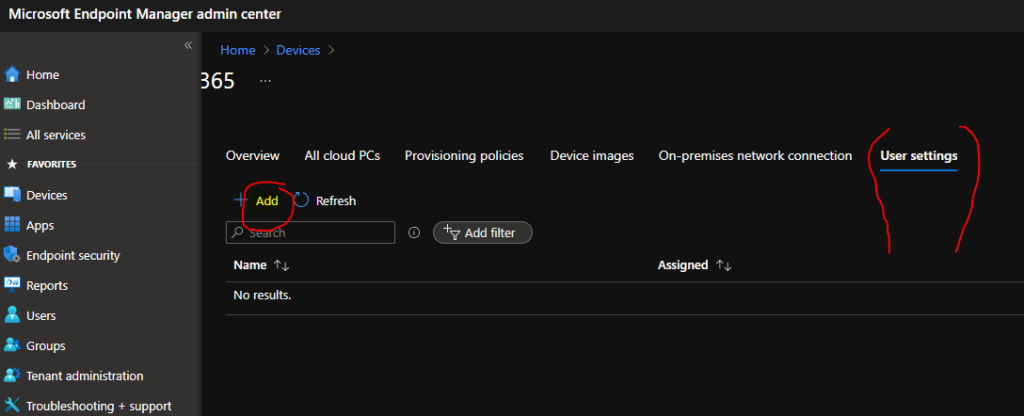
- Navigate to Devices -> Windows 365 node.
- Click on +Add button to create user settings policy.
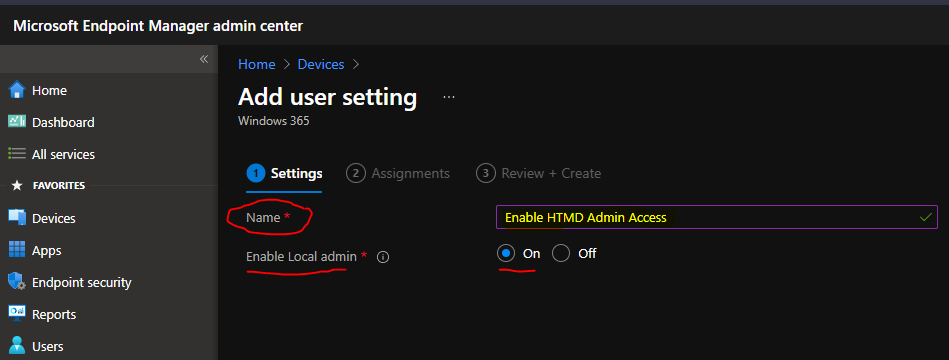
Enabling this settings, policy elevates end users to a local administrators on all their cloud PCs. On the settings page, you have two options.
- Enter the Name of the User Settings Policy.
- Select the option to enable or disable local admin policy.
- On option is selected.
- Click on Next button to continue.
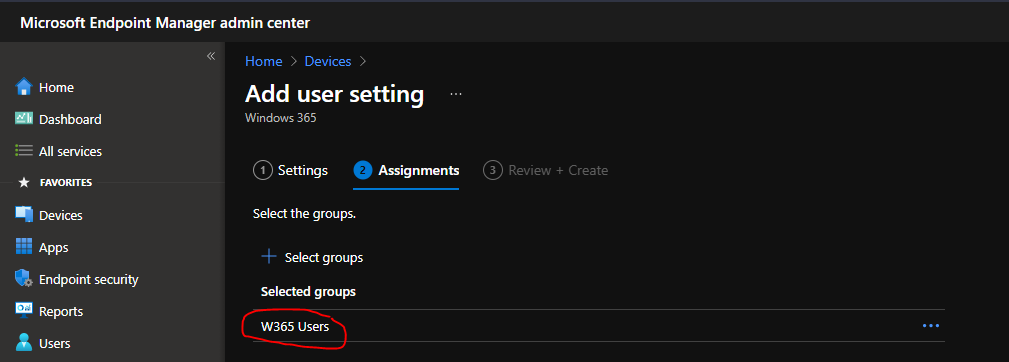
I have added the W365 Users Azure AD group, where I have two users as members. I used the same group during the Windows 365 provisioning guide. You can click on the Next button to continue to the validation and confirmation page.
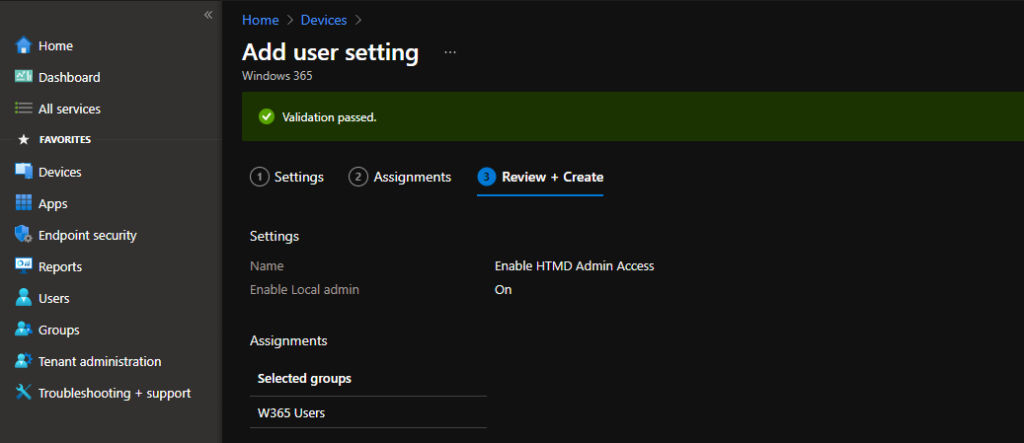
As you can see in the below screenshot, the validation is passed for the user settings policy. Click on Create button to complete the user settings creation process from Intune MEM portal.
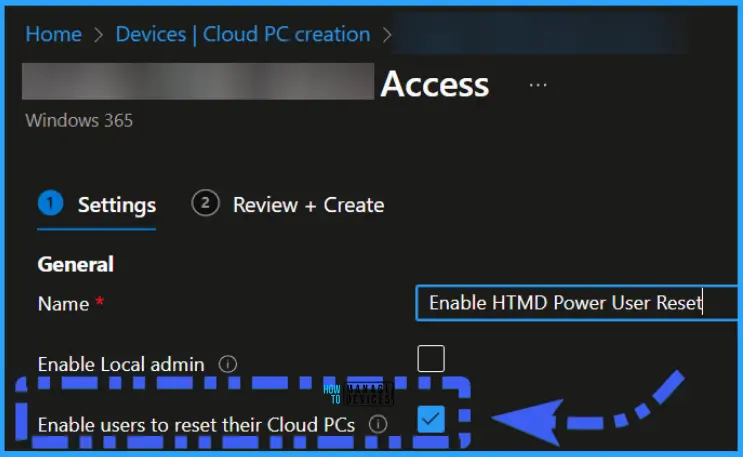
Reset (reprovision) their own Cloud PC Permissions to End users
Empowering the Power Users with this feature! This is very promising for Power Users like developers or the Application Packaging Teams. They have the requirements such as resetting the Cloud PCs twice or 3 times a day.
Results
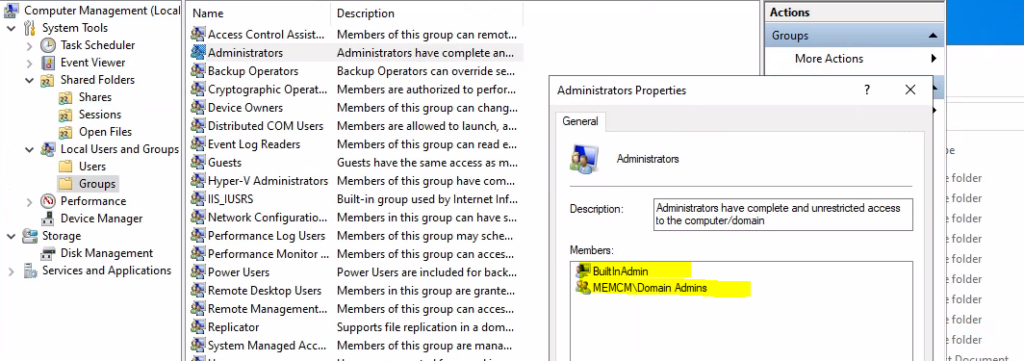
The following is the screenshot from a Cloud PC before applying the user settings policy to add assigned users to the local administrative group on their Cloud PCs. So, you can’t see any user added to the local administrator’s group.
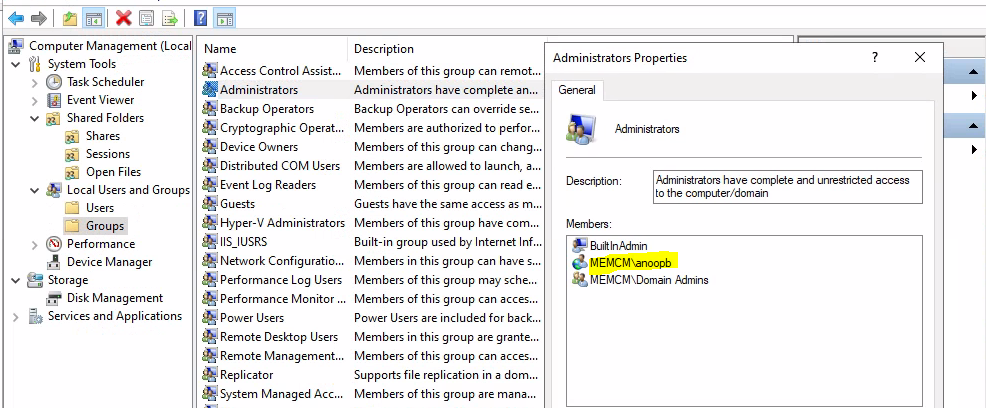
After applying the user settings policy, you can see that MEMCM/anoopb user is added to the local administrator’s group. This user got admin access on the assigned Cloud PC. The policy to elevate admin permissions for an assigned user on the respective Cloud PC is useful.
Further Clarifications
W365 Users – Every user in that group with a Cloud PC license assigned will receive a Cloud PC provisioned based on the image and on-premises network connection configuration.
This group(W365 Users) is not with local admin users. In this post, I was trying to explain the scenario Cloud PC assigned user will get administrator access on that CLoud PC (Windows 365).
This is the idea behind the User Settings Policy workflow. This is why you see Anoopb added to the local admin group.
The other workflow to achieve what you want to do add admin groups into local admin is to Manage Local Admins Using Intune Local User Group Membership Management Policy




When you add a group, why does the administrator have MEMCM/anoopb instead of W365 users?
StaffW365 Users – Every user in that group with a Cloud PC license assigned will receive a Cloud PC provisioned based on the image and on-premises network connection configuration.
This group(W365 Users) is not with local admin users. In this post, I was trying to explain the scenario Cloud PC assigned user will get administrator access on that CLoud PC (Windows 365).
This is the idea behind the User Settings Policy workflow. This is why you see Anoopb added to the local admin group.
The other workflow to achieve what you want to do is https://www.anoopcnair.com/manage-local-admins-using-intune-group-mgmt/
Can you give administrator access via PIM.