






Available Options for SCCM Install Application Task Sequence Step
Let’s learn SCCM Install Application Task Sequence Step Options in Configuration Manager. Application deployment is one of the features many corporate organizations are using to cater to their business requirements.
Applications installation from SCCM task sequence must be installed silently when you decide to install Applications during OS Deployment. The below steps added to the post help you integrate your application installation into your fresh or existing task sequence and understand the available options.
Before moving to the next steps, I recommend having the latest SCCM Production 2107 version to avail of all the exciting features. More you can check the top 5 features. Starting with the release Implicit Uninstall of an Application feature is introduced. This uninstall behavior applies only to deployments targeted to device collections.
How to Add Install Application Step to SCCM Task Sequence
Let’s follow the below steps to add Install Application Step and learn about the available options –

Create or Edit an Existing Task Sequence
This Guide will help you to create a Configuration Manager task sequence from scratch. Use the following steps to modify an existing task sequence –
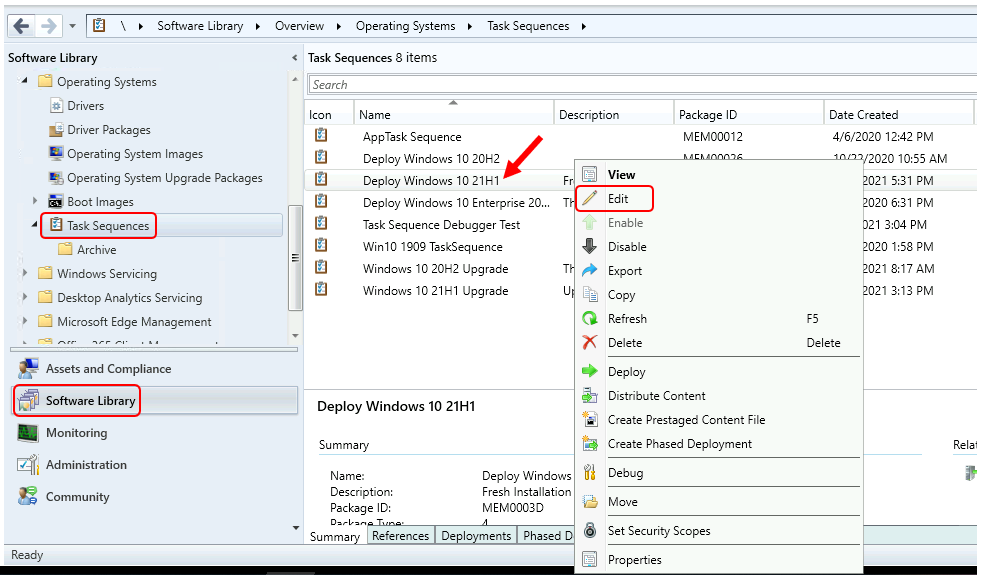
- In the Configuration Manager console, go to the Software Library workspace, expand Operating Systems, and then select the Task Sequences node.
- In the Task Sequence list, select the task sequence that you want to edit. Select Edit to modify.
Add Install Application Step to Task Sequence
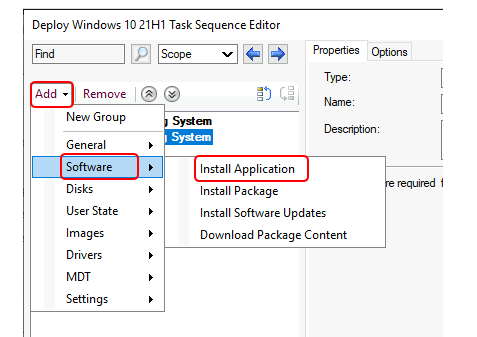
To add this step in the task sequence editor, select Add, select Software, and select Install Application. This action adds the step after the currently selected step. You can move up or down based on requirements.
Note – The Install Application task sequence step runs only in the full OS. It doesn’t run in Windows PE.
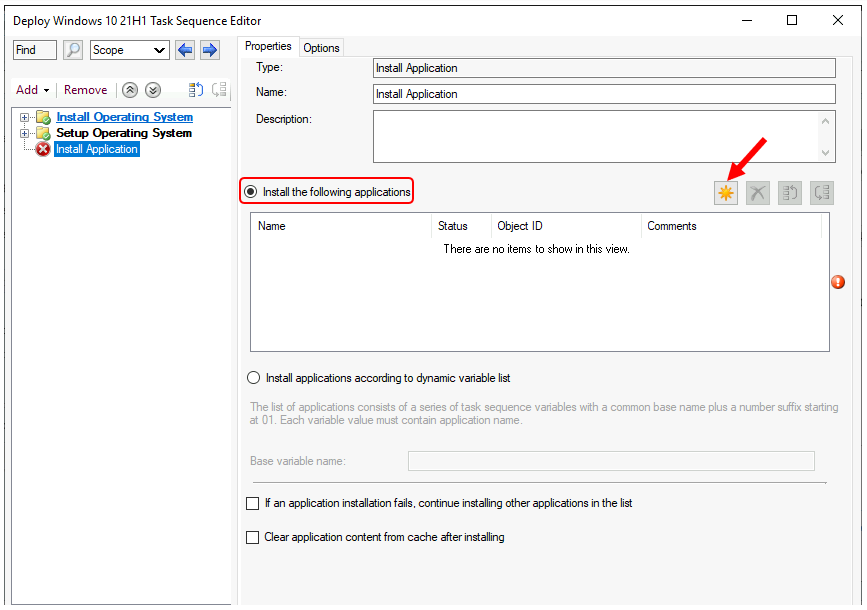
On the Properties tab for this step, You can configure the below settings described in this section.
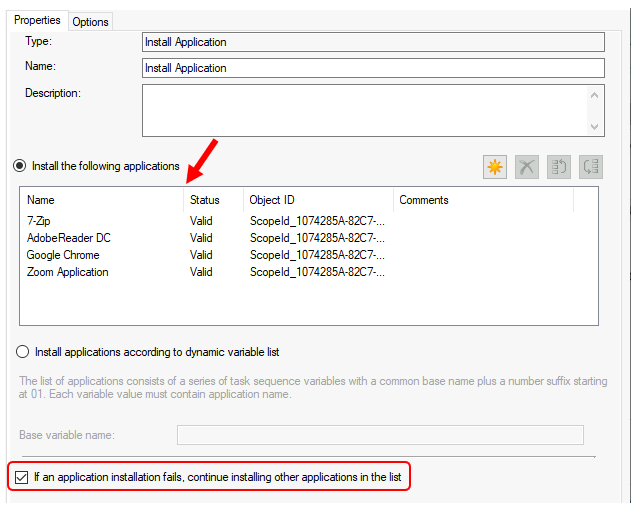
- Here you can add the single or multiple applications to this step using the Yellow icon located in Install the following applications option –
Let’s learn How to use Install Multiple Applications using ConfigMgr Task Sequence.
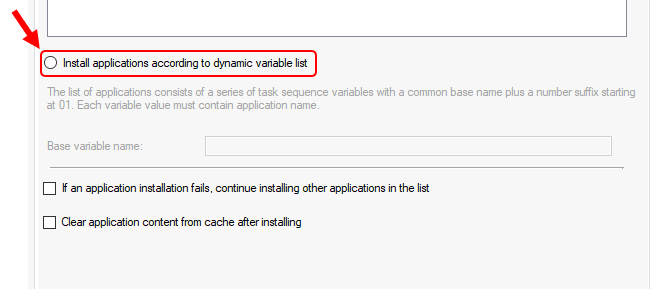
Install applications according to dynamic variable list
The task sequence installs applications using this base variable name. The base variable name is for a set of task sequence variables defined for a collection or computer. These variables specify the applications that the task sequence installs for that collection or computer.
If an application fails, continue installing other applications in the list
This setting specifies that the step continues when an individual application installation fails. If you specify this setting, the task sequence continues regardless of any installation errors. If you don’t specify this setting and the installation fails, the step immediately ends.
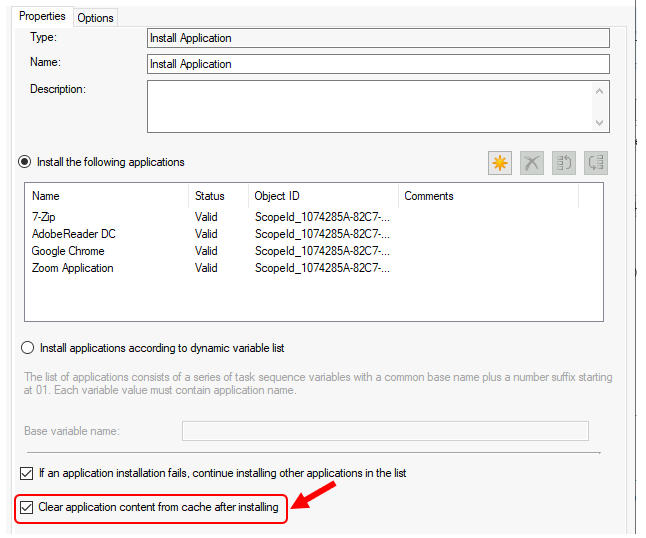
Clear application content from cache after installing
Delete the app content from the client cache after the step runs. This behavior is beneficial on devices with small hard drives or installing large apps in succession.
Options for Install Application
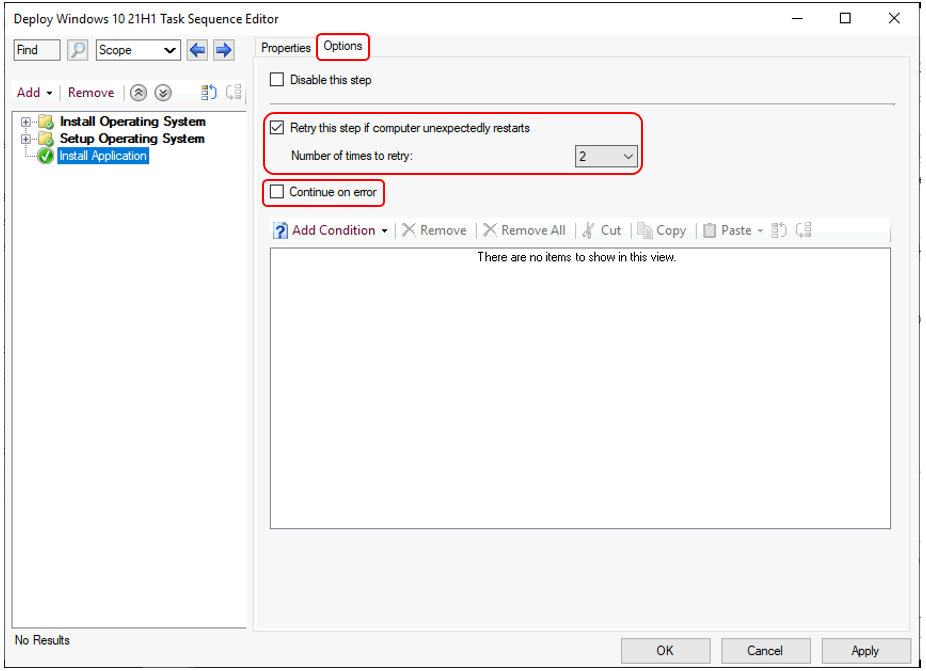
On the Install Application step, Options tab. Here you can configure the additional settings –
- Continue on error – When you select Continue on error on the Options tab of this step, the task sequence continues when an application fails to install. When you don’t enable this option, the task sequence fails and doesn’t install the remaining applications.
- Retry this step if computer unexpectedly restarts – If one of the application installations unexpectedly restarts the computer, retry this step. The step enables this setting by default with two retries. You can specify from one to five retries.
Resources
- Increase SCCM Maximum Run Time for Application | ConfigMgr
- SCCM Install Behavior for Applications | ConfigMgr | Endpoint Manager
- SCCM Application Deployment Options | ConfigMgr | Endpoint Manager




Discussion