






Create SCCM Report for Visual Studio
Let’s create SCCM report for Visual Studio 2019 or 2017. There are no default reports available to find the devices and version details of Visual Studio. In this post, I will share the SQL query to build SCCM custom reports for Visual Studio.
You have a bunch of SCCM default reports available, and those are ready to use. However, you have to build some custom reports that are very specific to your organizational needs. The Visual Studio reports from SCCM is one of the special needs.
With Visual Studio SQL query, you would find the devices with Visual Studio 2019 or 2017 version installed. I think you would also be able to find build numbers of Visual Studio from the SQL query. You can also go through the best method to deploy Visual Studio using SCCM.
SQL Query to find Visual Studio Versions
You will have to use SQL Management studio to run the following SQL query to find Visual Studio versions installed on the devices. The following SQL query provides the details like User Name, Device Name, Location of the user based on AD Site, etc…

- Open the SQL Management Studio.
- Connect your Database Engine.
- Right Click on your database CM_XXX and click on ‘New Query’
- Copy the following SQL query to find the report of Visual Studio details.
- Click on the Execute button.
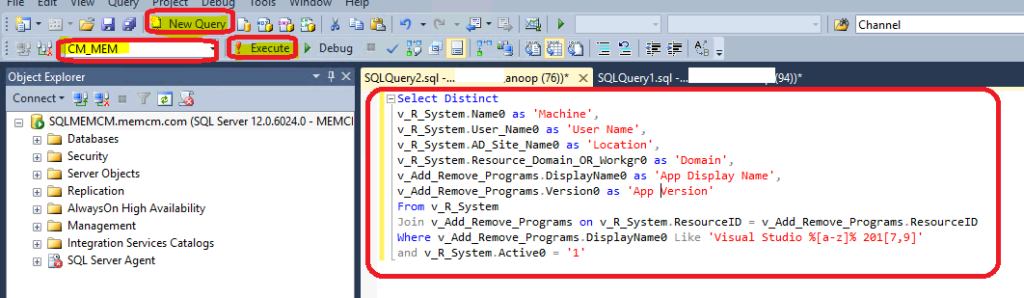
The following query is filtered based on two versions of Visual Studio 2017 and 2019. If some of the devices are using the older Visual Studio versions, those details are not collected through this SCCM report for Visual Studio. You can easily create a Custom SCCM Report for Visual Studio using the following query. You can refer to Create Custom Report Using Report Builder.
Select Distinct
v_R_System.Name0 as 'Machine',
v_R_System.User_Name0 as 'User Name',
v_R_System.AD_Site_Name0 as 'Location',
v_R_System.Resource_Domain_OR_Workgr0 as 'Domain',
v_Add_Remove_Programs.DisplayName0 as 'App Display Name',
v_Add_Remove_Programs.Version0 as 'App Version'
From v_R_System
Inner Join v_Add_Remove_Programs on v_R_System.ResourceID = v_Add_Remove_Programs.ResourceID
Where v_Add_Remove_Programs.DisplayName0 Like 'Visual Studio %[a-z]% 201[7,9]'
and v_R_System.Active0 = '1'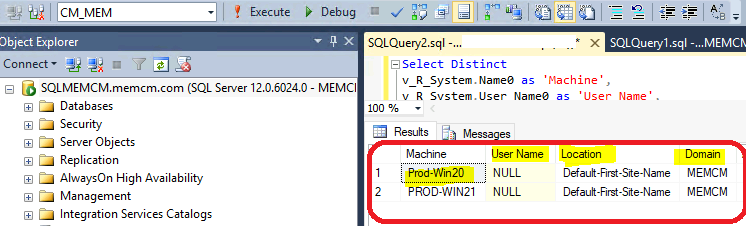
You can slightly change the SQL query to find all the Visual Studio versions available on Windows PCs. The above query will return the details only if VS’s 2017 or 2019 version is installed on the device. However, there could be scenarios when older versions of Visual Studio are installed on some devices.
Select Distinct
v_R_System.Name0 as 'Machine',
v_R_System.User_Name0 as 'User Name',
v_R_System.AD_Site_Name0 as 'Location',
v_R_System.Resource_Domain_OR_Workgr0 as 'Domain',
v_Add_Remove_Programs.DisplayName0 as 'App Display Name',
v_Add_Remove_Programs.Version0 as 'App Version'
From v_R_System
Inner Join v_Add_Remove_Programs on v_R_System.ResourceID = v_Add_Remove_Programs.ResourceID
Where v_Add_Remove_Programs.DisplayName0 Like '%Visual Studio%'
and v_R_System.Active0 = '1'
Best Practices of SCCM SQL Query
I want to share some of the tips for SCCM admins who are trying to make SQL queries work with their limited knowledge in SQL (like me). The following points are important when you make an SCCM custom report with the SQL query as well.
- DO NOT use tables instead use Views (V_) as you can see in the above query.
- DO NOT use Select *. Only specify the columns you want to display.
- Try to use INNER JOIN instead of CROSS JOIN.
- Try to avoid the LIKE operator instead try to use = whereever possible.
In the above SQL query to create SCCM report for Visual Studio, I have used the LIKE operator instead of EQUAL(=). But, it’s easy to replace LIKE with = if you want. One example is given below.
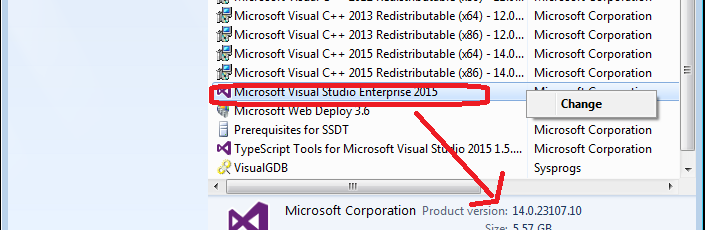
- You can find out the exact display name of Visual Studio from Add Remove programs and use the same name with the equal operators.
- For example – You can use “Microsoft Visual Studio Enterprise 2019” as display name with EQUAL operator.
NOTE! – There is a catch, and that is you will have to use different “where” statements to collect different versions of Visual Studio. So you need to analyze which is a better option for your environment if you have to find several different versions of Visual Studio installed devices.
Resource
- Forum discussion – Fetch report to get application in add remove from all machines.




Discussion