






Configure Windows 11 SMB compression improvements to Compress File Aggressively
With the latest build, 22449 of Windows 11 SMB compression comes with improvements. You will need to perform registry edits to get Windows 11 SMB compression improvements. I’m excited about the SMB compression change to improve the network transfer.
You can change SMB compression to “aggressively compress” no matter what the file size is; you can override the defaults with the following registry entries with Windows 11 build 22449. The previous limitation was 500 MB.
It’s not easy to test to see how well compression is working. You might need to perform the copy robocopy application. You can copy the same file to a server twice, once with the /compress flag and again without compression, deleting the server file between each test.
The above test should be completed only after the following registry entries for Windows 11 SMB compression. This behavior will not remain the default in non-Preview Windows Server 2022 and Windows. It was first changed in Windows 11 Insider Preview build 22449.

Configure Windows 11 SMB compression
You can change the following registry entries to test the new improvements with Windows 11 build 22449.
- On Windows 11 build 22449 – > Start Regedit.exe from search button.
- Navigate to the following registry subkey:
- HKEY_LOCAL_MACHINE\System\CurrentControlSet\Services\LanManWorkstation\parameters
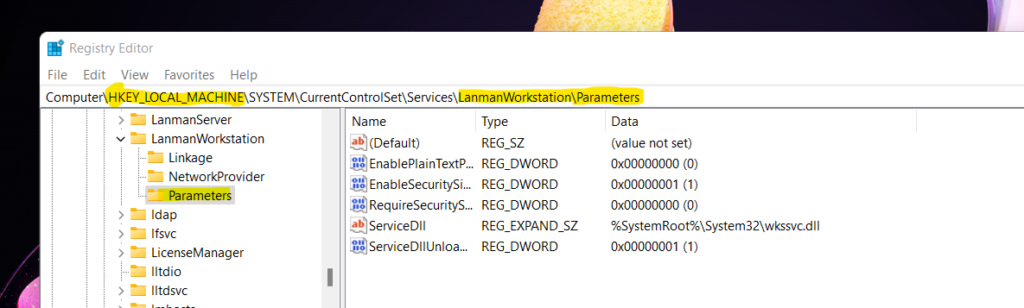
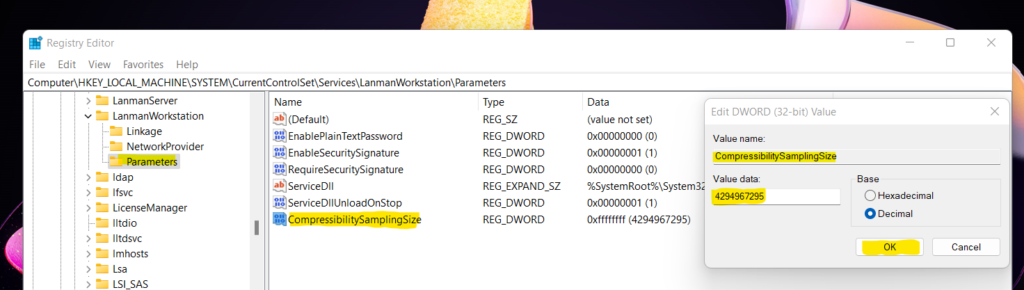
- Create a new REG_DWORD value name:
- CompressibilitySamplingSize
- Set to a decimal value of:
- 4294967295
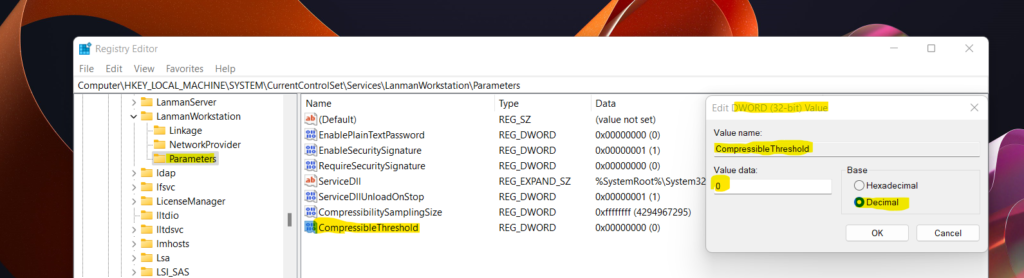
- Create a new REG_DWORD value name:
- CompressibleThreshold
- Set to a value of:
- 0
NOTE! – There is no restart required after the above registry changes to make Windows 11 SMB compression improvements.
How to test SMB Compression Improvements with Windows 11 build 22449
You can check the SMB compression by creating a VHDX file from Windows 11 build 22449. Once created, you can try to copy it to some other device to test the improvements.
- Start Diskmgmt.msc.
- Select Local Disk (C:) by clicking on it.
- Click Action then Create VHD.
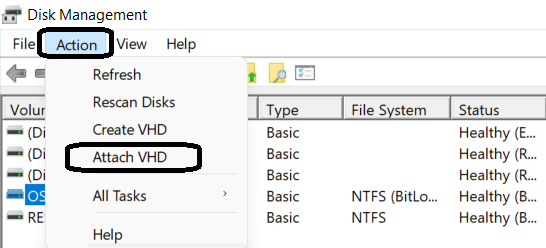
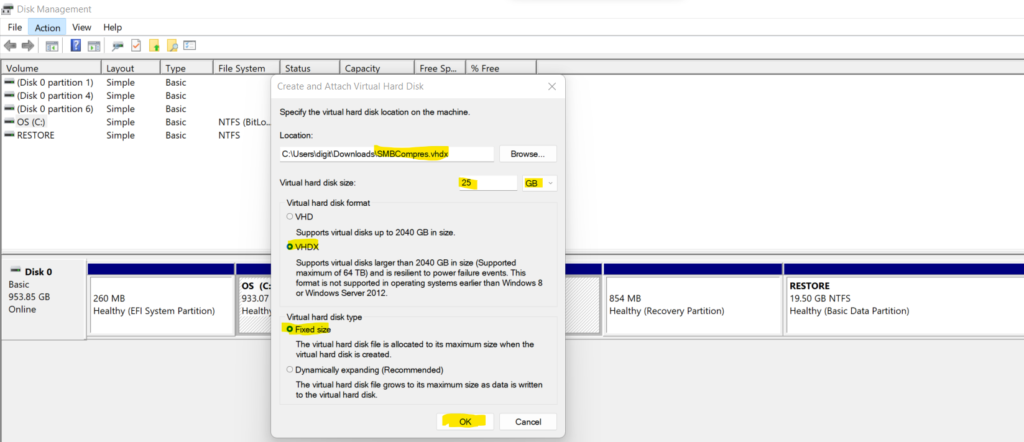
Let’s create a 25 GB VHDX file to test the new SMB compress transfer.
- Click on the Browse button to select the location to store the VHDX file.
- Set the size to “25 GB“
- Select VHDX and Fixed Size, then click OK.
You can Right-click on the disk and click Detach VHD, then click OK.
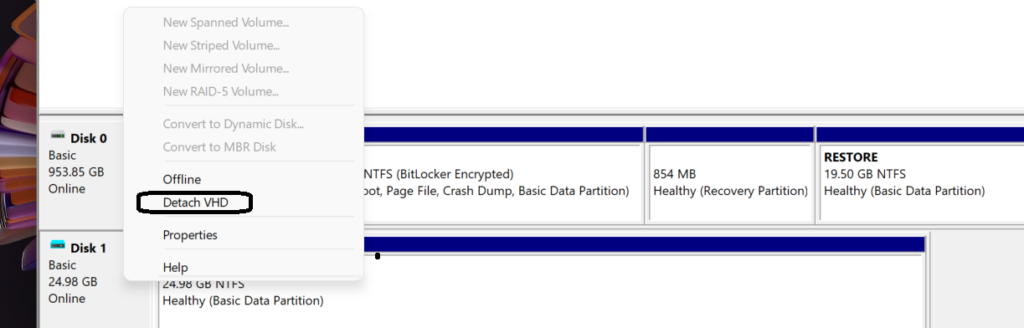
You can now mount the VHDX file, and then you can copy a few MB of uncompressible files, like pictures or something else, then right-click the mounted disk and click Eject.
To confirm the performance of the newest improvements of compress SMB, you can robocopy the same file to a file server twice: (You will need to delete the server file between each test.)
- First time with the /compress flag
- Repeat it again without compression
NOTE! – If the file is compressing, you should see less network utilization in Task Manager and a lower copy time. You can also observe the SMB server’s Performance Monitor object “SMB Server Shares” for its “Compressed requests/sec” and “Compressed receives/sec” counters.
Resources
- Testing the new SMB Compression
- Windows 11 Upgrade to Build 22449 Branch




Thanks the article is helpful, and I would share if we need to enhance the speed, just use a tool like Gs Richcopy 360 that supports SMB compression, it is fast and eases the transfer of large files.