






FIX: SCCM There are no task sequences available for this computer
Let’s check how to fix SCCM Failed To Run Task Sequence. The task sequence prompt There are no task sequences available for this computer when you start the operating system deployment with Configuration Manager during pxe boot.
This usually happens when the target machines had a task sequence deployed and had duplicate MAC addresses exist in SCCM DB. The known machine added to the deployed sccm collection is not updated.
However, you could easily see the error message from the task sequence prompt. It’s always recommended to examine the SMSTS log for task sequence failure issues to help you get the inside about the failure prompt.
Issue Summary
The task sequence deployed to All Unknown Computers for PXE boot, and the task sequence is not listed after deployment. This error appears at the initial stage when you have started the deployment. Task Sequence fails with the following error message –

Failed to Run Task Sequence: There are no task sequences available for this computer.
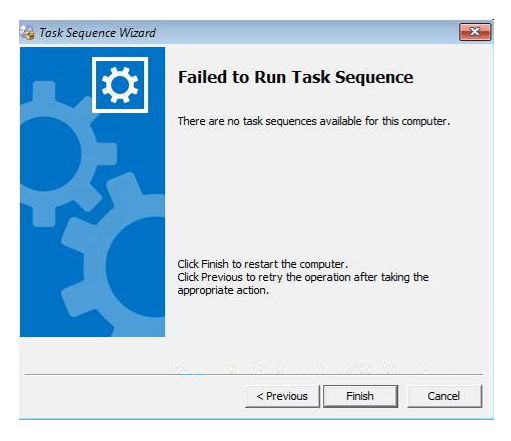
In this scenario, Task Sequence terminated at the beginning. You will collect the logs at WinPE X:\Windows\temp\smstslog\smsts.log. To get the command prompt window, you have to press the F8 key and locate the location to Open the log. Reviewing the SMSTS.log on the site server, you will get the highlight –
There are no task sequences available to this computer.Please Ensure you have at least one task sequence advertised to this computer. Unspecified error (error: 80004005; Source: Windows)Example for Duplicate MAC having different hostname, shared by Deepak.
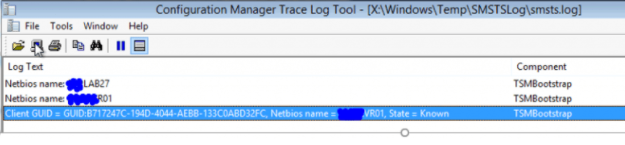
FIX – SCCM There are no task sequences available for this computer
Let’s check the possible solution to fix if there are no task sequences available for this computer –
#Possible Solution 1 –
If you have imported the computer to the known collection using MAC ID, Ensure the device is populated to sccm device collections. You can manually update the collection membership as follows –
In the Configuration Manager console, go to the Assets and Compliance workspace. Select Device Collections, select the collection to manage and then select an Update membership.
Evaluates the membership for the selected collection. For collections with many members, this update might take some time to finish. Use the Refresh action to update the display with the new collections members after the update is completed.
#Possible Solution 2 –
Duplicate MAC Exists in SCCM DB – Removing duplicate MAC from SCCM helps you to perform the clean PXE booting. More Learn How to ConfigMgr SCCM Merge Obsolete Duplicate Records.
#Possible Solution 3 –
If you found there’s no duplicate MAC exists, the next step is to remove the device information from SCCM. Import the computer Information using MAC, GUID.
- Launch SCCM Console, Navigate to Assets and Compliance > Devices.
- Look for the device, Before removing the device entry from the SCCM Console. Collect SMBIOS GUID for the device.
Note – Collect the SMBIOS GUID for a device under the Summary tab in SCCM Console. To get SMBIOS GUID in a machine, Open the command prompt, run the command: wmic csproduct get uuid
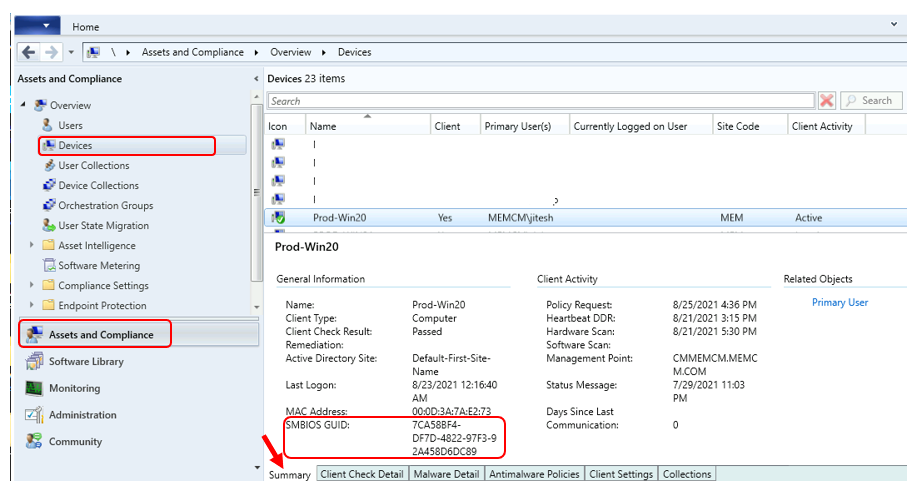
You should add a newly imported computer to a collection. This allows you to create advertisements for deploying operating systems to the computer immediately.
Once you are done with the above steps, Please wait to advertise the computer information. Restart the target machine and reinitiate the task sequence deployment. It should continue without any errors. You may not encounter messages “There are no task sequences available for this computer.”
#Possible Solution 4 –
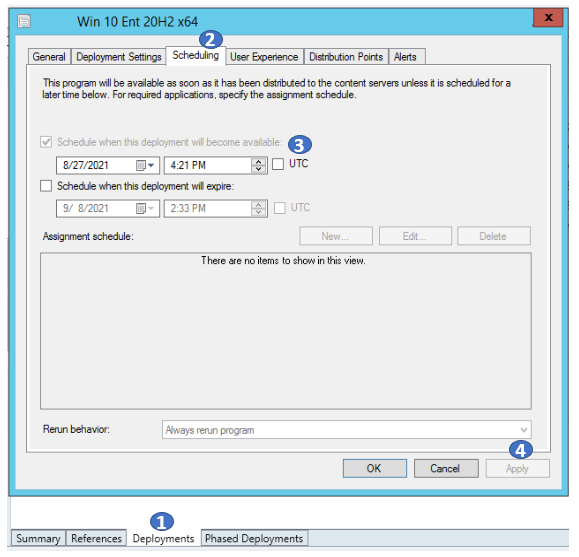
If you’re deploying an OSD Task Sequence, In the scheduling tab, If you are leaving the option default. The deployment will be active at the current time. You might encounter an issue while performing the deployment as SCCM will skip the Task sequence that is not active yet. To resolve this issue, It’s best to have the deployment schedule configured at least a few hours before.
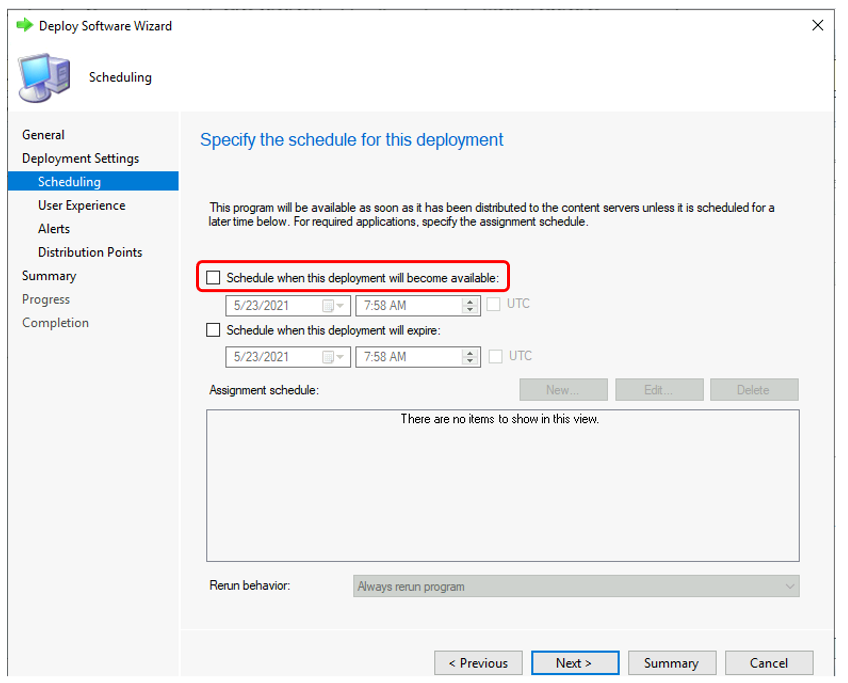
To change the schedule of deployed task sequence –
- In the Configuration Manager console, go to the Software Library workspace, expand Operating Systems, and select Task Sequences.
- Select Deployment tab. Right-click on the existing deployment and select Properties. Switch to the Scheduling tab. Under Schedule when this deployment will become available, change the time—Click Apply, and OK.
Let us know your experience with the issue and steps taken to resolve it in Comment Section.
About Author -> Jitesh has over 5 years of working experience in the IT Industry. He writes and shares his experiences related to Microsoft device management technologies and IT Infrastructure management. His primary focus area is Windows 10 Deployment solution with Configuration Manager, Microsoft Deployment Toolkit (MDT), and Microsoft Intune.
Resources
- SCCM OSD Task Sequence Troubleshooting Steps by Step Ultimate Guide SMSTS.log.
- SCCM OSD SMSTS Log File Reading Tips | ConfigMgr | MEMCM
- SCCM Logs Files | 5 Log File Reading Tips | ConfigMgr
- HTMD Blog #2 SCCM Archieve




Check to make sure the network drivers are functioning. They may create an issue if you can’t actually reach the MP to get a policy.
Thank for this, importing via MAC & UUID worked!
StaffNope I don’t think so.
Importing MAC & GUID solved my problem. Thank you very much.