






How to Setup Passwordless Login for Microsoft Accounts
Learn How to Setup Passwordless Login for Microsoft Accounts. Microsoft introduced passwordless options for Microsoft accounts. Microsoft says with 3 clicks you can remove the complex password you set for your Outlook, Hotmail, or Live account. This is the best way to remove your Microsoft account password securely.
First of all, you will need to ensure that you have enabled the two-step verification for the Microsoft account. The best way to enable two-way verification is with the Microsoft Authenticator app available on iOS and Android platforms.
Two-step verification helps to protect you by making it more difficult for someone else to login into your Microsoft account and access the resources. You can use app passwords for Outlook desktop application and XBOX login etc…
Turn ON two-step verification for Microsoft Account
Two-step verification adds an extra layer of protection to your account. After you’ve turned it on, we’ll ask you to enter an additional security code when you sign in. We’ll provide this security code only to you. Follow the steps mentioned below to TURN ON two-step verification for your Microsoft account.

- Go to the Security basics page and sign in with your Microsoft account.
- Select Two-Step verification – Turn ON option.
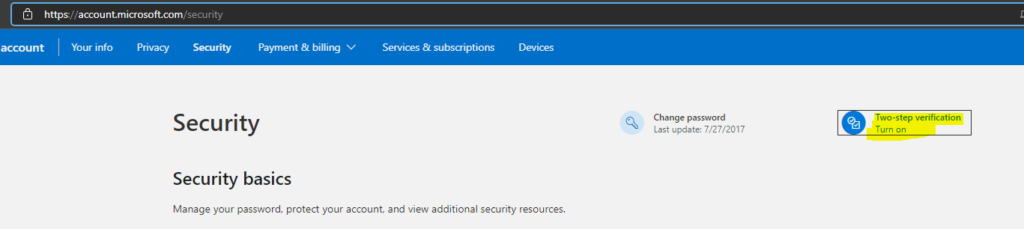
You can click on Two-step verification OFF – Manage hyperlink to enable the two-step verification.

If you ever need to recover access to your account, this code will help. You should print it or write it down, and store it in a safe place. We strongly recommend that you don’t store your recovery code on a device. If you previously had a recovery code, it is no longer valid. Use this new code instead. In the following steps, we’ll help you to set up two-step verification:
- Make sure you have up-to-date security info where you can receive security codes.
- Print or write down your recovery code.
- Create app passwords for apps and devices (such as Xbox 360, Windows Phone 8 (or earlier), or mail apps on your other devices) that don’t support two-step verification codes.
- Click on NEXT to continue.
- Save the recovery password securly and click on NEXT to continue.
- Click on NEXT button to continue. Hoping that you don’t have Windows 8 Phone.
- Click on Finish to complete the process.
NOTE! – You can use the following steps to generate app passwords for XBOX and other app logins. Under App passwords, select Create a new app password from the Security basics page. A new app password is generated and appears on your screen.
Setup Microsoft Authenticator App for Two-way verification
You can quickly install the Microsoft authenticator app on your mobile and then follow the steps mentioned below to enable two-way verification with the Microsoft Auth app. You can login to the Security basics page to proceed further.
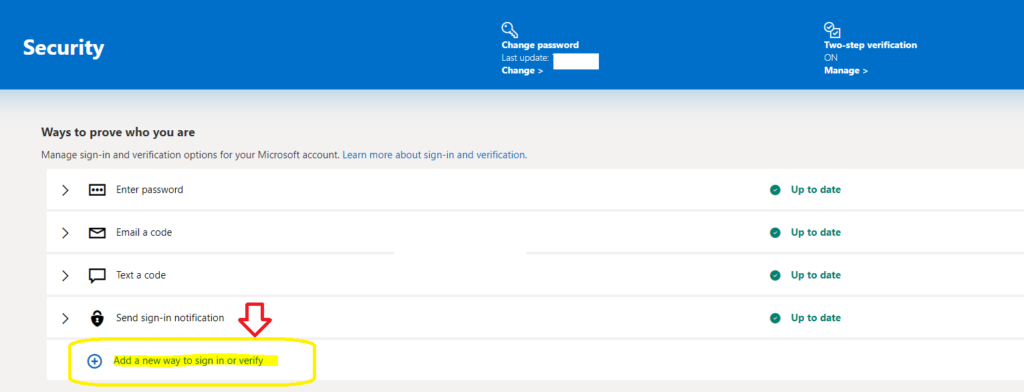
You can click on Add a new way to sign in or verify hyperlinks from Microsoft’s security basics page.
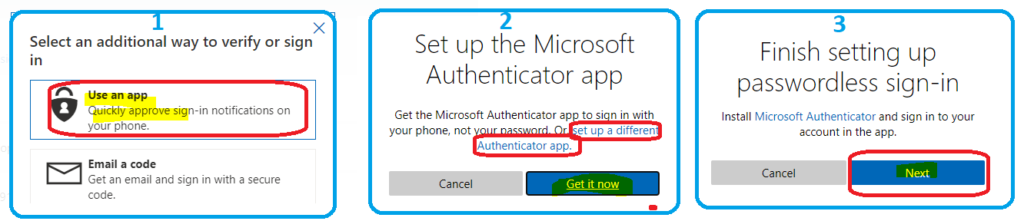
This is the screen that helps you to Set up the Microsoft Authenticator app. You can get the Microsoft Authenticator app to sign in with your phone, not your password. Or, set up a different Authenticator app.
You get the following three screens to set up the Microsoft authenticator application and then the passwordless authentication for Microsoft accounts.
- Click on Use an App.
- Click on Set up a different Autheticator app option to get the QR code.
- Click on next to install install autheticator app and continue.
NOTE! – You won’t see screen #3 mentioned in the screen capture below if you are setting up the Microsoft auth app for the first time.
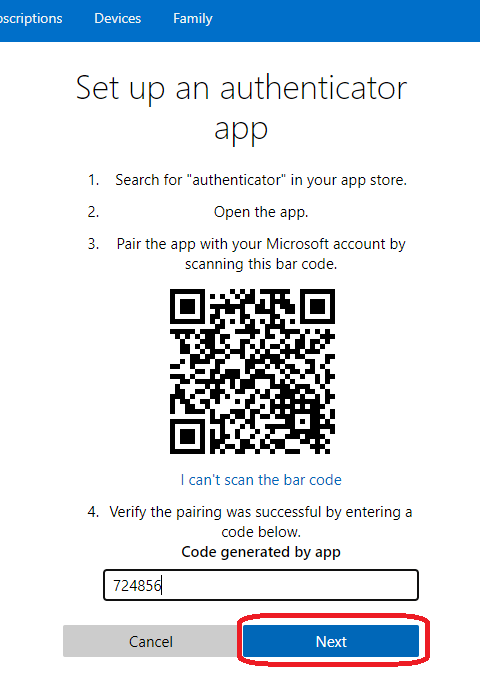
This is the page you will set up the authenticator app. You will need to install the authenticator app on the mobile and scan the QR code from the app. Once scanned the QR code and enter the code appearing on the mobile app on the below screen. Click on NEXT to complete the process.
Make sure the authenticator app is set up properly from the following screen. You can login to the Security basics page to confirm this setting.

How to Setup Passwordless Login for Microsoft Accounts
This is the last and final step before you go fully passwordless for a Microsoft account. You can securely remove the passwords from your Microsoft account using this method. Make sure you have already completed the above-mentioned steps.
Finish setting up passwordless sign-in. Install Microsoft Authenticator and sign in to your account in the app. Next time you sign in, use your Microsoft Authenticator app instead of your password.
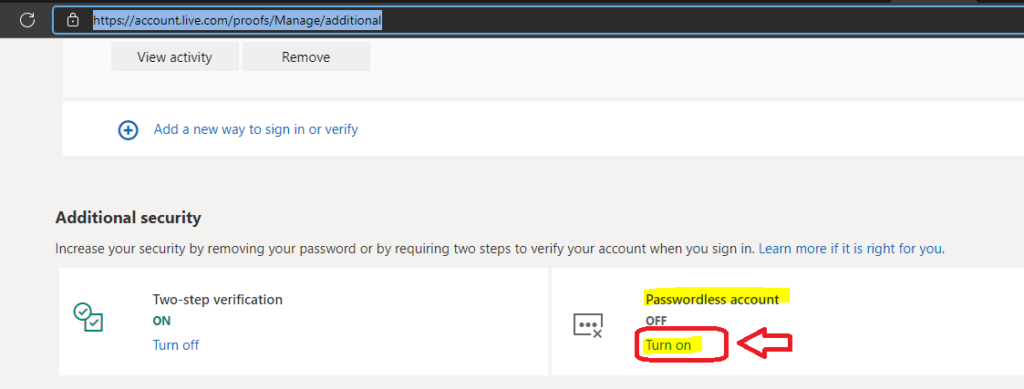
- Open the following link and login with the same Microsoft account – > Additional security options (live.com).
- Scroll down to Additional Security section.
- Click on TURN ON button from passwordless account option.
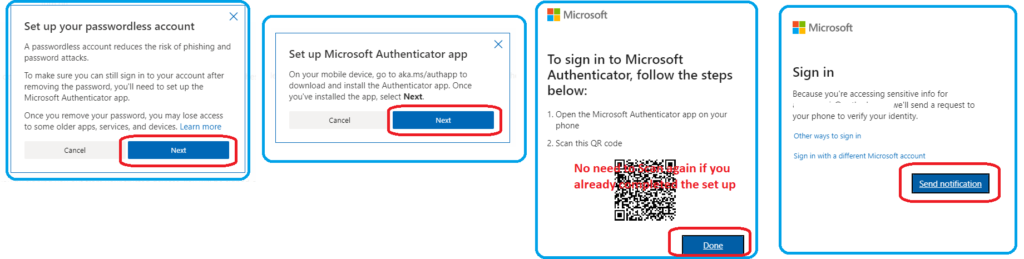
A passwordless account reduces the risk of phishing and password attacks. To make sure you can still sign in to your account after removing the password, you’ll need to set up the Microsoft Authenticator app. Once you remove your password, you may lose access to some older apps, services, and devices.
- Click on NEXT button to continue.
- Click on NEXT button to continue. We have already set up Microsoft autheticator app.
- Click on DONE button if you have already completed the setup of Microsoft Auth app.
- Click on Send Notification and Click on Approve button from autheticator app to complete the process.
To start Passwordless setup (the last stage), select Next, then approve the request from the Microsoft Authenticator app on your phone to remove your password. You have increased the security of your account and improved your sign-in experience by removing your password. The confirmation screen has arrived with the Password Removed window.
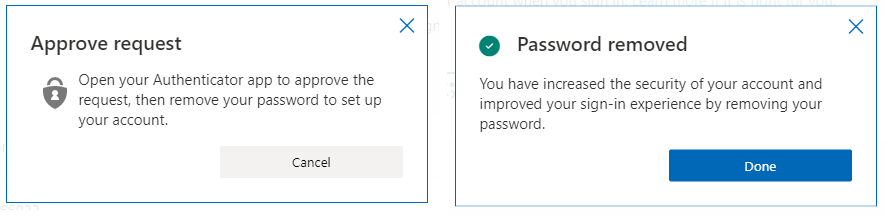
You will need to open up the authenticator app and click on Approve to complete the process of going passwordless account. Click on the DONE button to continue. You can confirm the status of a passwordless Microsoft account from the Additional security options (live.com) page.





Discussion