






Microsoft PowerToys made available with Windows 11 Dev Channel
Let’s learn more about the PowerToys application. The Windows 11 dev channel comes with Microsoft PowerToys on the start button.
The PowerToys application is available in Windows Package Manager and you can install it using the Winget tool as I explained Use Winget Windows Package Manager Tool To Install Microsoft Store Apps.
This option appeared with the latest version of Windows 11 dev build 22463. The new features, fixes, and updates released with 22463 dev build of Windows 11 won’t appear in the production announced for 5th Oct.
NOTE! – Microsoft PowerToys made available in Microsoft Store for all versions of Windows (not only for Windows 11 Dev Channel). Clint Rutkas clarified this on Twitter.

PowerToys does not ship with Windows. Microsoft did recently enter the store but PowerToys itself is not inside Windows.
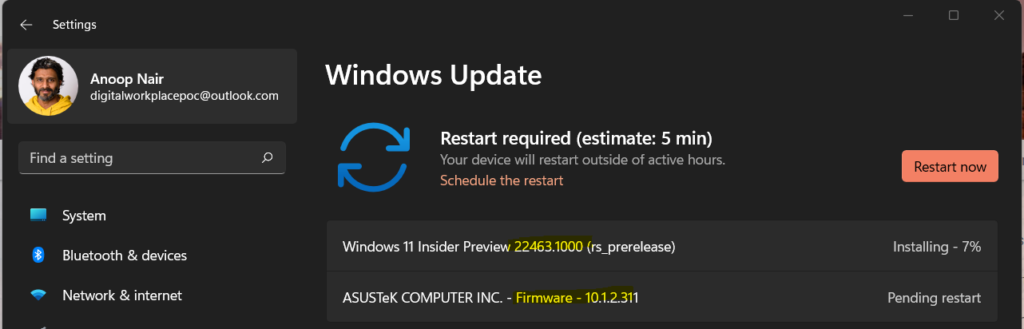
Microsoft PowerToys is now available in the Microsoft Store in Windows 11! This update is in the Dev channel of Windows 11 with ASUSTeK Firmware 10.1.2.311 for my ASUS laptop.
Windows 11 Keyboard Shortcuts
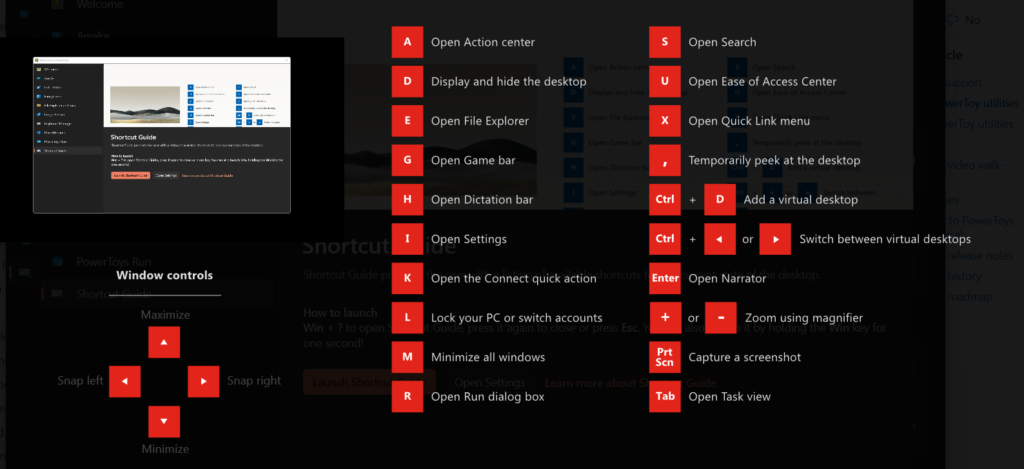
The following keyboard shortcuts are helpful in Windows 11. The Shortcut guide from Microsoft PowerToys helps us with the Windows key shortcut guide that appears when a user presses Shift + Win + ? and shows the available shortcuts for the current state of the desktop.
- You can use File Explorer, pressing CTRL + Shift + C will now copy the path to your clipboard.
- Windows Key + I to open up the settings
- WIN + Shift + S: Snipping
- WIN + PrintScreen: Save full screen screenshot to file
- ALT + PrintScreen: Copy window in focus to clipboard
- WIN + ALT + PrintScreen: Save window to file (via game bar)
Windows 11 Issues Fixed with Dev Channel build 22463
The Windows 11 Dev channel build 22463 mitigated an issue where when many apps were installed, the Start menu might get stuck with no app icons showing (only app name) after a DPI change.
This issue with taskbar icons are properly aligned and centered again apps should no longer get cut off by the “show hidden icons” button when too many apps are open.
The following issue, the quick settings icon cutting out from the Windows 11 taskbar that I’ve captured in the below screenshot, is not yet fixed even with the 22463 dev build of Windows 11 as well.

Windows 11 Microsoft PowerToys
Microsoft PowerToys is a set of utilities for power users to tune and streamline the Windows 11 experience for greater productivity. Microsoft made the PowerToys application available in the Microsoft Store for the dev channel build 22463.
I was not able to find this application in the previous builds of Windows Insider.
PowerToys Awake – This is designed to keep a computer awake without having to manage its power & sleep settings.
Color Picker – ColorPicker is a system-wide color picking utility activated with Win+Shift+C. Pick colors from any currently running application
FancyZones – This is a window manager that makes it easy to create complex window layouts and quickly position windows into those layouts.
File Explorer add-ons – These add-ons enable preview pane rendering in File Explorer to display SVG icons (.svg) and Markdown (.md) file previews.
Image Resizer – Image Resizer is a Windows Shell extension for quickly resizing images. With a simple right-click from File Explorer, resize one or many images instantly.
Keyboard Manager – This allows you to customize the keyboard to be more productive by remapping keys and creating your own keyboard shortcuts.
PowerRename – This enables you to perform bulk renaming, searching and replacing file names. It includes advanced features, such as using regular expressions, targeting specific file types, previewing expected results, and the ability to undo changes.
PowerToys – Run can help you search and launch your app instantly – just enter the shortcut Alt+Space and start typing.
Windows key shortcut guide – This helps when a user presses Shift + Win + ? and shows the available shortcuts for the current state of the desktop




Discussion