






3 Free SCCM Admin Tools for Advanced Troubleshooting
Well, let’s check which are those 3 Free SCCM Admin Tools for Advanced Troubleshooting scenarios. These are the three tools I used several times to troubleshoot SCCM (a.k.a Configuration Manager) Server Side issues.
Manier time, one of the three SCCM admin tools, explained in the below sections, helped to restore the console connectivity issues. Those have been the dearest friends of admin for many years now.
All these three tools that I will cover in the post are from Microsoft and their employees. SCCM Console Beginners Guide helps to get a walkthrough of all the Workplaces available in the admin console.
The Ribbon, Navigation Pane, Workspace, ListView, and Details Pane are the basic terms you should know as an SCCM admin.

You can use the following blog posts to troubleshoot OSD, Software Updates, Client Side, etc., issues. The 3 free SCCM admin tools shared in the below sections of this post might help you with Server Side advanced troubleshooting.
- SCCM OSD Troubleshooting using SMSTS Log
- IIS Troubleshooting Tips for SCCM Admins
- Tenant Attach Guide for SCCM Logs Data Flow Troubleshooting
- ConfigMgr OSD Troubleshooting Known Issues
- Deep Dive SCCM Application Model Troubleshooting
WMIMGMT.MSC – WMI Control Panel – 3 Free SCCM Admin Tools
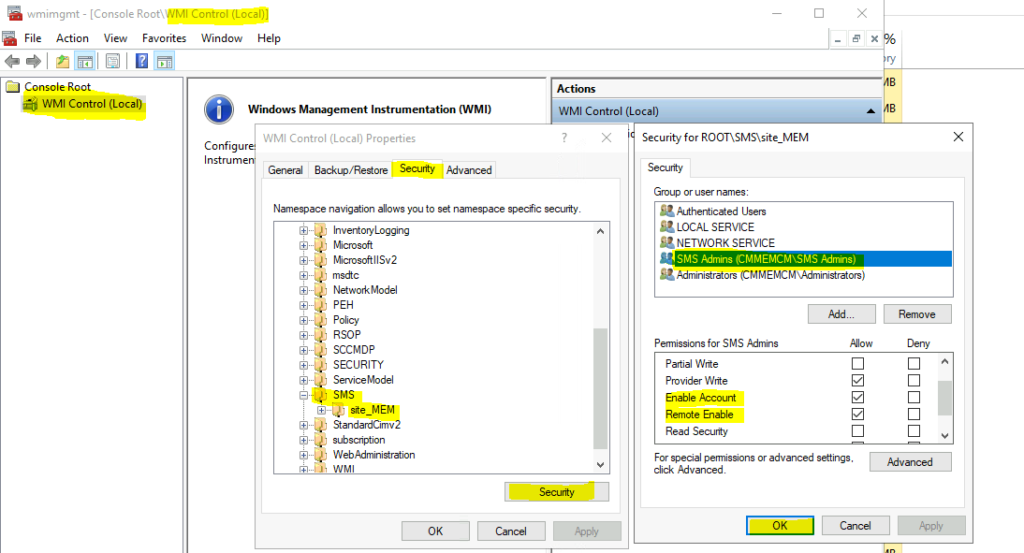
WMIMgmt.msc is the WMI control panel or MMC console tool that helps to check and confirm the permission set on the remote WMI access is fine or not. I have seen many issues with remote WMI access permissions in the early version of SCCM 2007 and SMS 2003.
WMIMgmt tool helps to check whether the SCCM admin account that is used to launch the console does have the appropriate permissions to the namespace of the provider or not. I have not seen this type of issue with the SCCM Current Branch consoles.
I think the remote WMI access and permissions are managed automatically in most cases. However, there are some scenarios where the security fighting policies can break the remote access. So the WMIMgmt.MSC tool can be used to modify the permissions and restore the access.
- click Run -> type wmimgmt.msc.
- Right-click WMI Control, and then click Properties.
- Go to Security tab, expand Root, and then click SMS (and site_MEM) to verify the permissions explained in the last step by clicking on Security tab below.
- MEM is my site code.
- Check whether SMS Admins account has Enable Account and Remote Enable permissions and Allow check mark is enabled.
WBEMTest – Windows Management Instrumentation Tester – 3 Free SCCM Admin Tools
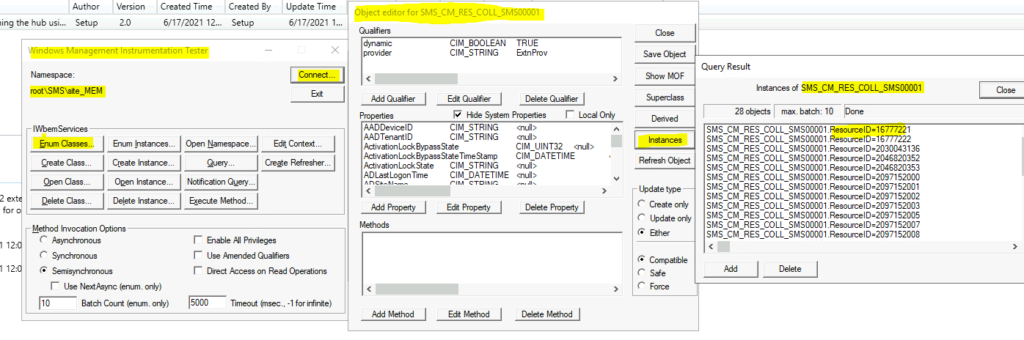
The WBEMTEST is another Microsoft tool available on all Windows systems. The WBEMTEST.EXE is the second tool that an SCCM admin can’t skip in advanced troubleshooting scenarios. This tool is mainly used to test WMI repository health checks.
The WBEMTest tool is also used in many other advanced Server Side troubleshooting scenarios. One of the examples is fixing the issue with the Co-Management configuration grayed out the problem.
As you can see in the post, WBEMTest can be used to delete some of the problematic settings of the SCCM console.
- You can go Start -> Run and type “WBEMTEST” and press enter.
- Connect to the WMI name space for Site Server \\siteserver\root\sms\site_MEM.
- MEM is the site code.
- Click Enum Classes, click Recursive, and then click OK.
- I have selected all Systems collection class called SMS_CM_RES_COLL_SMS00001.
- Double click on that and select Instances from the peroperties of that class.
- Click on one of the instances to check the properties of a device from All Systems collection.
WMI Explorer – 3 Free SCCM Admin Tools
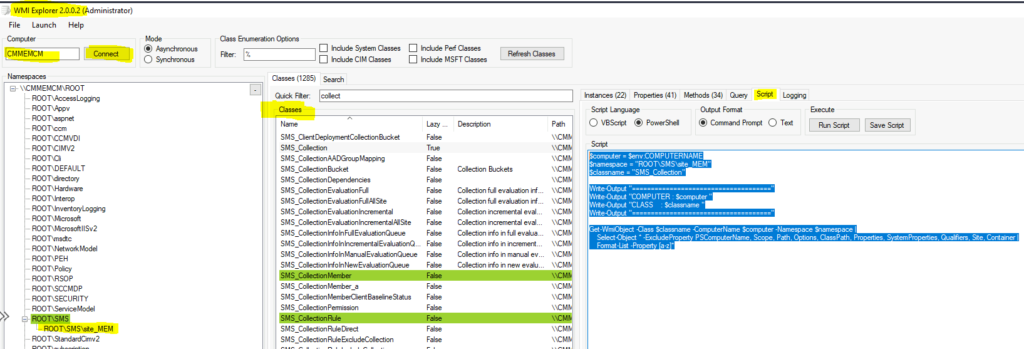
You will need to download the WMI explorer tool to make your lives easy in SCCM Server Side advanced troubleshooting scenarios. You can download WMI Explorer Tool from Vinay Pamnani. I don’t think the WBEMtest tool is not easy if you compare it with this one.
I think the deletion and other types of advanced operations can be easily performed using the WBEMTest.exe tool. But WMI explorer is one tool that can help you get PowerShell scripts with a few clicks of buttons. So, you should download this tool and make your life easy.
I have another post where I discussed WMI architecture and WMIExplorer in a bit more detail. WMI Explorer Details For Configuration Manager SCCM Post.
Which one out of 3 free SCCM admin tools going to help you with Server Side advanced troubleshooting? Let me know in the comments.
$computer = $env:COMPUTERNAME
$namespace = "ROOT\SMS\site_MEM"
$classname = "SMS_Collection"

Write-Output "====================================="
Write-Output "COMPUTER : $computer "
Write-Output "CLASS    : $classname "
Write-Output "====================================="

Get-WmiObject -Class $classname -ComputerName $computer -Namespace $namespace |
    Select-Object * -ExcludeProperty PSComputerName, Scope, Path, Options, ClassPath, Properties, SystemProperties, Qualifiers, Site, Container |
    Format-List -Property [a-z]*
Resources
- How to Verify WMI Permissions Required for ConfigMgr SCCM Console Access
- Increase WMI Default Memory Allocation for SCCM ConfigMgr Server




Discussion