






Convert WQL Queries to SQL Queries using SCCM Trick
Let’s see how to convert WQL queries to SQL queries using SCCM trick. This is the least expected functionality from Configuration Manager as a device management tool. The good news is that SCCM can help you to convert WQL to SQL queries.
I don’t know whether there is any tool available in the market to convert queries from WQL to SQL. This is not something SCCM will support in the console as a feature. But, you can use the SCCM method/trick that explained below to convert queries from WQL to SQL.
There is no other easy method to convert the WQL queries used in dynamic collections into SQL queries. I have seen questions in the HTMD forum asking for SQL queries when you answer with WQL queries. Hopefully, the method explained in this post will help you to convert all the WQL queries used in collections to SQL queries.
- List of SCCM clients with latest Hardware Inventory in last 7 days
- Create Windows 11 SCCM Device Collection
- SCCM Query All Active Directory Security Groups
NOTE! – This post is only for educational purposes. Make sure you are using the supported method to build SQL queries. I don’t know whether this is a 100% supported method from Microsoft’s perspective.

WQL Query to group Co-Managed Devices
I have a WQL query to find out co-managed devices, and I wanted to convert the SQL queries using the method or trick that is not fully supported as per Microsoft. When I say not fully supported, that means Microsoft never tested and approved it use.
You can try to find out the SQL views for each WMI class similar to SMS_Client_ComanagementState and SMS_R_System. But this is not very easy but this is not impossible. The following list provides the mapping between WMI namespaces and SQL views. These mapping details can also be retrieved using the SCCM tricks explained below.
- WQL – SMS_Client_ComanagementState – > SQL – v_ClientCoManagementState
- WQL – SMS_R_System -> SQL – v_R_System
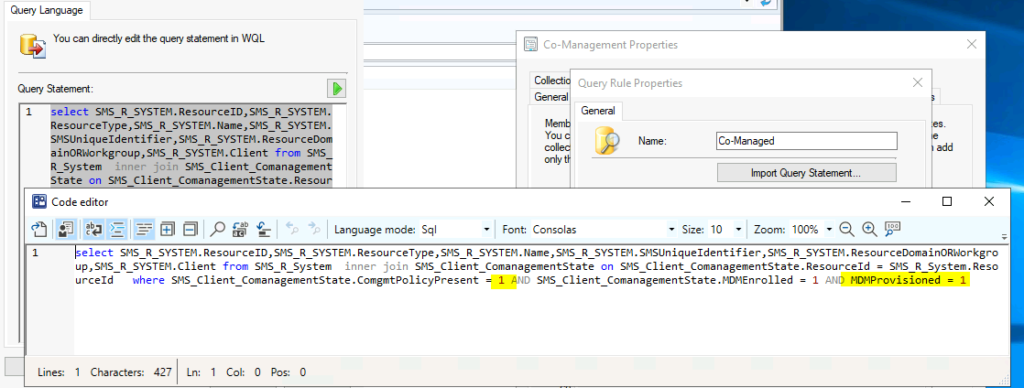
You can use the following WQL query to create a dynamic device collection. The dynamic device collection creation process will be followed in the below section to convert WQL queries to SQL queries.
select SMS_R_SYSTEM.ResourceID,SMS_R_SYSTEM.ResourceType,SMS_R_SYSTEM.Name,SMS_R_SYSTEM.SMSUniqueIdentifier,SMS_R_SYSTEM.ResourceDomainORWorkgroup,SMS_R_SYSTEM.Client from SMS_R_System inner join SMS_Client_ComanagementState on SMS_Client_ComanagementState.ResourceId = SMS_R_System.ResourceId where SMS_Client_ComanagementState.ComgmtPolicyPresent = 1 AND SMS_Client_ComanagementState.MDMEnrolled = 1 AND MDMProvisioned = 1SQL Query to Find Co-Management Devices
Now, let’s find the SQL query that you can get from this conversion method. I don’t think the SQL query that you get from the conversion process is not similar to the standard SQL queries. However, you can use this method to get an idea about the conversion process and get an idea about the SQL tables in use.
There are many other SQL query-related posts that you can find from the HTMD blog posts mentioned below. I think it’s better to use SQL views to create custom reports using SQL queries.
- SQL query to find out SCCM clients registered within the last 60 days
- SQL Query to Find Microsoft 365 Apps
- SCCM SQL Query to Find Collections Used for App Deployment
- SCCM CMPivot Browser Related Queries Default List of Browsers
- ConfigMgr Application Deployment Status SQL Query Custom Report
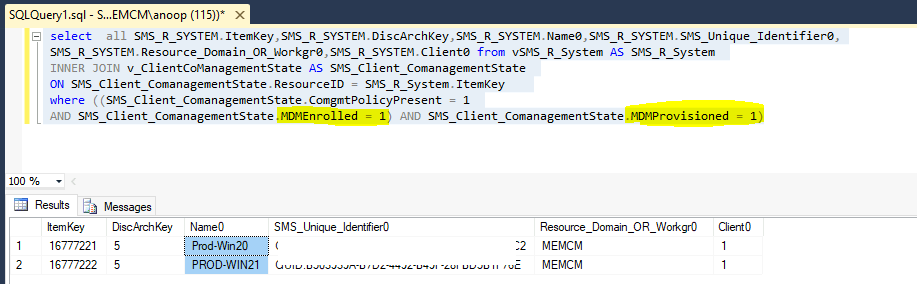
It’s interesting to see the conversion trick from WQL queries to SQL queries that use SQL views instead of SQL Tables. It’s worth noting that using SQL tables to create a custom report is not the best practice. Instead, it’s better to use SQL views.
select  all SMS_R_SYSTEM.ItemKey,SMS_R_SYSTEM.DiscArchKey,SMS_R_SYSTEM.Name0,SMS_R_SYSTEM.SMS_Unique_Identifier0,
 SMS_R_SYSTEM.Resource_Domain_OR_Workgr0,SMS_R_SYSTEM.Client0 from vSMS_R_System AS SMS_R_System
 INNER JOIN v_ClientCoManagementState AS SMS_Client_ComanagementState
 ON SMS_Client_ComanagementState.ResourceID = SMS_R_System.ItemKey
 where ((SMS_Client_ComanagementState.ComgmtPolicyPresent = 1
 AND SMS_Client_ComanagementState.MDMEnrolled = 1) AND SMS_Client_ComanagementState.MDMProvisioned = 1)
Convert WQL Queries to SQL Queries using SCCM Trick
Well the trick to convert WQL queries to SQL is not rocket science. You will need to create a dynamic device collection with the WQL query that you want to convert. Building SQL queries and reports explained in the previous post – SCCM Create Custom Report Using Report Builder.
You will need to go through the process of dynamic collection creation as explained in How-to Guide Create ConfigMgr Dynamic Device Collection. You can create either a dynamic user collection or a dynamic device collection to convert the queries from WQL to SQL.
Make sure you open SMS Provider log file (SMSProv.log) from the site server or SMS provide site system server to monitor the changes before completing the dynamic collection creation wizard. Open the SCCM console and SMSProv.log side by side to monitor the changes at the same time.
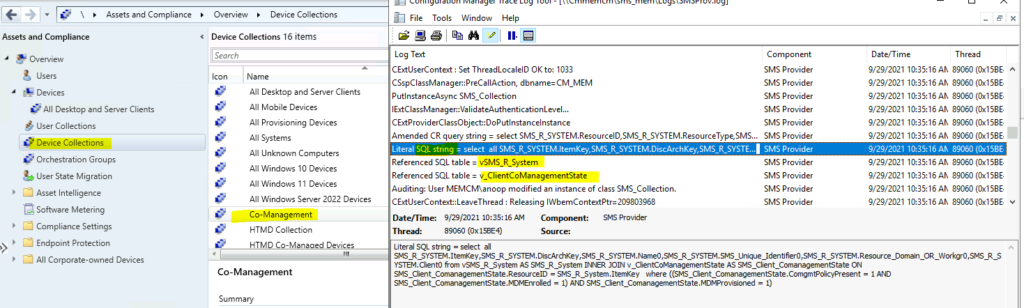
Once you finish the dynamic collection creation process, you can see the SQL query that is equivalent to the WQL query used in the dynamic collection creation process. It’s very useful that the log file even spits out the respective SCCM SQL views of those WMI classes used in the WQL query.
WQL Query from SMSProv.log -> Amended CR query string = select SMS_R_SYSTEM.ResourceID,SMS_R_SYSTEM.ResourceType,SMS_R_SYSTEM.Name,SMS_R_SYSTEM.SMSUniqueIdentifier,SMS_R_SYSTEM.ResourceDomainORWorkgroup,SMS_R_SYSTEM.Client from SMS_R_System inner join SMS_Client_ComanagementState on SMS_Client_ComanagementState.ResourceId = SMS_R_System.ResourceId where SMS_Client_ComanagementState.ComgmtPolicyPresent = 1 AND SMS_Client_ComanagementState.MDMEnrolled = 1 AND MDMProvisioned = 1SQL Query for the above WQL Query -> Literal SQL string = select all SMS_R_SYSTEM.ItemKey,SMS_R_SYSTEM.DiscArchKey,SMS_R_SYSTEM.Name0,SMS_R_SYSTEM.SMS_Unique_Identifier0,SMS_R_SYSTEM.Resource_Domain_OR_Workgr0,SMS_R_SYSTEM.Client0 from vSMS_R_System AS SMS_R_System INNER JOIN v_ClientCoManagementState AS SMS_Client_ComanagementState ON SMS_Client_ComanagementState.ResourceID = SMS_R_System.ItemKey where ((SMS_Client_ComanagementState.ComgmtPolicyPresent = 1 AND SMS_Client_ComanagementState.MDMEnrolled = 1) AND SMS_Client_ComanagementState.MDMProvisioned = 1)The useful piece is all about spitting out corresponding SQL views. You can check the following two lines of details from the SMSProv.log to get the details of SQL views. It’s SQL views even though log calls this out as SQL tables.
- Referenced SQL table = vSMS_R_System
- Referenced SQL table = v_ClientCoManagementState
Author
Anoop is Microsoft MVP! He is a Solution Architect in enterprise client management with over 17 years of experience (calculation done in 2018). He is Blogger, Speaker, and Local User Group HTMD Community leader. His main focus is on Device Management technologies like SCCM 2012, Current Branch, and Intune. He writes about ConfigMgr, Windows 11, Windows 10, Azure AD, Microsoft Intune, Windows 365, AVD, etc…..…




Hi! I think it’s easier to just check this table: Collection_Rules_SQL