






Windows 11 Monthly Patch Deployment using Intune
Today, we will discuss the details of Windows 11 Monthly Patch Deployment using Intune. You can easily create Update rings for Windows 10 and later policies from Intune to tackle the monthly patching of Windows 11 PCs. Microsoft claims to reduce the size of Windows Updates by 40% using forward and reverse differentials.
Windows Update for Business (WUfB) is the technology that delivers monthly patches (quality updates) to Windows 11 PCs. Intune is there to facilitate the WUfB policy configuration and delivery to the client PCs. Windows Update Agent (WUA) is used on Windows 11 PCs to install these monthly patches.
The Windows Update Orchestrator checks the Microsoft Update server (WUfB) or your WSUS/SCCM server for new updates at random intervals. I have shared the Windows 11 patch management using SCCM in the previous post. SCCM uses WSUS and Windows Updates to deliver patch management processes for Windows 11 PCs.
- Difference Between Windows Patch Management Using Intune Vs ConfigMgr
- Configure Update Compliance Patch Management Reports using Intune and Log Analytics
- Windows 11 Intune Enrollment Process
- Upgrade to Windows 11 using Intune Feature Update Deployment Policy
Windows 11 Patching Prerequisites
The Windows 11 patching prerequisites using Intune are similar to Intune enrollment prerequisites. You have to make sure that your device is enrolled in Intune using any of the supported methods. The user/device should have appropriate Intune licenses.

- The device should have Windows 10 version 1607 or later, or Windows 11.
- You should turn on the Telemetry settings with a minimum as Required.
- Supported versions – Windows 11 Pro, Enterprise, and Team – for Surface Hub devices.
- Should have internet connectivity.
- Should have connectivity to Windows Updates and other related services via firewall and proxy settings.
NOTE! – Windows Update for Business doesn’t support Windows 11 Enterprise LTSC versions; hence you can’t use Intune to patch those types of Windows 11 PCs.
Create Windows 11 Monthly Patch Deployment Policy
Now create the Windows 11 monthly patch deployment policy from Microsoft Endpoint Manager (MEM) Intune. The policy name in Intune is a bit different, and it’s called Update rings for Windows 10 and later policy.
As I explained in the following post, you will need to use a feature update deployment policy to upgrade from Windows 10 to Windows 11. Upgrade to Windows 11 using Intune Feature Update Deployment Policy.
Let’s follow the steps mentioned below to create the monthly patch deployment policy for Intune managed Windows 11 devices.
- Launch endpoint.microsoft.com portal.
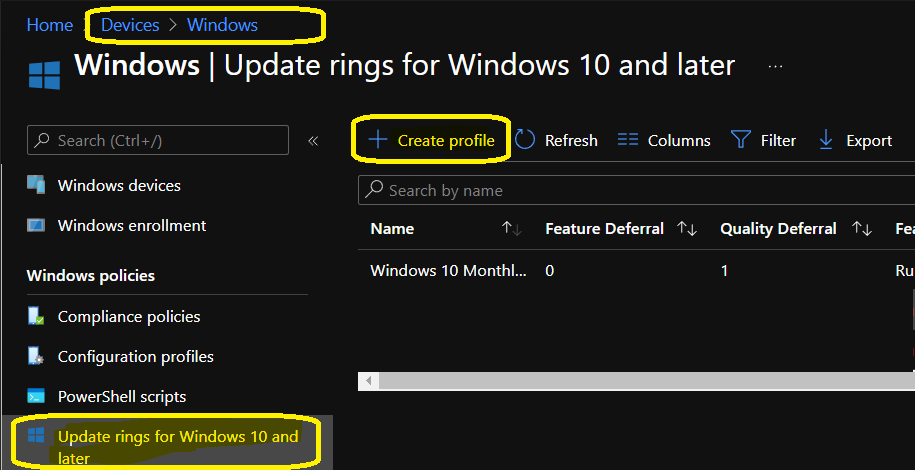
- Navigate to Devices -> Windows -> Update rings for Windows 10 and later tab.
- Click on + Create Profile button from the top bar.
- Enter the name of the Profile -> I used “Windows 11 Monthly Patching.”
- Click on Next button to continue.
The following are important settings that you will need to configure very carefully. My recommendation would be to use a ring-based deployment of monthly patches. You can see some examples of deployment rings in one of the old posts – Software Update Policy Rings In Intune MEM.
I have segregated this monthly patch policy configuration into two sections 1. Update Settings 2. User experience settings for easy understanding. This is the policy I created for the Day 0 deployment ring of Windows 11 devices.
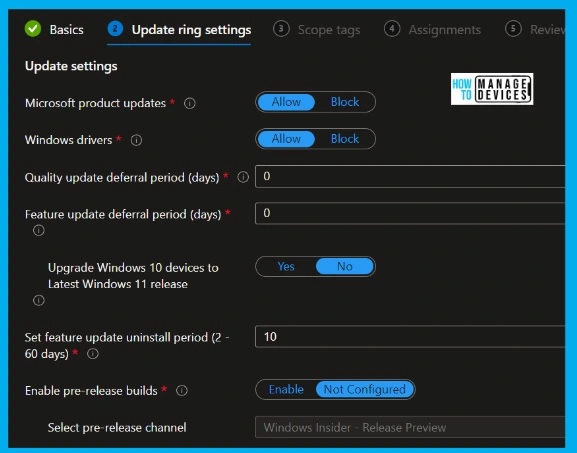
- Update settings
- Microsoft product updates – Allow.
- Windows drivers – Allow.
- Quality update deferral period (days) – 0– Defer quality updates for the specified number of days for Windows 11 PCs. The allowed value is between 0-30 days.
- Feature update deferral period (days) – 0 – Defer feature updates for the specified number of days for Windows 11 PCs. The allowed value is between 0-365 days.
- Set feature update uninstall period (2 – 60 days) – 10 – This is to set the feature update to uninstall period. The allowed value is between 2-60 days.
- Enable pre-release builds – Enable?
- Select Pre-Release Channel
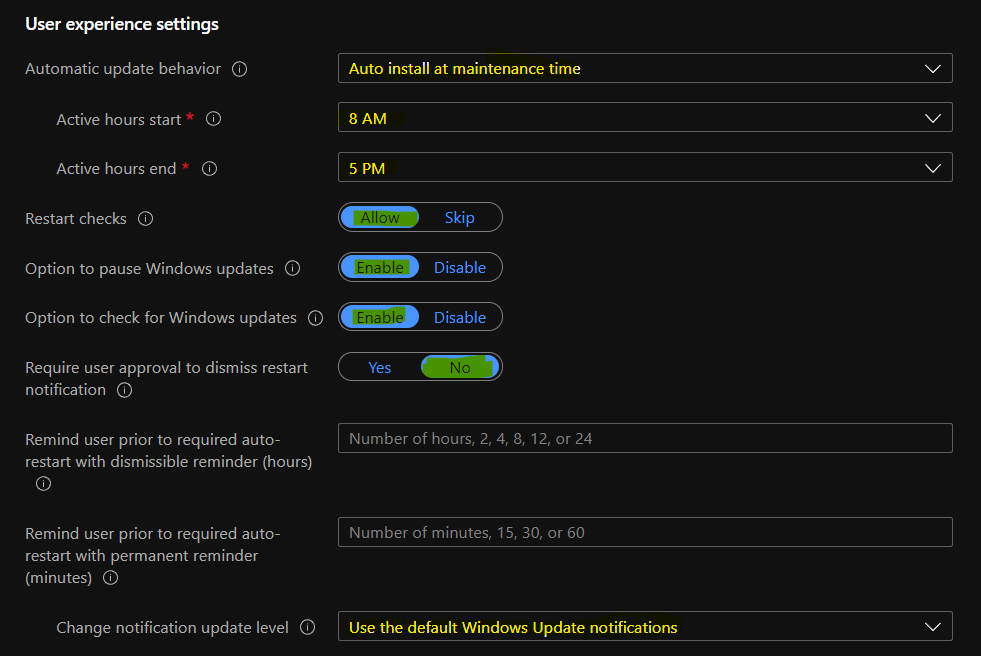
You can now configure the User Experience settings for Windows 11 monthly patch deployment policy. These Intune policies are configured in the MEM Admin center portal. I have not changed the settings of any of these policies for the Day 0 deployment ring.
- Automatic Update behavior -> AutoInstall at maintenance time.
- Active hours start -> 8 AM
- Active hours end -> 5 PM
- Restart checks – Allow – This policy is set to skip all check before restart: Battery level = 40%, User presence, Display Needed, Presentation mode, Full screen mode, phone call state, game mode etc.
- Option to pause Windows updates -Enable
- Option to check for Windows updates – Enable
- Require user approval to dismiss restart notification – No
- Remind user prior to required auto-restart with a dismissible reminder (hours) – The allowed number of hours, 2, 4, 8, 12, or 24 – 2 Hours.
- Remind user prior to required auto-restart with a permanent reminder (minutes) – The allowed number of minutes, 15, 30, or 60 – 30 Minutes.
- Change notification update level – Use default Windows Update notifications.
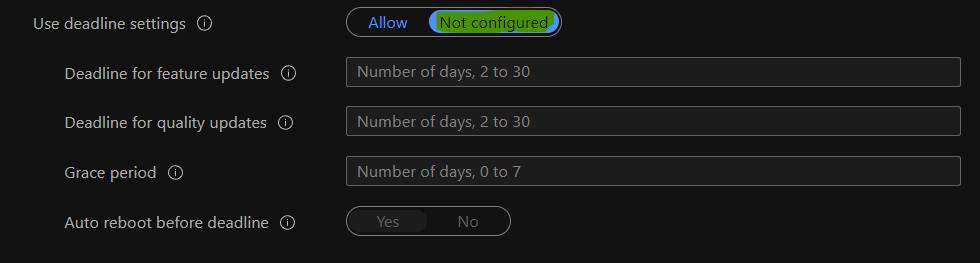
Now, you will need to configure the deadline settings experience for Windows 11 PCs. You have to be careful about these configuration policies because this defines the restart behavior for the users and reminders etc.
I have not configured these deadline settings policies for Day -0 deployment ring in my lab environment. However, I recommend configuring these policies as per your business requirements.
- Use deadline settings -> Not Confiured
- Deadline for feature updates ->
- Deadline for quality updates ->
- Grace period –>
- Auto reboot before the deadline –
- Click on Next to continue.
Now you will need to define the Scope tags if that is required for your Intune RBAC configuration. You will also need to assign the Intune monthly patching policy to Windows 11 devices Azure AD device group.
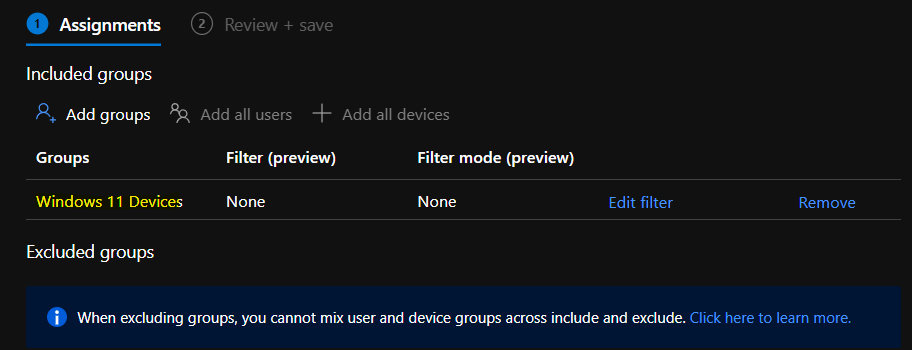
You can click on Add groups and search for Windows 11 Devices group to add the AAD group. You will need to ensure that you have already excluded Windows 10 Devices group from this patching policy for Windows 11. This is only applicable if you have different quality updates/monthly patching policies for Windows 11 and Windows 10 devices.
- Click on Review + Save to complete Windows 11 Quality Update LCU Deployment using Intune.
Troubleshooting Issues Related to Windows 11 Monthly Patch Deployment
You can perform the basic troubleshooting of monthly patching using Intune from the Intnue MEM admin center portal. The advanced troubleshooting can be done from the Windows 11 client-side using the following methods.
I think it’s better to Initiate a Manual Intune Policy Sync and then check for event logs and registry entries. The first method is to check the Windows 11 event logs, and the second method is to check the registry entries for the troubleshooting issues related to Windows 11 Quality updates patching.
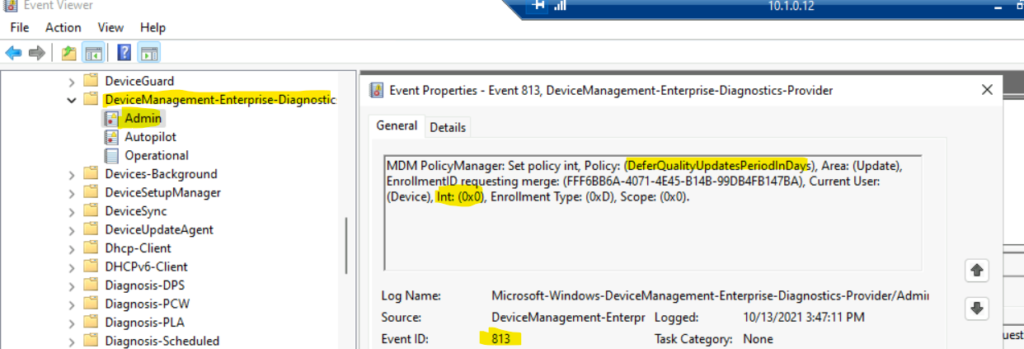
The event log details are useful in troubleshooting patch deployment issues for WIndows 11 PCs using Intune and WUfB. Event Logs -> Microsoft->Windows->DeviceManagement-> Enterprise-Diagnostics-Provider/Admin.
EVENT ID 813 (Integer) – MDM PolicyManager: Set policy int, Policy: (DeferQualityUpdatesPeriodInDays), Area: (Update), EnrollmentID requesting merge: (FFF6BB6A-4071-4E45-B14B-99DB4FB147BA), Current User: (Device), Int: (0x0), Enrollment Type: (0xD), Scope: (0x0).
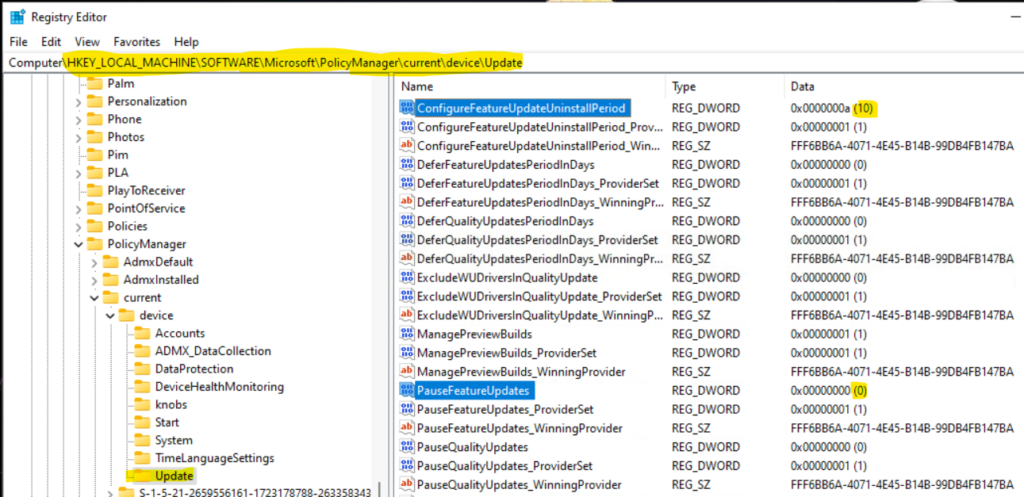
Registry Path that you can verify and confirm whether the policies are assigned or not -> Computer\HKEY_LOCAL_MACHINE\SOFTWARE\Microsoft\PolicyManager\current\device\Update
The following are the two sample registry entries to confirm that the policy you have configured in the above section was successfully applied on Windows 11 PCs.
- ConfigureFeatureUpdateUninstallPeriod -> 10 Days
- PauseFeatureUpdates -> 0 Days
Results
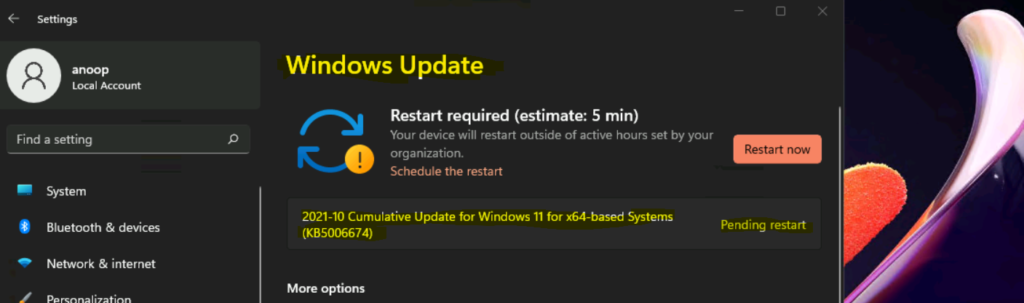
You can launch Settings apps from Windows 11 Start menu and navigate to the Windows Update page to confirm the Windows 11 update is made available for the device.
2021-10 Cumulative Update for Windows 11 for x64-based Systems (KB5006674) is available, and it’s already downloaded + Installed on the Windows 11 PC managed using Intune. You can click on Restart Now button to complete the Windows 11 LCU (Latest Cumulative Update) deployment process.
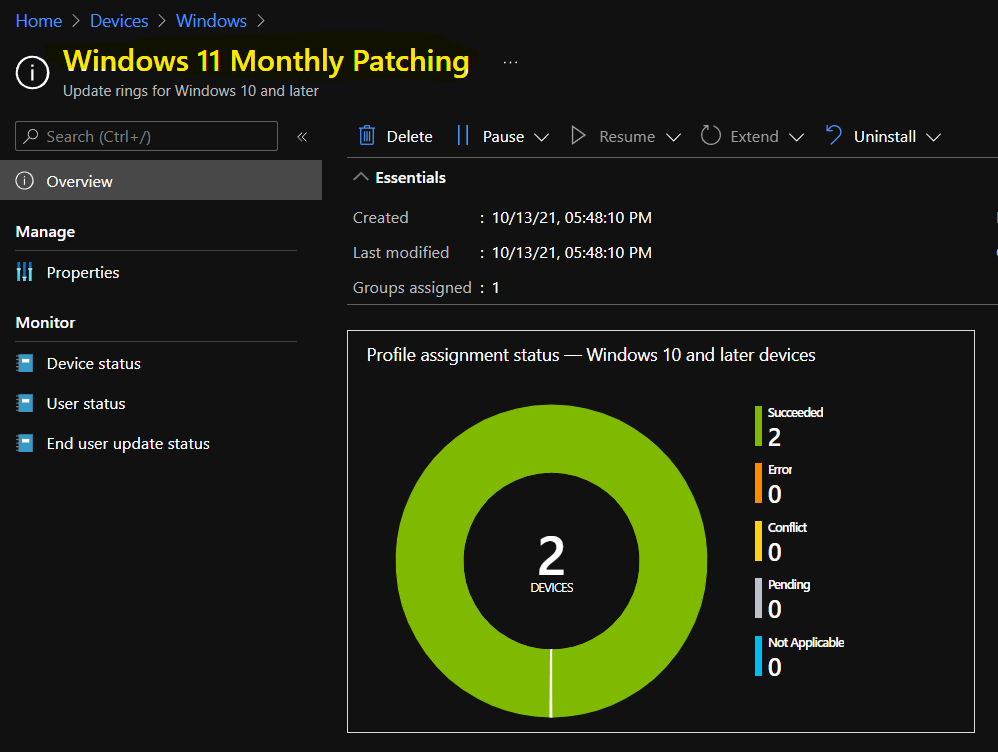
You can confirm the Windows 11 patch installation compliance reports from Update Compliance. Also, you can verify the policy deployment details from Intune MEM admin center portal.


This is all good but what about compliance report. How will as an organization i would know what patches got installed and whats our security compliance.
StaffThanks …what about the point mentioned about update compliance for patch compliance report Devraj 🙂