






Turn off Advertising ID Using Intune
In this post, You will learn the steps to turn off Advertising ID using Intune, aka Endpoint Manager. On Windows, every user account gets a unique identifier, known as the advertising ID, that tracks and collects their activities, which advertisers and developers can use to show targeted ads in apps.
The advertising ID setting applies to Windows apps using the Windows advertising identifier. The advertising ID setting does not apply to other methods of interest-based advertising delivered by Microsoft or third parties, such as cookies used to provide interest-based display ads on websites.
If you are tracking user activity for advertising purposes, even anonymously, may be a privacy concern. In an enterprise managed environment, applications should not need or require tracking for targeted advertising. If the advertising ID is turned off. Apps can’t use the ID for experiences across apps.
- Interactive Logon Do Not Display Last Signed In User Name Using Intune
- Enable Interactive Logon CTRL ALT DEL Using Intune
- Hide Change Account Settings Using Intune
What is Advertising ID?
Windows generates a unique advertising ID for each user on a device, which app developers and advertising networks can then use for their own purposes, including providing more relevant advertising in apps. When the advertising ID is enabled, apps can access and use it in much the same way that websites can access and use a unique identifier stored in a cookie.

Thus, app developers (and the advertising networks they work with) can associate personal data they collect about you with your advertising ID and use that personal data to provide more relevant advertising and other personalized experiences across their apps.
Turn off Advertising ID Using Intune
Let’s follow the below steps to Turn off Advertising ID using Intune –
- Sign in to the https://endpoint.microsoft.com/
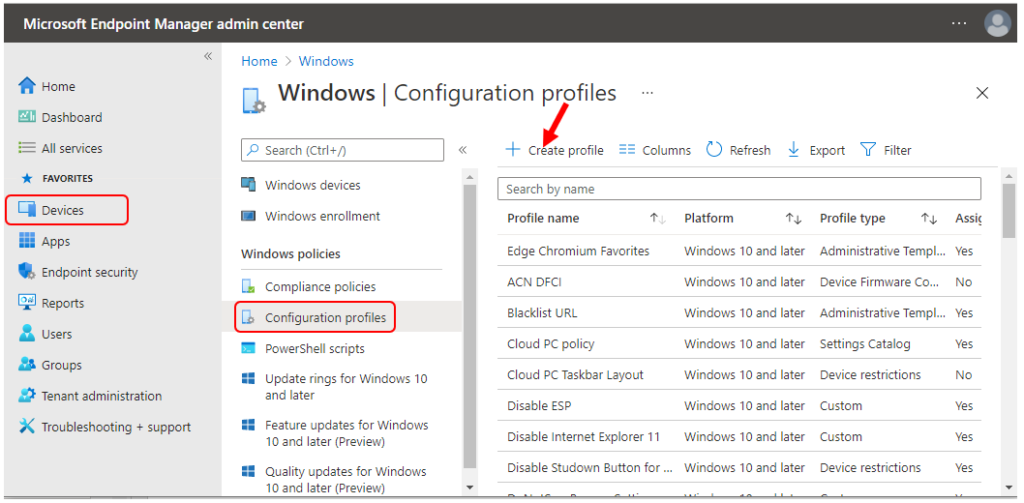
- Select Devices > Windows > Configuration profiles > Create profile
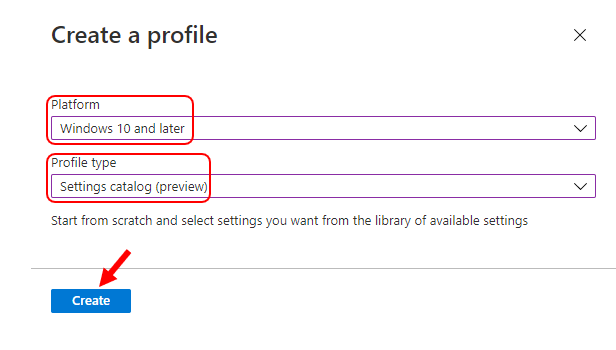
In Create a profile, Select Platform, Windows 10, and later and Profile, Select Profile Type as Settings catalog. Click on Create button.
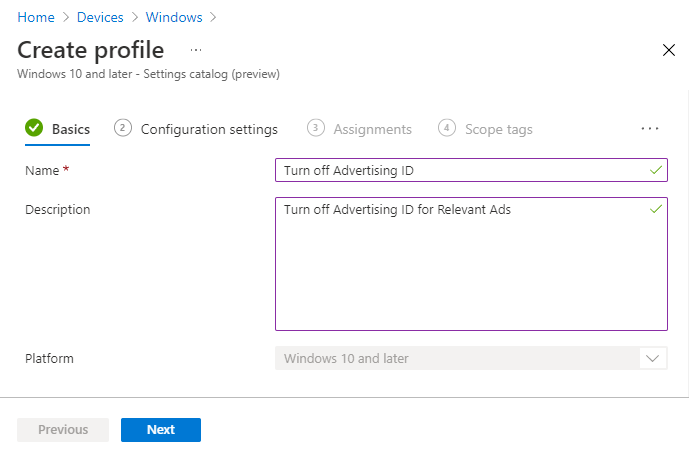
On the Basics tab, enter a descriptive name, such as Turn off Advertising ID. Optionally, enter a Description for the policy, then select Next.
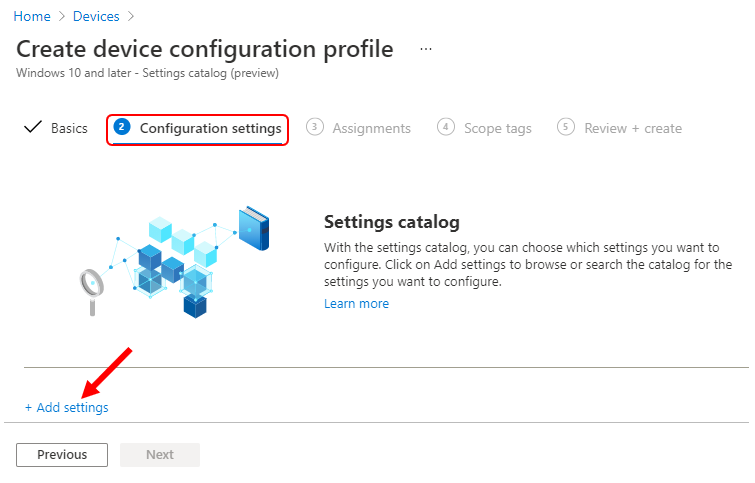
In Configuration settings, click Add settings.
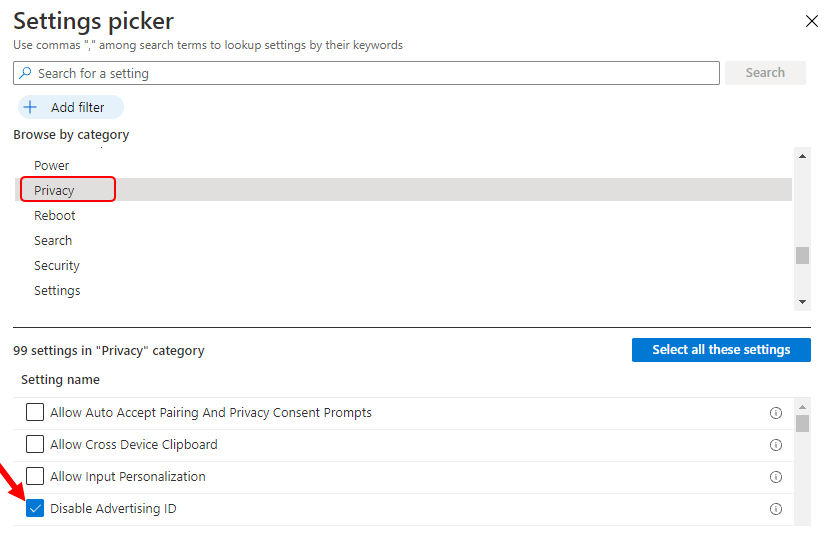
On the Settings Picker windows, Select Privacy to see all the settings in this category. Select Disable Advertising ID below. After adding your settings, click the cross mark at the right-hand corner to close the settings picker.
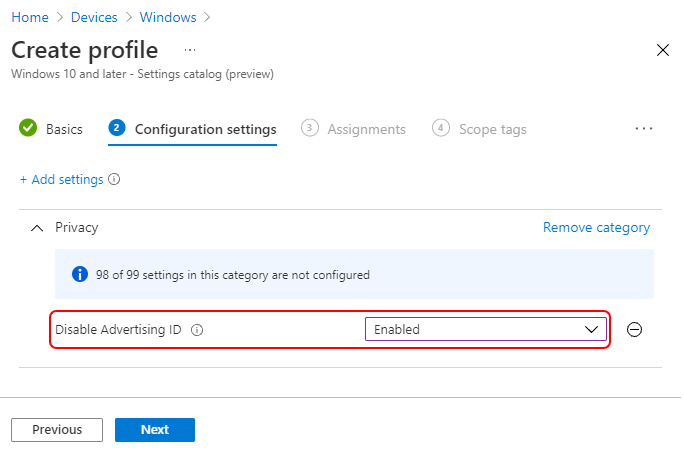
The setting is shown and configured with a default value Disabled. Set Disable Advertising ID to Enabled. Click Next.
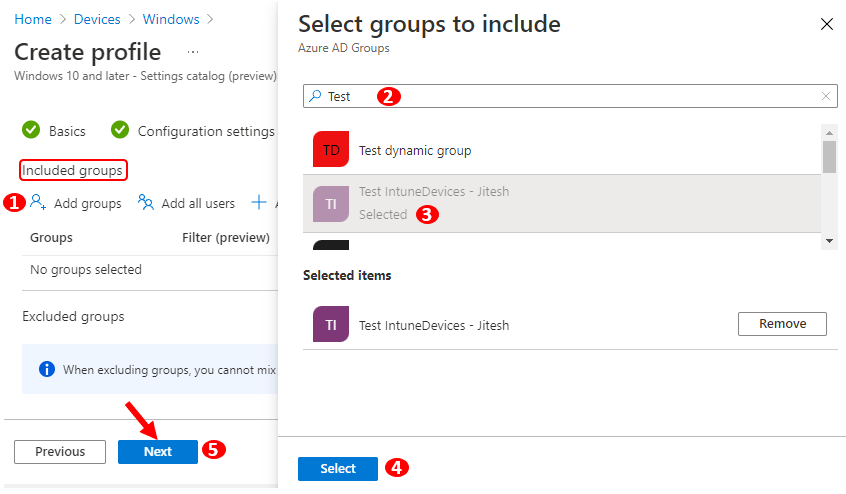
Under Assignments, In Included groups, click Add groups and then choose Select groups to include one or more groups. Click Next to continue.
In Scope tags, you can assign a tag to filter the profile to specific IT groups. Add scope tags (if required) and click Next.
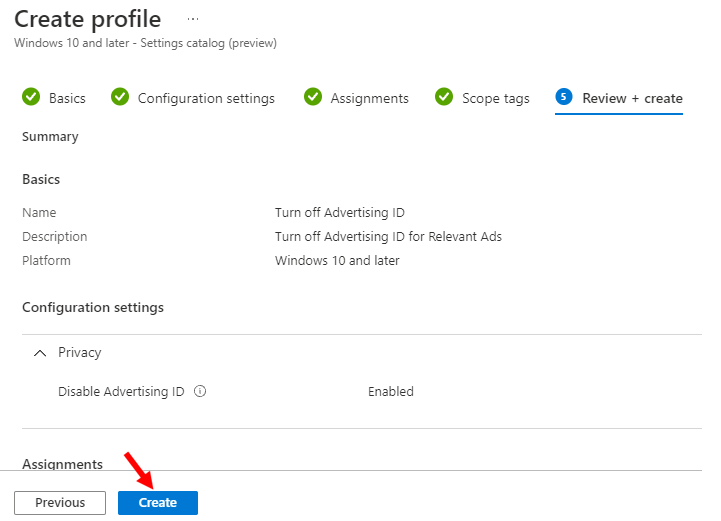
In Review + create, review your settings. When you select Create, your changes are saved, and the profile is assigned.
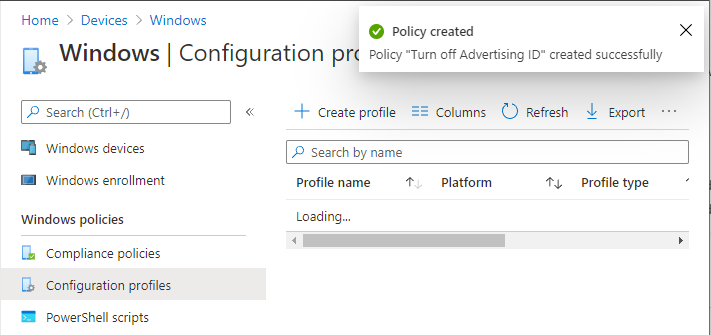
A notification will appear automatically in the top right-hand corner with a message. Here you can see, Policy “Turn off Advertising ID” created successfully. The policy is also shown in the Configuration profiles list.
Your groups will receive your profile settings when the devices check-in with the Intune service. Once the policy applies to the devices, the advertising ID will be turned off. Apps can’t use the ID for experiences across apps.
Author
About Author -> Jitesh has over 5 years of working experience in the IT Industry. He writes and shares his experiences related to Microsoft device management technologies and IT Infrastructure management. His primary focus area is Windows 10 Deployment solution with Configuration Manager, Microsoft Deployment Toolkit (MDT), and Microsoft Intune.


Discussion