






Deploy Microsoft Edge WebView2 Using SCCM ConfigMgr
Let’s check how to deploy Microsoft Edge WebView2 Using SCCM (a.k.a Configuration Manager). The Microsoft Edge WebView2 control allows you to embed web technologies (HTML, CSS, and JavaScript) in your native apps. The WebView2 control uses Microsoft Edge as the rendering engine to display the web content in native apps.
By default, WebView2 is evergreen and receives automatic updates to stay on the latest and most secure platform. With WebView2, you can embed web code in different parts of your native app, or build all of the native apps within a single WebView instance. After the WebView2 Runtime is installed, it doesn’t appear as a user-visible browser app.
Microsoft Edge WebView2 Benefits –
- Web ecosystem & skillset – Utilize the entire web platform, libraries, tooling, and talent that exists within the web ecosystem.
- Rapid innovation – Web development allows for faster deployment and iteration.
- Evergreen distribution – Rely on an up-to-date version of Chromium with regular platform updates and security patches
- Code-sharing – Add web code to your codebase allows for increased reuse across multiple platforms.
- Native capabilities – Access the full set of Native APIs.
Download Microsoft Edge WebView2 Runtime
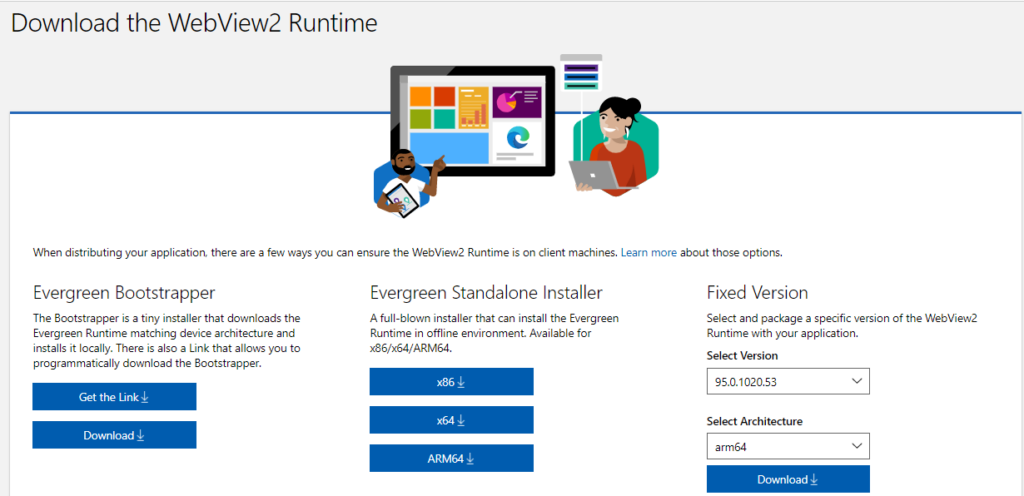
You can browse to Microsoft Edge WebView2 official page to download the latest available version. There you will see the application available in below three categories based on your requirement, Proceed to download the setup file –

- Evergreen Bootstrapper – The Bootstrapper is a tiny installer that downloads the Evergreen Runtime matching device architecture and installs it locally.
- Evergreen Standalone Installer – A full-blown installer that can install the Evergreen Runtime in offline environment. Available for x86/x64/ARM64.
- Fixed Version – Select and package a specific version of the WebView2 Runtime with your application.
Create Microsoft Edge WebView2 Application Using SCCM
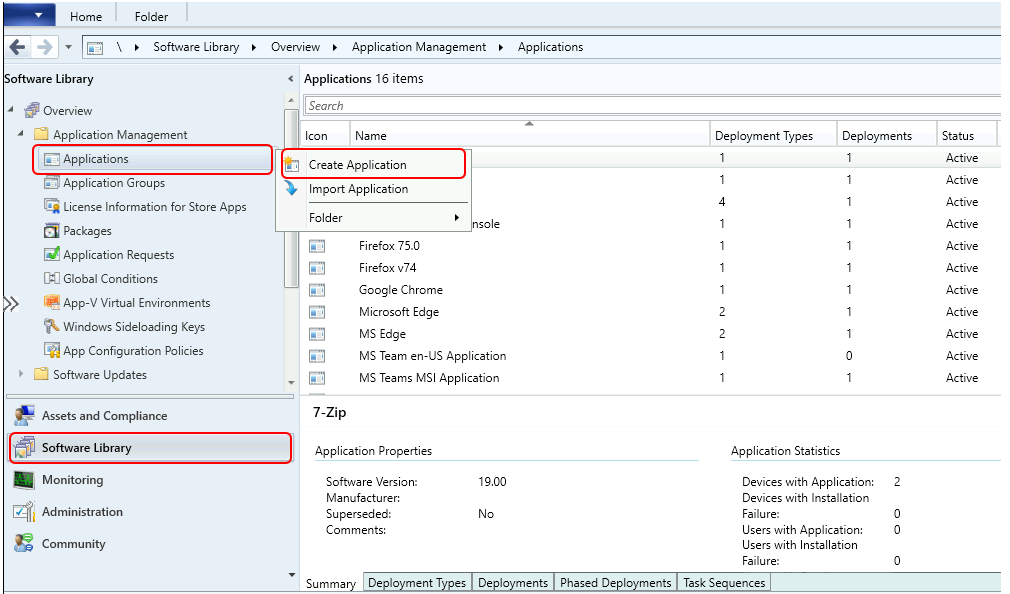
- Launch ConfigMgr Console, Navigate to \Software Library\Overview\Application Management\Applications.
- Right Click on the Applications node, Select Create Application for Microsoft Edge Webview2 Runtime.
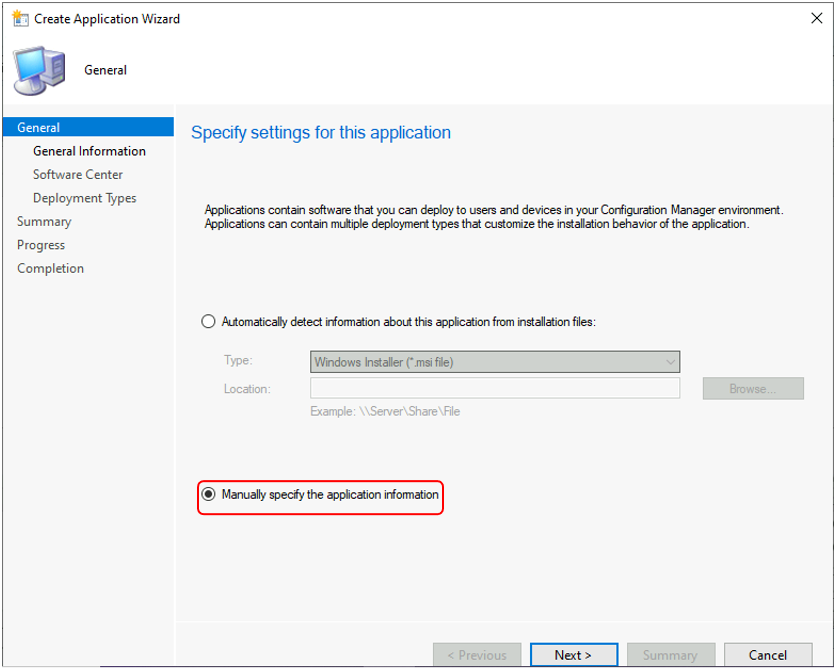
On the General page of the Create Application Wizard, select Manually specify the application information. Click Next.
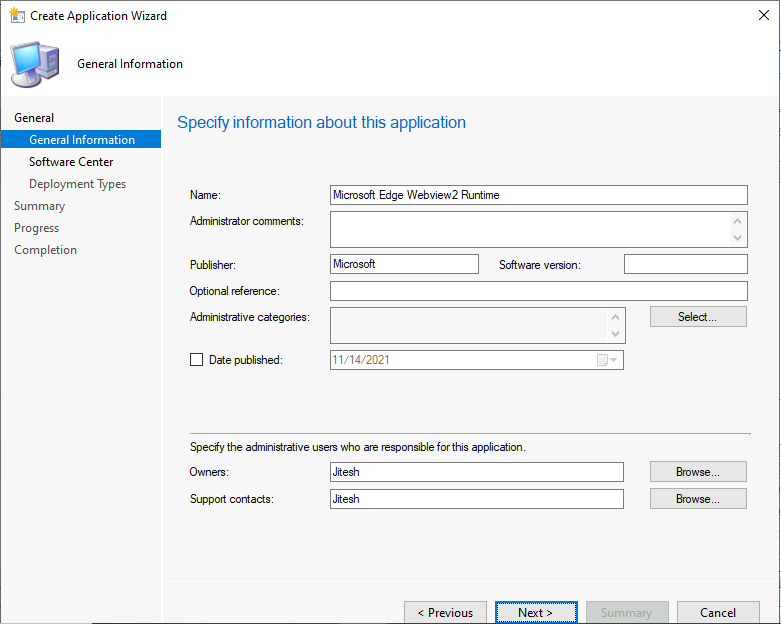
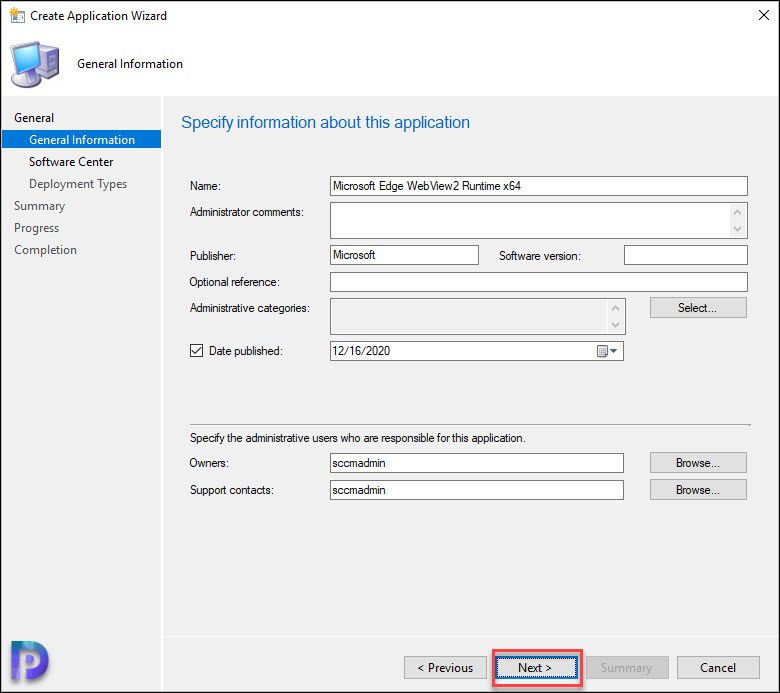
Specify the information about the application. Enter the name of the application, Publisher Name, and click on Next.
In the Software Center tab, Click on Browse to select the Software Center Icon. You can also add it later, For more information about uploading icons, check Easy Steps Software Center Icon for SCCM Application Deployment | ConfigMgr | Endpoint Manager.
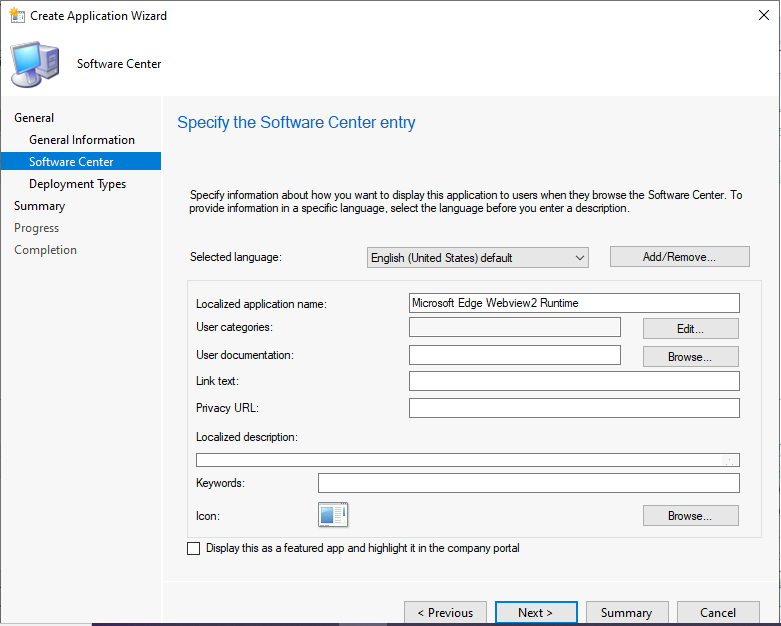
On the Deployment Types page, click Add. Let’s check the SCCM Application Supported Deployment Types in Configuration Manager.
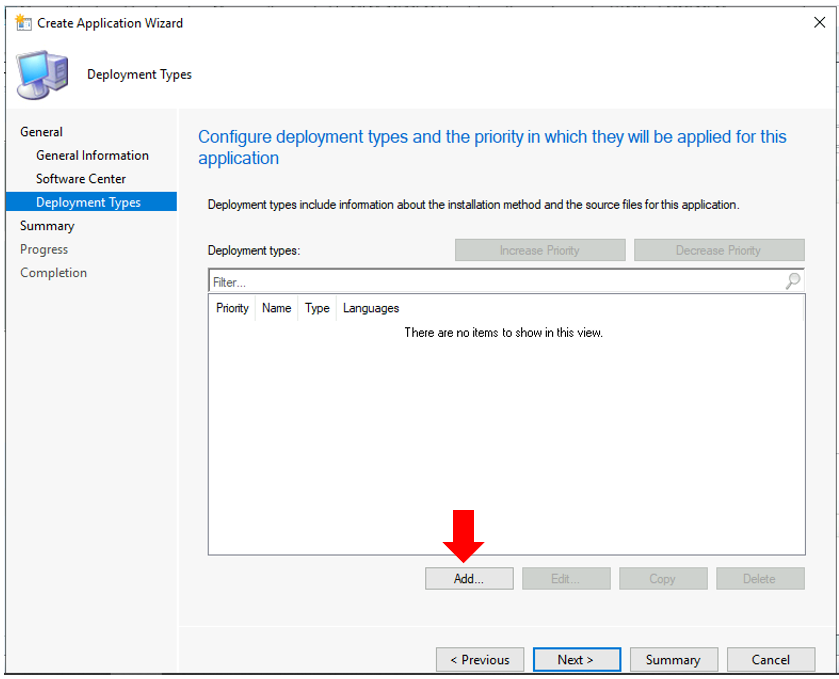
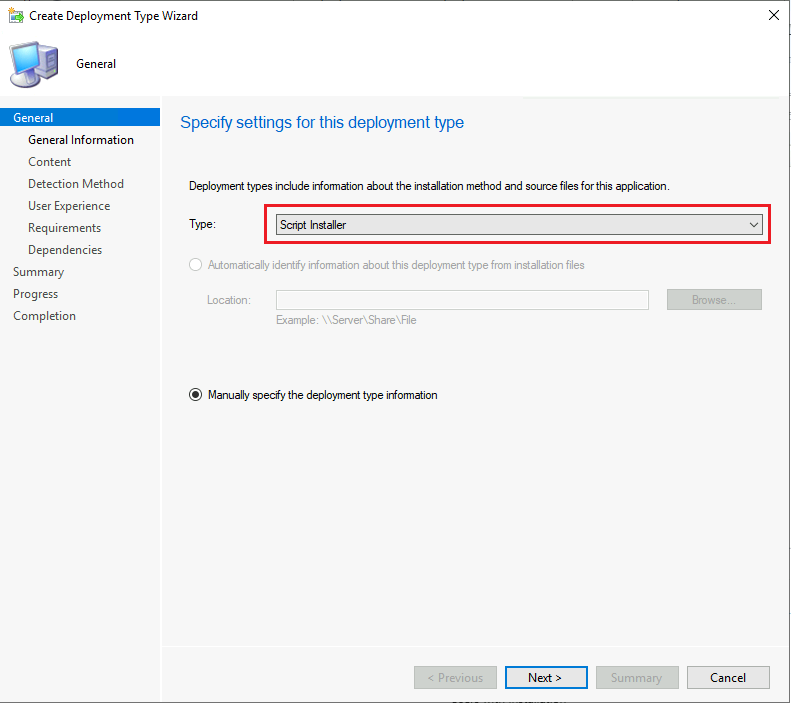
Here you can choose the option and specify general information about the application deployment type. Specify the settings for this deployment type and click Next –
- Type of the Application – Script Installer
- Manually specify the deployment type information option will be auto selected
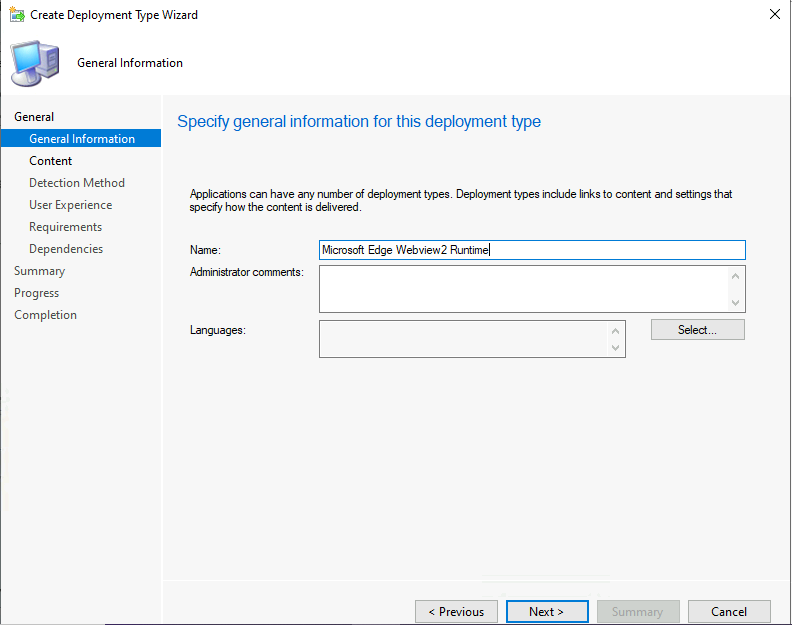
- Specify general information Name, Language for this deployment type. Click on Next to continue
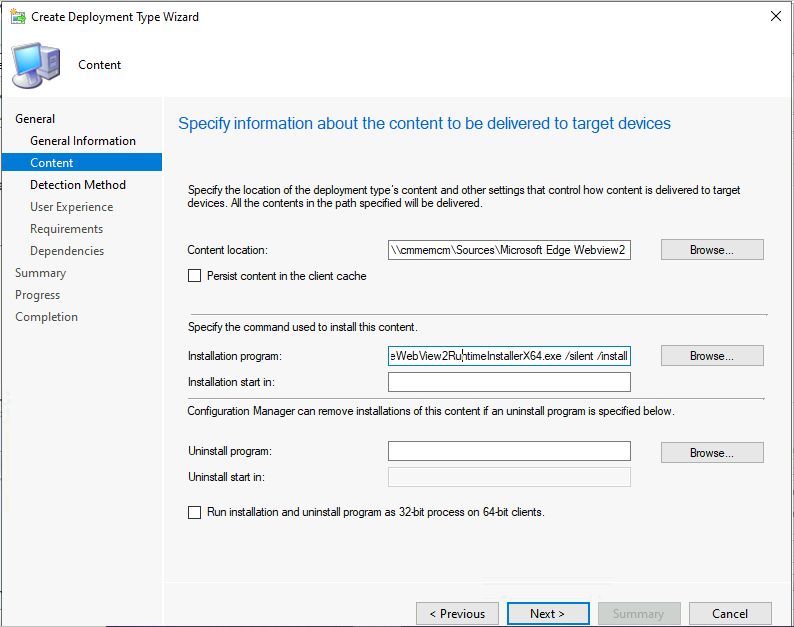
- On Content page, Specify the Content location of this deployment type
- Installation program – “MicrosoftEdgeWebView2RuntimeInstallerX64.exe” /silent /install
Uninstallation program -

if exist "%programfiles%\Microsoft\EdgeWebView\Application\95.0.1020.53\Installer\setup.exe" "%programfiles%\Microsoft\EdgeWebView\Application\95.0.1020.53\Installer\setup.exe" --uninstall --msedgewebview --system-level --verbose-logging --force-uninstall

if exist "%programfiles(x86)%\Microsoft\EdgeWebView\Application\95.0.1020.53\Installer\setup.exe" "%programfiles(x86)%\Microsoft\EdgeWebView\Application\95.0.1020.53\Installer\setup.exe" --uninstall --msedgewebview --system-level --verbose-logging --force-uninstall
- Click on NEXT to continue
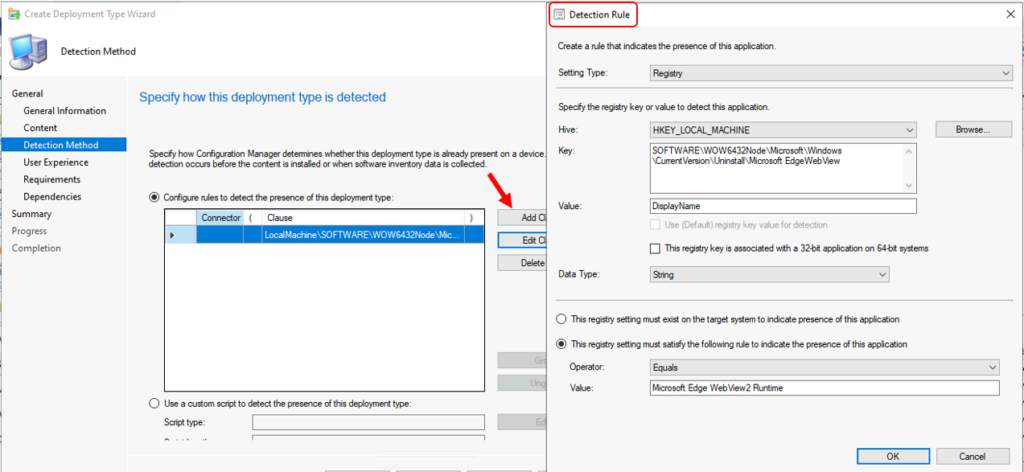
- Specify the Detection Method of this deployment type –
Setting Type : Registry
Hive : HKEY_LOCAL_MACHINE
Key : SOFTWARE\WOW6432Node\Microsoft\Windows\CurrentVersion\Uninstall\Microsoft EdgeWebView
Value : DisplayName
Data Type : String
Operator : equal
Value : Microsoft Edge WebView2 Runtime
Note – I have seen in the internal testing, By default, WebView2 receives automatic updates resultant changes version in 2-3 rounds of testing. Since adding the version as detection, the application was not detected after installation SCCM Application Installation Failed 0x87D00324. In this case, I’m using DisplayName as detection. However, you add multiple detections.
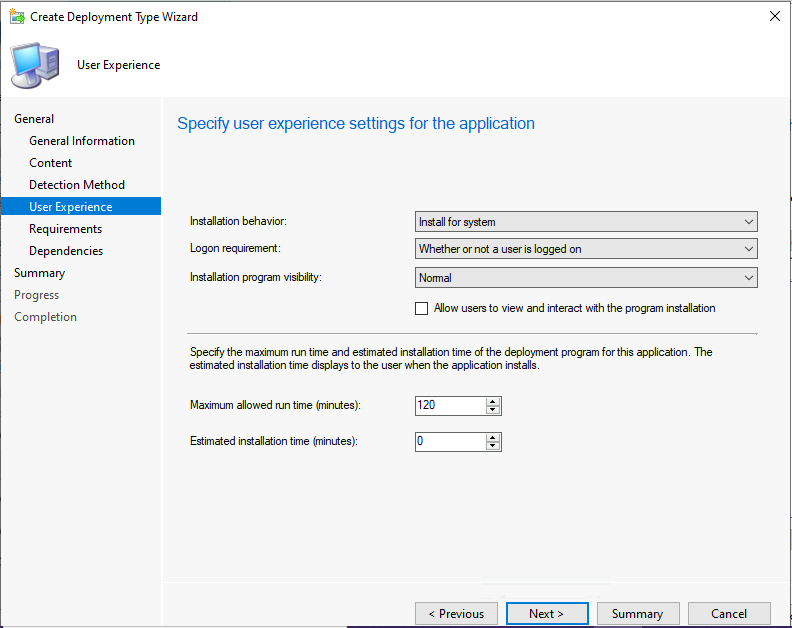
- Specify the User Experience of this deployment type
- Installation behavior – Install for sysytem
- Logon requirement – Whether or not a user is logged on
- Installation program visibility – Normal
- Click on NEXT to continue
Let’s learn how to define All Users or A User SCCM app deployment type using user experience settings.
- Click on Next to continue on the Requirements page
- If needed, You can select the Software Dependencies. Click the Next to Continue.
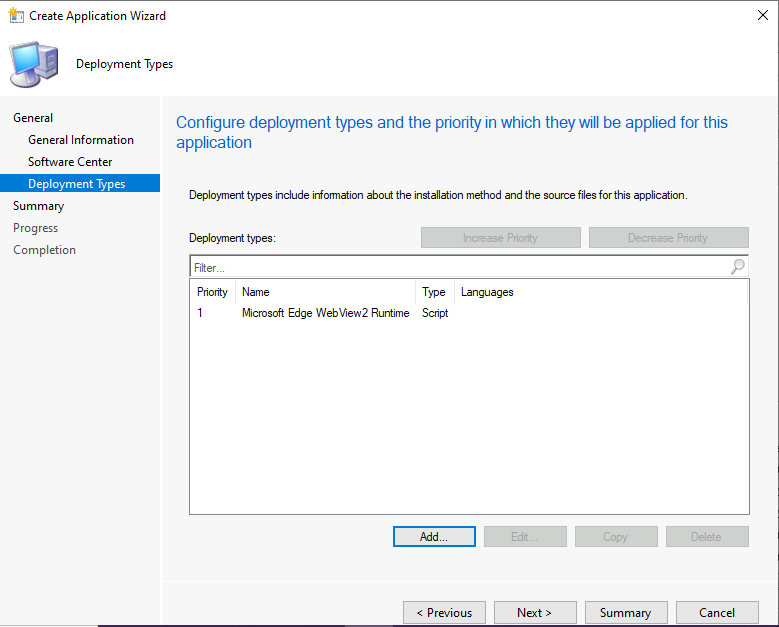
Here you can see deployment types added for this application, Click Next.
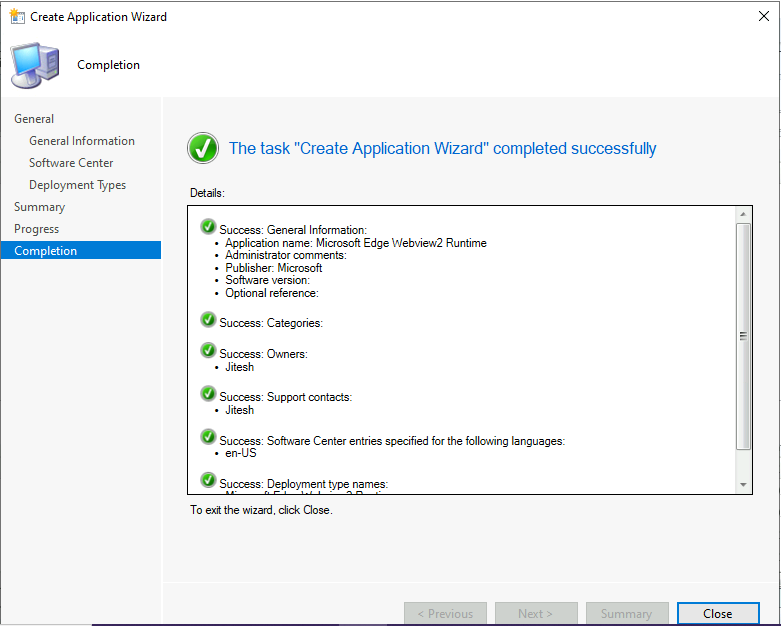
The task “Create Application Wizard” completed successfully. Click Close to complete the application creation process.
The new Microsoft Edge Webview2 Runtime application now appears in the Applications node of the Configuration Manager console. You’ve finished creating an application.
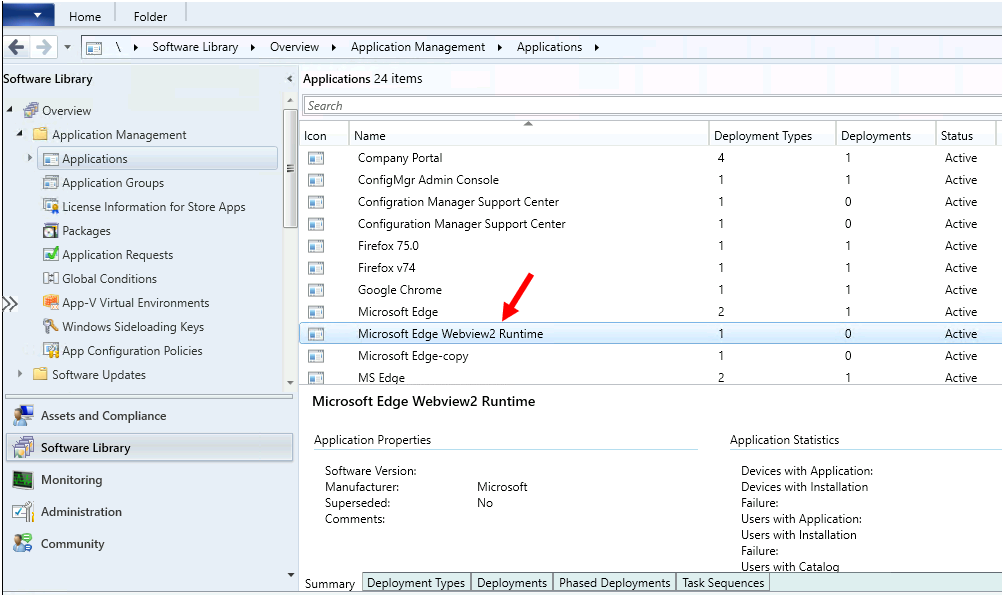
After you create an application, edit it as needed. You can add or change deployment types and add Icons, metadata, detection methods, dependencies, or requirements.
Deploy Microsoft Edge WebView2 Using SCCM
Let’s check the steps to deploy Microsoft edge webview2 using sccm –
- Navigate to \Software Library\Overview\Application Management\Applications
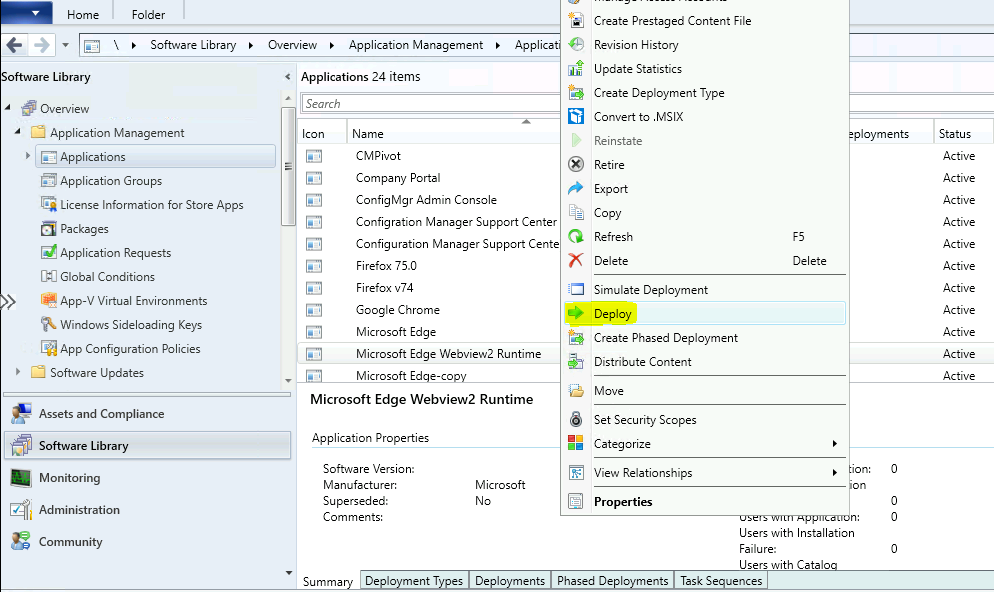
- Right-click on the Microsoft Edge Webview2 Runtime application that we created in the above section. Select Deploy.
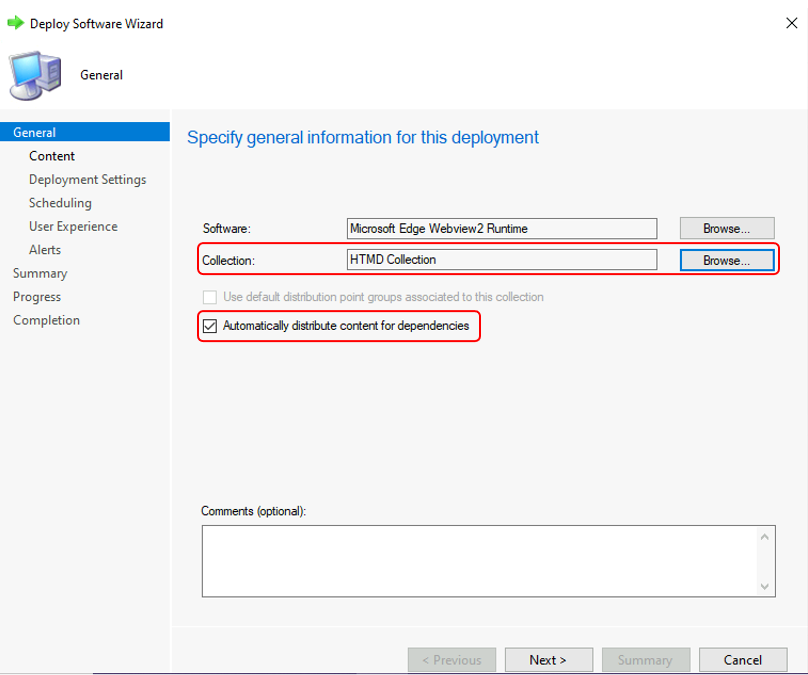
On General Page, click Browse to specify the device collection to which you want to deploy the support center. Click Next.
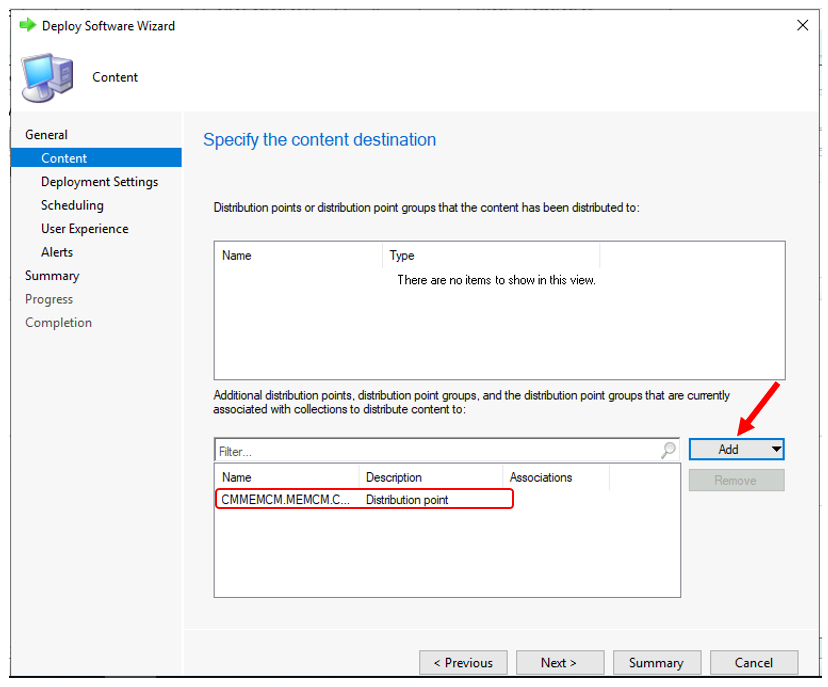
- Click on Add to specify the Distribution Point server to distribute the Source files of Support Center application, Select available DP, and Click OK. Click Next.
Note – If the application content is already distributed, then they appear here.
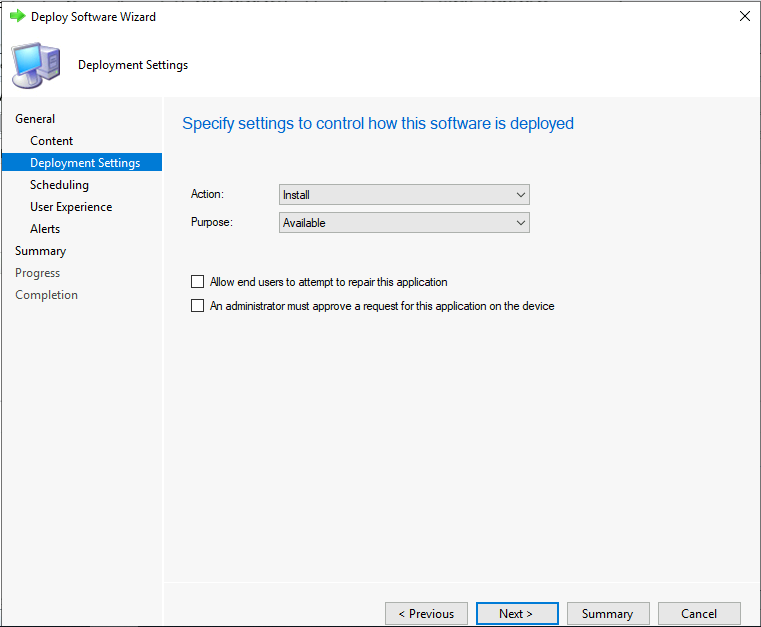
- On the Deployment Settings , select the Purpose of the deployment. Click Next.
Action – From the drop-down list, choose whether this deployment is to Install or Uninstall the application.


Purpose: From the drop-down list, choose one of the following options:

Available: The user sees the application in Software Center. They can install it on demand.
Required: The client automatically installs the app according to the schedule that you set.
- On the Scheduling tab, you can specify the schedule when this application is deployed or available to client devices.
- On User Experience tab, leave the default selected options.
- On the Alerts page, Click Next.
- Review the selected options and click Next.
- Deploy Software Wizard completed successfully. Click Close.
Verify the content distribution – In the summary tab, under Content status. If the content distribution were successful, it would appear with Green color as shown.
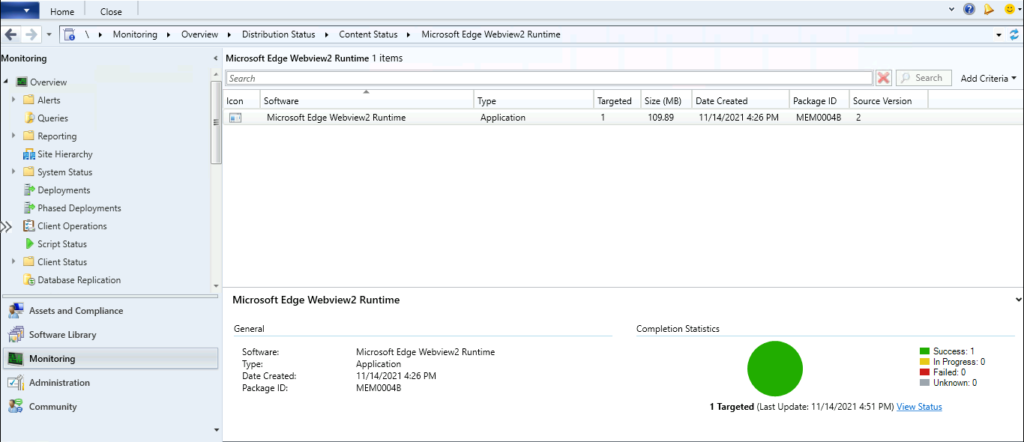
Results – Microsoft Edge Webview2 Runtime
- In the target device, launch the Software Center. In the Applications tab Software Center shows the Microsoft Edge Webview2 Runtime application as available. Click on the Install button to start the installation.
You can specify the Estimated installation time for SCCM Application. The estimated installation time displays to the user when an application installs.
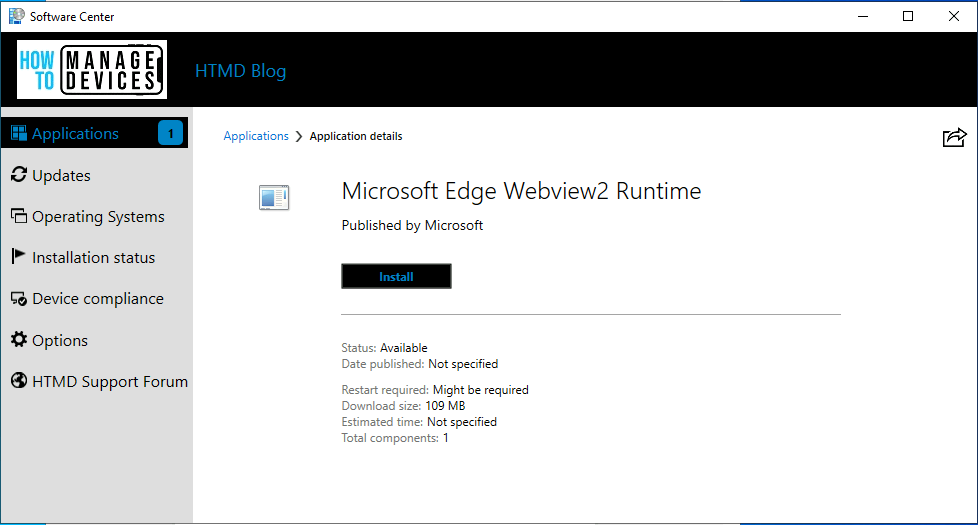
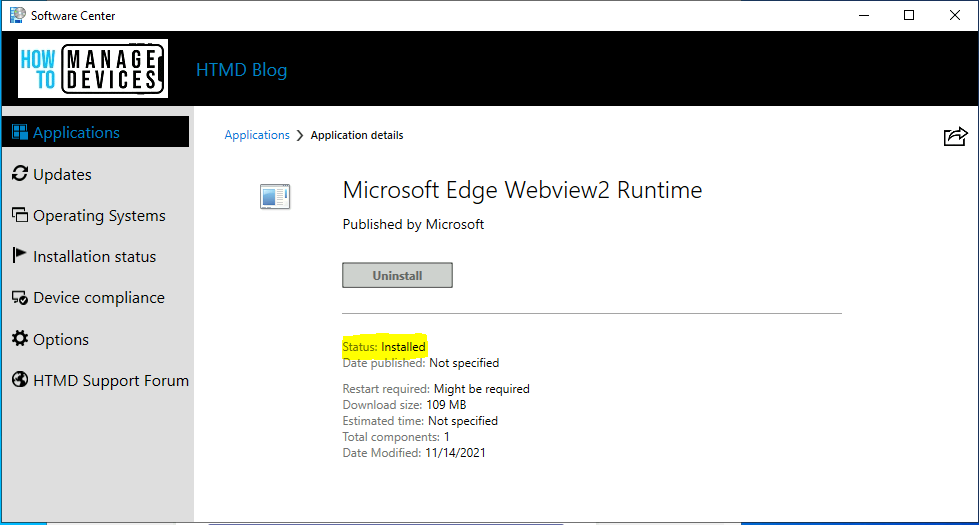
After successful installation, Software Center shows Microsoft Edge Webview2 application successfully Installed on the Windows 10 Device. You can also verify the installation status from the Control Panel > Program and Features.
To monitor the Microsoft Edge Webview2 installation, on the client computer verify the AppEnforce.log file located in C:\Windows\CCM\Logs folder. You will be able to see the entries like this –
<![LOG[+++ Starting Install enforcement for App DT "Microsoft Edge WebView2 Runtime X64" ApplicationDeliveryType - ScopeId_1074285A-82C7-474F-B242-1EE20F8C3CE5/DeploymentType_638c479e-4017-4a3a-a22b-66f3a816dcbb>
<![LOG[    Performing detection of app deployment type Microsoft Edge WebView2 Runtime X64(ScopeId_1074285A-82C7-474F-B242-1EE20F8C3CE5/DeploymentType_638c479e-4017-4a3a-a22b-66f3a816dcbb, revision 1) for system.]LOG]!>
<![LOG[+++ Application not discovered. [AppDT Id: ScopeId_1074285A-82C7-474F-B242-1EE20F8C3CE5/DeploymentType_638c479e-4017-4a3a-a22b-66f3a816dcbb, Revision: 1]]LOG]!>
<![LOG[    App enforcement environment:
	Context: Machine
	Command line: "MicrosoftEdgeWebView2RuntimeInstallerX64.exe" /silent /install
	Allow user interaction: No
	UI mode: 1
	User token: null
	Session Id: 2
	Content path: C:\windows\ccmcache\3a
	Working directory: ]LOG]!><time="17:54:48.273+00" date="11-14-2021" component="AppEnforce" context="" type="1" thread="9420" file="appcontext.cpp:85">
<![LOG[    Prepared working directory: C:\windows\ccmcache\3a]LOG]!><time="17:54:48.277+00" date="11-14-2021" component="AppEnforce" context="" type="1" thread="9420" file="appcontext.cpp:189">
<![LOG[    Prepared command line: "C:\windows\ccmcache\3a\MicrosoftEdgeWebView2RuntimeInstallerX64.exe" /silent /install]LOG]!><time="17:54:48.864+00" date="11-14-2021" component="AppEnforce" context="" type="1" thread="9420" file="appcontext.cpp:338">
<![LOG[    Executing Command line: "C:\windows\ccmcache\3a\MicrosoftEdgeWebView2RuntimeInstallerX64.exe" /silent /install with user context]LOG]!><time="17:54:48.865+00" date="11-14-2021" component="AppEnforce" context="" type="1" thread="9420" file="appexcnlib.cpp:203">
<![LOG[    Working directory C:\windows\ccmcache\3a]LOG]!><time="17:54:48.865+00" date="11-14-2021" component="AppEnforce" context="" type="1" thread="9420" file="appexcnlib.cpp:217">
<![LOG[CreateProcessAsUser is called with system account. Check if system temp re-direction is needed.]LOG]!><time="17:54:48.867+00" date="11-14-2021" component="AppEnforce" context="" type="0" thread="9420" file="util.cpp:5038">
<![LOG[    Post install behavior is BasedOnExitCode]LOG]!><time="17:54:48.949+00" date="11-14-2021" component="AppEnforce" context="" type="1" thread="9420" file="appcommon.cpp:1054">
<![LOG[Raising ETW event 20001]LOG]!><time="17:54:48.950+00" date="11-14-2021" component="AppEnforce" context="" type="0" thread="9420" file="Event.cpp:1868">
<![LOG[Raised ETW event 20001]LOG]!><time="17:54:48.951+00" date="11-14-2021" component="AppEnforce" context="" type="0" thread="9420" file="Event.cpp:1894">
<![LOG[    Waiting for process 6628 to finish.  Timeout = 120 minutes.]LOG]!><time="17:54:48.955+00" date="11-14-2021" component="AppEnforce" context="" type="1" thread="9420" file="appexcnlib.cpp:2014">
<![LOG[    Process 6628 terminated with exitcode: 0]LOG]!><time="17:55:52.662+00" date="11-14-2021" component="AppEnforce" context="" type="1" thread="9420" file="appexcnlib.cpp:2023">
<![LOG[    Looking for exit code 0 in exit codes table...]LOG]!><time="17:55:52.664+00" date="11-14-2021" component="AppEnforce" context="" type="1" thread="9420" file="appexcnlib.cpp:510">
<![LOG[    Matched exit code 0 to a Success entry in exit codes table.]LOG]!><time="17:55:52.665+00" date="11-14-2021" component="AppEnforce" context="" type="1" thread="9420" file="appexcnlib.cpp:589">
<![LOG[    Performing detection of app deployment type Microsoft Edge WebView2 Runtime X64(ScopeId_1074285A-82C7-474F-B242-1EE20F8C3CE5/DeploymentType_638c479e-4017-4a3a-a22b-66f3a816dcbb, revision 1) for system.]LOG]!><time="17:55:52.703+00" date="11-14-2021" component="AppEnforce" context="" type="1" thread="9420" file="appprovider.cpp:2539">
<![LOG[+++ Discovered application [AppDT Id: ScopeId_1074285A-82C7-474F-B242-1EE20F8C3CE5/DeploymentType_638c479e-4017-4a3a-a22b-66f3a816dcbb, Revision: 1]]LOG]!><time="17:55:52.748+00" date="11-14-2021" component="AppEnforce" context="" type="1" thread="9420" file="localapphandler.cpp:287">
<![LOG[++++++ App enforcement completed (64 seconds) for App DT "Microsoft Edge WebView2 Runtime X64" [ScopeId_1074285A-82C7-474F-B242-1EE20F8C3CE5/DeploymentType_638c479e-4017-4a3a-a22b-66f3a816dcbb], Revision: 1, User SID: ] ++++++]LOG]!><time="17:55:52.750+00" date="11-14-2021" component="AppEnforce" context="" type="1" thread="9420" file="appprovider.cpp:2843">
Author
About Author -> Jitesh has over 5 years of working experience in the IT Industry. He writes and shares his experiences related to Microsoft device management technologies and IT Infrastructure management. His primary focus area is Windows 10, Windows 11 Deployment solution with Configuration Manager, Microsoft Deployment Toolkit (MDT), and Microsoft Intune.




Discussion