






Easy Steps to Export SCCM Task Sequence
In this post, you will learn how to export SCCM task sequence. After preparing or deploying a task sequence, you can export ConfigMgr task sequence that helps you to get a list of all associated steps and content based on your selection of all task sequences.
The exported task sequences can be imported to another environment instead of creating them from scratch that will be a time-saver for SCCM Admin and reduce the manual efforts, error in the production environment in case you wanted to shift from the test environment to production.
You can export and import task sequences with or without their related objects. This referenced content includes the following objects –
- OS images – Operating System Image (Windows 10 or Windows 11)
- Boot images – This could be either default boot images or custom boot images.
- Packages like the client install package – The package that install the SCCM client during OSD.
- Driver packages – The driver packages associated with task sequence, contain the drivers for different hardware models.
- Applications with dependencies – The applications that you added to Task Sequence.
- Other task sequences referenced with the Run task sequence step – A run task sequence step includes the other task sequence that you can add to the main task sequence.
You can export a task sequence either from the Configuration Manager console or use PowerShell cmdlet Export-CMTaskSequence to export a task sequence from Configuration Manager.

If you want to export the task sequence with content, change -WithContent set this parameter to $true to export all content for the task sequence and dependencies and -WithDependence set this parameter to $true to export all task sequence dependencies.
- Easy Ways to Suppress SCCM Task Sequence Notifications
- How to Check ConfigMgr Task Sequence Size | SCCM
- Easy Steps to Disable SCCM Task Sequence Deployment
How to Check Task Sequence Dependencies in SCCM
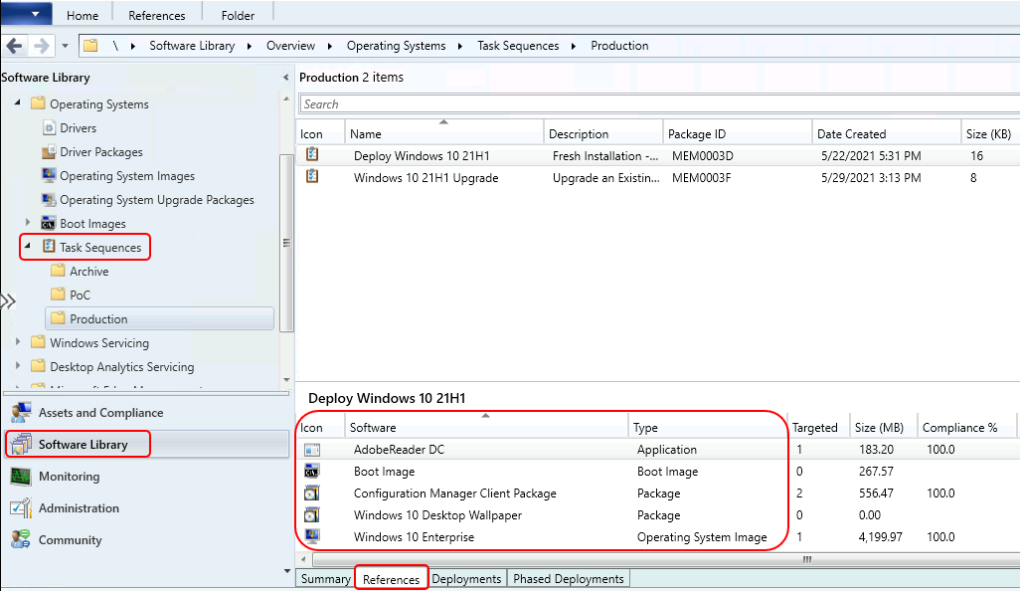
Let’s follow the steps below to check the referenced content added to the task sequence –
- Launch SCCM console. Navigate to Software Library > Operating Systems > Task Sequences.
- Select the Task Sequence from the list and select References tab at bottom.
Here you see the list of referenced content type packages, applications, boot images or OS images details added in task sequence for operating system deployment.
Document Task Sequences📝- Often times, after creating an MDT or SCCM task sequence, you need to document it for yourself or your customers. You can follow the post to create Task Sequence Documentation Automatically
Export SCCM Task Sequence from Configuration Manager Console
You can follow the steps below to export SCCM task sequences using the Configuration Manager console –
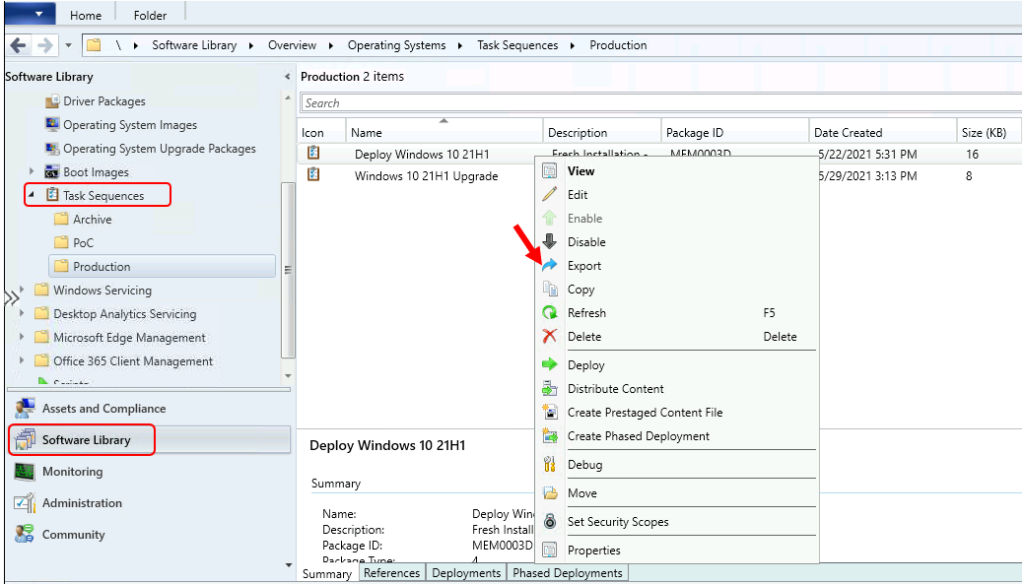
In the Configuration Manager console, go to the Software Library workspace, expand Operating Systems, and then select the Task Sequences node.
In the Task Sequence list, select the task sequences that you want to export. If you select more than one task sequence, they’re all stored in one export file. Select Export. This action starts the Export Task Sequence Wizard.
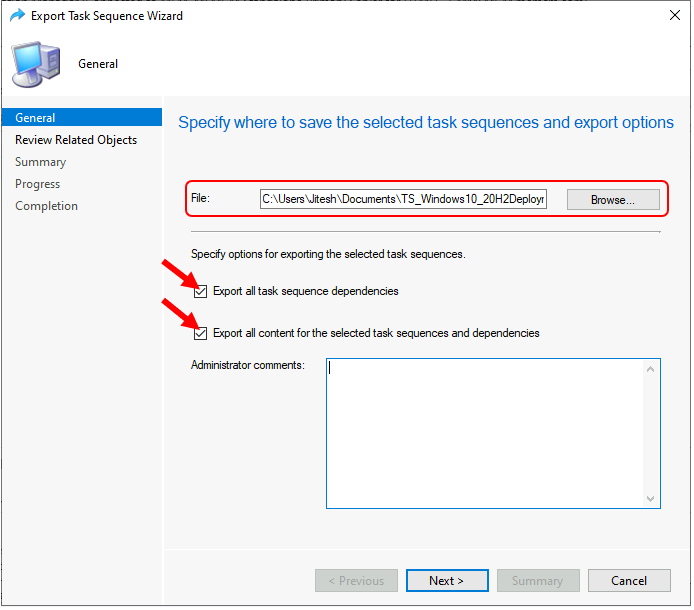
- On the General page, specify the following settings:
- File: Specify the location and name of the export file. If you enter the file name directly, be sure to include the .zip extension to the file name. If you browse for the export file, the wizard automatically adds this file name extension.
If you don’t want to export task sequence dependencies, deselect the option to Export all task sequence dependencies. By default, the wizard scans for all the related objects and exports them with the task sequence. These dependencies include any applications and child task sequences.
If you don’t want to copy the content from the package source to the export location, deselect the option to Export all content for the selected task sequences and dependencies. If you select this option, the Import Task Sequence Wizard uses the import path as the new package source location.
Administrator comments: Add a description of the task sequences to export.
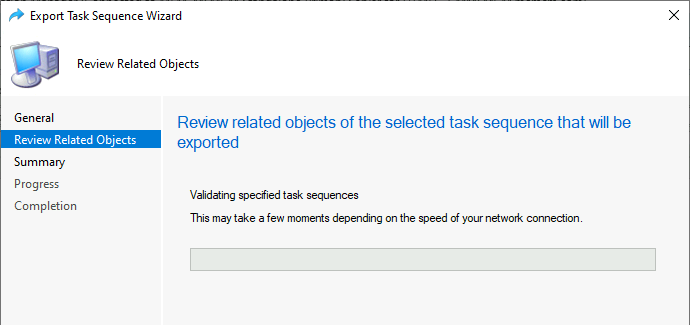
On the Review Relates Objects page, SCCM start validating task sequences that may take a few moments depending on the speed of your network connection.
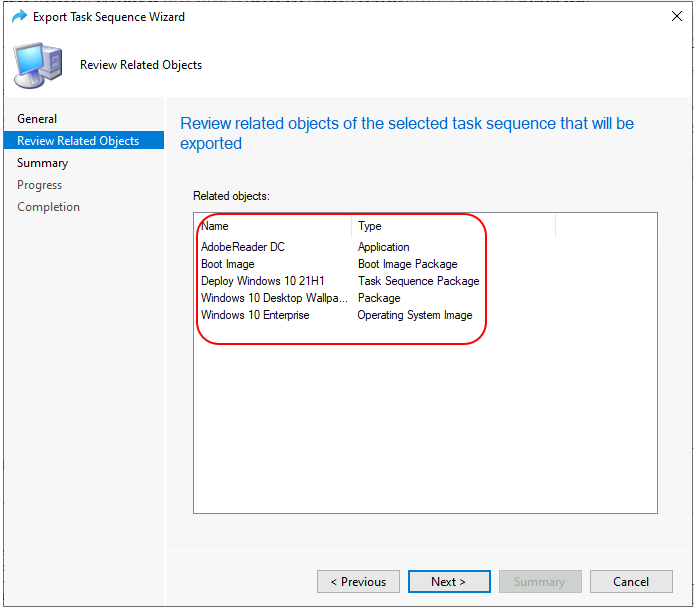
#With Option Selected – Export all content for the task sequence and dependencies.
Once the selected task sequence is validated, You can see the referenced content lists appears. You can review and click Next to continue.
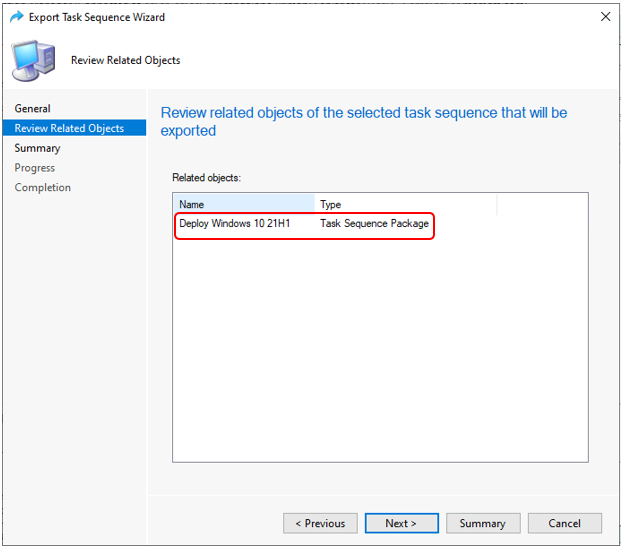
#Without Option – Export all content for the task sequence and dependencies.
Once the selected task sequence is validated, You will not see the referenced content lists as we haven’t selected the option in the below scenario. You can review the task sequence package and click Next to continue.
- On the Summary page, Review the settings. Click Next.
- Wait for a moment, while exporting is in progress. After successfully completion, You will see the prompt The task “Export SCCM Task Sequence Wizard” completed sucessfully. Click Close to exit the wizard.
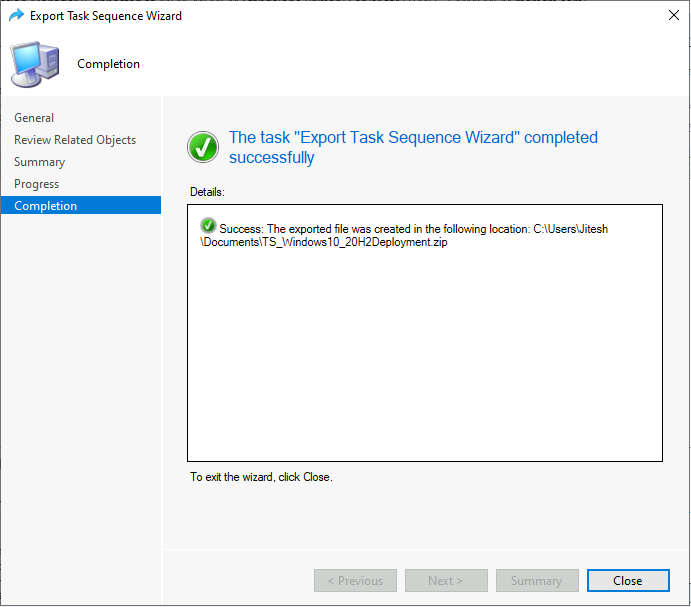
The wizard creates the following output files in a specified file location –
- If you don’t export content: a .zip file.
- If you export content: a .zip file and a folder named export_files, where export is the name of the .zip file that contains the exported content.
If you include content when you export a task sequence, make sure that you copy the .zip file and the export_files folder, or the import fails.
Export SCCM Task Sequence using PowerShell Command
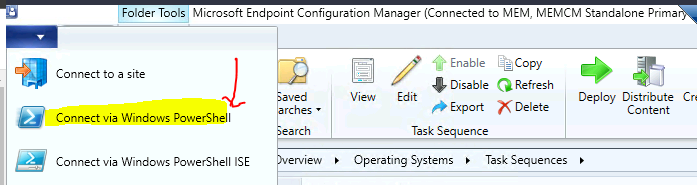
You can use the PowerShell cmdlet Export-CMTaskSequence to export a task sequence in SCCM. You can Launch the SCCM PowerShell Commandlets from the console itself.
Click on the Drop-Down option on the top left side corner of the console and click on Connect via Windows PowerShell option.
If you get the following warning about the untrusted publisher, Type A, and press Enter.
Do you want to run software from this untrusted publisher? File \Program Files\Microsoft Configuration Manager\AdminConsole\bin\Microsoft.ConfigurationManagement.PowerShell.Types.ps1xml is published by CN=Microsoft Corporation, O=Microsoft Corporation, L=Redmond, S=Washington, C=US and is not trusted on your system. Only run scripts from trusted publishers. [V] Never run [D] Do not run [R] Run once [A] Always run [?] Help (default is “D”): A
In the Windows PowerShell windows, Type the following command to export sccm task sequence –
This command gets the task sequence object named Deploy Windows 10 21H1 and uses the pipeline operator to pass the object to Export-CMTaskSequence, which exports the task sequence object to the specified location.
Get-CMTaskSequence -Name "Deploy Windows 10 21H1" | Export-CMTaskSequence -ExportFilePath "D:\Shared\sources\ExportTS.zip"Additionally, You can use two important parameters while exporting the task sequence with PowerShell.
-WithContent : Set this parameter to $true to export all content for the task sequence and dependencies.
-WithDependence : Set this parameter to $true to export all task sequence dependencies.
You can also specify below Parameters while running the task sequence exporting process based on requirements –
- -Comment : Specify an optional administrator comment. This comment displays in the Import Task Sequence Wizard.
- -Confirm : Prompts you for confirmation before running the cmdlet.
- -DisableWildcardHandling : This parameter treats wildcard characters as literal character values. You can’t combine it with ForceWildcardHandling.
- -ForceWildcardHandling : This parameter processes wildcard characters and may lead to unexpected behavior (not recommended). You can’t combine it with DisableWildcardHandling.
- -ExportFilePath : Specify the network path for the task sequence. The path needs to specify the file, including the .zip extension.
- -Force : Run the command without asking for confirmation.
- -InputObject : Specify a task sequence object to export. To get this object, use the Get-CMTaskSequence cmdlet.
- -Name : Specify the name of a task sequence to export.
- -TaskSequencePackageId : Specify the task sequence ID to export. This value is the standard package ID, for example MEM00123
- -WhatIf : Shows what would happen if the cmdlet runs. The cmdlet doesn’t run.
The PowerShell command exports the SCCM task sequence into a .zip file. The exported task sequence zip file contains all the task sequence references and objects based on the parameters you selected.
Author
About Author -> Jitesh has over 5 years of working experience in the IT Industry. He writes and shares his experiences related to Microsoft device management technologies and IT Infrastructure management. His primary focus area is Windows 10, Windows 11 Deployment solution with Configuration Manager, Microsoft Deployment Toolkit (MDT), and Microsoft Intune.




Discussion