






Install Windows Admin Center on Windows 11 PC Guide Free eBook
Let’s see how to install Windows Admin Center on Windows 11 PC. Windows Admin Center is a browser-based app for managing servers, clusters, hyper-converged infrastructure, and Windows 10 or Windows 11 PCs. You will also get access to the Free eBook – How to Get the Most Out of Windows Admin Center– Second Edition at the bottom of this post.
Windows admin center comes at no additional cost beyond Windows and is ready to use in production. The following list provides the quick Benefits of Windows Admin Center. This web-based tool helps admins to manage the servers from Windows 11 or Windows Devices.
- Simple and modern management experience
- Hybrid capabilities
- Integrated toolset
- Designed for extensibility
Windows admin center is the one-stop tool for all the remote management scenarios for Windows servers, Azure servers, Windows 10, and Windows 11 devices. You can use Windows Admin Center as your remote management tool for Windows Server running in physical, virtual, on-premises, Azure, or hosted environments.
- Server Patching With Azure Update Management For Azure Servers
- Availability Set for Azure VMs Step by Step Guide
- Improve VM Network Performance Using Azure Proximity Placement Groups
Windows Admin Center on Windows 11 PC
You can download and try Windows Admin Center – https://www.microsoft.com/en-us/evalcenter/evaluate-windows-admin-center. This is an MSI application, and you can try to deploy it through SCCM or Intune. Some of the examples of SCCM and Intune applications.
- SCCM Guide –Update Deploy Firefox Browser Using SCCM | ConfigMgr | Step By Step Guide
- Intune Guide – Intune Google Chrome Browser Application Deployment Guide
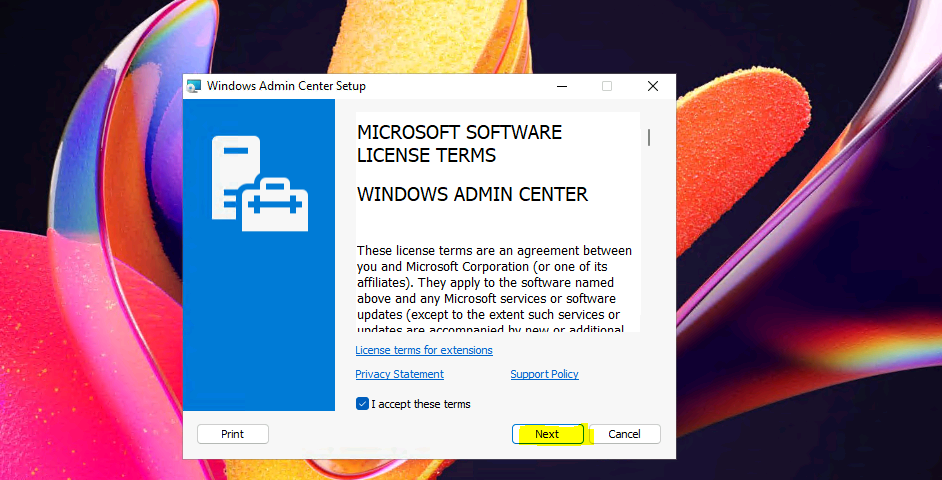
Install WindowsAdminCenter2110.msi – Accept the license and click on the next button to continue. I have selected all the default options to install the Windows Admin Center.
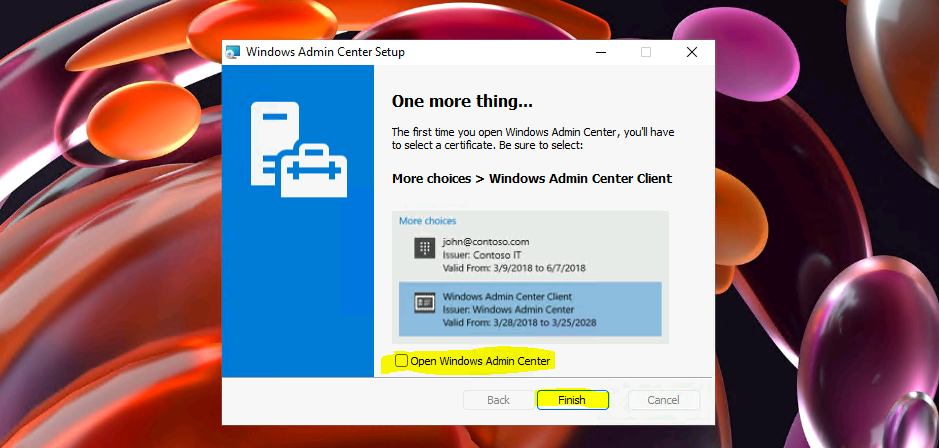
Windows Admin Center Client Certificate
Now, it’s time to select the Windows Admin Center Client Certificate from the list of certificates available. You will need to follow the step mentioned below before you open Windows Admin Center. This step is to select the appropriate certificate for the client version of Windows Admin Center.
More Choices – Windows Admin Center Client to select the certificate.
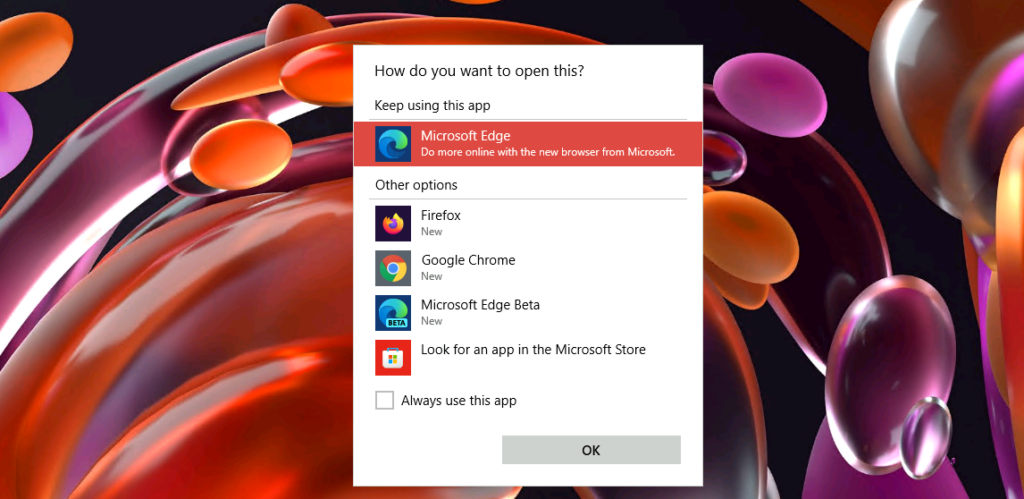
It’s time to launch the Windows Admin Center from the Windows 11 PC. I recommend using Windows Admin Center from the Microsoft Edge browser.
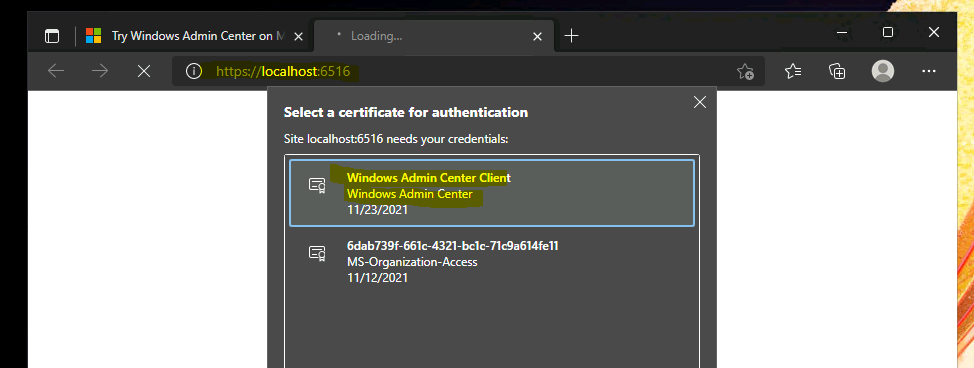
The MS Organization Access certificate will appear when your Windows device is Azure is registered or Azure AD joined. I have selected a Windows admin center client certificate for domain-joined Windows 11 PC.
Add Servers to Windows Admin Center
Once the Windows Admin Center (WAC) remote management tool is opened from the Edge browser, you can see that the Windows 11 device that you installed the tool is already added.
You will need to add other servers or Windows PC using the +Add button. Once you click on add button, you get options to add the following types of resources. Once the servers are added to WAC, you can manage all of those servers remotely.
- Servers – Connect to servers running Windows Server or Azure Stack HCI.
- Windows PCs – Connect to Windows PCs.
- Server clusters – Add or create clusters running Windows Server or Azure Stack HCI.
- Azure VMs – Add or create Azure virtual machines that run Windows Server.
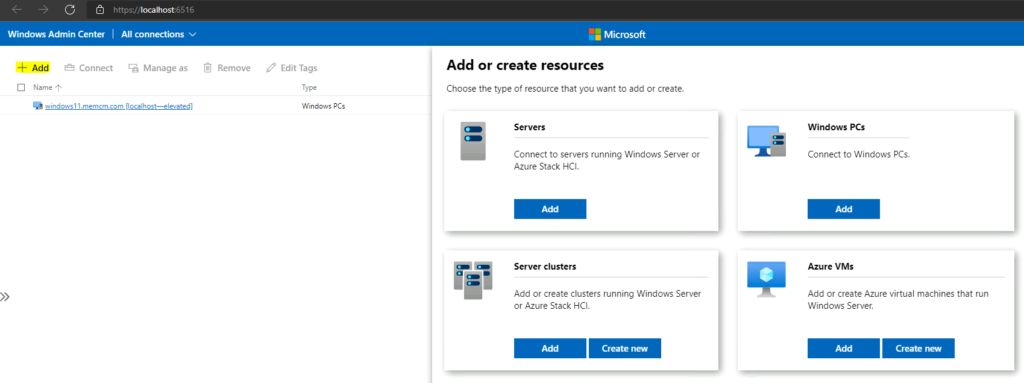
If you are trying to add the servers in your data center and your domain, you will need the connectivity between the Windows Admin Center client system subnet and Server subnet. The firewall ports requirements are going to vary depending on the scenario.
For example, you will need to open up a lot of firewall ports related to AD if your remote servers are in different AD forests, etc.
You will need the DNS connectivity available to find the Servers or Windows by just putting the server name. I connected with server names in my lab because all the servers are in the same subnet, and there is no firewall in between.
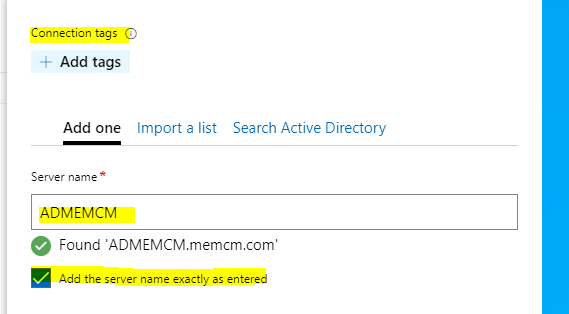
How to Add Azure Server to Windows Admin Center
How to Add Azure Server to Windows Admin Center? Let’s see the steps that you will need to follow and the appropriate permissions that you require to add the Azure Servers to Windows Admin Center.
You will need to have Azure AD permissions to create applications, you also should have permissions to the subscriptions, resource groups where the Azure servers are hosted.
You will need to make sure that the connectivity between the Azure server and the client device is good and all the firewall ports open if you have an Express Route connectivity between them.
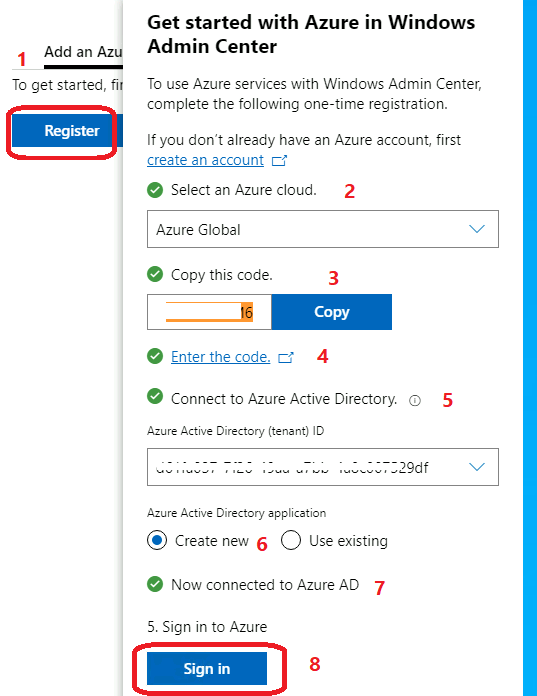
As you can see in the below screenshot, I have added different types of servers such as Azure VM, Servers, and Windows PCs to Windows Admin Center. It looks really nice from the remote management and monitoring from the Windows Admin Center perspective.
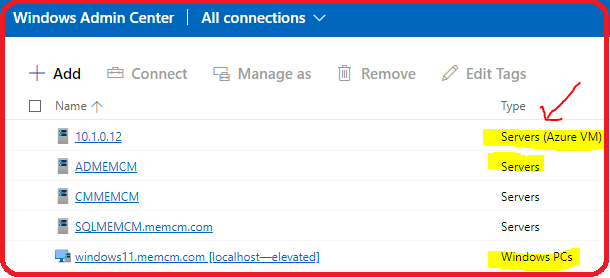
Windows Admin Center Tools
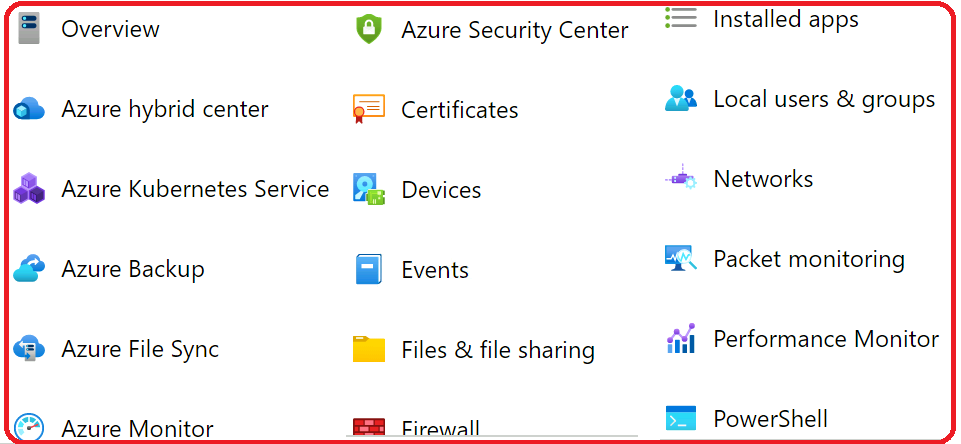
There are a lot of tools available in the Windows Admin Center to perform the remote management of servers, Windows PC, and Servers.
Overview, Azure hybrid center, Azure Kubernetes Service, Azure Backup, Azure File Sync, Azure Monitor, Azure Security Center, Certificates, Devices, Events, Files & file sharing, Firewall, Installed apps, Local users & groups, Networks, Packet monitoring, Performance Monitor, PowerShell, Processes, Registry, Remote Desktop, Roles & features, Scheduled tasks, Security, Services, Storage, Storage Migration Service, Storage Replica, System Insights, Updates, and Settings.
Windows Admin Center eBook
An all-new server management experience when it was introduced, Windows Admin Center modernized administrative activities with a centralized HTML 5 web application. Just add servers, clusters, desktops, and Azure virtual machines into a personalized, persistent interface, and manage their roles, features, software, registry, PKI certificates, and more.
Free eBook – How to Get the Most Out of Windows Admin Center– Second Edition. And with Microsoft’s latest investment into the Windows Admin Center and new functionality, there is now even more server management power to work with.
Learn to simplify and optimize your server management tasks – Download your free eBook now!
Author
Anoop is Microsoft MVP! He is a Solution Architect in enterprise client management with more than 20 years of experience (calculation done in 2021) in IT. He is Blogger, Speaker, and Local User Group HTMD Community leader. His main focus is on Device Management technologies like SCCM 2012, Current Branch, and Intune. He writes about ConfigMgr, Windows 11, Windows 10, Azure AD, Microsoft Intune, Windows 365, AVD, etc……………


Discussion