






Fix Custom Inventory Errors SCCM Hardware Inventory MOF File Import Error Configuration Manager MEMCM
Fix Custom Inventory Errors SCCM Hardware Inventory MOF File Import Error Configuration Manager MEMCM. One of the clients recently got into an issue while extending the hardware inventory.
They wanted to collect all users in all local groups using SCCM. Sherry Kissinger’s post (ALL MEMBERS OF ALL LOCAL GROUPS INVENTORY FOR ConfigMgr 2012) helped them proceed until they got the following error.
We see this error only when we’ve ConfigMgr SCCM Current Branch hierarchy with CAS and primary servers.
Primary server admins cannot change Default Client Settings, which impacts other primary servers in the hierarchy. So, what process must we follow to extend hardware inventory in the SCCM 2012 Hierarchy? How do you extend hardware inventory using the MOF file in the SCCM ConfigMgr hierarchy?

- FIX SCCM App Deployment Errors 0x80070002 0x87d01106
- Fix SCCM Import New Driver Wizard Completed with Errors
- How to Fix SCCM Prerequisite Errors Warnings
| Index |
|---|
| Fix Custom Inventory Errors SCCM Hardware Inventory MOF File Import Error |
Fix Custom Inventory Errors SCCM Hardware Inventory MOF File Import Error
You can only import hardware inventory classes for the default client settings on the central administration site. The following Classes do not exist for which you are trying to import settings.
Import the required class definitions and then import the settings again LocalGroupMembers (cm_LocalGroupMembers). While importing MOF files into SCCM / ConfigMgr, we get 3 options.
You must be careful when selecting these options when you’ve CAS and primaries. First, 2 options can ONLY be performed with Default Client Settings. 1. Import both hardware inventory classes and hardware inventory class settings:-
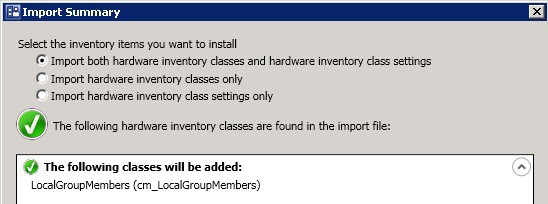
(a) Perform this action from the CAS server when adding these classes globally for all child primary servers. These new hardware inventory settings should be enabled and collected from all the systems/devices in the environment.
(b) Perform this action from a stand-alone Primary server when we don’t have an SCCM /ConfigMgr 2012 hierarchy. These new hardware inventory settings should be enabled and collected from all the systems/devices in the environment. 2. Import Hardware Inventory classes only:-
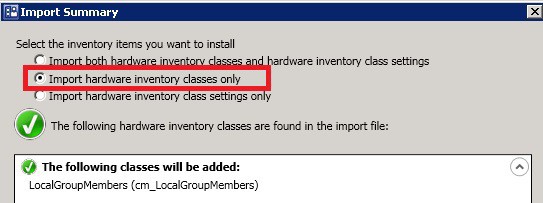
(a) Perform this action from the CAS server when we’ve got the SCCM /ConfigMgr 2012 hierarchy, and only one of the primary site devices (or a subset of devices ) needs to be inventoried about the option. Also, these new hardware inventory settings should be enabled only for Custom Client Settings (NOT default client settings).
(b) Perform this action from a stand-alone primary server when we don’t want to collect the inventory of all systems in the organization. Also, when this new hardware inventory (classes), settings should be enabled and collected only from a few systems using custom client settings (NOT default client settings).
| Select the Class that will be collected by the Hardware Inventory |
|---|
| LocalGroupMembers(cm_LocalGroupMembers) |
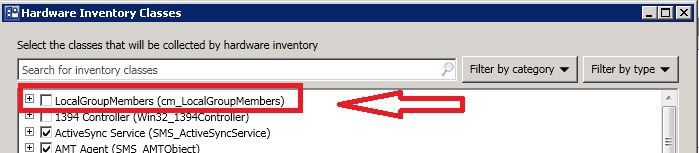
When we select this option, the new hardware inventory classes will get imported. Still, the new hardware inventory settings won’t be enabled, and the inventory won’t start being collected from clients. 3. Import Hardware Inventory Class Settings Only.
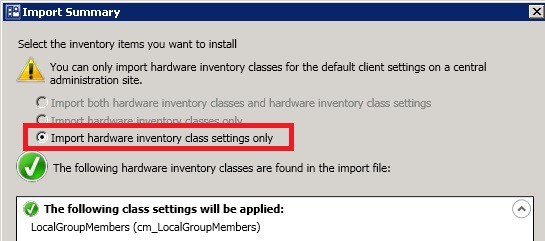
Don’t use this option at all. Once we import the new inventory classes (using option 2 above), we can checkmark or select the LOCALGROUPMEMBERS inventory class from the hardware inventory classes list (as shown in the picture below).
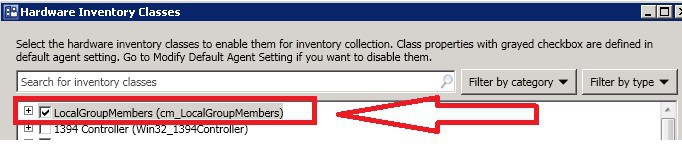
When you select “Import Hardware Inventory Class Settings Only”, it automatically Enables hardware inventory settings. Once we’ve enabled this, then the client will start collecting the new inventory data. So both the options are the same 🙂
(a) Perform this action from the child primary server, When I’ve already imported the new inventory classes using the above option (2 a) on my CAS server. (b) I will Perform this action from a stand-alone primary server when I have already imported the new inventory classes using the above option (2 b) on that server.
Once we import new inventory class settings, the SCCM 2012 server will create a new policy and collect the inventory of new classes from the devices assigned to custom client settings.
Resources
ConfigMgr Client Action Hardware Inventory Collection Cycle | SCCM HTMD Blog
We are on WhatsApp now. To get the latest step-by-step guides, news, and updates, Join our Channel. Click here. HTMD WhatsApp.
Author
Anoop C Nair is Microsoft MVP from 2015 onwards for consecutive 10 years! He is a Workplace Solution Architect with more than 22+ years of experience in Workplace technologies. He is a Blogger, Speaker, and Local User Group Community leader. His main focus is on Device Management technologies like SCCM and Intune. He writes about technologies like Intune, SCCM, Windows, Cloud PC, Windows, Entra, Microsoft Security, Career etc.




Hi Anoop, I have a query regarding creating custom inventory class. I would like to add few properties/attributes to each computer object we are managing through SCCM.Those properties/attributes cannot be collected using any WMI/Registry as we have those values per computer object in a separate Table in another SQL Database. Example, we have a table containing computer name,owner name,owner user id, Patch designation(means in which patching phase we will patch the server),server type(like prod,dev,qa etc.). I would like have those part of the Inventoried information for each computer object and create device collection based using those properties in Console(example, collection of all PROD systems).Is there anyway to get those values from the SQL Table and extend existing inventory class in SCCM. Any help will be highly appreciated! Thanks in advance.
Thanks,
Arindam