






Fix SCCM Task Sequence Reboot Loop WinPE Could not create WMI locator class (80040154)
Let’s check how to Fix SCCM Task Sequence Keeps rebooting and could not create WMI locator class (80040154). The issue has been observed that the machine reboots immediately in WinPE once operating system deployment started where users were encountering issues in all devices in the environment.
However, the reboot loop scenarios are also seen when devices have duplicate MAC existing in SCCM Console. There are two methods (Console and PowerShell) that you can use to avoid this duplicate MAC addresses situation using SCCM PXE boot.
The Task Sequence Issue is generic, and the solution could be different based on the details you get into logs.
First of all, you will need to understand what is the meaning of the error code. You can try to use the method to translate SCCM Error Codes To Error Messages. Examining the SMSTS log for task sequence failure issues is always recommended to help you understand the failure prompt.

- Fix SCCM PXE Issues with C Type Network Adapter Duplicate MACID
- FIX: SCCM Task sequence has failed with the error code 0x80070057
- Easily FIX SCCM Task Sequence Unable to find a volume Error Code 0x80070490
Issue – SCCM Task Sequence Reboot Loop WinPE Could not create WMI locator class (80040154)
Here is the summarise Task Sequence Could not create WMI locator class (80040154), During the SCCM Task Sequence deployment process and the client, goes into a continuous loop, and reboots. It never makes it to the Welcome to Task Sequence Wizard Screen.
Let’s look at the list of official Microsoft tools for reading the SCCM related log files. You can use all these SCCM log viewer tools to check different types of log files .log or .lo_ file extensions Top SCCM Log File Viewer Options for Admin. More you can explore SCCM OSD Task Sequence Troubleshooting Steps by Step Ultimate Guide SMSTS.log.
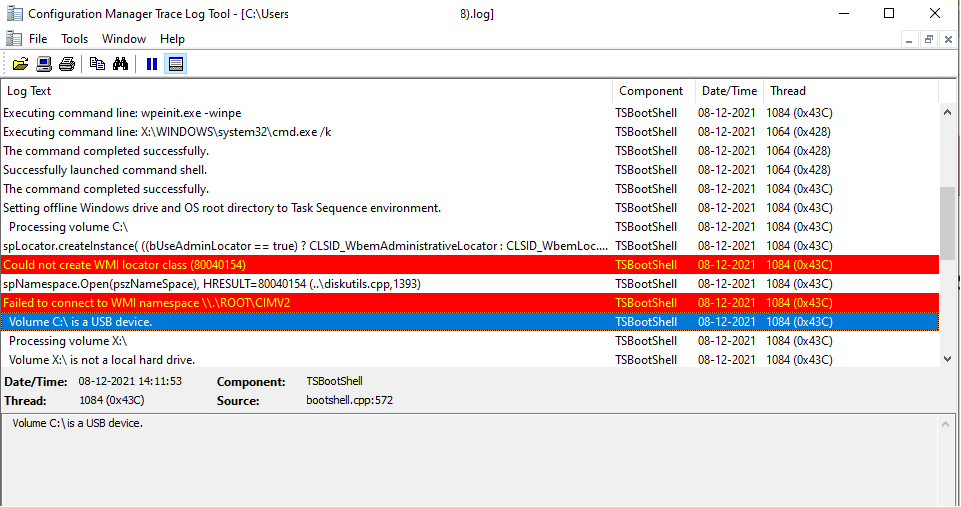
The command completed successfully.
Successfully launched command shell.
The command completed successfully.
Setting offline Windows drive and OS root directory to Task Sequence environment.
Processing volume C:\
Could not create WMI locator class (80040154)
Fix SCCM Task Sequence Reboot Loop WinPE Could not create WMI locator class
Let’s check the possibility SCCM Task Sequence Reboot Loop WinPE Could not create WMI locator class. For all the supported versions of Configuration Manager CB for Windows 10 or Windows 11 devices deployment, You need to check the SCCM supported adk version. Upon validating the environment we noticed the installed Windows ADK and WinPE version is different.
Here in the scenarios, you can see the Windows 10 ADK Version for Windows 2004 10.1.19041.1 Installed in SCCM Server and the WinPE for Windows 11 10.1.22000.1 is installed, The end result is looping boot media. Ensure you are upgrading both the ADK, WinPE to the same version.
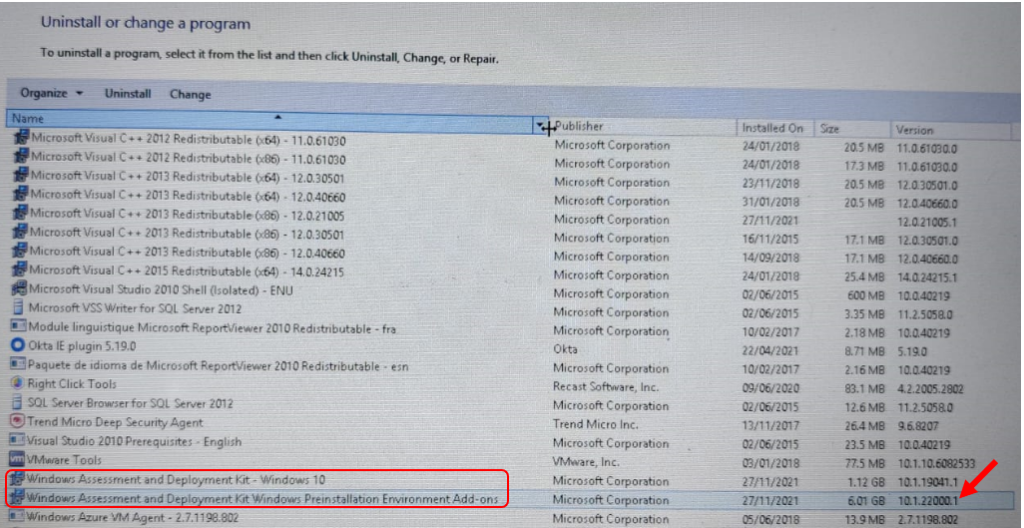
The next step is to uninstall the WinPE Add-ons for Windows 11 since we were using the WADK for Windows 10 Version 2004 based on SCCM Compatibility and Install Windows 10 2004 WinPE Add-ons. I would recommend reading SCCM Step by Step Guide to Update Windows ADK and WinPE Versions.
Once you are done with the installation, use the Update Distribution Points action from the Boot Images node in the console, the site updates the target boot image with the client components, drivers, and customizations. You can reload the boot image with the latest version of WinPE from the Windows ADK installation directory.
Important – During this process to reload the boot image, the site doesn’t retain any manual customizations made outside of Configuration Manager. This option rebuilds the boot image using the latest version of WinPE and the latest client version. Only the configurations that you specify on the properties of the boot image are reapplied.
You can confirm the success of the WinPE, Windows ADK, and Boot Image Upgrade from SCCM Console. After updating, Reinitiate the deployment and you will observe deployment was getting successfully completed without any issues.
Author
About Author -> Jitesh has over 5 years of working experience in the IT Industry. He writes and shares his experiences related to Microsoft device management technologies and IT Infrastructure management. His primary focus area is Windows 10, Windows 11 Deployment solution with Configuration Manager, Microsoft Deployment Toolkit (MDT), and Microsoft Intune.




Very Informative.
I recently updated ADK to 10.1.2262.1 at a customer who has still only win10 20H2 in deployment.
After updating both ADK and updating the boot image i was not able to run any task sequnce anymore.
I ran into a reboot loop, which also is described here.
But in my case both ADK and ADK-PE were updated and showed the correct version in program list.
And also the boot image had the same version.
I guess there is an issue because the deployed os is too old.
Customer still wants to use his current tasksequence, so i downgraded the ADK back to ADK 10.1.22000.1 and updated the boot image. After that the reboot loop was gone.
My suggestion is to update the deployed os to 22H2 and then it should work with the new ADK.
Anyone same or other experiances?
Seeing the same issue with this ADK but on Win 11 23H2 so it’s not the OS. Still looking for answers on this ADK/WinPE version, is this a known issue?