






Disable Microsoft Teams Auto Start Using Intune
Let’s learn how to disable Microsoft Teams Auto Start using Intune aka Endpoint Manager. You can prevent Microsoft Teams from starting automatically using multiple methods. The Intune policy setting controls whether Microsoft Teams start automatically when the user logs into a device after Teams is installed.
Once a user starts Teams for the first time, Teams is configured to start automatically the next time the user logs into the device.
If you enable this policy setting, Teams does not start automatically when the user logs in to the device and the user have not started Teams previously.
The important thing here is If you enable this policy setting, you must do so before Teams is installed. Microsoft Teams has a default behavior to start with the computer upon boot and remain active in the background.

If you are started using Windows 11, A custom taskbar in Windows 11 helps end-users find the critical application instead of searching for those in All Apps. Learn more details on Windows 11 Taskbar customization using Intune.
- Remove Microsoft Teams Chat Icon From Taskbar Using Intune MEM
- Windows 11 Chat Application Microsoft Teams How to Configure or Enable
- Intune Logs Event IDs IME Logs Details For Windows Client Side Troubleshooting
Disable Microsoft Teams Auto Start Using Intune
This section will help you assign the policy to prevent Microsoft Teams from starting automatically using Intune setting catalog policies. You can refer to the following guide to Create Intune Settings Catalog Policy and deploy it only to a set of Intune Managed Windows 11 or Windows 10 devices using Intune Filters.
- Sign in to the Endpoint Manager Intune portal https://endpoint.microsoft.com/
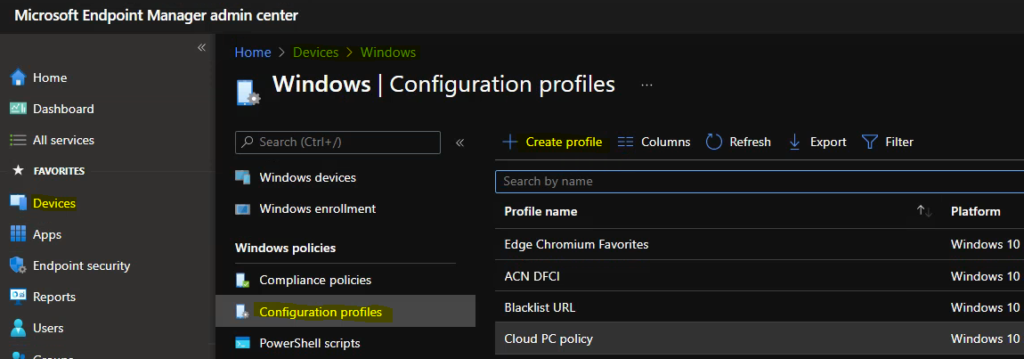
- Select Devices > Windows > Configuration profiles > Create profile
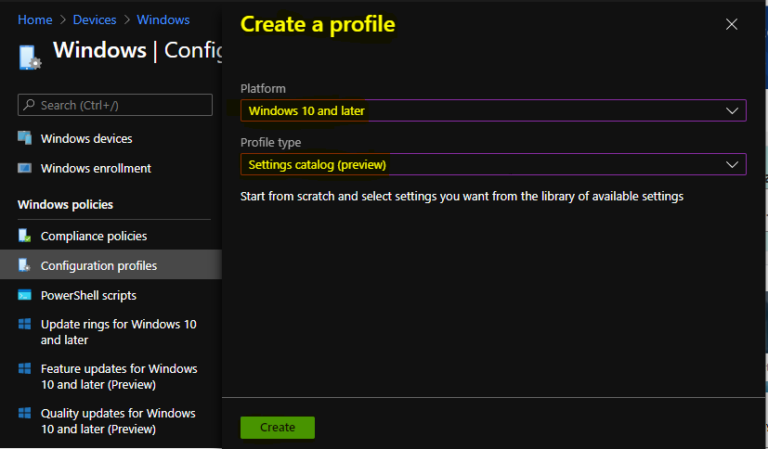
In Create Profile, Select Platform, Windows 10, and later and Profile, Select Profile Type as Settings catalog. Click on Create button.
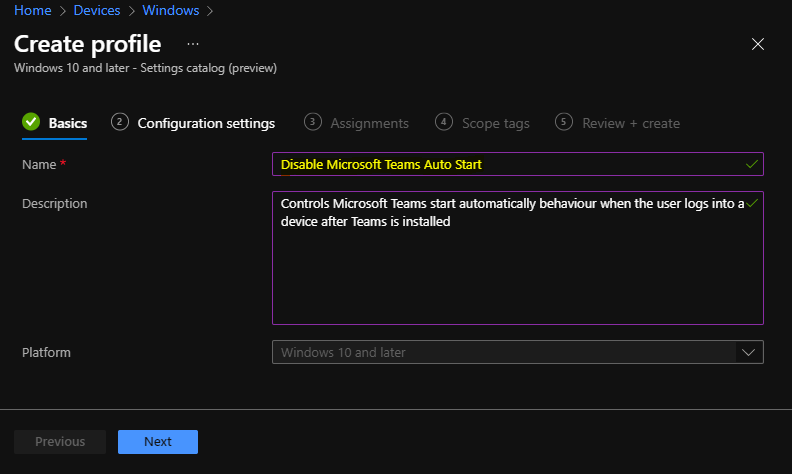
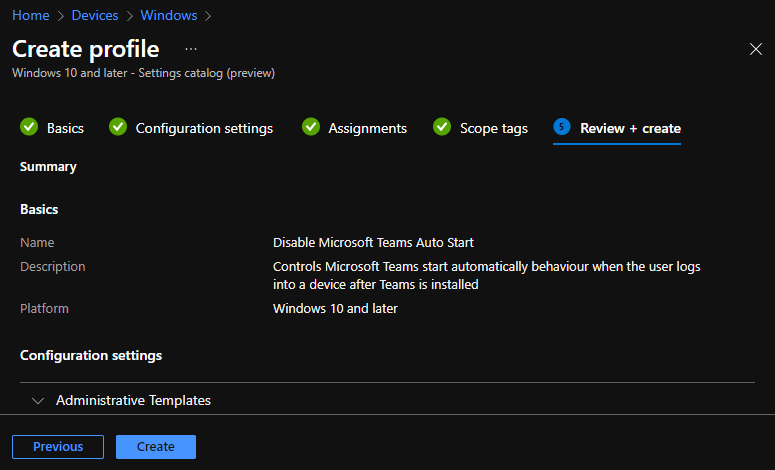
On the Basics tab, enter a descriptive name, such as Disable Microsoft Teams Auto Start. Optionally, enter a Description for the policy, then select Next.
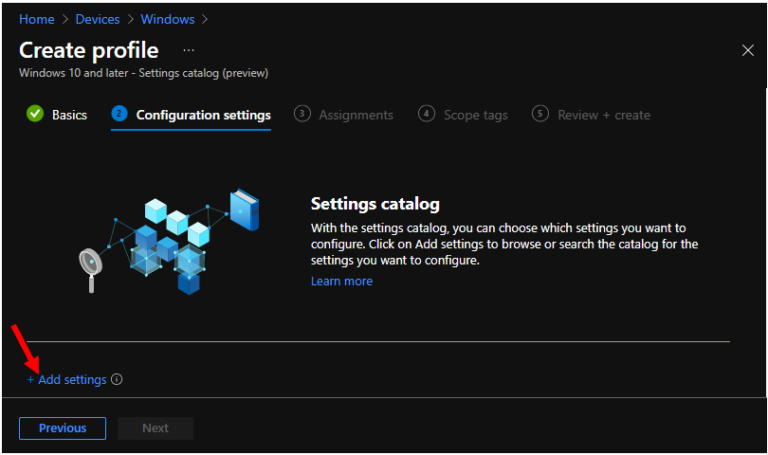
In Configuration settings, click Add settings to browse or search the catalog for the settings you want to configure.
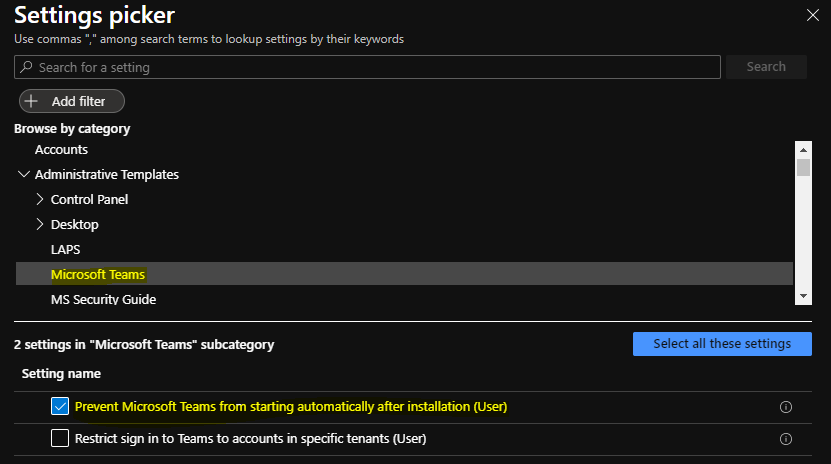
On the Settings Picker windows, Select Administrative Templates > Microsoft Teams to see all the settings in this category. You will see, 2 settings in “Microsoft Teams” subcategory.
Here, you need to select the below settings Prevent Microsoft Teams from starting automatically after installation (User). After adding your settings, click the cross mark at the right-hand corner to close the settings picker.
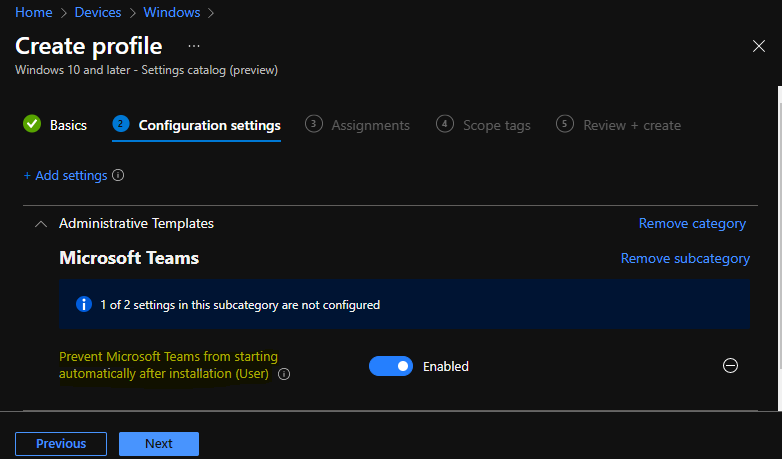
The setting is shown and configured with a default value Disabled. Set Prevent Microsoft Teams from starting automatically after installation (User) to Enabled.
Prevent Microsoft Teams from starting automatically after installation (User): This policy setting controls whether Microsoft Teams start automatically when the user logs into a device after Teams is installed. If you enable this policy setting, Teams does not start automatically when the user logs in to the device and the user have not started Teams previously.
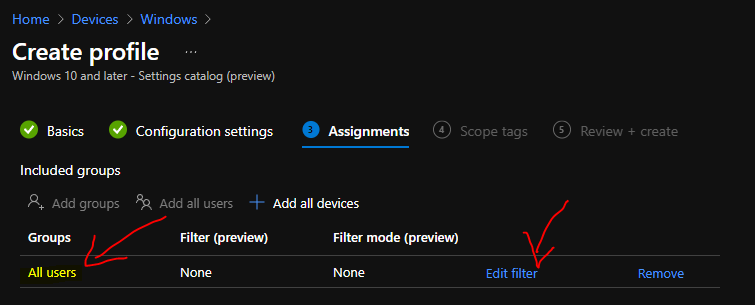
Under Assignments, In Included groups, click Add groups and then choose Select groups to include one or more groups. Click Next to continue.
In Scope tags, you can assign a tag to filter the profile to specific IT groups. Add scope tags (if required) and click Next.
In Review + create, review your settings. When you select Create, your changes are saved, and the profile is assigned.
A notification will appear automatically in the top right-hand corner with a message. Here you can see that Policy “Disable Microsoft Teams Auto Start” created successfully. The policy is also shown in the Configuration profiles list.
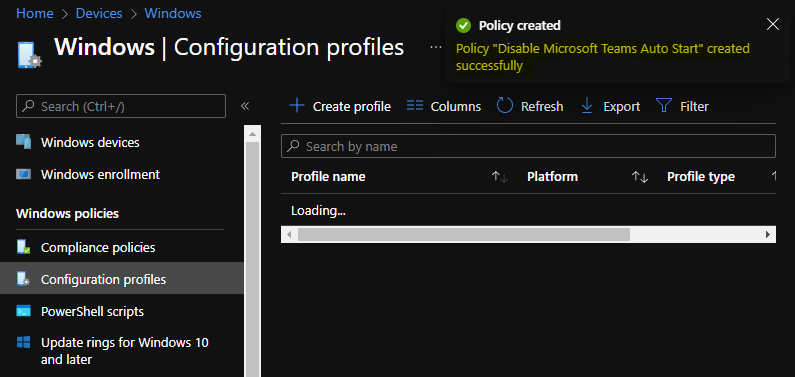
Your groups will receive your profile settings when the devices check-in with the Intune service. Once the policy applies to the devices. Users will not see Microsoft Teams starting automatically after installation.
You can check Intune settings catalog profile report from Intune Portal, which provides an overall view of device configuration policies deployment status.
Author
About Author -> Jitesh has over 5 years of working experience in the IT Industry. He writes and shares his experiences related to Microsoft device management technologies and IT Infrastructure management. His primary focus area is Windows 10, Windows 11 Deployment solution with Configuration Manager, Microsoft Deployment Toolkit (MDT), and Microsoft Intune.


Thanks for that detailed explanation… Your work is really appreciated, Appreciate sharing the knowledge likewise….
Thanks for the detailed steps.
Am I correct that if I deploy this config, then deploy Teams it won’t auto start but if the user then starts Teams and sets it up it will auto start from then on?
Thanks, I hadn’t realized they’ve added this to the settings catalog.
It’s important to note that this setting is only useful if Teams has not been installed or used on the device. It is also only applicable for user installs. It is not useful for device-wide installations of Teams. This may be updated by Microsoft over time, but the description in the settings catalog should be updated when a change has been made.
What is the best way to change the setting if Teams has already been installed and used?
Can you assign this configuration policy to a device group?
I have Teams system wide installer in C:\Program Files (x86)\Teams Installer. I enabled this configuration policy but check-in status in Intune is Not applicable