






FIX SCCM Task Sequence Failed Error 0x80004005
Let’s see how you can FIX SCCM Task Sequence Failed Error 0x80004005. You might encounter a prompt message during operating system deployment with SCCM Task Sequence. The Task Sequence error 0x80004005 is generic, and the solution could be different based on the details you get into logs.
First of all, you will need to understand the meaning of the error code 0x80004005. You can use the method to translate SCCM Error Codes To Error Messages. The error code 0x80004005 translates to an Unspecified error.
The error is often seen when you perform the deployment in new machines. It’s always recommended to examine the SMSTS log for task sequence failure issues to help you get the inside about the failure prompt to troubleshoot the task sequence.
Most of the time, the task sequence fails due to missing content on the distribution point or retrieving policy for the system. In that time, it’s best to check all referenced packages to the task sequence have been successfully distributed.

We have a lot of coverage related to OSD troubleshooting within HTMD community posts.
- FIX: SCCM Task Sequence Failed With Error Code 0x80070002
- FIX: SCCM Task sequence has failed with the error code 0x800700A1
- FIX: SCCM Task Sequence Error 0x80004005 Failed to Run
Issue Summary – SCCM Task Sequence Failed Error 0x80004005
This error appears at the initial stage when you have started the deployment. Task Sequence fails with the following error message –
Task Sequence Error: An error occurred while starting the task sequence (0x80004005). For more information, contact your system administrator or helpdesk operator.
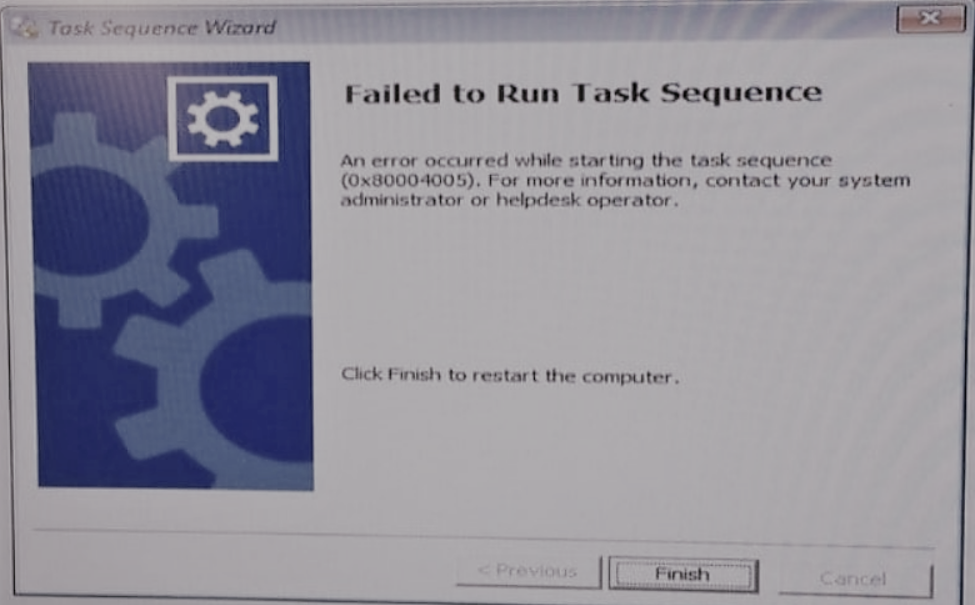
In this scenario, Task Sequence terminated at the beginning. You will collect the logs at WinPE x:\windows\temp\smstslog\smsts.log. To get the command prompt window, you have to press the F8 key.
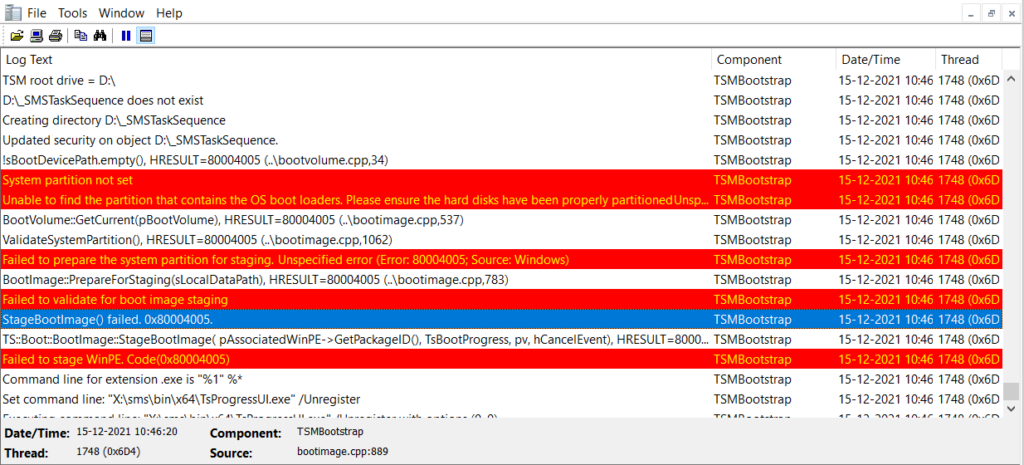
More you can explore SCCM OSD Task Sequence Troubleshooting Steps by Step Ultimate Guide SMSTS.log. Here’s the highlight from the SMSTS.log. You can see multiple errors –
WinPE associated with task sequence does not match boot media.	TSMBootstrap	15-12-2021 10:46:05	1748 (0x06D4)
Installing WinPE associated with task sequence DV101036:0.	TSMBootstrap	15-12-2021 10:46:05	1748 (0x06D4)
System partition not set	TSMBootstrap	15-12-2021 10:46:20	1748 (0x06D4)
Unable to find the partition that contains the OS boot loaders. Please ensure the hard disks have been properly partitioned
Unspecified error (Error: 80004005; Source: Windows)	TSMBootstrap	15-12-2021 10:46:20	1748 (0x06D4)
BootVolume::GetCurrent(pBootVolume), HRESULT=80004005 (..\bootimage.cpp,537)	TSMBootstrap	15-12-2021 10:46:20	1748 (0x06D4)
ValidateSystemPartition(), HRESULT=80004005 (..\bootimage.cpp,1062)	TSMBootstrap	15-12-2021 10:46:20	1748 (0x06D4)
Failed to prepare the system partition for staging.
Unspecified error (Error: 80004005; Source: Windows)	TSMBootstrap	15-12-2021 10:46:20	1748 (0x06D4)
BootImage::PrepareForStaging(sLocalDataPath), HRESULT=80004005 (..\bootimage.cpp,783)	TSMBootstrap	15-12-2021 10:46:20	1748 (0x06D4)
Failed to validate for boot image staging	TSMBootstrap	15-12-2021 10:46:20	1748 (0x06D4)
StageBootImage() failed. 0x80004005.	TSMBootstrap	15-12-2021 10:46:20	1748 (0x06D4)
TS::Boot::BootImage::StageBootImage( pAssociatedWinPE->GetPackageID(), TsBootProgress, pv, hCancelEvent), HRESULT=80004005 (tsmediawizardcontrol.cpp,2286)	TSMBootstrap	15-12-2021 10:46:20	1748 (0x06D4)
Failed to stage WinPE. Code(0x80004005)	TSMBootstrap	15-12-2021 10:46:20	1748 (0x06D4)
Command line for extension .exe is "%1" %*	TSMBootstrap	15-12-2021 10:46:20	1748 (0x06D4)
Set command line: "X:\sms\bin\x64\TsProgressUI.exe" /Unregister	TSMBootstrap	15-12-2021 10:46:20	1748 (0x06D4)
Executing command line: "X:\sms\bin\x64\TsProgressUI.exe" /Unregister with options (0, 0)	TSMBootstrap	15-12-2021 10:46:20	1748 (0x06D4)
FIX – SCCM Task Sequence Error 0x80004005
Let’s check the possible solution to fix this task sequence error 0x80004005 –
#Option 1 –
Since the smsts log indicated ” WinPE associated with task sequence does not match boot media” Let’s first validate the boot image associated with the deployed task sequence and the boot media used in USB Stick to start a computer in WinPE.
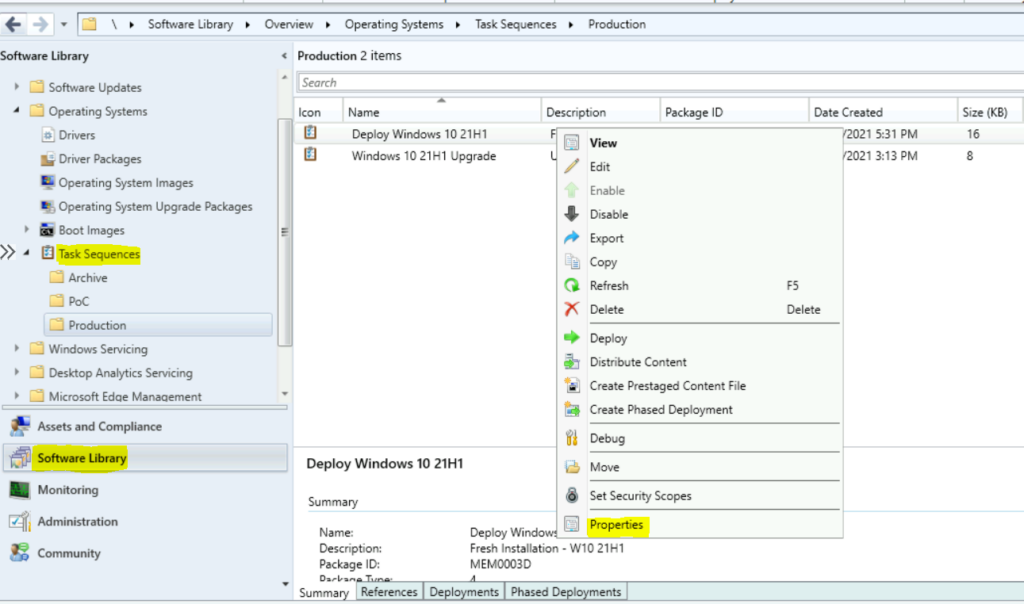
- In the Configuration Manager console, go to the Software Library workspace, expand Operating Systems, and select Task Sequences.
- Select existing task sequence from the task sequences list that you have deployed and select Properties.
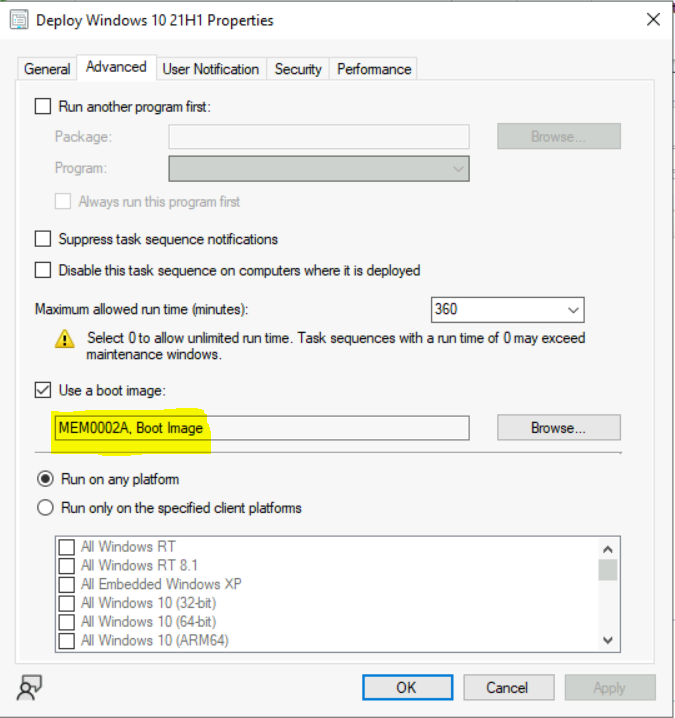
In Task Sequence properties, Move to the Advanced tab. Validate the boot image added to the task sequence. If it’s mismatching with your production version, select and then browse to the boot image you want to use and click Apply.
#Option 2 –
The drive needs to be formatted before continuing with the task sequence to fix this issue. Let’s follow the steps below to format the hard drive –
If you’re already in the error windows screen Task sequence has failed with the error code 0x800700A1, Press F8 to launch the command prompt window or Restart the machine and boot with the same task sequence.
Important – Enable command support (F8) not recommended for production use. You can explore the available command prompt support option in Boot Image.
The diskpart command interpreter helps you manage your computer’s drives (disks, partitions, volumes, or virtual hard disks). Type the following commands in the command prompt –
Diskpart
List disk                (Displays all the disks on the device)
Select disk 0
Clean                    (Wipes the disk)
Create partition primary (Creates windows partition)
Select partition 1
Format quick fs=NTFS     (Format primary partition)
Assign letter C
Exit
You can also share your experience with the different errors and steps taken to resolve them in Comment Section or HTMDForum that will be for the community members.
Author
About Author -> Jitesh has over 5 years of working experience in the IT Industry. He writes and shares his experiences related to Microsoft device management technologies and IT Infrastructure management. His primary focus area is Windows 10, Windows 11 Deployment solution with Configuration Manager, Microsoft Deployment Toolkit (MDT), and Microsoft Intune.




I am unable to open smsts.log,
How can I open in command prompt?
StaffYou need to use CMTrace log file reader to open the log file. https://www.anoopcnair.com/top-sccm-log-file-viewer-options-for-admins/
Hi Anoop, during Pxeboot, I was getting this exact same error 0x80004005 in the task sequence step ‘Apply Operation System.” This was while trying to deploy a Win 11 23H2 image.
While the error is there, I can press F8 to get to the WinPE command prompt. Running Disk Part/list disk shows that WinPE sees the internal disk just fine, so it’s not a storage driver issue. It didn’t even format the disk, as it was still bootable with the previous installed OS.
This had me looking at your option 2. I did the diskpart steps to clean and reformat the drive shown above and pxe booted again. I got farther this time. It applied the WIM, but still failed 5 mins later with the same error number.
In my case it definitely ended up being a partitioning issue. I hadn’t adjusted the default partition settings in the task sequence, and so the fact that it worked on some other PCs tripped me up. So just passing that on. If option 2 doesn’t work for others, it could just be your deployment doesn’t like the other partitions missing (the 100 MB EFI partition, the 750 MB recovery partition)