






Easily Export SCCM Application from Staging to Prod Environment
In this post, you will learn how to export SCCM Application. After preparing or deploying an application, you can export the ConfigMgr application that helps you to get a list of all associated commands and content based on your selection.
The exported applications can be imported to another environment instead of creating them from scratch. That will be a time-saver for SCCM Admin and reduce the manual efforts and errors in the production environment if you want to shift from the test environment to production.
You can export and import applications with or without their related objects. This referenced content includes the Dependencies, supersedence relationships, conditions.
You can export applications either from the Configuration Manager console or use PowerShell cmdlet. The Export-CMApplication cmdlet exports an application to a file. Specify a file path to the location where you want to export the application.

- How to Disable SCCM Application Deployment | ConfigMgr | MEMCM
- Easy Ways to Suppress SCCM Task Sequence Notifications
- How to Check ConfigMgr Task Sequence Size | SCCM
Export SCCM Application from Configuration Manager Console
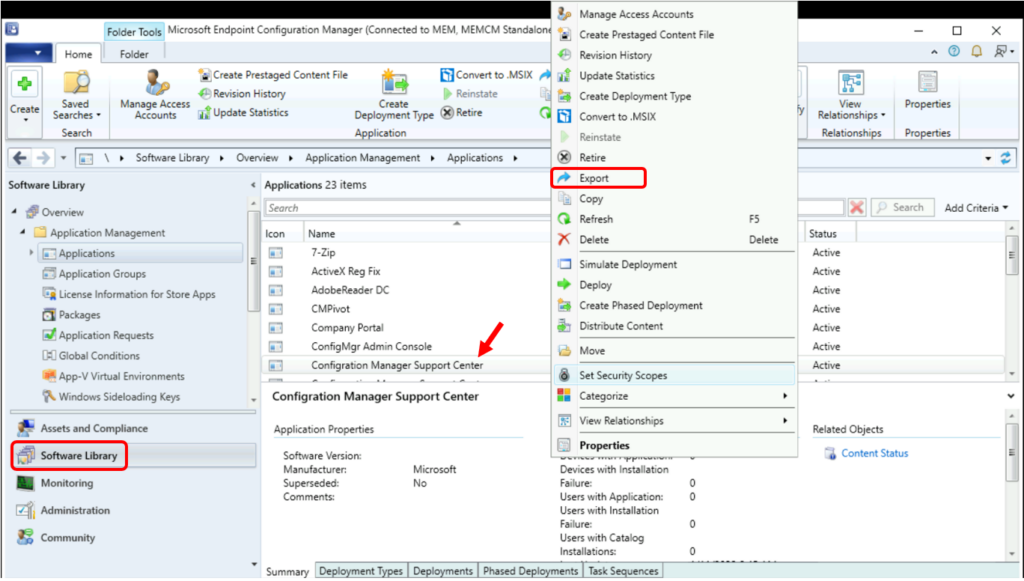
You can follow the steps below to export the application using the SCCM console. In the Configuration Manager console, go to the Software Library workspace, expand Operating Systems, and select the Applications node.
- In the Applications list, select an application that you want to export. Right Click on Application, Select Export. This action starts the Export Application Wizard.
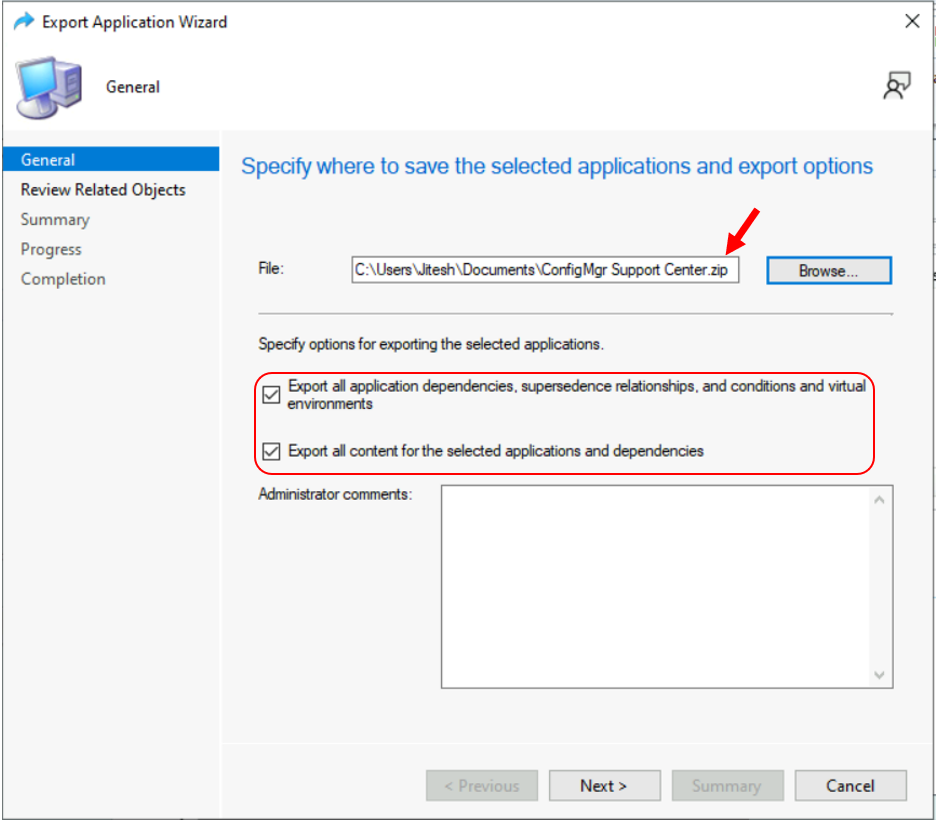
On the General page, specify the following settings:
File: Specify the location and name of the export file. If you enter the file name directly, be sure to include the .zip extension to the file name. If you browse for the export file, the wizard automatically adds this file name extension.
Specify options for exporting the selected applications
If you don’t want to export application dependencies, deselect the option to Export all application dependencies, supersedence relationships, and condition and virtual environments. By default, the wizard scans for all the related objects and exports them to the applications.
If you don’t want to copy the content from the package source to the export location, deselect the option to Export all content for the selected applications and dependencies. If you select this option, the Import Application Wizard uses the import path as the new package source location.
Administrator comments: Add a description of the task sequences to export.
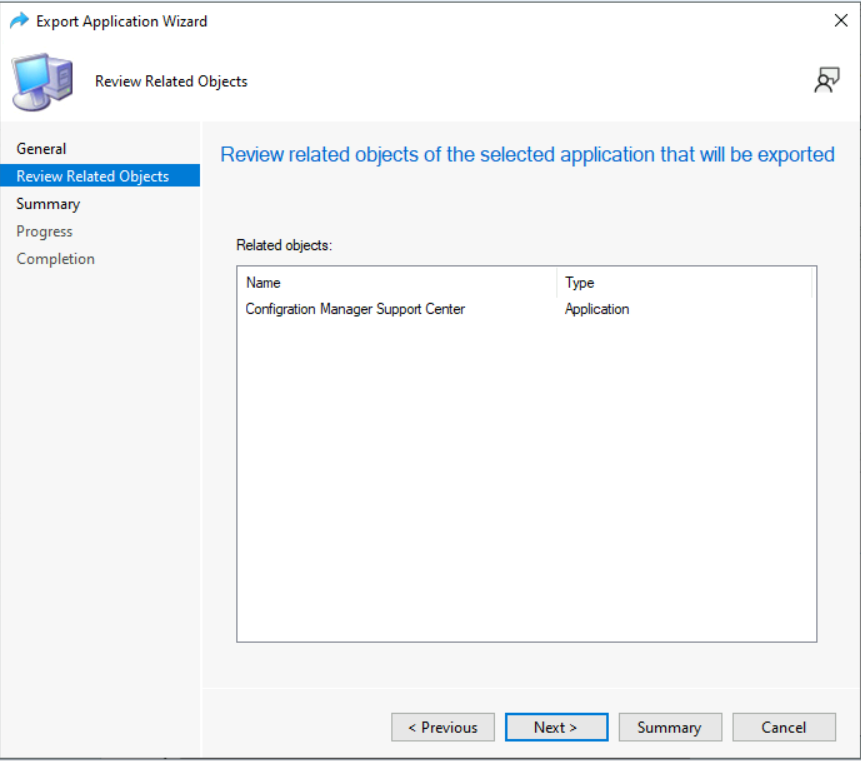
Verify the application and any dependencies are listed on the Related Objects page and select Next.
On the Summary page, Review the settings. Click Next.
Wait for a moment, while exporting is in progress. After successfully completing, You will see the prompt The task “Export Application Wizard” completed successfully. Click Close to exit the wizard.
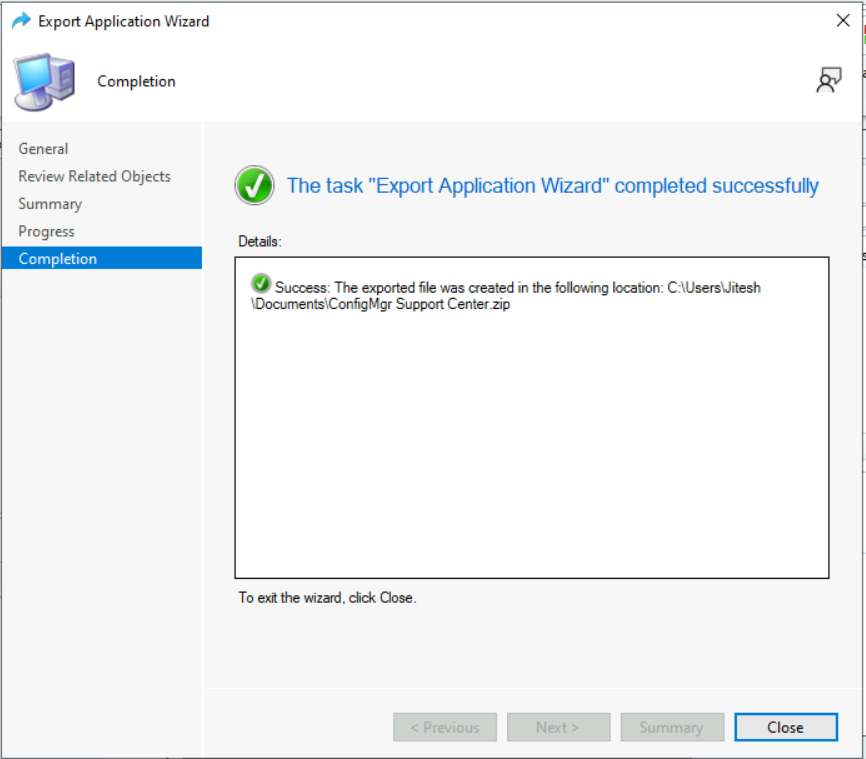
Once the process completes, it creates the ZIP file in a specified file location.
Note – If you’re going to copy this application to another environment, take both the ZIP file and the folder that accompanies it. The ZIP file must exist in the same directory as the created folder.
Export SCCM Application Using PowerShell Command
Now, let’s quickly look at options to automate the export of applications with the PowerShell Commands or SCCM PowerShell cmdlets. You can Launch the SCCM PowerShell Commandlets from the console itself.
Click on the Drop-Down option on the top left side corner of the console and click on Connect via Windows PowerShell option.
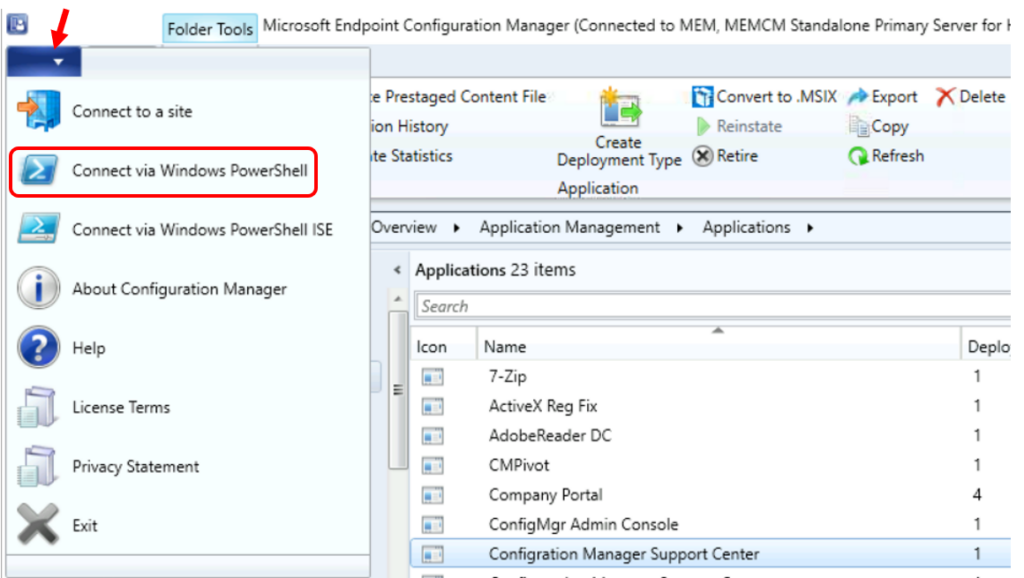
If you get the following warning about the untrusted publisher, Type A, and press Enter.
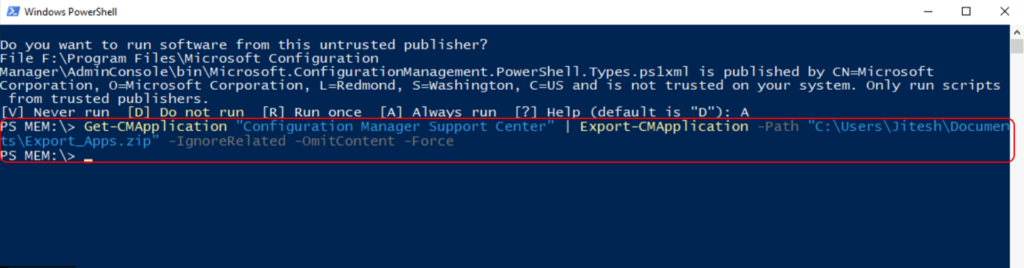
Do you want to run software from this untrusted publisher?
File \Program Files\Microsoft Configuration
Manager\AdminConsole\bin\Microsoft.ConfigurationManagement.PowerShell.Types.ps1xml is published by CN=Microsoft
Corporation, O=Microsoft Corporation, L=Redmond, S=Washington, C=US and is not trusted on your system. Only run scripts
 from trusted publishers.
[V] Never run  [D] Do not run  [R] Run once  [A] Always run  [?] Help (default is "D"): A
This command gets the application object named Configuration Manager Support Center and uses the pipeline operator to pass the object to Export-CMApplicaton. Export-CMApplication exports the application to path C:\Users\Jitesh\Documents\Export_Apps.zip, omitting related content from the zip file, and not exporting related objects. Specifying the Force parameter indicates that the application is exported without prompting the user.
PS MEM:\> Get-CMApplication "Configuration Manager Support Center" | Export-CMApplication -Path "C:\Users\Jitesh\Documents\Export_Apps.zip" -IgnoreRelated -OmitContent -Comment "Application export" -Force-IgnoreRelated : Indicates that related objects, such as application dependencies, superseded applications, or related categories and global conditions, are not exported.
-Comment : Specifies a comment for the exported application.
-Force : Performs the action without a confirmation message.
-Name : Specifies the name of the application to export.
-OmitContent : Indicates that the cmdlet exports related content to a separate folder in the same location as the .zip file.
-Path : Specifies a path for the package. The package file has a .zip extension.




Hi, I have a app that someone has exported from sccm with dependencies. Trying to import it to another SCCM and it fails as dependencies not found. The SCCM environment from where the export was done is not anymore available. Is there any way I can edit or manipulate the import process to ignore those dependencies? In exported zip there is several xml files, I think the main one is called as object.xml which seems to have all the application info, is there some section in it which I can change so that it doesn’t fail to those missing dependencies?