






Intune Win32 App Deployment Toast Notifications and Company Portal User Experience
Key Takeaways
- Windows toast notifications during app installation
- Providing clear feedback on the app status
- Intune Win32 apps show toast notifications and Company Portal status during installation.
- Admins can show or hide notifications per app assignment.
- Win32 apps support EXE, MSI, and script installers with dependencies.
- The Company Portal shows clear failure and restart messages.
Intune Win32 App Deployment Toast Notifications and Company Portal User Experience! This post explains the end-user experience of Win32 app deployment using Microsoft Intune, with a focus on Windows toast notifications and Company Portal status messages. It describes what users see on their Windows devices when required or available Win32 applications are deployed and installed.
When a Win32 app is deployed, users may receive toast notifications during installation, after successful installation, or when installing apps from the Company Portal. Intune also allows administrators to control these notifications per app assignment, giving options to show all notifications, show only restart-related notifications, or completely hide notifications to reduce user interruptions.
The post also highlights why Win32 app deployment is widely used in Intune. Win32 apps support EXE, MSI, and script-based installers and offer advanced capabilities such as detection rules, custom install logic, and dependency management. This flexibility enables administrators to handle a wide range of enterprise application deployment scenarios.
Additionally, the Company Portal app shows more app installation status messages to users. The following conditions apply to Win32 dependency features:

- App failed to be installed. Dependencies defined by the admin were not met.
- The app was installed successfully but required a restart.
- The app is in the process of being installed but requires a restart to continue.
Table of Contents
Intune Win32 App Deployment Toast Notification
You can use the following steps to change Windows notifications for the app installation from the Intune Admin Portal.
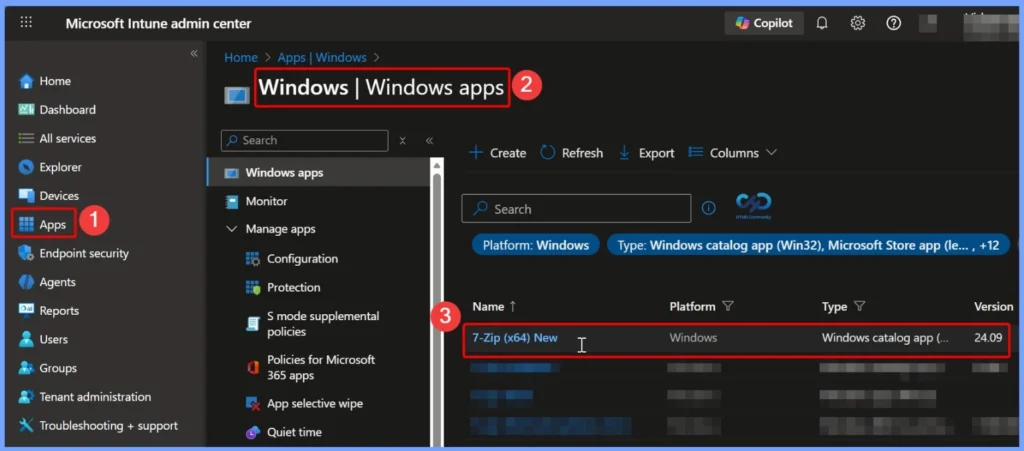
- Sign in to the Microsoft Intune admin Center https://endpoint.microsoft.com/.
- Select Apps > Windows. Select the existing Win32 application from the list to modify the notifications.
- Here we select the 7-Zip (x64) New Windows app.
- Configure Device Enrollment Notifications in Microsoft Intune
- Configure Application Icon for Intune Company Portal
- Intune Company Portal Branding Customization Options
- Use ServiceUI with Intune to Bring SYSTEM Process to Interactive Mode
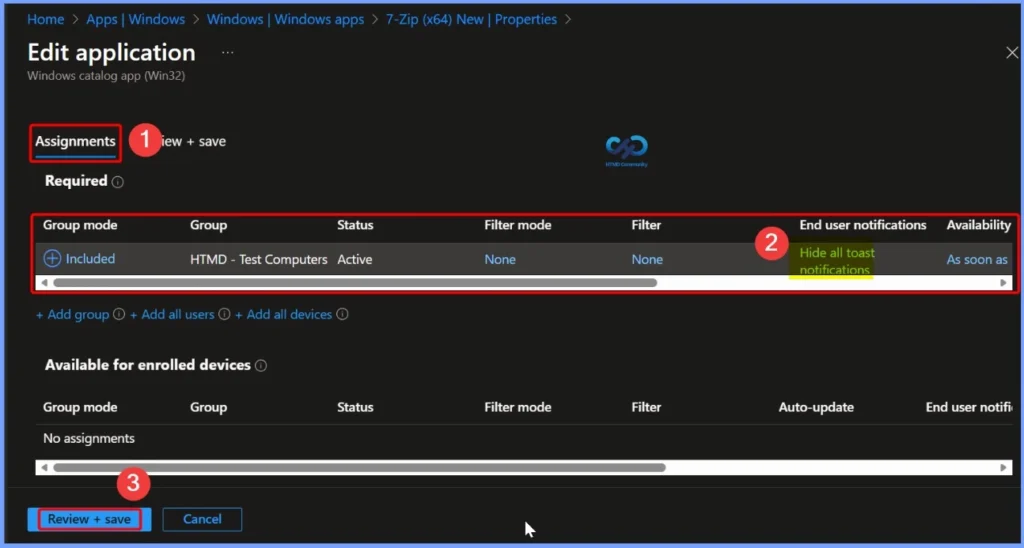
Click the application name 7-Zip (x64) in the Windows app, then go to the Properties tab. Select the Edit link under Assignments to modify the app assignment settings. This allows you to configure deployment options, including user notification behavior for the application.
| Note |
|---|
| App availability can be set based on the assignment type. Assignment type can be Required, Available for enrolled devices, or Uninstall. |
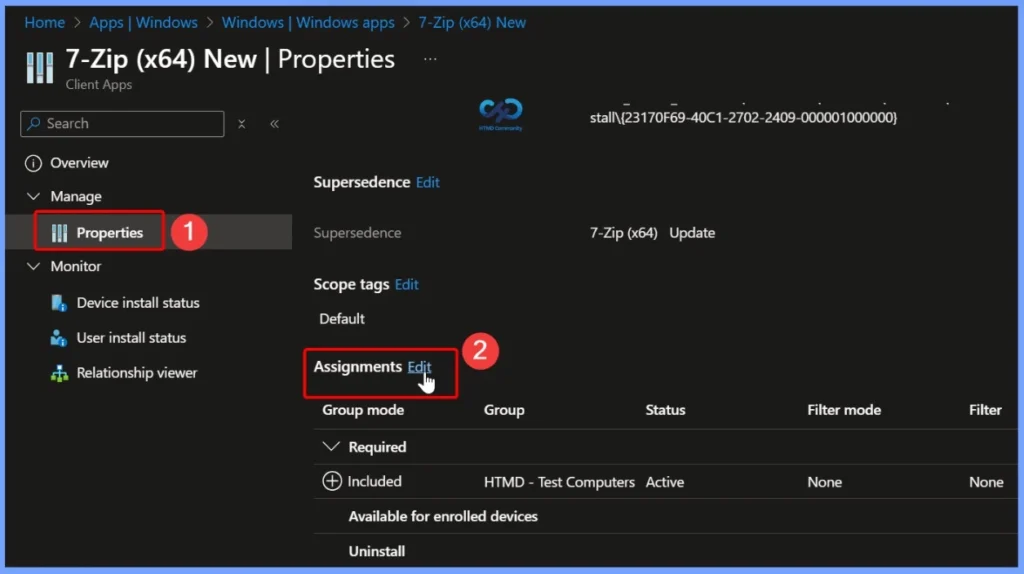
App Assignment Type and End User Notification Settings
For example, you can set the Assignment type to Required to ensure the application is automatically installed for all users or all devices. In the Edit assignment pane, the End user notifications option is set to Show all toast notifications by default, which means users will receive installation and status notifications during the app deployment process.
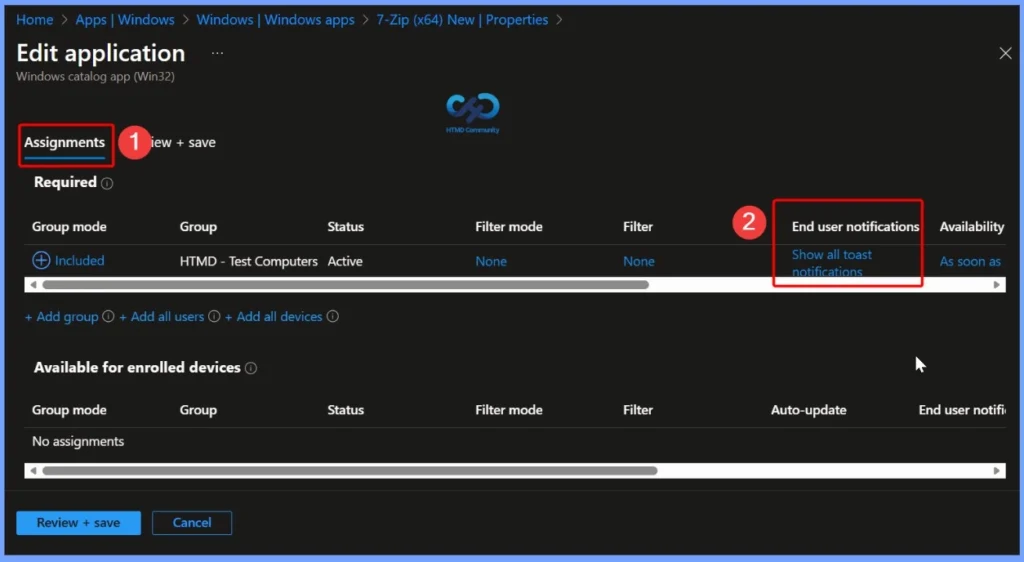
End User Notification Options in Edit Assignment
In the Edit Assignment window, Intune provides multiple End user notification options to control what users see during app deployment. You can choose to show all toast notifications, show toast notifications only for computer restarts, or hide all toast notifications, depending on how much visibility you want to give users during the installation process.
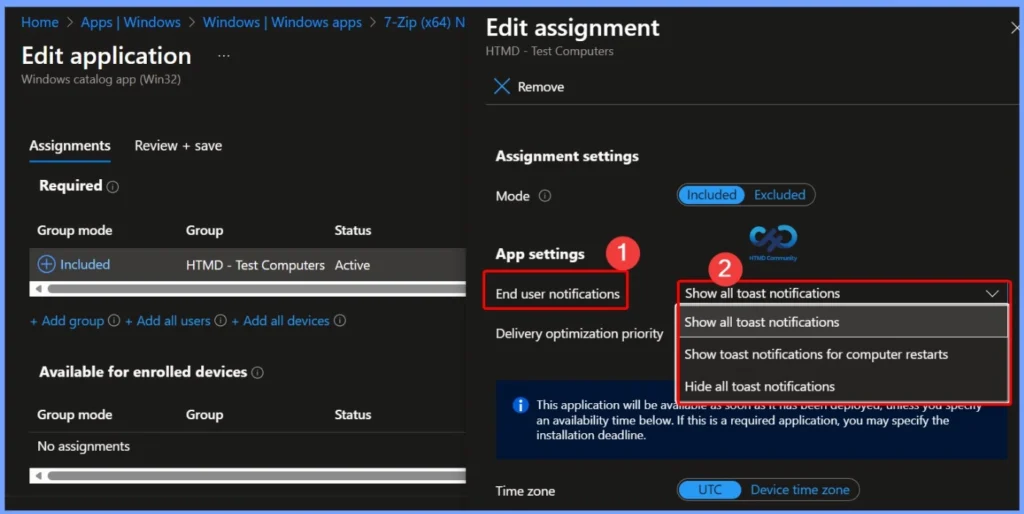
Hiding Toast Notifications for App Deployment
In this example, the Hide all toast notifications option is selected to suppress user notifications for the app deployment. This setting allows administrators to prevent Windows toast notifications from appearing for this specific app assignment. Click OK to confirm and apply the changes. Once you have selected End user notifications, it should appear. Select Review + save.
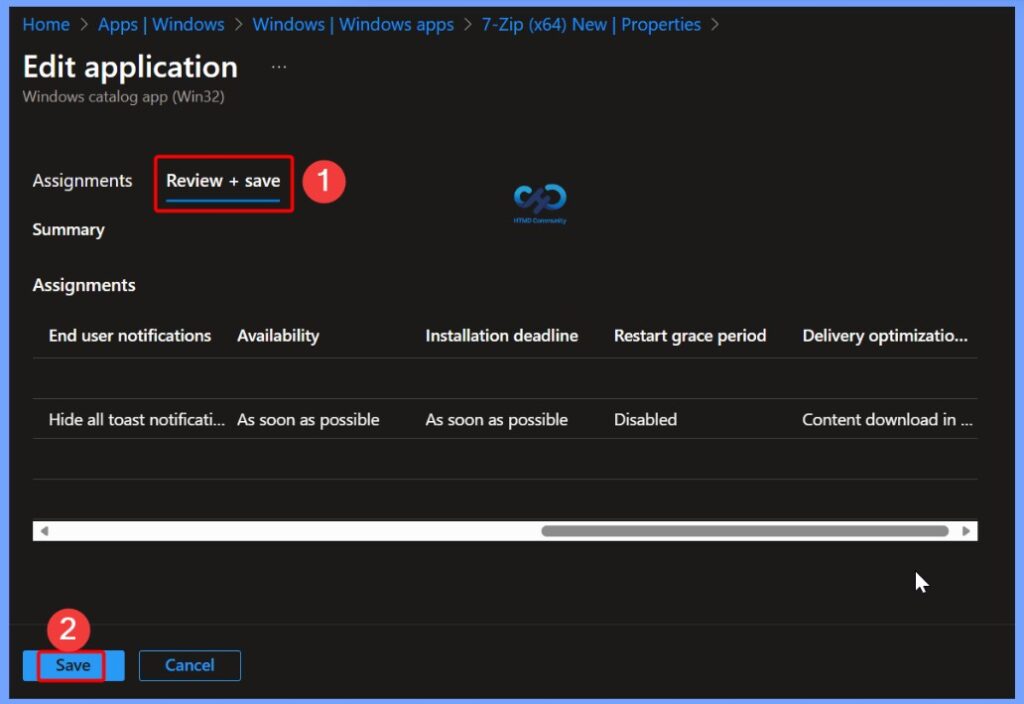
The next screen will appear with the Summary, review the selection and click Save. A notification will appear automatically in the top right-hand corner with a message. Here you can see, Application “7-Zip (x64)” saved successfully.
End Users Experience – Win32 App Deployment Notifications
The user will not see Windows notifications for the required app installations based on the selection “Hide all toast notifications” we have made, You can change it based on business requirements.
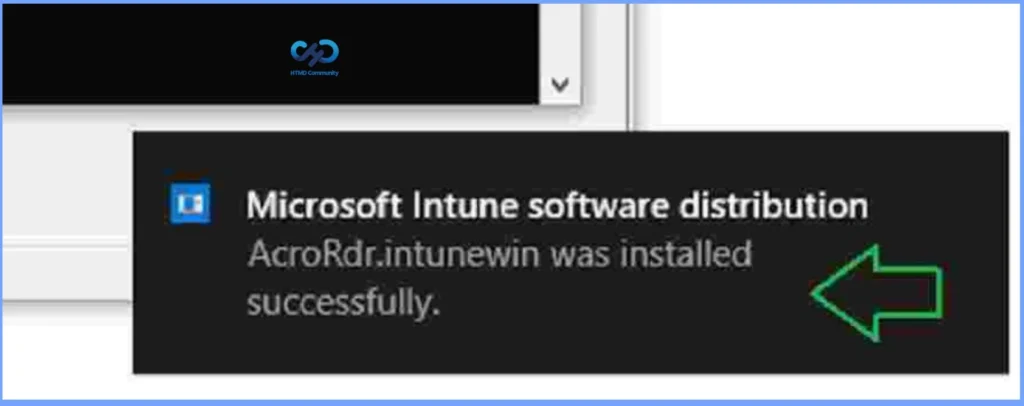
The behavior for the “Show all toast notifications“, the user will be notified of the download progress, and After successful application installation, the Toast message is displayed to the user. In case of an error, A failed message will be prompted.
Need Further Assistance or Have Technical Questions?
Join the LinkedIn Page and Telegram group to get the latest step-by-step guides and news updates. Join our Meetup Page to participate in User group meetings. Also, join the WhatsApp Community to get the latest news on Microsoft Technologies. We are there on Reddit as well.
About Author – Jitesh, Microsoft MVP, has over six years of working experience in the IT Industry. He writes and shares his experiences related to Microsoft device management technologies and IT Infrastructure management. His primary focus is Windows 10/11 Deployment solution with Configuration Manager, Microsoft Deployment Toolkit (MDT), and Microsoft Intune.


Is there any way to change the title of the toast notifications from “Microsoft Intune software distribution” to say “Megacorp IT”? Thank you for the great article!
is there any bug related to toast notification of restart grace period, though we have configured properly users are not getting toast notification.
Dude your website is unusable there are so many ads. Sort it out!