






How to Change SCCM Package Maximum Run Time
This post helps you to change SCCM Package Maximum Run Time. In the Maximum allowed run time, you can set the maximum time for a package expected to run on the client computers.
By default, the Maximum allowed run time (minutes) is set to 120 minutes (2 Hours) for the package you create in SCCM. However, you can always change the Maximum allowed run time based on your requirement.
The SCCM Maximum Run Time option is available for Applications, Packages, Software Updates, and Task Sequences. You can change the maximum Run Time to allow the package to run for a period of time.
Any advertised program fails to run when the maintenance windows defined on the client computer are set for a period that is less than that program’s Maximum allowed run time setting. This setting determines whether there is enough available time to install the package before the end of a maintenance window.

Starting in SCCM version 2203, You can add custom icons for packages. These icons appear in Software Center when you deploy the Packages. Instead of a default icon, a custom icon can improve the user experience to identify the software better, Check details Set SCCM Software Center Icon for Task Sequences Packages.
- SCCM Package Vs Application 32 Vs 64 Context
- Create SCCM Package Deployment using PowerShell
- ConfigMgr SCCM Package Migration During Side by Side Upgrade
How to Change SCCM Package Maximum Run Time
Let’s follow the below steps to extend the SCCM package maximum run time.
- Launch the SCCM console, Navigate to Software Library > Application Management > Packages.
- Select an existing package in the Packages node and then click Programs.
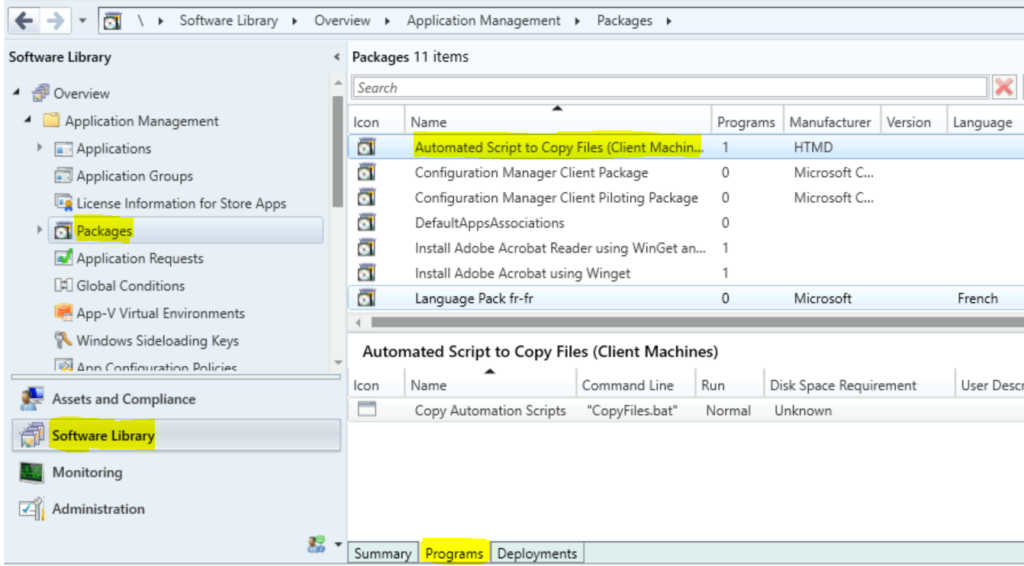
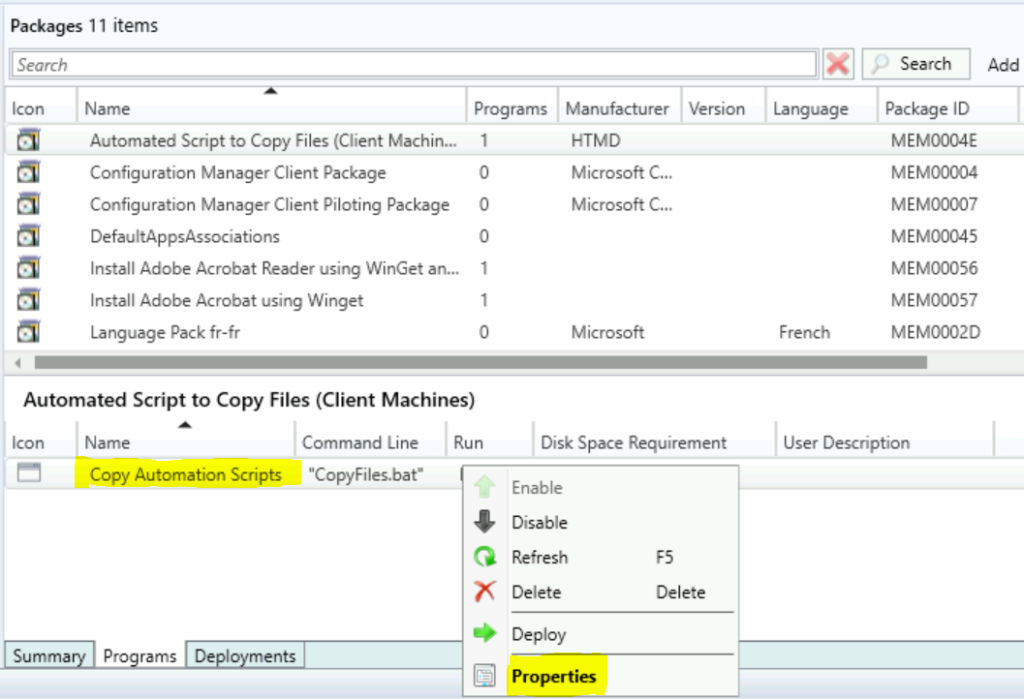
Let’s see how you can change the Maximum Run Time for a Program. Right-click on the program you created and select Properties.
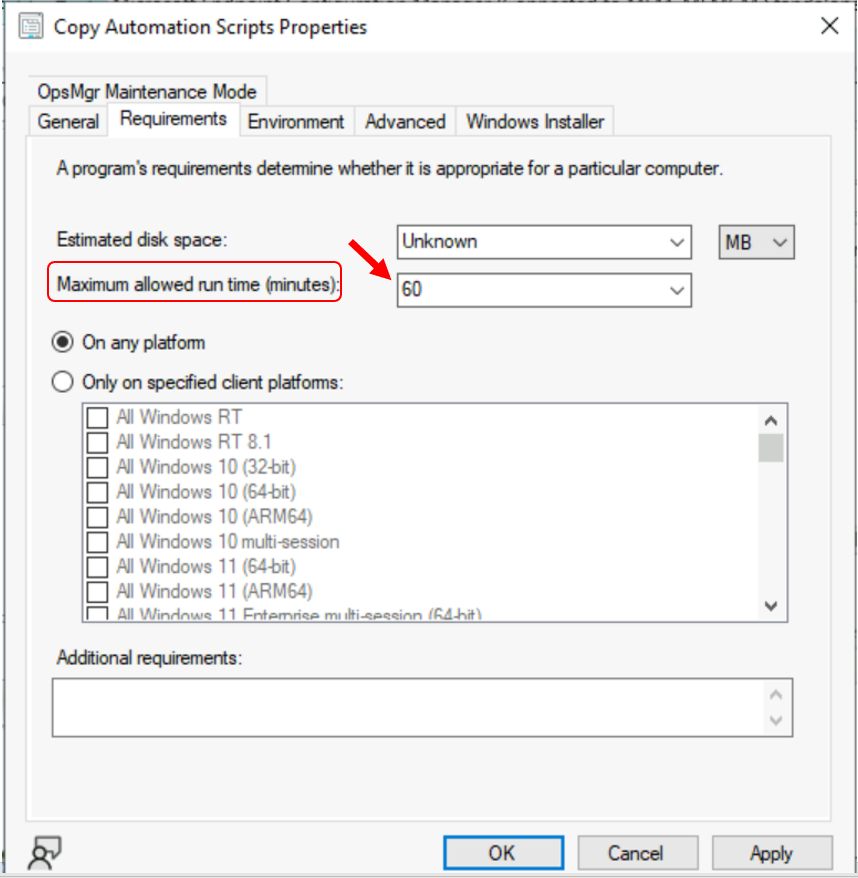
Select the Requirements tab, and modify the maximum allowed run time in minutes that you expect the program to run on the client computer. The default value is 120 minutes (2 hours). Then click Apply, and OK.
Note – From the drop-down list, If you set this value to Unknown, Configuration Manager sets the maximum allowed run time as 720 minutes (12 hours).
If the program exceeds the maximum run time, Configuration Manager stops it if the following conditions are met:
- You enable the option to Run with administrative rights
- You don’t enable the option to Allow users to view and interact with the program installation
If you use maintenance windows on the same collection to which you deploy this program, a conflict could occur if the Maximum allowed run time is longer than the scheduled maintenance window.
If you set the maximum run time to Unknown, the program starts to run during the maintenance window. It then continues to run as needed after the maintenance window is closed.
If you set the maximum run time to a specific period that’s greater than the length of any available maintenance window, then the client doesn’t run the program.




Discussion