






Intune Win32 App Dependencies Deployment
Let’s check how you can Intune Win32 App Dependencies Deployment. App dependencies are applications that must be installed before your Win32 app can be installed. You can require that other apps are installed as dependencies.
Specifically, the device must install the dependent apps before installing the Win32 app. There is a maximum of 100 dependencies, including the dependencies of any included dependencies and the app itself.
Win32 application deployment is for 32-bit and 64-bit application deployments. Using Intune Win32 App deployment, you can deploy x86 and x64 bit applications.
Before adding a Win32 app to Microsoft Intune, you must prepare the app using the Microsoft Win32 Content Prep Tool. You use the Microsoft Win32 Content Prep Tool to pre-process Windows classic (Win32) apps, Intune Win32 App Deployment Step By Step Guide.

- Intune Win32 App Deployment Toast Notification | User Experience
- Intune Management Extension (IME) Level 3 Troubleshooting Guide
- Intune Win32 App Issues Troubleshooting Client-Side Process Flow
Intune Win32 App Dependencies Deployment
You can use the following steps to add dependencies for the app installation from the MEM Admin Portal. Here you will see how you can modify an existing application, and add dependencies while creating an app.
- Sign in to the Microsoft Endpoint Manager admin center https://endpoint.microsoft.com/
- Select Apps > Windows. Select the existing Win32 application from the list to modify the notifications.
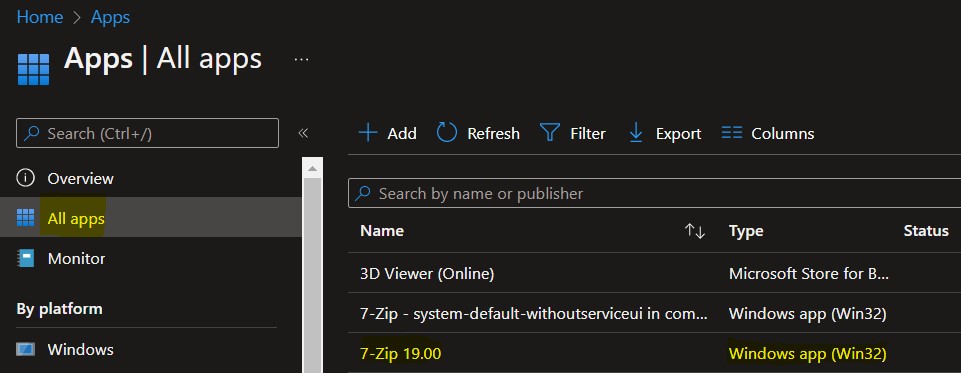
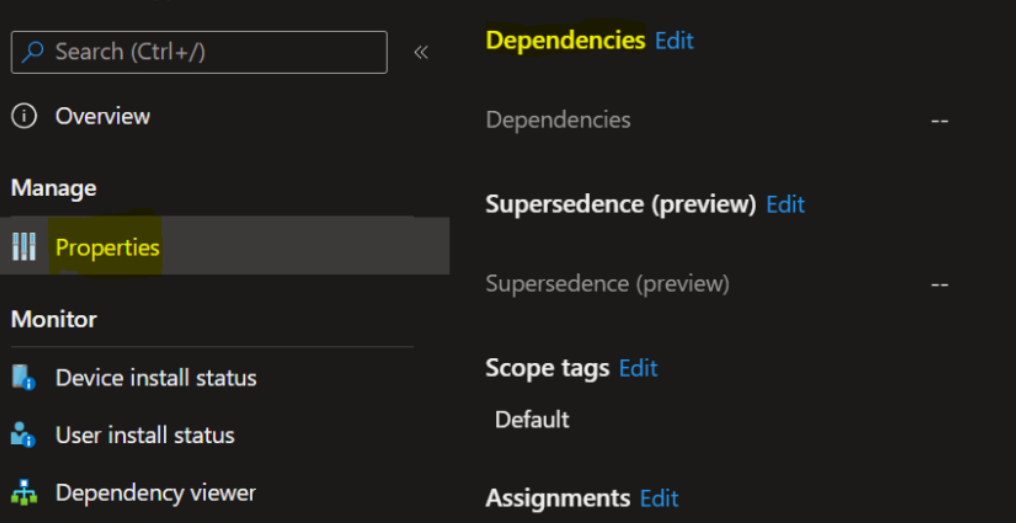
Select the application and select Properties. Scroll down and click on Edit in the Dependencies.
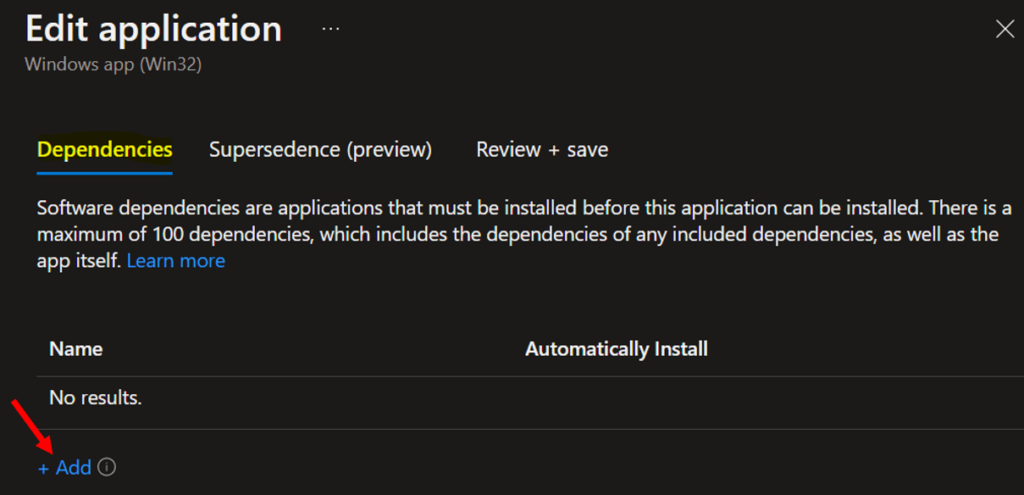
Select Add to display the Add dependency pane on the Dependencies page and select applications that must be installed before your Win32 app can be installed.
Note – Any Win32 app dependency also needs to be a Win32 app. It does not support depending on other app types, such as single MSI LOB apps or Microsoft Store apps.
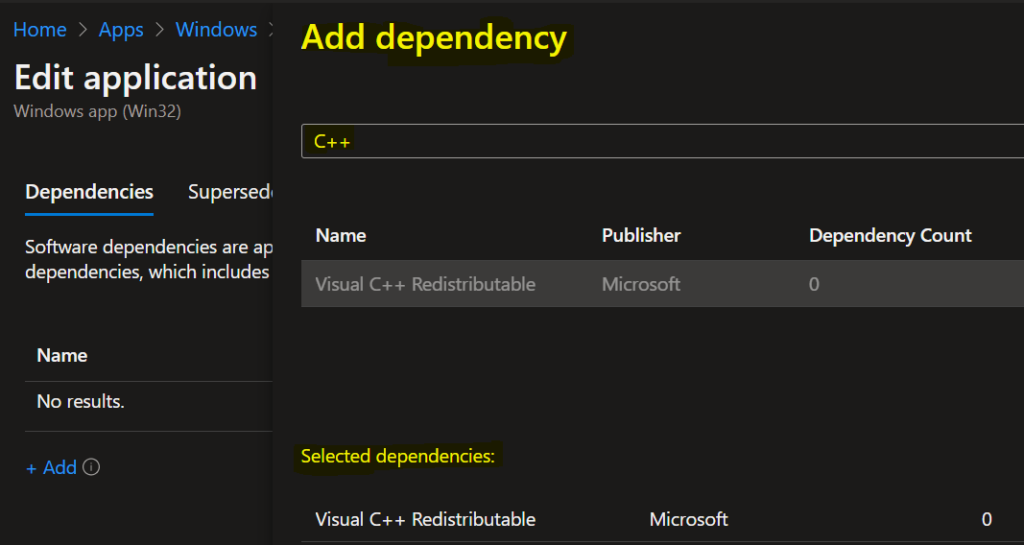
When adding an app dependency, you can search based on the app name and publisher. Additionally, you can sort your added dependencies based on app name and publisher. Add the dependent apps, and then click Select.
The Automatically install option is set to Yes for each dependency by default. You can choose whether or not to install each dependent app automatically by selecting Yes or No under the Automatically Install.
If the dependent app is not targeted to the user or device, Intune will automatically install the dependent app on the device to satisfy the dependency before installing your Win32 app.
Note: To delete a dependency, you must select the ellipsis (three dots) to the left of the dependent app located at the end of the row of the dependency list.
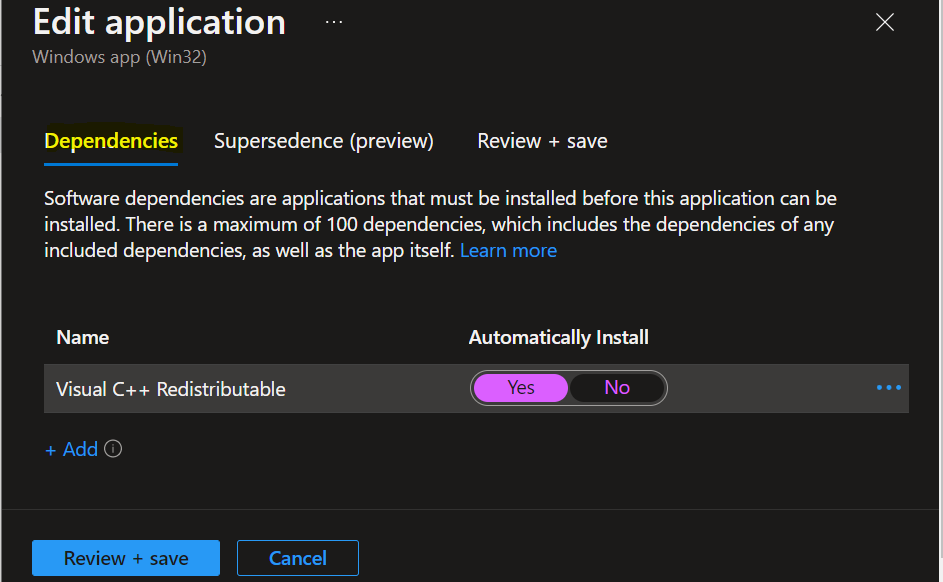
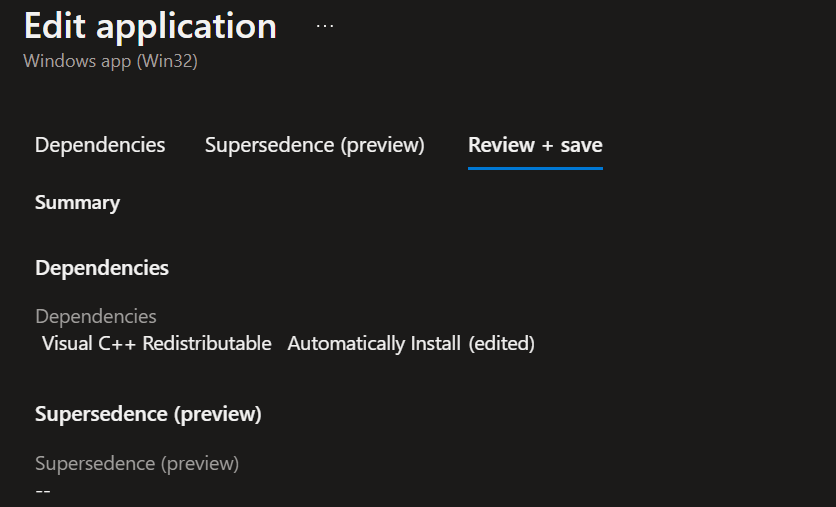
After you’ve selected dependencies, select Next to display the Supersedence page. The next screen will appear with the Summary, Review the selection and click Save.
A notification will appear automatically in the top right-hand corner with a message. Here you can see, Application saved successfully.
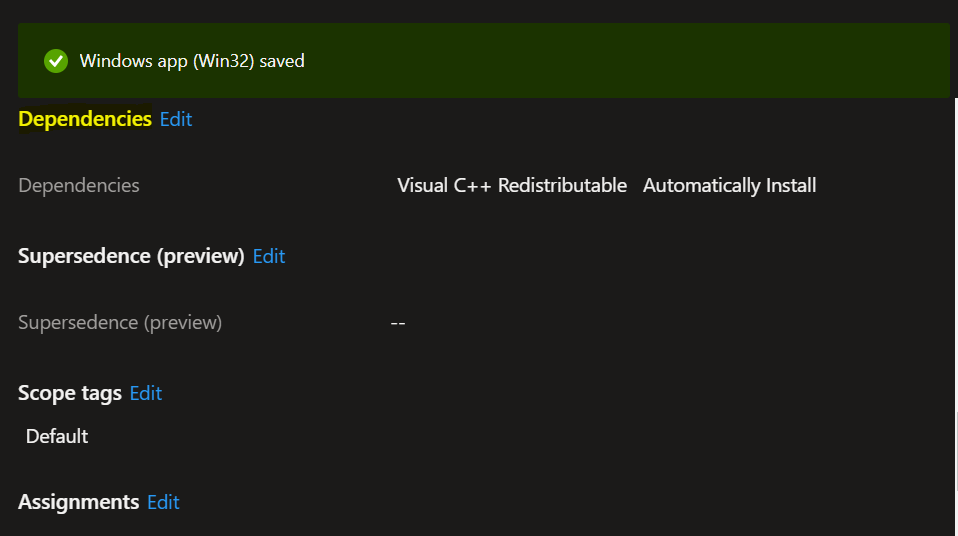
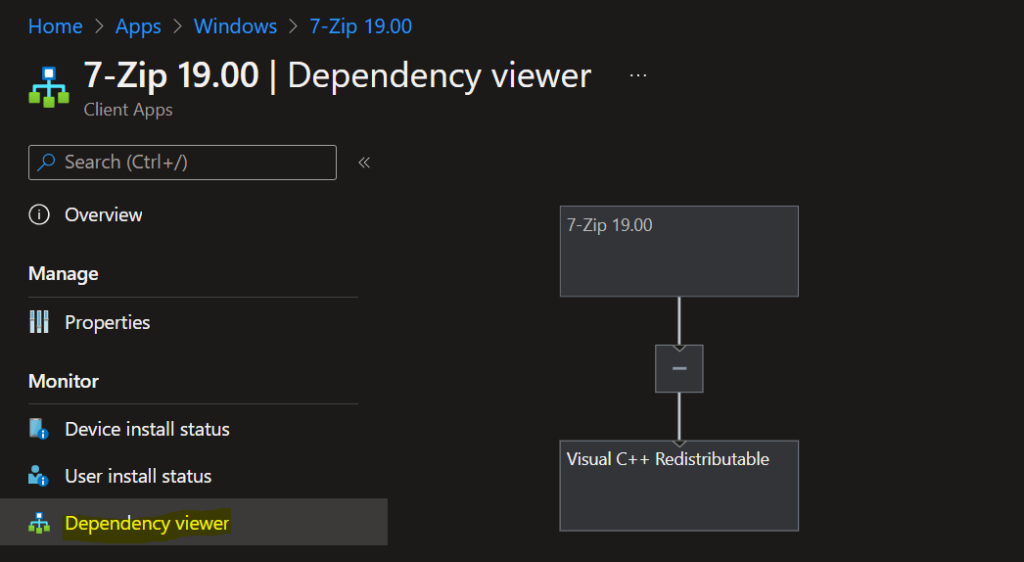
Once the Win32 app has been uploaded to Intune, you will see two new options – Dependencies and Dependency Viewer. Click on Dependency Viewer to see the graphical view of all dependencies for the application.
The next step is to check the app assignments. As soon as the application is targeted, the user will see Windows notifications indicating that dependent apps are being downloaded and installed as part of the Win32 app installation process. It’s good to review a few important points –
- Win32 apps added to Intune cannot be removed while in a dependency relationship. These apps can only be deleted after the dependency relationship is removed.
- If you choose not to put a dependency in the Automatically install, the Win32 app installation won’t be attempted.
- Each dependency will adhere to Intune Win32 app retry logic (try to install three times after waiting for five minutes) and the global re-evaluation schedule.
- Dependencies are applicable only when installing the Win32 app on the device. Dependencies are not applicable for uninstalling a Win32 app.
At client machines, You can track the details logged at IntuneManagementExtension.log located C:\ProgramData\Microsoft\IntuneManagementExtension\Log.
Here are the highlight parts from the logs that help track the application activity in client devices. You can get through an excellent article on Intune Win32 App Issues Troubleshooting for more details.


Really clearly and well documented article (so much better than MS’s doc)
Hi,
How do you create a Win32 App in one shot with machine and usersettings? 2 Packages, one in Machine Context, one in Usercontext and then a dependency for the two packages?
Thx Phil
is there a way we can add the sequence on dependency installation or it will install the way we add the application and sequence will be automatically evaluated
How about uninstalling dependencies after uninstalling the main app? There isn’t an option in Intune to handle this
is there any way we can add the sequence on dependency installation with or option?