






How to Disable SCCM Package Deployment
Let’s learn how you can disable SCCM package deployment. When you disable package deployment, the deployed package will disappear from the sccm software center.
This option is useful for sccm admins, if you don’t want package deployment to appear in the software center. Instead of deletion, you can quickly disable the program.
Similarly, SCCM also has a feature that allows you to disable application deployment. This is the most efficient way to manage application deployment. If you want to stop the deployment of an application, you can disable it temporarily. And later on, you can enable the deployment.
You can use PowerShell cmdlets to automate the package creation and deployment process with Configuration Manager (aka MEMCM), similar to using SCCM Console. This post helps the PowerShell enthusiast to start working on the PowerShell scripting solution for SCCM Package creation process.

Starting in SCCM version 2203, You can add custom icons for packages. These icons appear in Software Center when you deploy the Packages. Instead of a default icon, a custom icon can improve the user experience to identify the software better, Check details Set SCCM Software Center Icon for Task Sequences Packages.
- How to Change SCCM Package Maximum Run Time
- SCCM Collection Based on Installed Application Version
- SCCM Package Deployment Options in Distribution Points Tab
How to Disable SCCM Package Deployment
Let’s follow the steps to disable sccm package deployment –
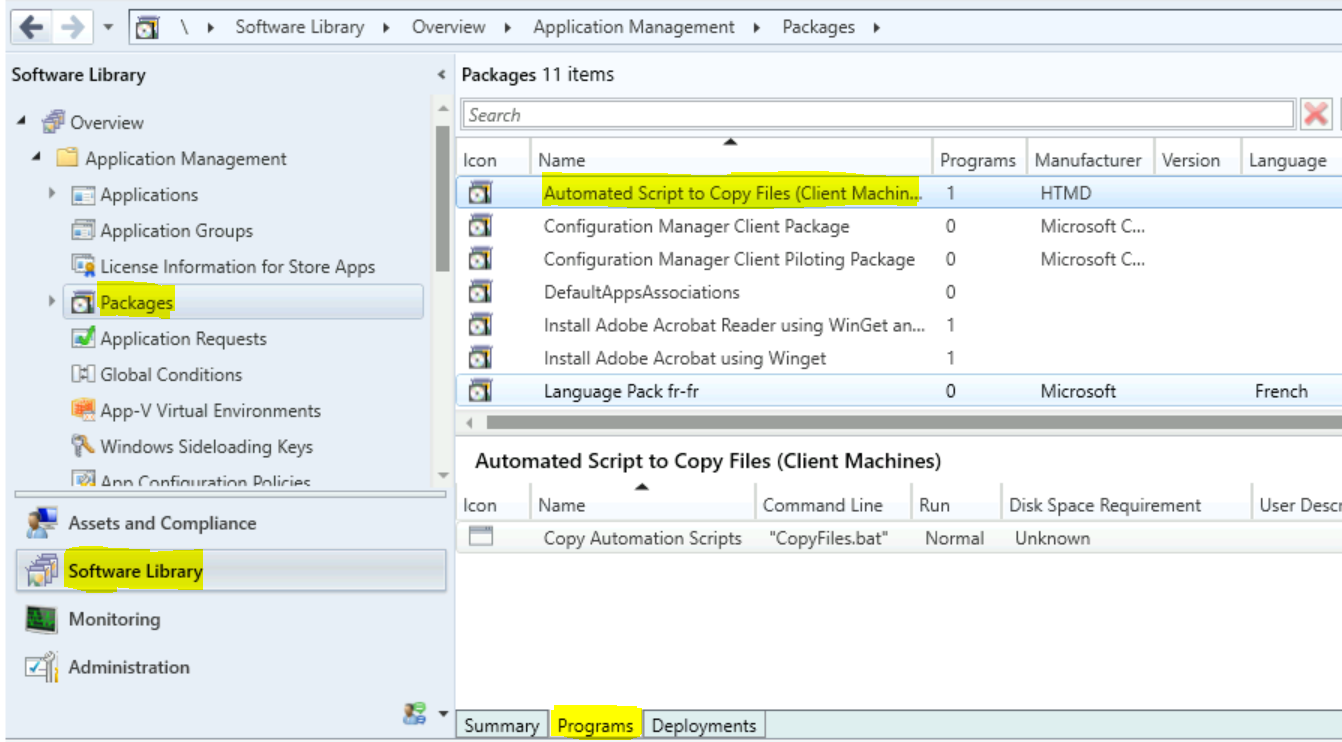
- Launch the SCCM console, Navigate to Software Library > Application Management > Packages.
- Select an existing package in the Packages node that you have deployed, and click Programs.
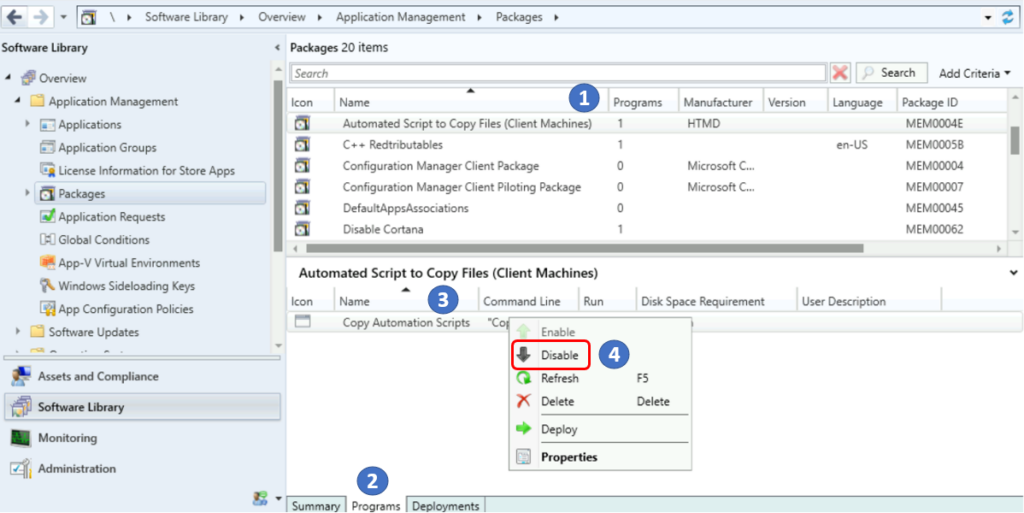
In the details pane, under the Programs tab. Right-click on deployment, and select Disable.
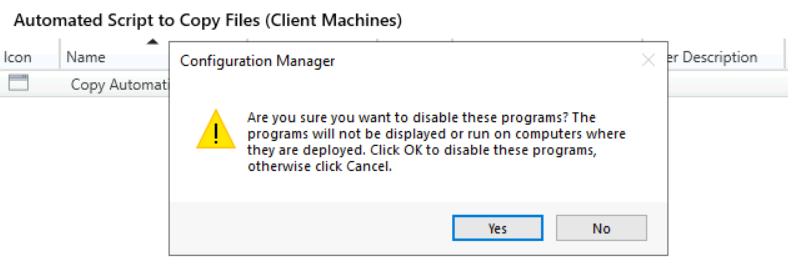
A prompt will appear with the message, “ Are you sure you want to disable these programs? The programs will not be displayed or run on computers where they are deployed. Click Yes to disable these programs, otherwise click No.
Once you click Yes to disable a package deployment, you can see the Program Status column showing the status Disable in the details pane under the Programs tab.
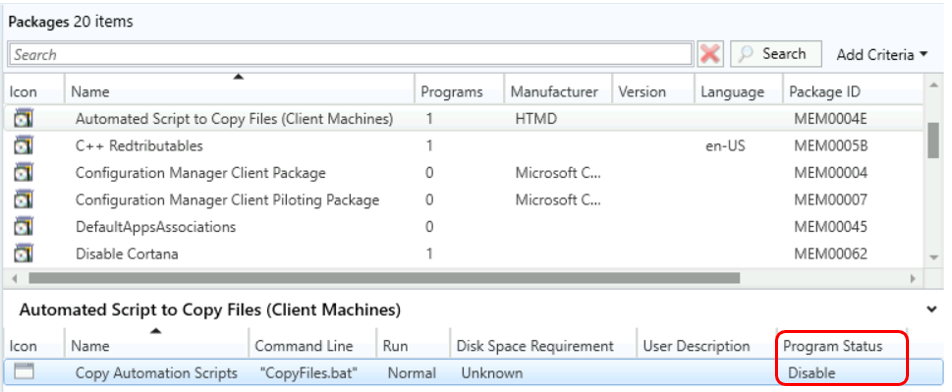
Note – If you cannot see the Program Status column in the Package Programs details pane. To add the status column, Right-click on a column detail name and Select the Program Status column.
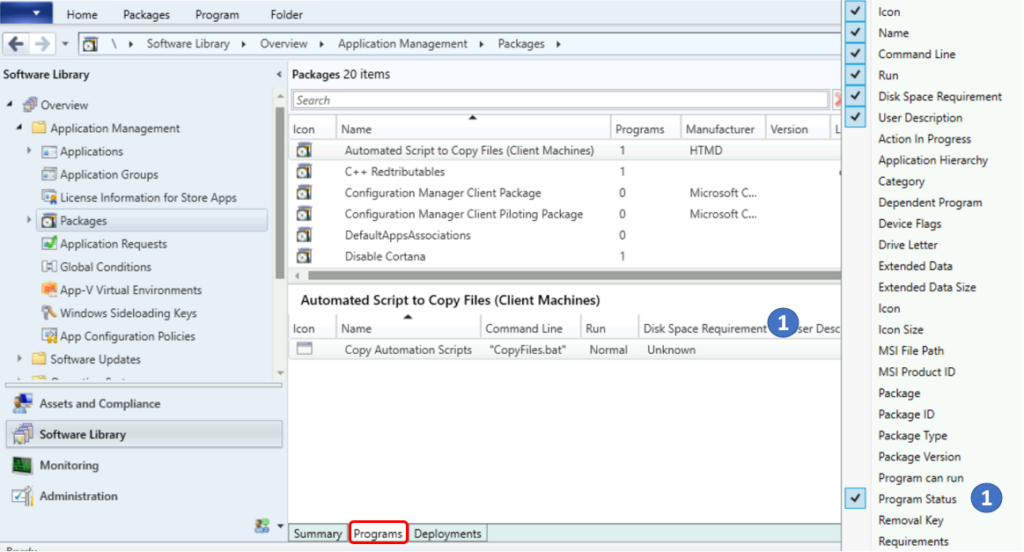
When you disable the package deployment in SCCM, the deployed package will disappear from the software center. After you disable the package deployment for device-based deployments, you can use the client notification action to Download Computer Policy.
When you trigger the download computer policy, this action immediately tells the client to update its policy from the site. If the deployment hasn’t started, the client receives the updated policy that the object is now disabled.
Enable SCCM Package Deployment
To enable the package deployment, you can follow the same process and select the Enable action on the application deployment.
- In the SCCM Console, Navigate to the Software Library > Application Management > Packages.
- Select the package programs that you’ve disabled the deployment. In the details pane, select the Programs tab. Right-click on deployment, and select Enable.
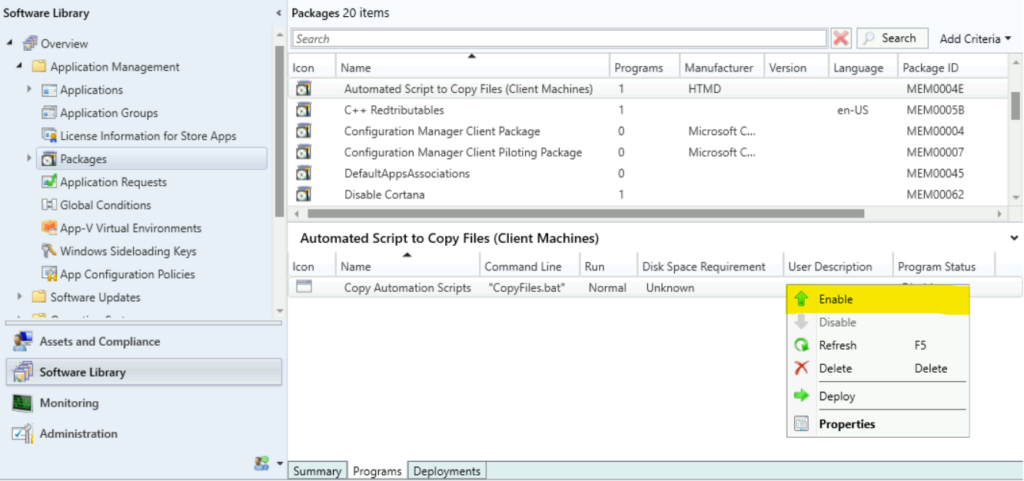
A prompt will appear, “ Are you sure you want to enable these programs? The programs will be displayed or run on computers where they are deployed. Click Ok to disable these programs, otherwise click Cancel.
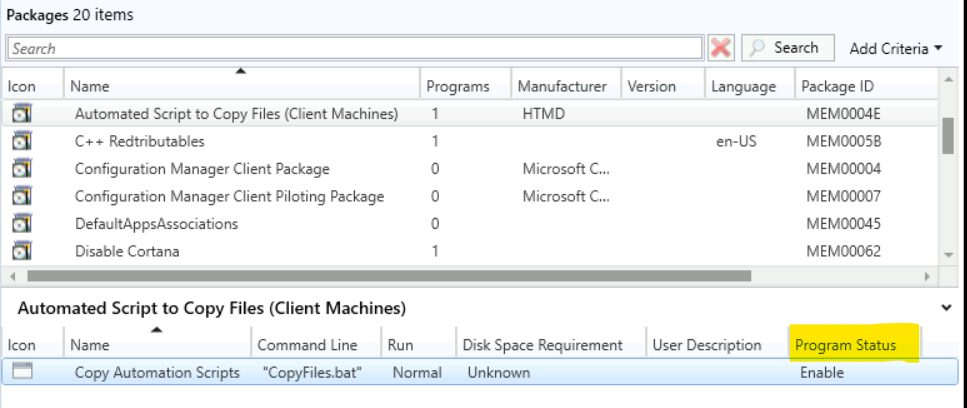
- The Program Status column shows the status Enable in the details pane under the Programs tab.




Discussion